

Remove DesktopEdition Mac (2025 Instructions)

Before we dive in
Before we dive in, let's make sure you stay safe online. We created SpyHunter because your security matters to us.
Protect your computer today — download SpyHunter right here! Check out our top tips below to keep your computer safe and secure.

Are you struggling with endless pop-ups and unwanted ads on your Mac? It could be DesktopEdition – a notorious adware that is more than a simple annoyance.
This program bombards you with ads. It also harms your browsing experience and might risk your data.
Our guide covers what DesktopEdition is and how it gets into your Mac. Most importantly, it gives step-by-step instructions for removal.
Say goodbye to intrusive ads and reclaim your digital peace of mind with our expert advice. Let’s get started:
Understanding the risks of DesktopEdition adware
Adware like DesktopEdition on Macs can lead to a compromised user experience and potential privacy issues. These adware programs are designed primarily for profit through aggressive advertising tactics.
They alter browser settings without permission, changing the default homepage and search engine to ones controlled by the adware.
The purpose is to increase traffic to specific pages, generating revenue for the adware creators through ad impressions or clicks.
However, the risks extend beyond annoyance, as these changes can lead to security vulnerabilities. The adware can expose users to the following:
- Misleading search results.
- Phishing sites
- Additional malware infections.
Moreover, the data collection practices of such adware could jeopardize user privacy, potentially harvesting sensitive information that could be used for fraudulent activities or sold to third parties.
DesktopEdition infiltration methods
Knowing how DesktopEdition adware gets into your Mac is vital to stopping it and keeping your digital life safe.
Adware, such as DesktopEdition, uses tricky methods to get into systems. It takes advantage of users not paying close attention during software installations.
By familiarizing yourself with the most common infiltration methods, you can stay one step ahead and keep your device secure. Common DesktopEdition infiltration methods include:
- Bundled Software Installations: DesktopEdition adware often infiltrates systems through bundled software from the Internet. Users unknowingly install this adware when they install free applications or downloads that come packaged with additional, unwanted programs.
- Discreet Installation Without Consent: The threat is discreetly installed without the user’s explicit consent, typically during the setup process of another software.
- Deceptive Installation Tactics: Some installers use underhanded tactics to trick users into accepting bundled adware. This can include misleading buttons or checkboxes suggesting the user only agrees to install the primary software.
The signs of DesktopEdition adware infection
Identifying the presence of DesktopEdition adware on your Mac is the first crucial step towards securing your device and personal information.
Adware not only disrupts your browsing experience but can also pose significant privacy risks. By staying alert to the subtle yet distinct signs of infection, you can prevent further damage and take immediate action.
- Modified Browser Settings: Unexpected changes to your homepage or default search engine.
- Frequent Pop-ups and Ads: Regular interruptions by ads or redirects to unfamiliar sites.
- Browser Slowdown: A noticeable decrease in browser performance.
- Increased Internet Traffic: Unexplained surge in data usage suggesting background adware activity.
- Unwanted Browser Extensions/Toolbars: New toolbars or extensions installed without your consent.
Recognizing these signs is not just about identifying a problem; it’s about taking back control of your digital environment.
Once you’ve spotted any of these indicators, the following steps involve removing the adware and safeguarding your Mac against future infections.
Initial steps before removing DesktopEdition
Before removing DesktopEdition adware from your Mac, taking a few preparatory steps can significantly enhance the safety and efficiency of the process.
Here’s how to set the stage for a smooth and secure cleanup.
Back up your Mac
Securing your data is paramount before embarking on the removal of DesktopEdition adware from your Mac.
A thorough backup ensures that all your essential documents, photos, and files are safe. This protects against potential data loss during the adware cleanup process.
Leveraging macOS’s Time Machine or utilizing an external hard drive are effective strategies for preserving your data.
This preparatory step is not just about data protection; it’s about instilling confidence that your digital life remains unaffected regardless of the outcome.
Disconnect from the Internet
Before starting the removal process, disconnect your Mac from the Internet.
This prevents the adware from communicating with external servers, potentially downloading more unwanted software or sending out personal information.
Turning off Wi-Fi and unplugging Ethernet cables can halt this unwanted data exchange.
Enter Safe Mode
Booting your Mac in Safe Mode (holding down the Shift key during startup) is recommended.
Safe Mode limits the number of applications and processes that run on startup, including potentially some components of the DesktopEdition adware. This can make the adware less active and easier to remove.
Detailed steps to remove DesktopEdition from your Mac
Starting the removal of DesktopEdition adware is vital to securing your Mac. This guide provides clear steps to detect and remove DesktopEdition, ensuring a clean and safe system.
Follow along to effectively remove DesktopEdition and enhance your device’s security.
Step 1: Terminate DesktopEdition-related applications
Begin the removal by closing any applications associated with DesktopEdition on your Mac.
This targeted approach prevents these specific programs from hindering the cleanup process, as they may utilize or protect files slated for removal.
Ensuring that all DesktopEdition-related applications are shut down facilitates an uninterrupted and efficient adware elimination.
- Open the Activity Monitor: Use Spotlight search to find and open the Activity Monitor application.
- Search for Suspicious Applications: Look for any applications that seem out of place or you don’t recall installing. DesktopEdition-related processes may not always be clearly named, so look for anything unfamiliar.
- Quit the Process: Select the suspicious application, then click the “X” button at the top of the window to quit the process. Confirm if prompted.
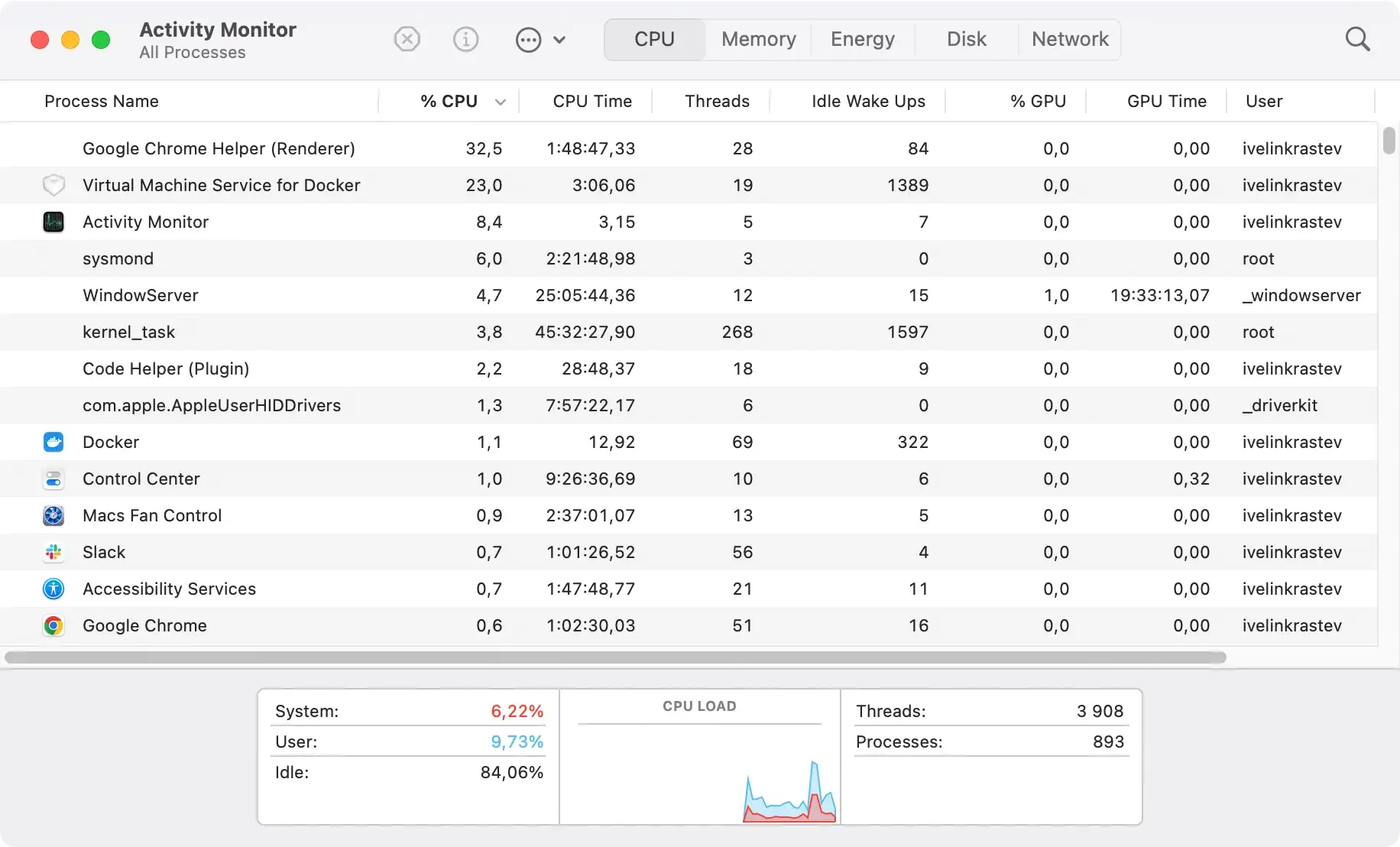
By meticulously closing all applications linked to DesktopEdition, you ensure a more thorough and effective cleanup.
Step 2: Use Finder to locate and remove DesktopEdition
Finding and deleting DesktopEdition is critical in purging your Mac of this intrusive adware. This process targets the core components that allow the adware to function.
- Open Finder: Start by launching Finder on your Mac.
- Access Applications: Click ‘Go’ in the menu bar, then choose ‘Applications’ to view your installed applications.
- Search for DesktopEdition: Look for DesktopEdition or any suspicious applications related to the adware. Remember, they might be under different names.
- Drag to Trash: Once identified, drag the dubious application(s) to the Trash Bin to remove them from your system.
- Empty the Trash: Complete the process by emptying the Trash, ensuring the applications are permanently deleted.

Step 3: Clean up infected browser extensions and plugins
Adware often installs unwanted browser extensions and plugins.
To clean your browsers from these unwanted additions, access the browser settings and navigate to the extensions or add-ons section.
- In Safari, go to
Preferencesand click theExtensionstab. - In Google Chrome, open
Preferencesand click onExtensionsin the left pane. - For Firefox, users can access the menu and inspect Extensions and Plugin lists.
Look for any items associated with DesktopEdition and choose to remove/uninstall them. After the cleanup, restart your browser to finalize the changes.
Step 4: Pinpoint and delete hidden adware files
Adware like DesktopEdition often leaves hidden files behind. These files can linger outside the Applications folder and are not removed during initial uninstallation. To find and delete these, follow these steps:
- Open Finder: Use the ‘Go’ function ⇧+⌘+G to access the Find window.
- Search Directories: Enter the paths of common adware locations to check for hidden files. Key directories to search include:
/Library/Application Support//Library/LaunchAgents//Library/LaunchDaemons//Library/PreferencePanes//Library/StartupItems//private/var/root/Library/Application Support/~/Downloads/
- Access Permissions: Ensure you have the proper permissions to delete the DesktopEdition-related files.
- Delete Files: Carefully remove adware files in these directories to prevent DesktopEdition from reactivating or restoring itself.

By thoroughly searching these directories and removing hidden files, you completely eradicate DesktopEdition from your Mac.
Step 5: Restore browser settings altered by DesktopEdition
Reset Safari to its default configuration
To reset Safari and clear any changes made by DesktopEdition adware, open Safari Preferences and navigate to the relevant section, such as the General or Search tabs.
Manually adjust your homepage and search engine settings back to your preferred choices. If necessary, consider resetting all settings to default to ensure all adware-induced changes are reverted.
Return Google Chrome to its original state
If DesktopEdition has altered Chrome settings, you can return them to their original state by opening Settings in Chrome.
Scroll down to the bottom and locate the advanced settings to find the option to reset the browser.
This will remove all modifications, including those made by the adware, and should be used cautiously, as it will erase all your personalized settings and information.
Revert Mozilla Firefox to clean settings
For Mozilla Firefox users affected by DesktopEdition, access the troubleshooting information via the Firefox Help menu or type about:support in the address bar.
Here, you can find the option to refresh Firefox. This process will remove adware alterations while attempting to preserve valuable user data such as bookmarks and passwords.
Step 6: Use anti-malware software to scan your Mac
Completing the manual cleanup of DesktopEdition adware with a comprehensive scan using anti-malware software is crucial.
SpyHunter for Mac offers a robust solution to detect and remove many malware threats, including adware, viruses, and potentially unwanted programs (PUPs).
Its features include real-time protection and a user-friendly interface, making it an effective tool for ensuring your Mac remains clean and secure.
SpyHunter features
- Comprehensive Malware Detection: Utilizes advanced scanning technology to identify malware and adware.
- Real-Time Protection: Monitors your Mac in real-time to prevent new infections.
- User-Friendly Interface: Designed for ease of use, allowing for straightforward navigation and operation.

Download and installation instructions
- Download SpyHunter from here to ensure you have the latest version of the app.
- Once downloaded, open the installer and follow the on-screen instructions to install SpyHunter on your Mac.
- Open SpyHunter and start a full system scan to check your Mac for any remnants of DesktopEdition and other malicious code.
- After the scan, review the detected threats. SpyHunter will list all malware found, offering options to quarantine the threats.

Using SpyHunter for Mac, you address the immediate concern of DesktopEdition adware and enhance your overall cybersecurity posture.
Secure your Mac after removing DesktopEdition
Once DesktopEdition adware and related threats are removed from your Mac, it’s imperative to secure your system to prevent future infections.
Ensuring your Mac’s security involves adjusting settings, educating yourself about safe computing practices, and possibly incorporating additional software to provide ongoing protection against adware and other malicious software.
Utilizing antivirus software for continuous protection
Investing in a reliable anti-malware program can offer real-time protection and help detect potential threats before they impact your system.
Software like SpyHunter for Mac seamlessly scans your computer for adware and other types of malware, ensuring enhanced security as you browse the Internet. Download SpyHunter for free here and secure your Apple computer today.
Ensure the solution you choose is compatible with the MacOS environment and receives frequent updates in response to the evolving landscape of cybersecurity threats.
Best practices to prevent future adware infections
- Download Software Carefully: Only use verified developers or the App Store.
- Opt for Custom Installations: Always choose custom installation options to avoid bundled software.
- Keep Systems Updated: Regularly update your operating system and applications for the latest security patches.
- Adjust Browser Settings: Disable pop-ups and restrict unauthorized downloads to enhance online safety.
- Use Anti-Malware Tools: Install reputable anti-malware software, like SpyHunter for Mac, for ongoing protection.
- Stay Informed: Keep abreast of the latest cybersecurity threats and how to avoid them.
By following the detailed steps for removing DesktopEdition adware and adhering to the best practices outlined, you can significantly enhance your Mac’s security and protect it from future infections.
Remember, vigilance and proactive measures are your best defense against the ever-evolving landscape of online threats.
