

How To Fix Error Code -36 On Mac [2025 Guide]

Before we dive in
Before we dive in, let's make sure you stay safe online. We created SpyHunter because your security matters to us.
Protect your computer today — download SpyHunter right here! Check out our top tips below to keep your computer safe and secure.

Ever tried moving or copying files on your Mac and suddenly you’re hit with a “The Finder can’t complete the operation” message?
You’re facing the notorious Mac error code -36, a frustrating error that can pop up whether you’re dealing with files on a local or external drive.
But what causes this error, and more importantly, how can you fix it? Whether it’s a corrupted .DS_Store file, a glitch in macOS, or an external drive issue, understanding the roots of this error is key to solving it.
This article dives into practical troubleshooting steps, providing you all you need to get back on track without losing your cool—or your files.
What exactly is Mac error code -36?
Mac error code -36 is a common issue that can disrupt file operations. It is often caused by problems with file paths or incompatible file names. If you want to learn more about Mac error codes, check out our comprehensive guide, which covers a wide range of errors and their solutions.
When you try to copy files or move them using the Finder application—an essential file management tool on macOS—this error might pop up. It’s accompanied by a message saying, “The Finder can’t complete the operation because some data in ‘FileName’ can’t be read or written. (Error code -36).”
This indicates that Finder encountered a problem accessing or processing the file you were handling and running into an issue with the data transfer.

It’s crucial to note that this error doesn’t discriminate by device type or data source. Whether you’re working with files on a local drive, an external hard drive, or a USB stick, this error can occur.
What causes error code -36 on Mac
Error code -36 on Mac can stem from multiple sources, primarily revolving around file and system integrity issues.
One prevalent cause is the corruption of .DS_Store files. These hidden files, created automatically by macOS within each folder, store custom settings like view options and icon positions.
If they become corrupted, your system might fail to read or write the data correctly, prompting error code -36.
Other potential causes include software glitches within your macOS, issues with file permissions, or hardware problems such as a failing or improperly connected external drive.
These factors can prevent your Mac’s Finder from performing normal file operations, leading to this error. By understanding these root causes, you can apply the correct troubleshooting methods to resolve the issue efficiently.
Steps to resolve Mac error code -36
Encountering error code -36 on your Mac can be frustrating since this error stops file transfers, particularly when moving files between a Mac and an external drive or even when downloading from the internet.
To resolve this issue, several steps are recommended. By following these steps systematically, you can troubleshoot and potentially fix the root cause of error code -36 on your Mac.
Use the dot_clean command in Terminal
The dot_clean command is a useful Terminal command on Mac that merges .DS_Store files and their corresponding data files within a folder or even a whole disk.
Running this command helps in resolving issues like error code -36, which often arises due to conflicts between these hidden system files and the file management processes.
By merging these files, the system can handle file operations more smoothly, reducing the likelihood of errors during transfers or modifications.
To attempt fixing the issue using the Terminal application, do the following:
- Open
Terminalfrom yourUtilitiesfolder. - Type the
dot_cleancommand in theTerminalwindow and hitReturn. - Drag and drop the file path of the problematic files causing error code -36 into the
Terminalwindow, then pressReturnagain.
Terminal commands are usually considered a more advanced technique, but in this case, the process is very simple.
Use Disk Utility in solving error code -36
Disk Utility, a built-in tool on macOS, plays a crucial role in solving error code -36 by checking and repairing disk errors.
When used, it scans the drive for inconsistencies and errors which might be causing the read or write faults associated with this error code.
It’s particularly effective in cases where disk corruption or improper formatting leads to the error, making it a vital step in the troubleshooting process.
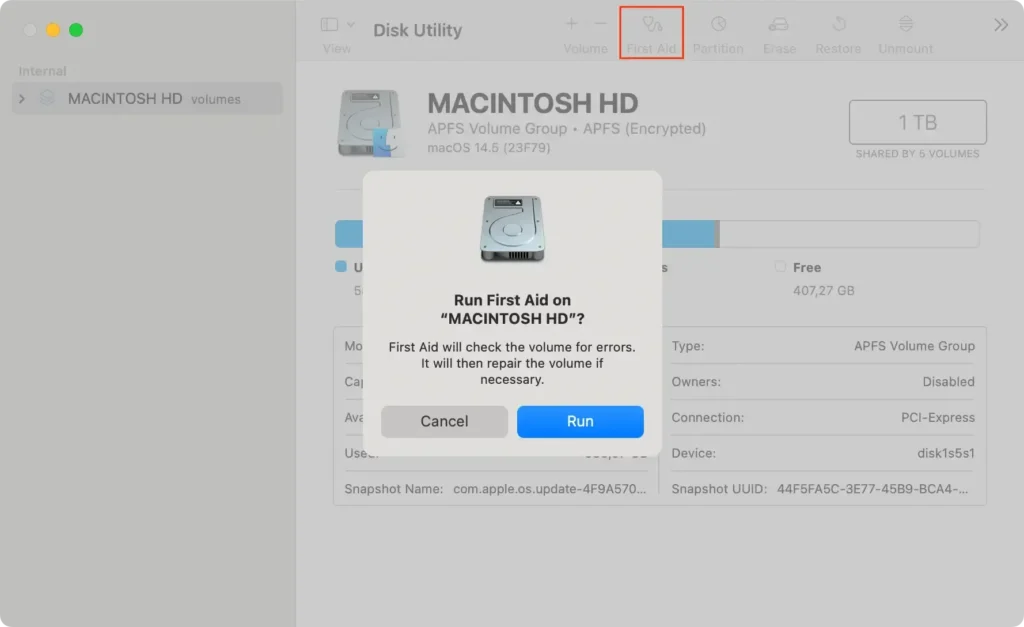
To try to resolve error -36 on Mac using the Disk Utility, do the following:
- Launch the
Disk Utilityapp from yourUtilitiesfolder. - From the menu on the left side, click on the drive that you were using when the error came up.
- Click on the
First Aidbutton in the main menu of theDisk Utilityapp and follow the instructions to repair the selected drive.
Verify file permissions on Mac
Verifying file permissions on a Mac ensures that files and directories are accessible to authorized users and applications, which is essential for seamless operations.
Incorrect permissions can lead to issues like error code -36, as the system prevents certain operations from executing properly.
By checking and rectifying permissions, users can ensure smooth file management without unnecessary interruptions.
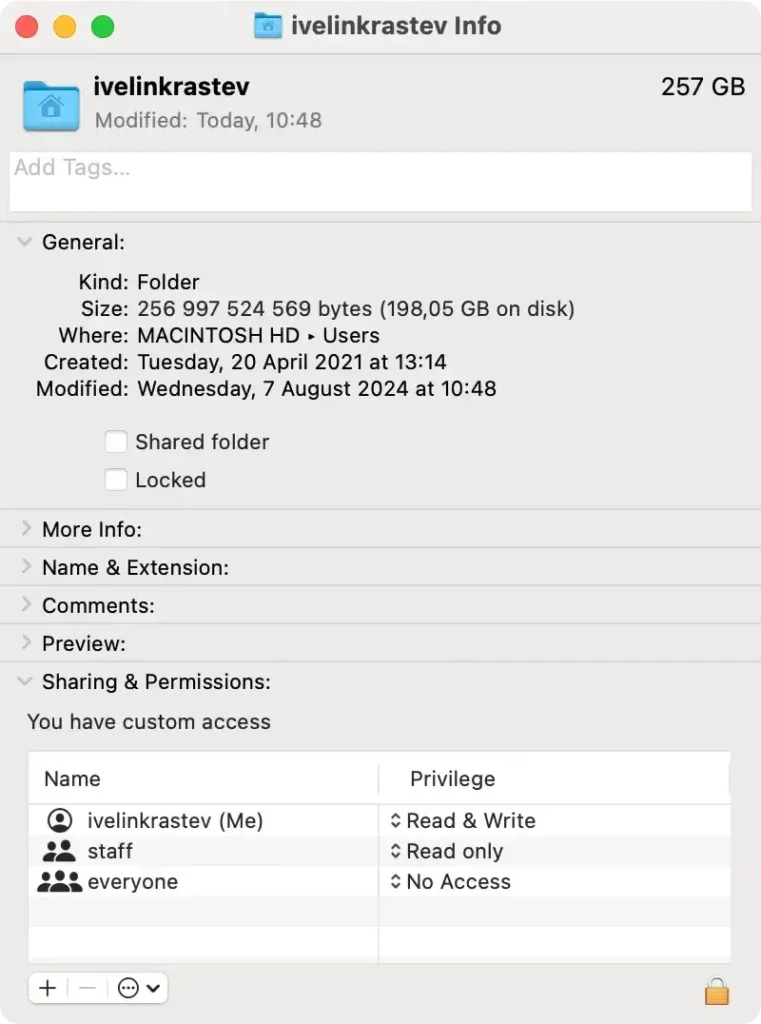
- Navigate to the drive and folder that you were using when error code -36 came up.
- Select the file or folder and click
File > Get Infoin theFindermenu at the top of the window. - Click on
Sharing & Permissions. - Make sure the appropriate file permission is set to allow you to complete your file operation.
Deleting .DS_Store files
If error code -36 persists, one effective method is to delete .DS_Store files, which can become corrupted.
Here’s how:
- Open
Terminalfrom theUtilitiesfolder. - Type the following command:
sudo find / -name ".DS_Store" -depth -exec rm {} \and then pressReturn. - Enter your administrator password when prompted to initiate the deletion.
- Once the process is complete, reboot your Mac to apply the changes.
This process removes the potentially corrupted files, likely resolving the error if they were the cause.
Update macOS to resolve error code -36
Updating macOS is another viable solution to resolve error code -36.
New updates often carry bug fixes and enhancements that improve the overall functionality and compatibility of the system with external storage devices.
By ensuring your operating system is up-to-date, you potentially clear out any issues arising from system bugs or outdated features that could be causing the problem.
Use SpyHunter to safeguard your system’s health
Using a reliable anti-malware solution is a great way to minimize the potential risk of issues similar to Finder error code -36.
SpyHunter is a fully-featured anti-malware application that provides both real-time protection and a deep system scanner. Having an extra layer of protection on your system can significantly lower the risk of running into system errors caused by malware.
You can download SpyHunter here and follow the instructions on your screen to finish the install.
Once installed, launch SpyHunter and run a full system scan from the app’s main menu. Once the scan is complete, you will see a list of all malware that might potentially be hiding on your system.

Use the application’s interface to select and remove any threats found and perform an automated cleanup.

When should you consider professional help for your Mac?
Deciding to seek professional help for your Mac should come after basic troubleshooting measures fail.
If you have gone through standard steps such as using First Aid in Disk Utility, updating your macOS, or scanning for malware and you keep getting the same error, expert intervention is advisable.
Specific scenarios that warrant this include persistent system crashes, frequent error messages beyond just error message -36, and inability to access important data.
Professional support typically offers advanced diagnostics tools and expertise in macOS, which can be crucial for problems stemming from deeper software or hardware issues.
If valuable data is at risk, or you notice your system’s performance degrading unpredictably, these are clear indicators that professional help might be necessary. Remember, timely expert intervention can prevent more severe damage to your Mac and data loss.
