

What Is Lockdown Mode On MacOS?

Before we dive in
Before we dive in, let's make sure you stay safe online. We created SpyHunter because your security matters to us.
Protect your computer today — download SpyHunter right here! Check out our top tips below to keep your computer safe and secure.

In an era of cyber threats increasingly targeting Mac computers too, Apple has introduced Lockdown Mode on macOS as a powerful defense mechanism against highly targeted attacks.
While most people may never need this level of security, it serves as a critical safeguard for individuals facing sophisticated digital threats.
This article examines what Lockdown Mode is, how it works, and whether it’s the right choice for you.
What exactly is Lockdown Mode?
Lockdown Mode is a feature on Mac, iPhone, iPad, and Apple Watch designed to protect against targeted attacks using spyware and other malware.
It places restrictions on how apps receive files and how personal data is shared. Apple introduced Lockdown Mode in iOS 16 and macOS Ventura to address targeted attacks.
The default setting for Lockdown Mode is Off, and users can enable or disable it based on their risk perception.
Apple emphasizes that most people do not need Lockdown Mode, as it is designed for those at higher risk of attacks.
How Lockdown Mode works
When enabled, Lockdown Mode dramatically reduces the potential attack surface by restricting several macOS features that hackers commonly exploit.
Some of these restrictions include:
- Blocking incoming FaceTime calls from unknown contacts.
- Disabling link previews in Messages to prevent potential malware delivery.
- Limiting web browsing capabilities, including disabling certain web fonts and JavaScript features.
- Restricting shared albums in the Photos app and blocking certain images from being loaded.
- Preventing configuration profiles from being installed.
- Restricting message attachments to protect against exploits.
- Blocking incoming invitations and requests from unknown users.
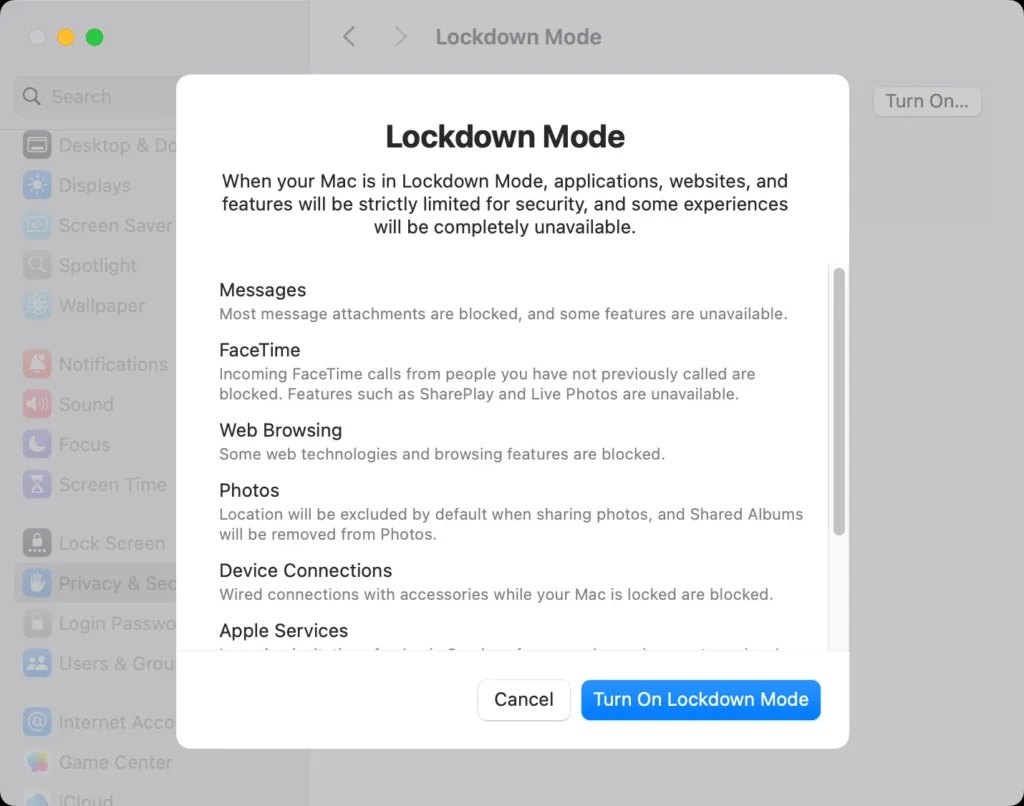
Lockdown Mode restricts the ability to receive unsolicited communications and contains limits on web browsing.
It has undergone updates that introduced support for Apple Watch and improved security features. Lockdown Mode has blocked real-world attacks when enabled, demonstrating its effectiveness.
How to enable Lockdown Mode on macOS
If you believe you are at risk and need additional protections, you can enable Lockdown Mode by following these steps:
- Open the
Settingsapp on your Mac. - Navigate to
System Settings. - Scroll down and select
Privacy & Security. - Find the
Lockdown Modesection and clickTurn On. - Confirm your selection by entering your Apple account password or using biometric authentication.
- Restart your device to apply the changes.
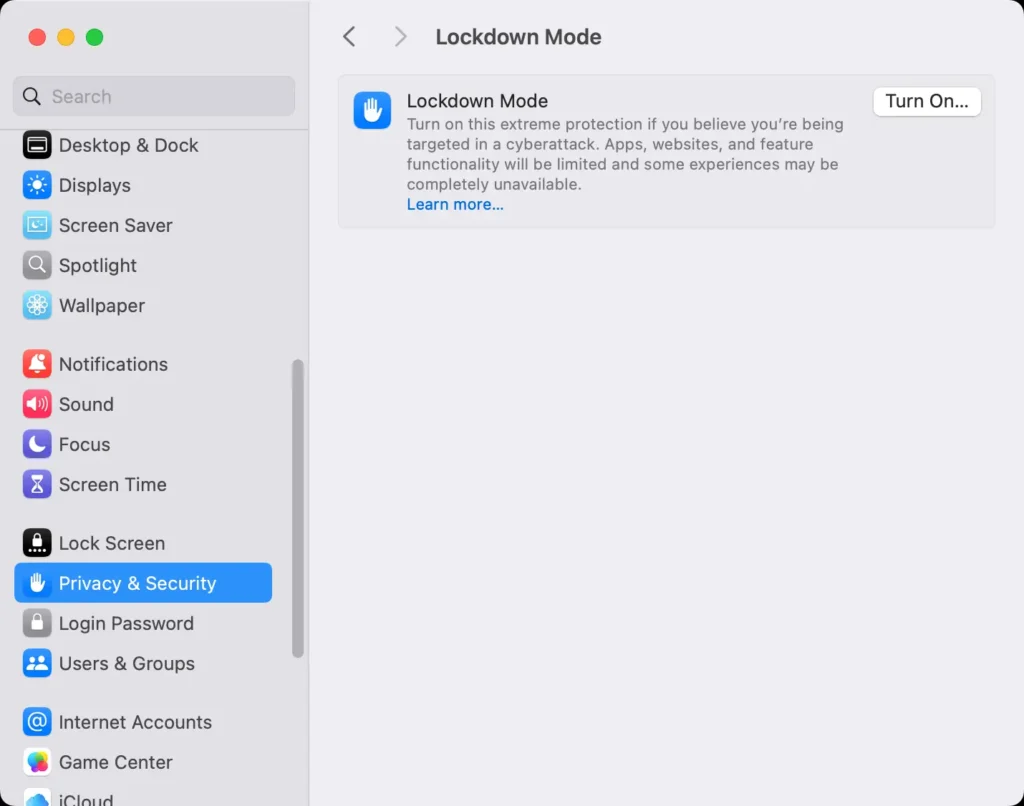
Activating Lockdown Mode causes some common features, such as font displays, to change, impacting usability.
Lockdown Mode requires users to reboot their devices to apply the security settings after activation.
Using SpyHunter as an extra security layer
For users looking to bolster their computer’s security, SpyHunter for Mac can serve as a useful additional layer of protection.
This anti-malware tool is designed to detect and remove a wide range of threats, including stealthy adware that can clog your browser with pop-ups or redirect your searches.
You can download SpyHunter for free here and install it on your Mac. The application can scan your Mac for potential threats, malware or unwanted files and clean your system, so you can enjoy a safer experience.

Impact on functionality
While Lockdown Mode provides extra security, it comes with trade-offs in usability. Some of the key limitations include:
- Restrictions on certain apps and services.
- Disabling features like Apple Pay.
- Limited support for web browsing and other Apple services.
- Blocking some incoming communications.
- Reduction in system performance due to extra security checks.
Lockdown Mode can be turned off for specific websites or apps, allowing some features to be used. Activating Lockdown Mode impacts the fluidity of app integrations such as Apple Pay.
Disabling certain features can enhance the security of devices against potential threats.
Disabling Lockdown Mode
If you decide that Lockdown Mode is not necessary for your security needs, you can turn it off:
- Open
System Settings. - Scroll to
Privacy & Security. - Click
Turn Off. - Confirm the change and restart your Mac.
This will revert your system to its original settings before you enabled Lockdown Mode.
Should you use Lockdown Mode?
Lockdown Mode is designed for few individuals at risk from sophisticated digital threats.
It is intended to protect activists, diplomats, political dissidents, or journalists. Apple believes that most users do not need Lockdown Mode because they are not targeted by sophisticated cyberattacks.
However, if you handle sensitive information or are concerned about sophisticated digital threats, it can provide additional protections against spyware, phishing attacks, and other cybersecurity risks.
In general, the average home user should not need to enable the feature.
Conclusion
Lockdown Mode is a crucial security tool for those who need it, offering robust protection against targeted attacks while restricting certain features.
Though it impacts usability, the trade-off may be worth it for users who require an extra layer of security.
By understanding how to enable, use, and disable Lockdown Mode, you can make an informed decision about whether it’s right for you and your Apple devices.
