

Speed Up Your Mac Performance (Revitalize Your Mac Today)

Before we dive in
Before we dive in, let's make sure you stay safe online. We created SpyHunter because your security matters to us.
Protect your computer today — download SpyHunter right here! Check out our top tips below to keep your computer safe and secure.

Is your Mac not as quick as it once was? Slowness can be frustrating, but there are simple and effective ways to boost its speed. This guide will show you practical steps to speed up your Mac, from optimizing storage and managing background processes to hardware upgrades.
Get ready to rejuvenate your Mac with our straightforward tips.
Key takeaways
- Regular software updates, decluttering storage, managing background processes, and optimizing startup items are vital to improving Mac speed and responsiveness.
- Enhancing Mac’s hardware through RAM upgrades and replacing an HDD with an SSD can significantly increase its speed and ability to handle multiple tasks.
- Fine-tuning system settings by turning off unnecessary visual effects, adjusting Energy Saver settings, and maintaining system cleanliness and security through regular cache clearing and malware checks can further optimize your Mac.
What slows down your Mac?
Have you ever wondered why the performance of your Mac isn’t as sprightly as it used to be? The culprits are often hidden in plain sight – outdated software, insufficient storage, and excessive background processes.
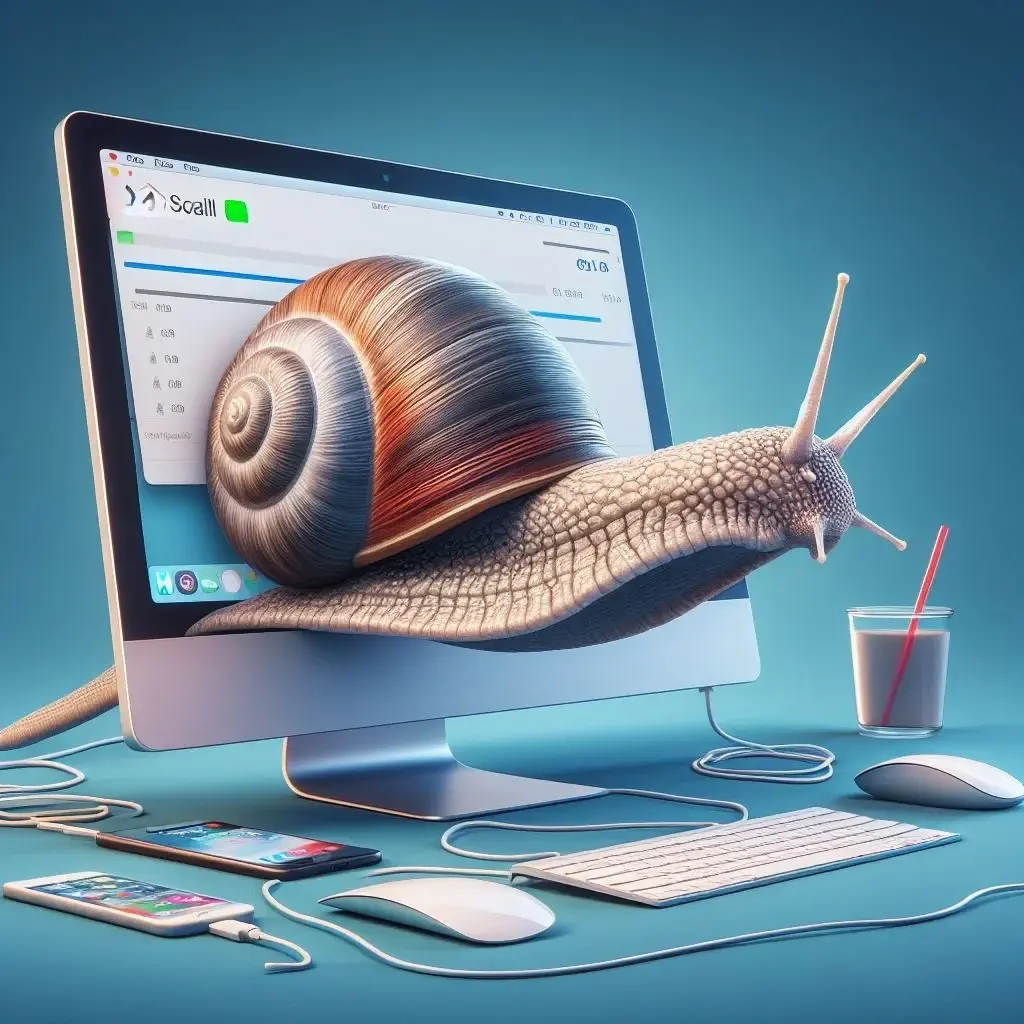
Identifying these issues is the first step towards revving up your Mac’s speed and fixing the problem of your Mac running slow.
Outdated software
Old software can significantly drain your Mac’s speed. It’s like trying to run a marathon in worn-out shoes – you won’t get the best performance.
Using outdated software can lead to security vulnerabilities, compatibility issues, and decreased system performance.
The good news is it’s easy to keep your software updated. Regularly checking for and installing updates is crucial for optimal performance and security.
Insufficient storage space
Imagine your Mac’s storage as a closet. If it’s cluttered with nonessential files – that’s like a closet full of clothes you never wear. It hinders efficiency, slows down file opening, and causes delays in loading applications.
The best way to declutter is to:
- Start by removing large, unused, duplicate, and temporary files, which essentially means to remove unused files
- It’s like a spring cleaning for your Mac!
- Not only will it free up space, but it will also give your Mac a considerable boost.
Excessive background processes
Have you ever tried to have a conversation in a crowded room? It’s hard to concentrate, right? That’s what it’s like for your Mac when too many background processes run.
These background operations can consume system resources, reducing speed and responsiveness.
Identifying and closing unused apps and processes can help alleviate this issue. Think of it as giving your Mac a quiet room to focus on the tasks.
To optimize your Mac further, uninstall unused apps that may take up valuable resources.
Top techniques to optimize your Mac’s speed
Now that we’ve identified the culprits, let’s move on to some strategies to improve Mac performance. Updating software, optimizing storage, and managing startup items ensures your Mac runs at peak performance.

Update macOS and apps
For example, a car needs regular maintenance to run smoothly, and so does your Mac. Keeping your operating system and apps updated is crucial for the optimal speed and responsiveness of your Mac.
To update your Mac’s operating system, navigate to the Apple menu, then to System Preferences, and select Software Update.
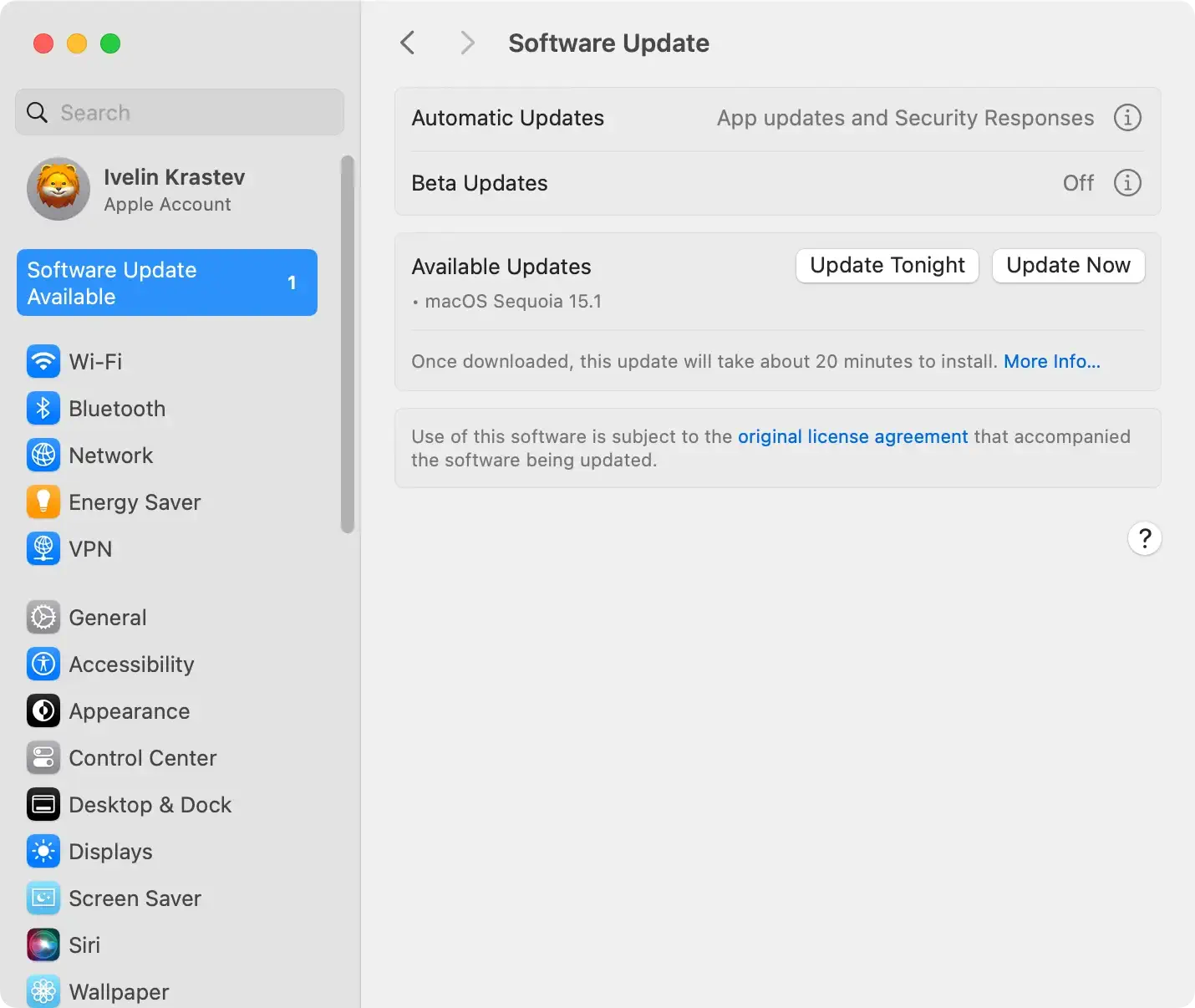
For apps, open the App Store, click on your account name, and click the Update button next to a particular app you want to update. It’s as simple as that!
Optimize storage settings
Think of the storage on your Mac as a toolbox. The more efficiently it’s organized, the quicker you can find the tool you need.
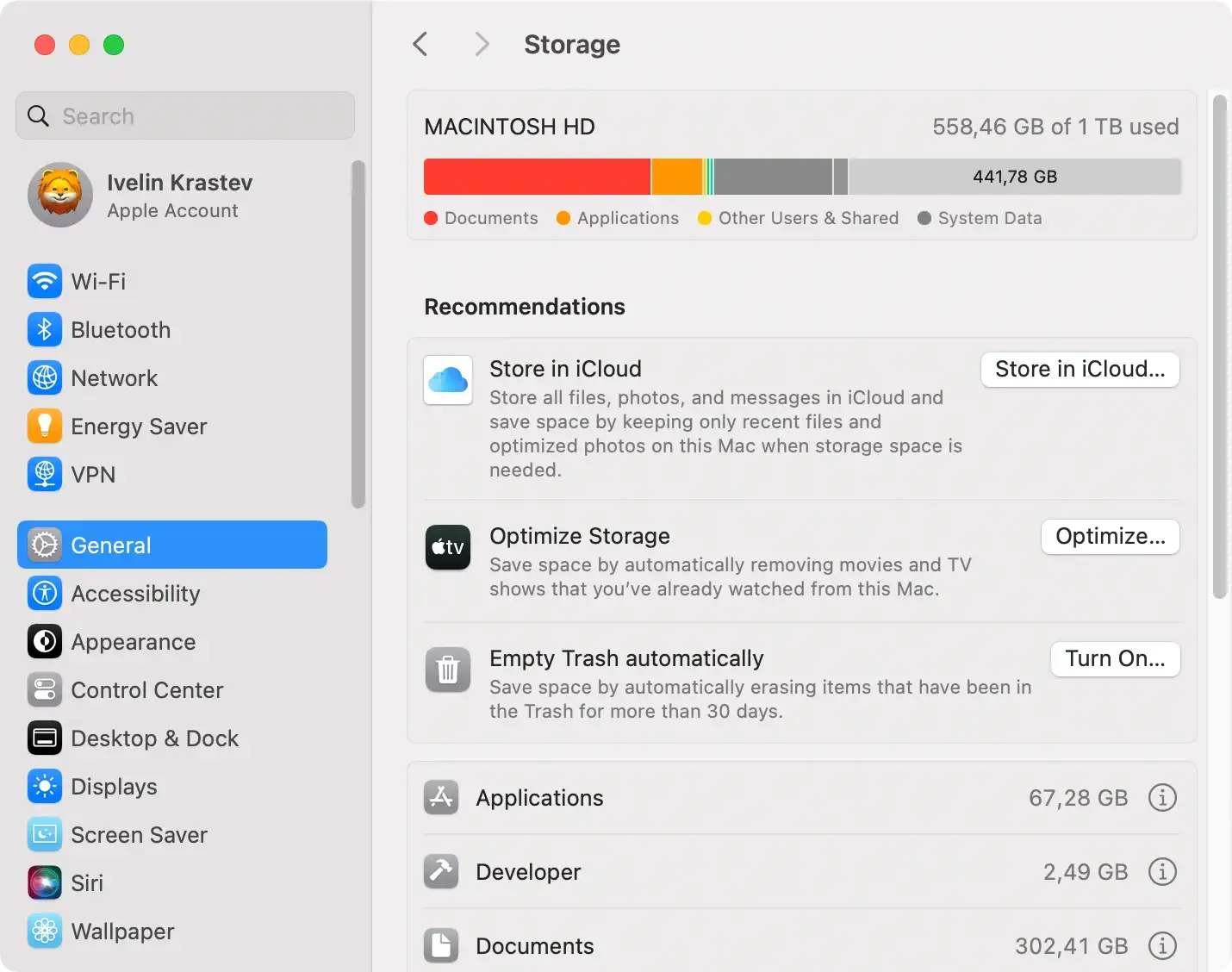
Optimizing your disk space settings with a disk utility can help manage space more efficiently and improve performance. To optimize your storage settings, follow these steps:
- Go to
About This Macusing the Apple logo - Click on
Storageand thenManage - Under Recommendations, click
Optimize
Manage startup items
Can you recall the excitement of powering up a brand-new Mac? It’s a feeling like no other. It was fast, right? Over time, startup items can slow down your Mac’s boot time.
The good news is that managing these items can improve boot time and overall system responsiveness. To manage startup items, follow these steps:
- Open
System Settings(namedSystem Preferenceson older Mac OS versions). - Click on Users & Groups and choose Login Items.
- Adjust the items you want to start during startup.
Tools like SpyHunter for Mac’s Startup Manager offer complete control over applications and services configured to start automatically. Download SpyHunter and try the power of its Startup Manager today.
Configuring the application’s startup behaviors can optimize the system’s startup process and boost your Mac.
Enhance your Mac’s hardware
If software updates and storage optimization aren’t enough, it might be time to consider enhancing your Mac’s hardware.
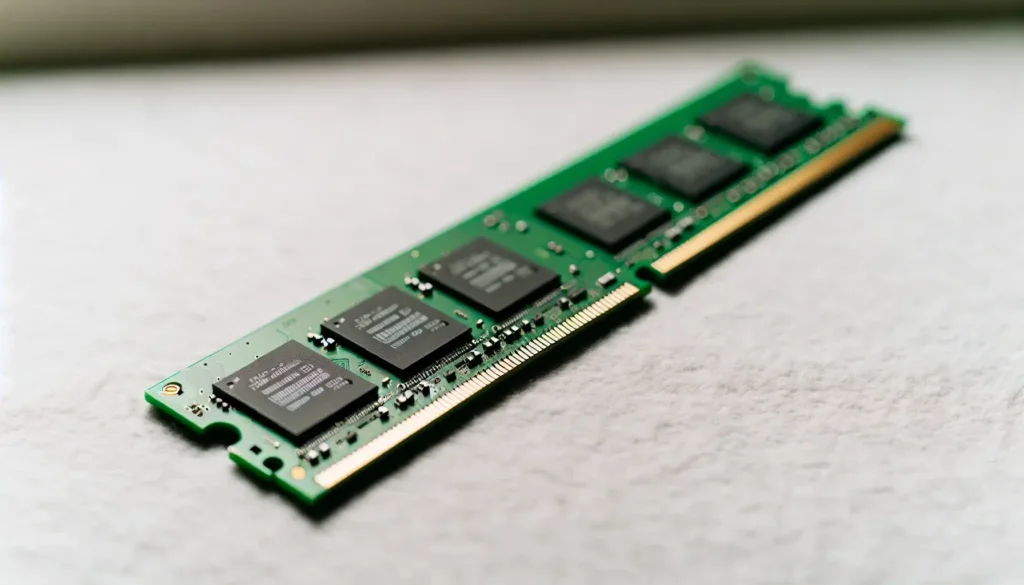
Upgrading RAM and replacing the HDD with an SSD can lead to substantial performance improvements.
Upgrade RAM
RAM, or Random Access Memory, is like your Mac’s short-term memory. The more RAM your Mac has, the more processing power it has. It’s like giving your Mac a memory boost!
So, how much memory does your Mac need? Understanding your Mac’s memory requirements, including virtual memory, is essential for optimal performance.
Note: Before considering a RAM upgrade to speed up your Mac, it’s crucial to verify whether your specific model, be it a MacBook Pro, MacBook Air, Mac mini, or another variant, supports RAM enhancements. Not all Mac models are compatible with RAM upgrades.
- Remove the access door.
- Remove the battery.
- Remove the bottom case.
- Remove the existing RAM.
- Insert the new RAM modules.
- Put everything back together.
It’s like a mini-brain transplant for your Mac!
Replace HDD with SSD
Another way to enhance your Mac’s hardware is by replacing your hard disk drive with a solid-state drive.
Think of an SSD as a supercharged version of an HDD – it can read and write data much faster, leading to a noticeable increase in performance.
While replacing an HDD with an SSD involves some technical steps, it can be done with patience and the right tools. It’s like giving your Mac a turbo boost!
Fine-tune your Mac’s System Settings
So, you’ve updated your software, optimized your storage, managed your startup items, and even enhanced your hardware. Now, let’s fine-tune your Mac’s system settings.
By turning off unnecessary visuals and adjusting energy-saving settings, you can improve your Mac’s performance, optimize CPU power, and speed up your Mac.
Disable visual effects
Visual effects look nice but can take up valuable system resources. It’s like running with a heavy backpack – it will slow you down. Turning off these effects can reduce system resource consumption and improve performance.
To turn off graphical effects, follow these steps:
- Navigate to
System Preferences - Click on
Accessibility - Choose
Display - Turn off the desired effects
Adjust Energy Saver settings
The Energy Saver settings on your Mac are like a thermostat – they help manage power usage to optimize performance.
Adjusting these settings can balance performance and energy efficiency, while the activity monitor provides insights into your system’s resource usage.
To adjust your energy saver settings, follow these steps:
- Click on the Apple icon at the top-left corner and open
System Preferences - Click on
Energy Saver - Modify the settings to manage energy consumption efficiently
It’s like setting the perfect temperature for your Mac to perform at its best!
Keep your Mac clean and secure
Last but not least, keeping your Mac clean and secure is essential. By regularly clearing cache and temporary files and performing routine malware checks, you can ensure your Mac is fast and safe, maintaining optimal Mac speed.
Regularly clear cache and temporary files
Clearing cache and temporary files is like taking out the trash – it frees up space and keeps things running smoothly. Regularly removing these files can improve performance and enhance speed.
To clear cache and temporary files:
- Open a new
Finderwindow - Select
Go > Go to Folder - Type in the path
~/Library/Caches/ - Delete the files you wish to clear
Effortlessly maintain your Mac’s performance with SpyHunter for Mac, which simplifies clearing cache and temporary files down to just a few clicks.
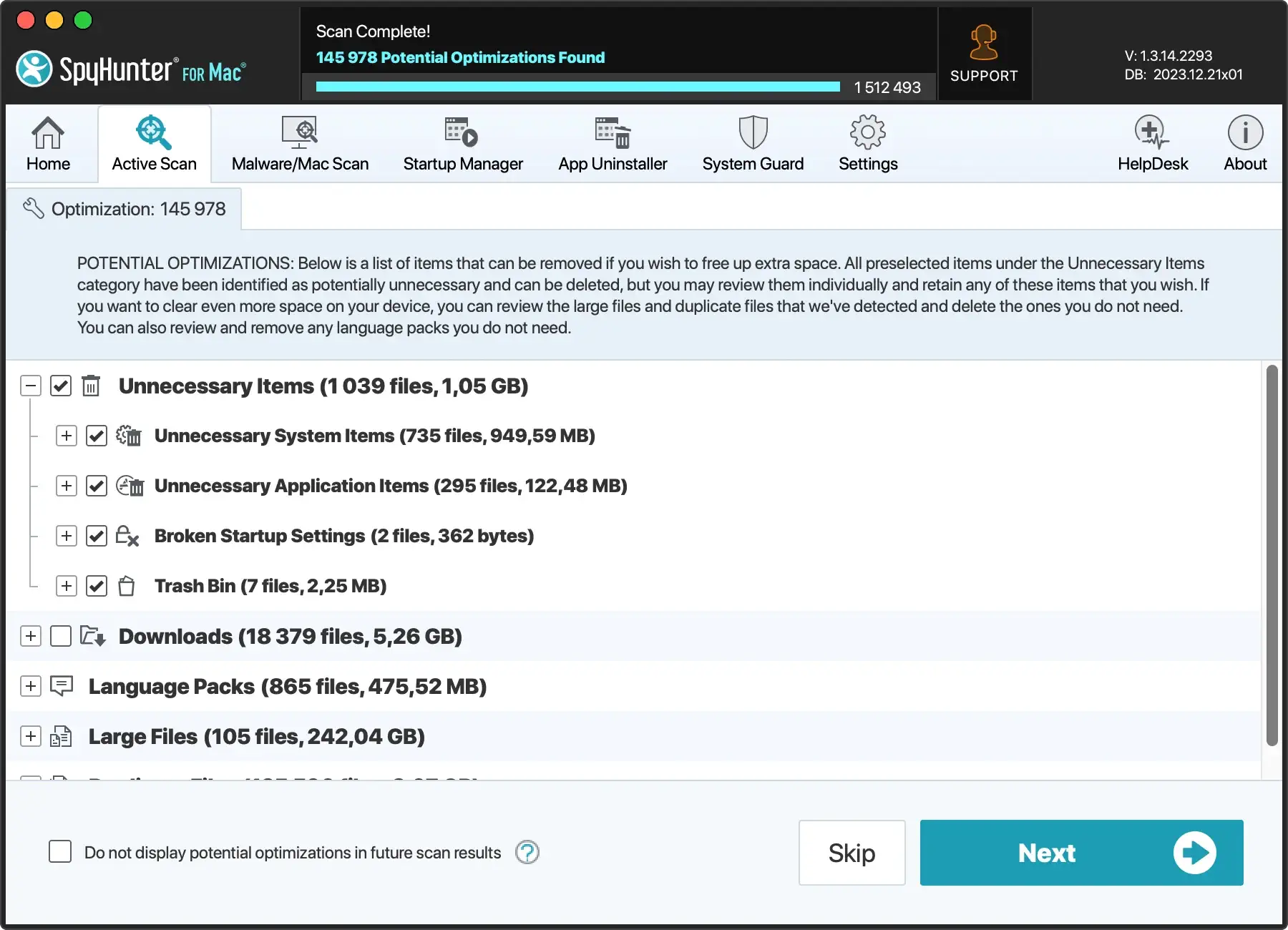
SpyHunter’s streamlined functionality ensures a speedier, cleaner system without the hassle. Download SpyHunter and make your Mac faster today.
Perform routine malware checks
Finally, performing routine malware checks is crucial to keep your Mac secure. Think of it as a regular health check-up for your Mac.
For comprehensive protection, we recommend using SpyHunter for Mac. This reputable tool offers advanced malware detection and removal capabilities to protect your system from threats.
With its user-friendly interface, SpyHunter for Mac allows quick and thorough scans, ensuring your Mac remains malware-free. You can maintain optimal security and peace of mind by conducting malware checks with SpyHunter at least once a week.

Download SpyHunter from here and start safeguarding your Mac with professional-grade security.
Frequently Asked Questions
How do I clean up my Mac to make it run faster?
To make your Mac run faster, you must update your software, tidy up your startup, remove unused apps, clean the downloads folder, tidy up your storage disk, and clean out the cache files.
Additionally, you can remove resource-hungry programs and delete unnecessary files to optimize the performance.
How to clear the Mac cache?
To clear the cache on your Mac, you can follow these steps: In Safari, click on the Safari option in the menu bar, then select Clear History, choose the time range, and click Clear History.
For the system cache, open Finder, go to Library/Caches/, and delete the folders you no longer need. Don’t forget to empty your trash afterward.
How do I find out what is slowing down my Mac?
You can use Activity Monitor to identify what’s slowing down your Mac. Navigate to the Applications folder, then Utilities, and open the Activity Monitor app.
Check the CPU tab and the Memory tab for programs consuming high resources. This will help you pinpoint the source of the slowdown.
How can I speed up my Mac?
To speed up your Mac, update your software, optimize storage settings, manage startup items, upgrade RAM, replace HDD with SSD, turn off unnecessary effects, adjust energy-saving settings, clear cache and temporary files regularly, and perform routine malware checks.
What are the benefits of upgrading RAM on a Mac?
Upgrading RAM on a Mac can result in enhanced multitasking performance, faster data processing, improved gaming experience, extended battery life, and a smoother user experience overall.
Summary
To sum it all up, optimizing your Mac is like maintaining a high-performance sports car. It involves regular tune-ups, strategic upgrades, and consistent care. Following the steps in this guide, you will revitalize your Mac and ensure it runs smoothly for years.
