

How To Remove Cumbha.app From Mac (Complete Guide)

Before we dive in
Before we dive in, let's make sure you stay safe online. We created SpyHunter because your security matters to us.
Protect your computer today — download SpyHunter right here! Check out our top tips below to keep your computer safe and secure.

Cumbha.app adware is an adware threat targeting macOS users. It is known for its aggressive advertising tactics and potential to compromise user privacy.
This article offers an in-depth exploration of Cumbha.app, from its infiltration methods to the risks it poses and effective removal strategies.
By understanding the mechanics behind Cumbha.app adware, macOS users can arm themselves with the knowledge needed to eradicate this unwelcome software and maintain a secure, ad-free computing environment.
Understanding the Cumbha.app adware
Cumbha.app is a form of adware, which is shorthand for advertising-supported software.
In essence, this type of program functions by overlaying intrusive advertisements on the websites you visit or through various interfaces on your Mac. These ads come in different forms, such as banners, pop-ups, and other graphical content that can disrupt your browsing experience.
However, the mere display of ads is not the sole function of Cumbha.app.
What is Cumbha.app, and how does it affect your Mac?
Cumbha.app is a member of the Pirrit malware family and is categorized as an adware and potentially unwanted program (PUP).
Once installed on your Mac—intentionally or not—it begins a campaign of displaying ads that can lead to serious security concerns.
The application itself may seem harmless or even offer functional features, but its core objective is to serve ads that are often misleading and linked to scams or harmful software. Clicking these ads could result in unwanted script executions, sometimes leading to the installation of other malicious entities without user consent.
Furthermore, Cumbha.app may also collect sensitive data from your system, infringing on your privacy and security.
The risks of ignoring Cumbha.app
Ignoring the Cumbha.app on your Mac can lead to several hazards. While unwanted ads may seem annoying, this adware has more profound implications.
It threatens your system integrity and data privacy, tracking personal details such as browsing history, search engine queries, and even sensitive login credentials. This information can be shared with third parties, increasing the risks of identity theft, financial fraud, and other privacy violations.
Additionally, if clicked, ads delivered by Cumbha.app can initiate unrequested downloads, potentially leading to more malware and causing further harm to your device.
Identifying the presence of Cumbha.app
Signs that your Mac is infected with Cumbha.app
Some telltale signs include a sudden influx of pop-up ads, unexpected browser redirects, and changes to your web browsers without your consent. You might also notice a new toolbar or extensions you did not install.
An evident decrease in system performance, such as slower browsing speeds, can also indicate adware presence. Additionally, regular encounters with ads promoting dubious content like scams or gambling suggest your Mac may be compromised.
Being vigilant about the performance and behavior of your Mac can help you determine whether it has been infected with Cumbha.app adware.
How to check for Cumbha.app installation on Mac
You can perform a few checks to confirm whether Cumbha.app is installed on your machine.
Start by inspecting the Applications folder for any unfamiliar software you don’t recall installing. You might come across obscurely-named applications, which, upon investigation, could be linked to Cumbha.app or related adware.
Also, check your browser’s extensions list for any suspicious add-ons. It is essential to inspect system directories such as ~/Library/LaunchAgents and /Library/LaunchDaemons for any files associated with Cumbha.app. Monitoring these locations and keeping an eye out for any new, unfamiliar files or folders can help in the early identification of adware infiltrations.
Remove Cumbha.app adware from Mac
STEP 1: Uninstall malicious applications linked to Cumbha.app
The initial phase in eradicating Cumbha.app adware from your Mac involves the removal of any malicious applications that may be associated with it.
Navigate to your Applications folder through the Finder and scrutinize for software such as MPlayerX, NicePlayer, or other dubious apps you do not recognize.

These should be dragged to the Trash to initiate their uninstallation. Remember, adware often disguises itself under seemingly legitimate applications to avoid detection.
STEP 2: Remove suspicious profiles and settings
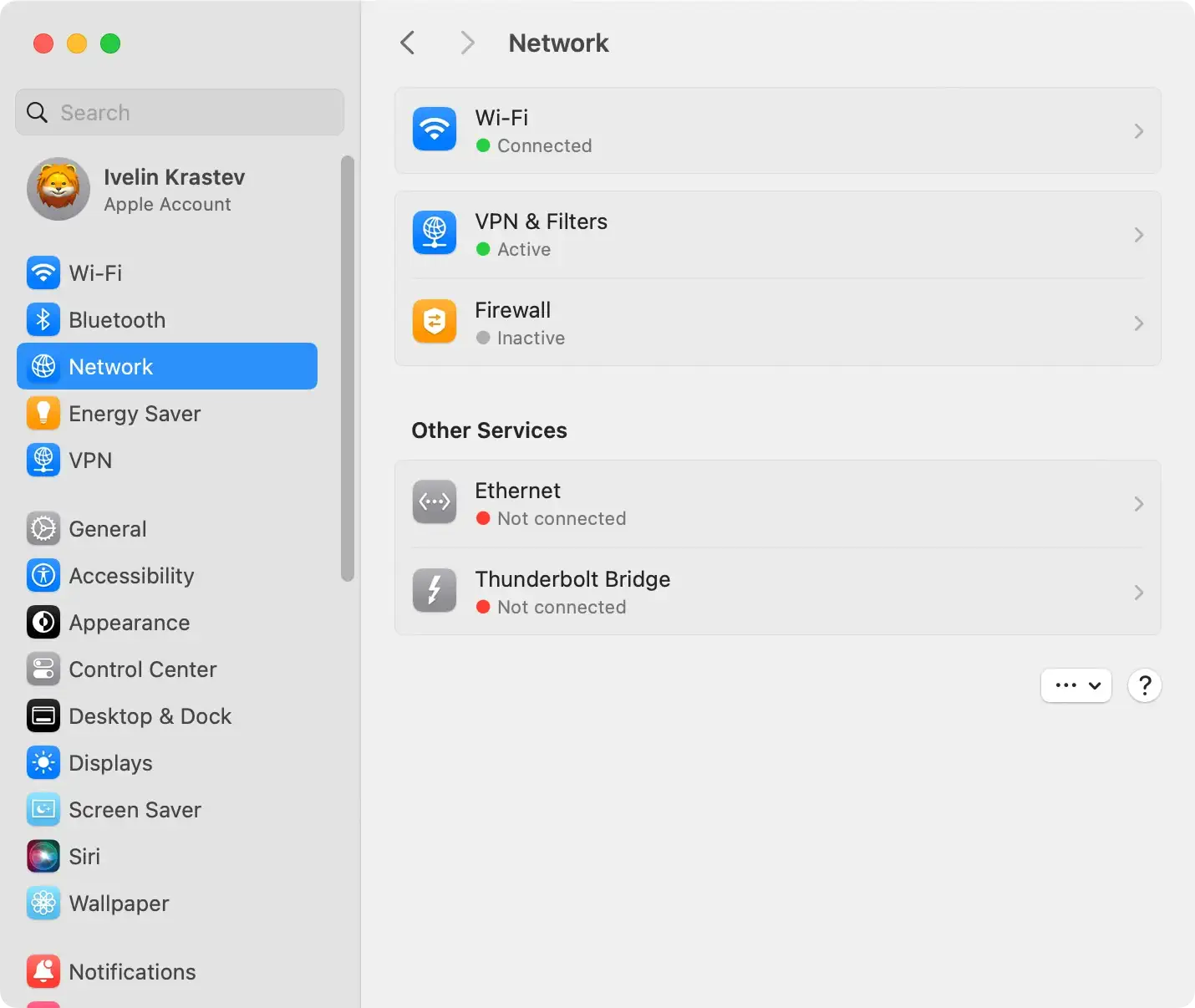
Cumbha.app may create profiles or change settings on your Mac to assert control over your browsing experience.
Check System Preferences for any unfamiliar profiles installed and remove them.

Additionally, comb through your system settings to revert any changes made by the adware, such as modifications to your network proxies.
STEP 3: Restore web browsers to their original settings
After dealing with malicious applications and system changes, the next move is to reset your web browsers to their default states. This ensures that any lingering effects of the adware are abolished.
Clean Safari from Cumbha.app
Remove any unwelcome extensions and reset the browser if you’re using Safari.
To do this, go to the Safari menu, select Preferences > Extensions, and uninstall any suspicious extensions. You may also need to clear your browser’s history and website data to eliminate residual adware traces.
Eradicate Cumbha.app from Chrome
Google Chrome users should access the Extensions section through the More Tools menu to remove any dubious add-ons.
It’s also advisable to reset the browser settings to ensure no adware configurations remain.
Eliminate Cumbha.app from Firefox
Firefox users should open the Add-ons and themes section from the menu and meticulously examine each extension, removing what isn’t necessary. Finalize the cleanup by resetting Firefox to its original settings.
STEP 4: Remove Cumbha.app using SpyHunter
After addressing the immediate manifestations of Cumbha.app adware through manual removal, the next critical step involves a comprehensive system cleanse using SpyHunter.
This advanced antivirus solution is specifically designed to locate and eliminate hidden threats, including any elusive remnants of Cumbha.app that manual efforts may have missed.

SpyHunter’s sophisticated scanning technology ensures a deep dive into your system, providing a safety net against overlooked adware components.
- Download SpyHunter for free here and follow the installation process to set up SpyHunter on your Mac. Upon installation, allow the program to install all of its components. This step is crucial for the software to effectively recognize and target the latest adware strains.
- Launch SpyHunter and initiate a full system scan. The software examines every corner of your system, searching for signs of Cumbha.app and other threats. Its thorough analysis is designed to detect adware components hidden within system files, applications, and even browser extensions.
- Upon completion of the scan, SpyHunter presents a detailed report of detected malware. Follow the prompts to remove Cumbha.app and any associated malware found during the scan. SpyHunter’s removal process is designed to be both safe and thorough, ensuring critical system files remain untouched while effectively purging malicious content.

By integrating SpyHunter into your malware removal strategy, you achieve a comprehensive cleanup of Cumbha.app adware and fortify your Mac’s defenses, ensuring a safer and more secure digital environment.
Protect your Mac from Cumbha.app and other adware
Best practices to shield your Mac from future adware attacks
To fortify your Mac against future malware attacks, adopting a proactive and mindful approach to cybersecurity is essential.
Always use caution when downloading new software, ensuring you obtain it from official sources or verified developers. Opt for “Custom” or “Advanced” settings during installation and decline any additional offers or bundled software.
Regular system and software updates are also crucial, often including security patches. Moreover, remain vigilant against clickbait and enticing ads; if an offer seems too good to be true, it probably is.
Implement these best practices consistently to create a solid defensive barrier for your Mac.
Recommended anti-adware tools for enhanced Mac security
Integrating anti-adware tools into your security suite is highly advisable for optimal protection.
These tools are designed to identify and remove adware-related components that could compromise your Mac’s performance and security.
A reputable choice like SpyHunter offers a dual advantage—it serves as an antivirus that can detect and eliminate various types of malware, including adware, and it also includes tools to clean and optimize your system for better performance.

Regular scans with such software can ensure that your Mac remains free from intrusive and harmful adware applications.
