

Remove SkilledObjectfld: Safeguard Your Mac Now

Before we dive in
Before we dive in, let's make sure you stay safe online. We created SpyHunter because your security matters to us.
Protect your computer today — download SpyHunter right here! Check out our top tips below to keep your computer safe and secure.

SkilledObjectfld is an adware targeting Mac users. It hijacks browser settings, causing unwanted ads and browser redirects.
This article explores the threat posed by SkilledObjectfld, how it infiltrates Mac systems and emphasizes the necessity of effective removal and protection.
Understanding the SkilledObjectfld Mac threat
The SkilledObjectfld threat has become a source of worry for many Mac users due to its intrusive nature and potential risks associated with cyber security.
It is categorized as adware and a browser hijacker, which means it takes over the web browser settings to redirect users to sponsored web pages.
Unlike traditional viruses, SkilledObjectfld does not harm the computer hardware but does interfere with user experience and may lead to other security issues, such as malware exposure.
What is SkilledObjectfld, and how does it affect your Mac?
SkilledObjectfld is unwanted software commonly bundled with other free programs downloaded online.
Once installed, it makes unwanted changes to your Mac’s browser settings. This alters your search engine, homepage, and new tab settings, redirecting you to different pages loaded with ads or potentially malicious content.
This software aims to drive traffic to sponsored sites, generate revenue through pay-per-click schemes, or promote products and services based on collected user data.
It primarily affects browsers like Google Chrome, Mozilla Firefox, and Safari. Therefore, even though SkilledObjectfld is not technically a virus, its behavior can harm your overall browsing experience and personal data privacy.
Common symptoms of SkilledObjectfld infection
- Continuous appearance of pop-ups, banners, and in-text links on your Mac, which are not just intrusive but may also slow down web browsing speeds.
- Suspicious alerts that may try to scam you or obtain sensitive information.
- Frequent browser freezes or crashes that disrupt the standard workflow on your Mac.
- New, unknown programs that are installed without your consent, potentially affecting system resources and reducing overall performance.
- Sluggishness in system operations and a decrease in response time due to the background activities of the software.
Identifying these symptoms early on can help in taking swift action to remove the SkilledObjectfld software from your Mac and restore its normal functioning.
Remove SkilledObjectfld from Mac (step-by-step guide)
Step 1: Delete malicious config profiles
When removing SkilledObjectfld from your Mac, addressing and removing any configuration profiles that the adware might have created is crucial.
These profiles can alter system settings or control browser behavior without your consent, perpetuating the adware’s effects even after initial removal attempts.
To eliminate these configuration profiles, navigate to System Preferences > Profiles (it will not be visible if no profiles are installed).

Here, you’ll find a list of all installed profiles. Look for any unfamiliar, or you don’t remember installing yourself, as these could be linked to SkilledObjectfld.

Select the suspicious profile and click the minus (-) button to remove it, effectively preventing the adware from maintaining its grip on your system settings.
Step 2: Quit SkilledObjectfld processes
After cleaning up the configuration profiles, you must identify any active processes associated with SkilledObjectfld on your Mac. Use the Activity Monitor to find and stop these processes. Here’s how:
- Open
Activity Monitorfrom theUtilitiesfolder or through Spotlight search. - Scan the list for any applications or processes named ‘SkilledObjectfld’ or anything suspicious resembling its name.
- Select the process and click the X button in the top-left corner to quit the process.
- Confirm your action by clicking on
Force Quitwhen prompted.
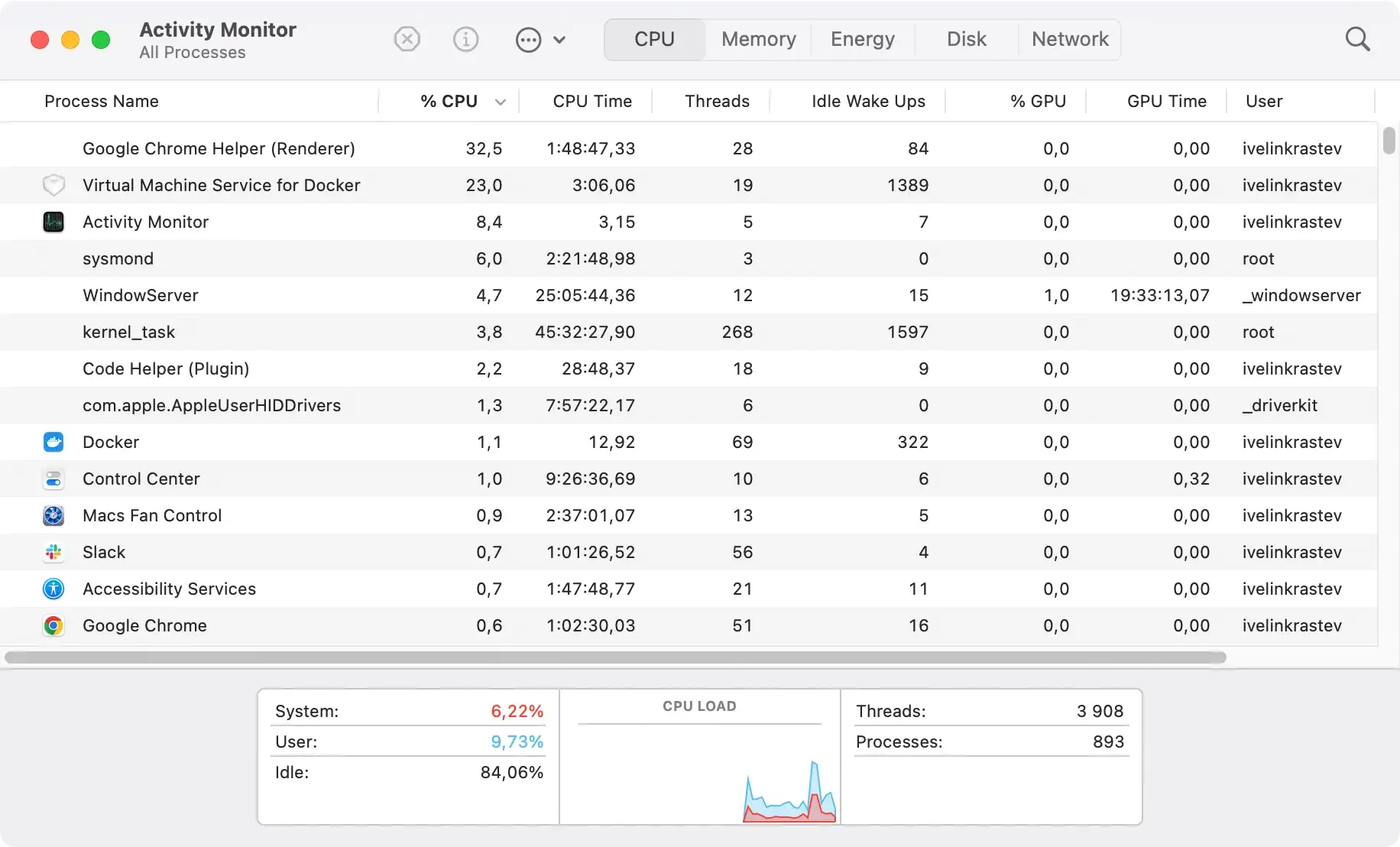
Quitting these processes will prevent interference during the program removal from your system.
Step 3: Remove SkilledObjectfld application and related files
With the processes stopped, the next step is to remove the SkilledObjectfld application and its associated files. Follow these steps to ensure thorough removal:

- Open
Finderand navigate to theApplicationsfolder. - Locate SkilledObjectfld or any suspicious applications, right-click, and select
Move to Trash/Bin. - For associated files, you must check common locations like:
~/Library/LaunchAgents//Library/LaunchDaemons//Library/StartupItems/~/Library/Application Support/~/Library/Preferences/
- Search for files named SkilledObjectfld or with a similar pattern and move them to Trash.
- Don’t forget to permanently empty the Trash to remove the applications and files.
To enhance the removal process and ensure no remnants of SkilledObjectfld or other unwanted applications linger on your Mac, consider using SpyHunter’s App Uninstaller.
This software detects and eliminates the applications and all associated files and preferences that manual removal might miss.
- Download SpyHunter from here and install the app by opening the downloaded file and following the installation instructions.
- Launch SpyHunter and navigate to the App Uninstaller tab.
- SpyHunter will comprehensively search your system for all traces of the adware and its associated components.
- Remove the detected items by following SpyHunter’s prompts to clean your Mac thoroughly.

By incorporating SpyHunter’s App Uninstaller in your removal strategy, you can achieve a more complete and efficient cleanup, safeguarding your Mac against future infections.
Step 3: Remove SkilledObjectfld browser extensions
Clean Safari from SkilledObjectfld
For Safari users, the cleanup process includes removing any extensions installed by SkilledObjectfld:
- Open Safari, click ‘Safari’ in the menu bar, and open preferences.
- Go to the extensions tab and look for unfamiliar or unwanted extensions.
- Select the extension and choose to uninstall it.
- Consider resetting Safari settings back to default to eliminate any hidden changes.
Remove SkilledObjectfld traces from Google Chrome
Google Chrome users should look for and remove extensions, as well as reset browser settings:
- Launch Chrome and open the menu by clicking the three dots in the upper-right corner.
- Click on
More toolsand locate the extensions option. - Identify any unwanted extensions linked to SkilledObjectfld and choose the option to remove them.
- Clean up leftover cookies and cache by entering
Settings > Privacy and security > Clear browsing data. - Reset the browser settings to default if necessary.
Secure Firefox against SkilledObjectfld
If SkilledObjectfld has impacted Firefox, here’s how to clean it up:
- Open Mozilla Firefox, then access the menu by clicking the three horizontal lines in the top-right corner.
- Select the
Add-ons > Extensionsmenu. - Find and remove any unwanted extensions associated with SkilledObjectfld.
- Go to
Settings > Privacy & Security > Cookies and Site Datato clear any stored data. - Optionally reset Firefox to its default settings to ensure a clean environment.
Following these steps, you can remove the SkilledObjectfld adware and browser hijacker from your Mac, improving your system’s security and performance.
Always download apps from reputable sources and install a trusted security solution to prevent future intrusions.
Advanced SkilledObjectfld removal techniques
Use anti-malware software to remove SkilledObjectfld
Software tools are recommended to tackle the SkilledObjectfld adware effectively due to their ability to scour the depths of your system for malware traces.
Using anti-malware software like SpyHunter for Mac can expedite the detection process, signaling the presence of malicious files that might be missed during a manual inspection.

Equipped with a frequently updated database, SpyHunter can identify and quarantine threats, making it a critical asset in your cybersecurity arsenal.
- SpyHunter for Mac can pinpoint the hidden core files of the SkilledObjectfld virus, providing an additional assurance that the virus won’t persist or re-establish itself after a perceived removal ( Download SpyHunter for free here ).
- SpyHunter includes real-time protection, which actively guards the system against new threats.
- The automatic removal process using SpyHunter for Mac is time effective, often requiring less than half an hour to perform a full scan and cleanse, contingent upon the subscription plan chosen.

Remember, while you can attempt manual removal, the intricacies involved with rooting out a virus like SkilledObjectfld mean that software tools are generally a safer and more reliable choice.
Recover your system to a clean state
Once you’ve removed the SkilledObjectfld virus, it’s essential to reverse the changes it made to your system. Reverting your Mac to a pre-virus state requires a few steps that may extend beyond the elimination of the malicious files:
- System backups can be utilized to restore your computer to a point before the SkilledObjectfld infection took hold. Verify that the restoration point you select precedes the date of infection.
- Performing a rebuild of browser settings can eliminate any residual alterations the virus makes. This includes resetting your homepage’s default search engine and clearing unwanted extensions or toolbars.
- Clean up any temporary files and caches that may have been created or altered by the virus. This ensures no leftover elements of the virus remain.
While taking these steps, always be vigilant about the health of your system by regularly updating your software and operating system, running periodic scans with your antivirus tools, and practicing safe browsing habits.
SkilledObjectfld preventive measures
To avoid falling victim to future threats like the SkilledObjectfld virus and other malware, Mac users are advised to adopt preventive measures that enhance their cybersecurity.
Understanding the importance of such tactics and incorporating them into daily computing habits can significantly bolster your Mac’s defenses against cyber threats.
Use regular security practices
One of the most fundamental preventive measures is ensuring that the operating system (macOS) and all installed applications are up-to-date with the latest security patches and updates. Developers frequently release updates introducing new features and fixing security vulnerabilities that malware could exploit.
- Regularly check for software updates in the App Store or system preferences and install them promptly.
- Customize your Mac’s settings to download and apply updates automatically when available.
- Stay informed about the latest security threats and best practices by subscribing to trusted cybersecurity resources.
- Avoid clicking on suspicious links or downloading files from untrusted sources, as these are common vectors for malware distribution.
- Be cautious about sharing personal information online, particularly on unsecured or public Wi-Fi networks where data interception is easier.
Utilize antivirus software for continuous protection
Another significant preventive approach is the continuous protection provided by antivirus software.
Modern antivirus programs such as SpyHunter for Mac not only detect and remove existing threats but also offer real-time monitoring to block the installation of malware in the first place.
- Download SpyHunter and install it. Ensure it is configured to run regular scans.
- Keep the antivirus definitions updated to ensure it recognizes the latest malware strains.

Combining regular updates and security practices with quality antivirus software like SpyHunter can create a robust defense system against the ever-evolving landscape of Mac viruses and other cybersecurity threats.
