

What Is MRT On Mac [High CPU Usage Fix]

Before we dive in
Before we dive in, let's make sure you stay safe online. We created SpyHunter because your security matters to us.
Protect your computer today — download SpyHunter right here! Check out our top tips below to keep your computer safe and secure.

Is your Mac acting up, running slower, or heating up more than usual?
It might be a sign that something’s not right under the hood. In this guide, we’ll dive into the workings of Apple’s Malware Removal Tool (MRT), a key player in keeping macOS devices safe from malware threats.
We’ll explain what MRT is, how it functions seamlessly in the background, and what to do if it’s causing high CPU usage.
Additionally, you’ll learn about augmenting your Mac’s defenses and performance with strategies and tools like SpyHunter to keep your system running smoothly.
What is the MRT process on Mac?
The MRT process on Mac, which stands for Malware Removal Tool, is an integral part of Apple’s strategy to keep macOS devices safe.
Unlike apps that require manual activation, MRT operates discreetly in the background. It effectively scans and removes known malware from a Mac, functioning automatically upon startup or when a user logs in.
This tool is deeply embedded in the system, specifically within the CoreServices directory found in /Library/Apple/System/Library/CoreServices/MRT.app.
Users do not need to launch MRT themselves as it’s engineered to act autonomously to safeguard the system’s integrity against malware threats.
Interestingly, MRT does not present user-facing interfaces and primarily updates itself silently during system updates to ensure it can combat the latest malware threats.
The role of MRT in macOS security
MRT fulfills a pivotal role in the layered security approach that Apple employs to protect macOS users.
It is specifically designed to act as the final line of defense, removing any malware that might have bypassed other protective barriers such as Gatekeeper, XProtect, and SIP or System Integrity Protection.
MRT works by utilizing signatures and malware definitions provided by Apple through a malware database to scan for and eliminate malware from infected systems.
While MRT operates largely unnoticed, its effect is significant in maintaining system cleanliness and user security.
By working in conjunction with other security mechanisms like XProtect, which scans apps on launch, and Gatekeeper, which ensures only trusted software is installed, MRT helps ensure that macOS environments remain secure from various malware intrusions that could compromise user data and system performance.
Common signs of high CPU usage on Mac by MRT
Experiencing your Mac running slower than usual could be a sign of high CPU usage attributed to the Malware Removal Tool (MRT). This MRT high CPU issue often coincides with certain symptoms that are easy to recognize:
- A noticeable increase in the loudness of the fan noise as your system tries to cool down the CPU.
- Apps taking longer to open or respond, signaling that your processor is over-burdened.
- System overheating which can be felt from the Mac’s surface.
- Frequent stalling or freezing of your MacBook, indicating that the CPU capability is stretched.
If you observe these symptoms, particularly during periods of when no heavy-duty applications are running, it could suggest that the MRT is actively scanning or updating its malware definitions, and the MRT process utilizes excessive CPU resources.
How to check CPU usage on your Mac
To verify if MRT or any other process is using a high amount of your Mac’s CPU, use the Activity Monitor.
This utility offers a detailed viewpoint of all running processes and their impact on your system’s performance:
- Open
Finderand navigate to theApplicationsfolder. - Scroll to find the
Utilitiesfolder and open it. - Double-click on
Activity Monitorto open it. - Click on the
CPUtab to view a list of all active processes ranked by their CPU usage. - Look for “MRT” in the process list to see how much CPU it is using. If MRT is at the top or using a significant percentage, it’s likely contributing to the high CPU usage issue.
Monitoring CPU usage through Activity Monitor not only helps in pinpointing whether MRT is the cause of slowdowns but also helps in determining if other applications are consuming too much power unnecessarily.
Step-by-step guide to resolving high CPU issues caused by MRT
Force quit MRT and its process
If you’ve noticed that the Malware Removal Tool (MRT) is consuming a high amount of CPU resources on your Mac, you can temporarily halt its operations to regain control of your system’s performance.
Follow these steps to force quit the MRT process:
- Open
Activity Monitorfrom theUtilitiesfolder in yourApplicationsdirectory. - Locate the MRT process in the list. You can use the search bar at the top right to find it quickly.
- Select the MRT process and then click on the
[X]button at the top left of the window. - A dialogue will appear asking if you are sure you want to quit this process; confirm by clicking
Force Quit.
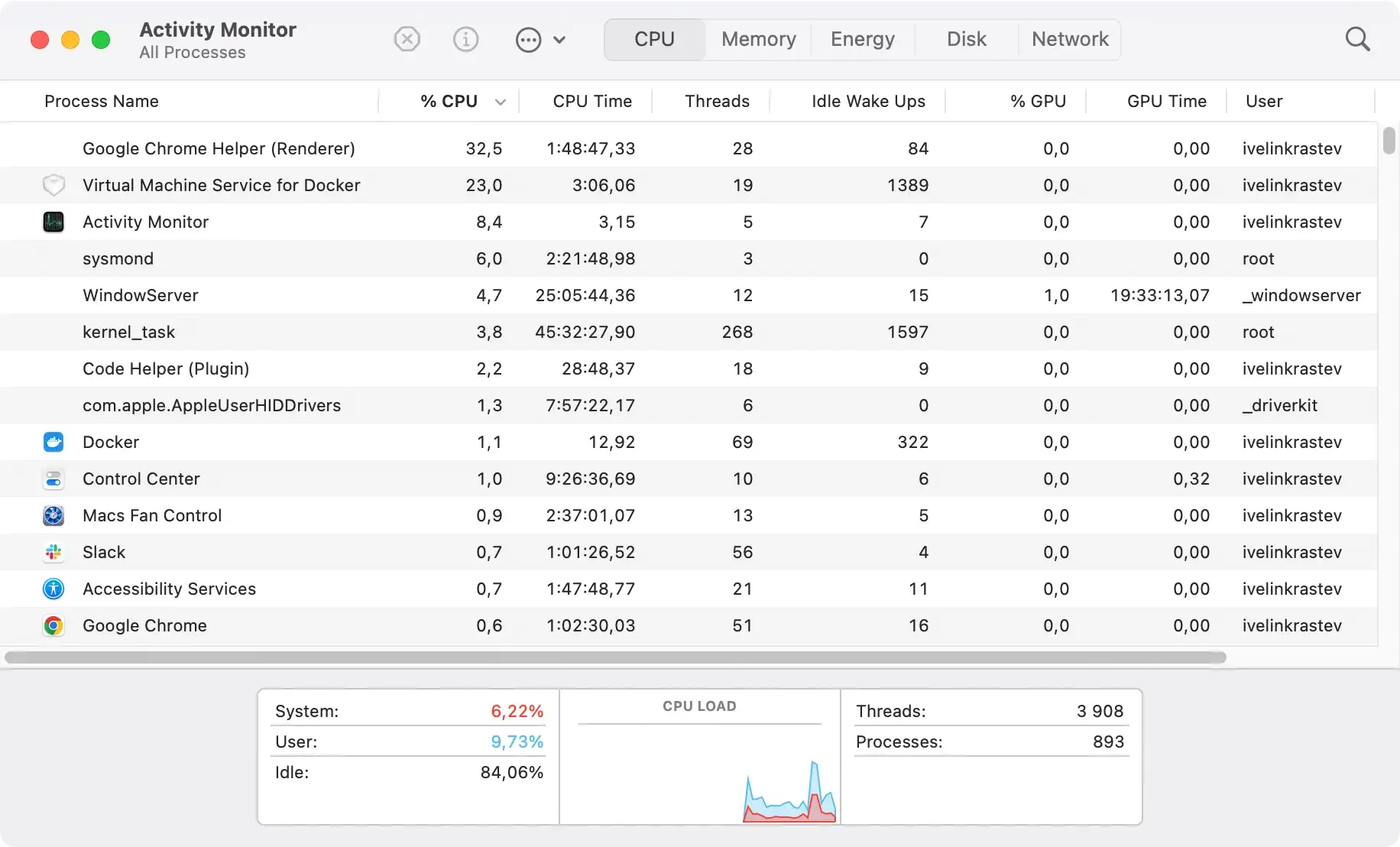
After completing these steps, monitor your Mac’s performance to see if the CPU usage returns to normal levels.
Update MRT and your system to reduce MRT CPU consumption
Keeping your macOS up-to-date is crucial as updates often include patches for security vulnerabilities and performance improvements that could resolve high CPU usage issues.
Here’s how to update your system:
- Click on the Apple icon in the top left corner of your screen.
- Select
About This Mac. - Click on
Software Update. - If an update is available, click
Update Now.
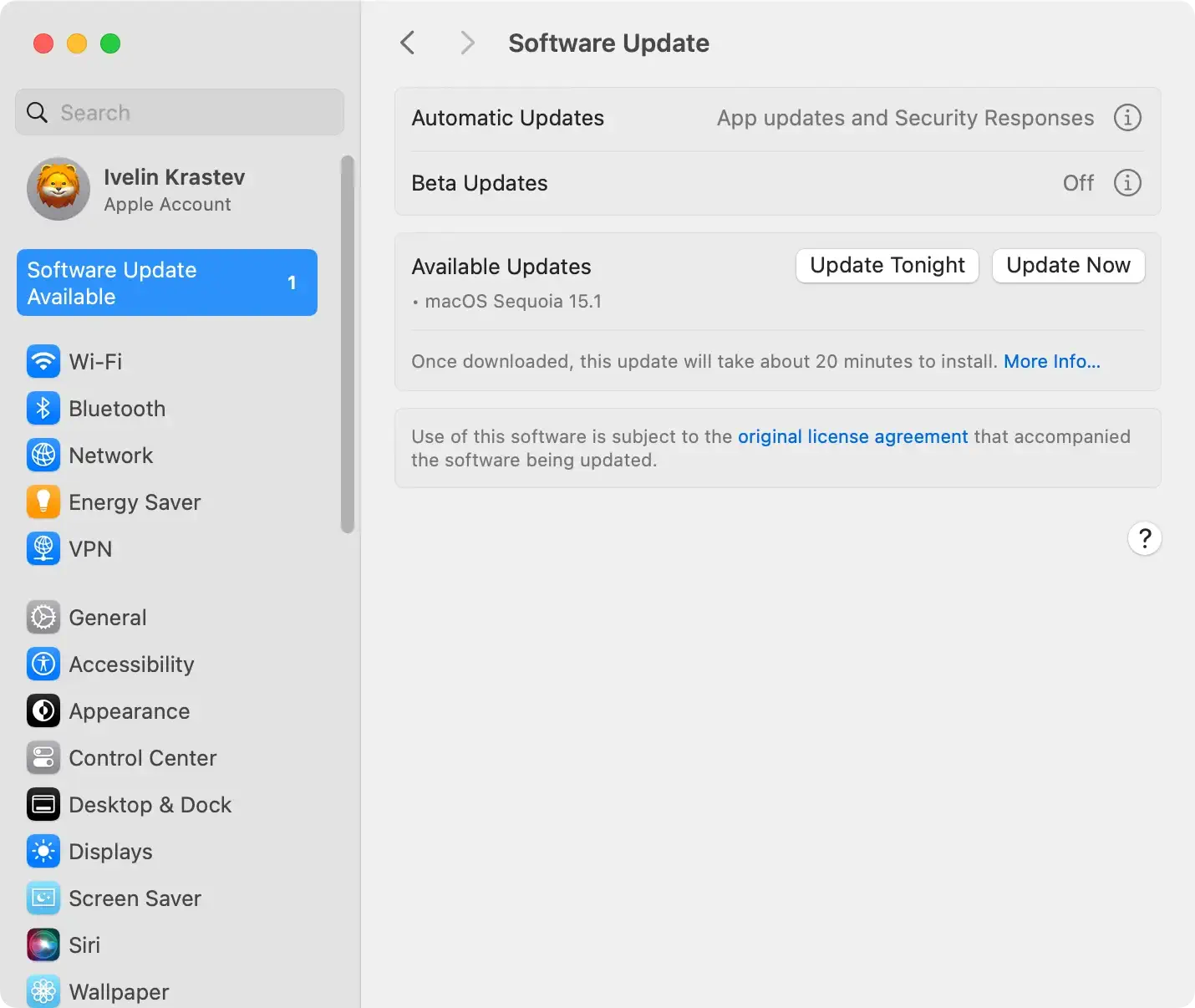
Allow your Mac to download and install the update. Restart your computer if prompted. This can help ensure that the MRT and other system processes run more efficiently once a new malware database has been downloaded.
Boot in safe mode to troubleshoot
Starting your Mac in Safe Mode can help diagnose a wide range of issues, including excessive CPU usage by MRT.
Safe Mode performs a check of your startup disk and limits startup items, which can sometimes resolve underlying system problems.
Here is how to boot your Mac in Safe Mode:
- Restart your Mac and immediately press and hold the
Shiftkey as it boots. - Release the
Shiftkey when you see the login window. Note: If your system is encrypted with FileVault, you may need to log in twice. - Once in Safe Mode, observe whether MRT still consumes high CPU resources.
- To exit Safe Mode, simply restart your Mac without holding any keys.
If the issue ceases while in Safe Mode, it may be related to third-party software or additional login items that are not loaded in this state.
Enhancing Mac security with SpyHunter
While macOS includes several powerful security features such as XProtect and Gatekeeper, additional steps can help optimize and secure Mac systems fully.
Installing additional cybersecurity software like SpyHunter can significantly enhance the security of your Mac. SpyHunter offers deep system scans and the ability to handle complex malware issues.
SpyHunter is designed to be user-friendly, catering to both tech-savvy individuals and those not as comfortable with technology.
Regular updates from its development team keep SpyHunter aligned with the newest threats, adding an extra layer of security to your Mac.
How SpyHunter complements built-in macOS security features
SpyHunter complements macOS’s built-in security features by offering robust anti-malware and optimization tools that are not typically part of the primary macOS framework.
SpyHunter detects and removes spyware, adware, browser hijackers, rootkits, ransomware, and other sophisticated threats that might evade other antivirus programs.
You can download the app now and complete the installation process by following the instructions on your screen.
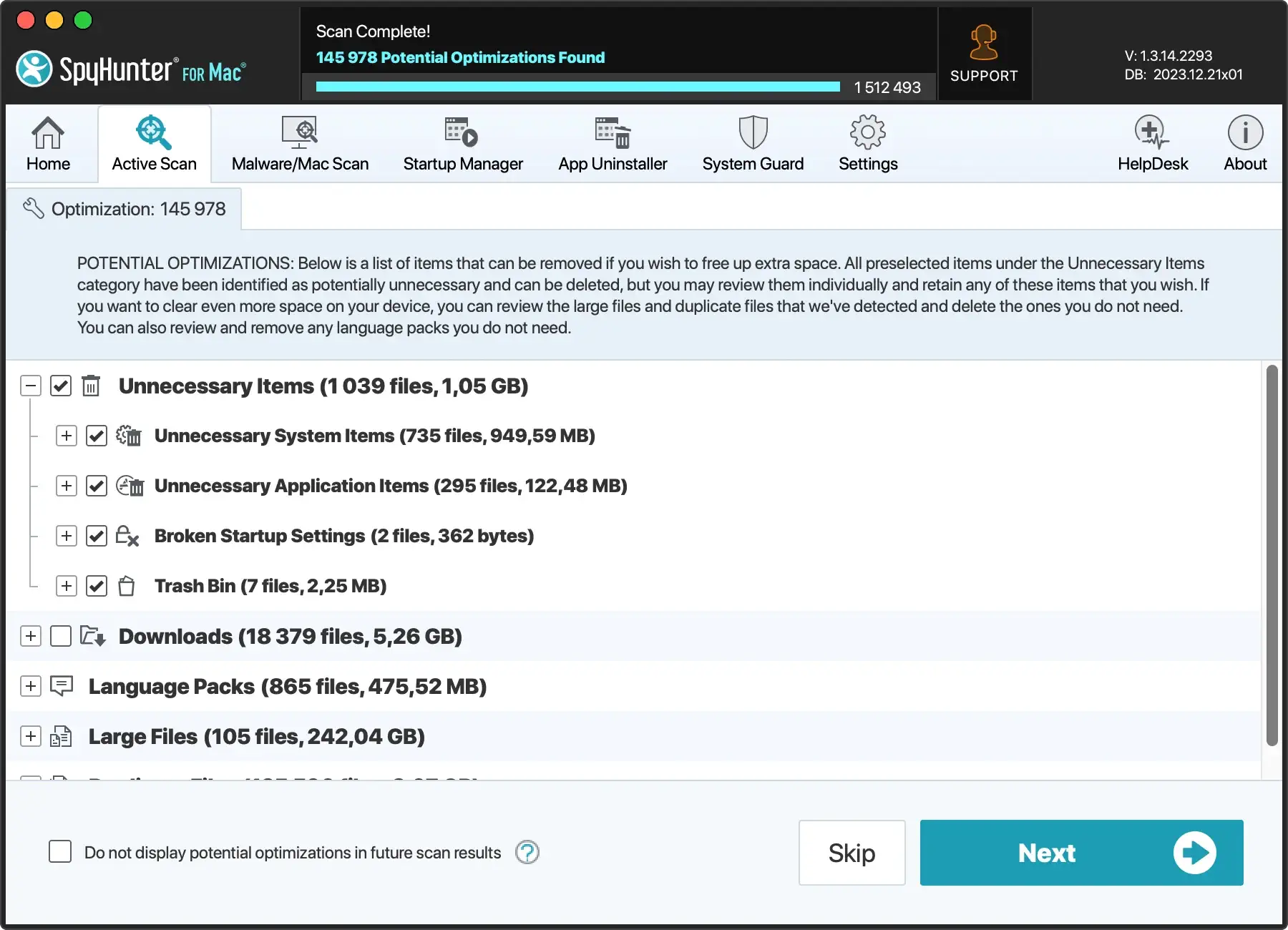
Once installed, you can launch SpyHunter and then choose to perform a full scan of your whole system from the main menu.
When the scan is complete, you will see a list of all malicious or potentially unwanted files and apps found.

Use the interface to select all threats for removal and then proceed with the automated clean-up process.

You might need to reboot your Mac, depending on what items were discovered and cleaned up. Once this is done, you can enjoy a much safer work environment and a stable Mac.
In addition to malware removal, SpyHunter includes performance optimization tools that can clean up redundant files and improve overall system responsiveness.
These tools ensure that not only is your Mac safe from threats, but it’s also running as efficiently as possible.
Is it safe to disable the MRT process?
Disabling the MRT process on your Mac should not be taken lightly.
MRT, or Malware Removal Tool, plays a crucial role in identifying and eliminating known threats that might compromise your Mac’s security.
Its function as a background protector against malware makes it a significant component of your system’s defense strategy.
While it might be tempting to disable MRT to regain some system performance or stop an annoying process, the potential security risks outweigh these temporary benefits.
It’s important to assess why you feel the need to disable MRT.
If it’s due to high CPU usage, there might be alternative solutions such as checking for updates or conducting a system scan using reliable security software like SpyHunter, which ensures that your system is not only free from malware but also optimized for performance.
When to seek professional help with MRT issues
Decoding when it’s time to call in the experts for issues with your Mac’s Malware Removal Tool (MRT) can save you from bigger headaches down the line.
If basic troubleshooting steps like updating the MRT or checking system logs don’t resolve the issues, professional help might be necessary.
Signs that professional intervention is required include persistent high CPU usage, repeated security alerts about the same issue, or if MRT is unable to remove identified malware.
Consulting a professional can ensure your system is thoroughly checked, vulnerabilities are patched, and MRT functionality is fully restored.
Opting for expert assistance is particularly crucial when your personal attempts to remedy the situation do not produce satisfactory results and could potentially lead to a greater risk of damage or data loss.
