

How To Remove Spyware On Mac (Quick Guide)

Before we dive in
Before we dive in, let's make sure you stay safe online. We created SpyHunter because your security matters to us.
Protect your computer today — download SpyHunter right here! Check out our top tips below to keep your computer safe and secure.

Ever wondered if your Mac, known for its robust security, could be silently harboring spyware?
Despite their strong defenses, Macs are not invincible against malicious software that could be spying on your every move—collecting data without your permission.
Whether it’s annoying ads popping up unexpectedly, your Mac running frustratingly slow, or new apps appearing out of nowhere, these could be signs that spyware has made its way into your system.
This article takes you through what spyware involves, its types, how it infects Macs, and early signs to watch out for. More importantly, you’ll learn detailed steps to detect and remove spyware from your Mac.
What exactly is spyware?
Spyware is a type of malicious software designed to enter your computer, gather your data, and forward it to third parties without your consent.
This unwanted software operates in the background, invisible to the naked eye, continuously monitoring your digital activities and collecting personal information.

Whether it’s the websites you visit, your online purchases, or even your keystrokes, spyware silently watches and records everything.
Common types of spyware you might encounter on a Mac
While Macs are often praised for their security, they are not immune to spyware. Various forms of spyware can affect Macs, each with its own method of infiltration and damage.
One notable type is adware, which bombards you with unwanted ads and can track your online behavior to tailor those advertisements.
Trojans masquerade as legitimate software, but once installed, they grant cybercriminals access to your system.
Keyloggers are another common type, they record every keystroke you make, potentially capturing sensitive data like passwords and credit card numbers.
Finally, cookie trackers follow your browsing activity to gather comprehensive profiles of your online habits and preferences.
Signs your Mac may be affected by spyware
If your Mac starts behaving oddly, you might be encountering early signs of spyware.
These symptoms can range from new apps appearing unexpectedly to your Mac suddenly running slower than usual. It’s crucial to recognize these signals early to prevent further damage or data loss.
Unexpected ads and pop-ups
Encountering unexpected ads and pop-ups can be more than just an annoyance; it could indicate an adware infection.
These ads often pop up even when not browsing the internet, including offline pop-ups. This type of spyware not only disrupts your user experience but can also serve as a gateway for additional malicious software to enter your system.
If you’re constantly clicking out of ads or dealing with intrusive pop-ups, it’s a strong sign that your Mac could be compromised.
Mac running slow
A suddenly sluggish Mac is a telltale sign of possible spyware infection. Spyware can consume significant system resources like your Mac’s CPU or memory, leading to noticeable slowdowns.
If apps take longer to open, files take longer to load, or if the whole system seems lethargic, spyware could be working in the background.
To address this, consider checking your Mac’s Activity Monitor for any unusual activity or resource usage.
Can Macs really get spyware?
Despite their reputation for high security, Macs are indeed susceptible to spyware.
While macOS offers a more secure architecture compared to many operating systems, this does not render it completely immune to cybersecurity threats.
With increasing sophistication in spyware distribution methods, even Mac users must stay vigilant about potential intrusions. In many cases, spyware can infiltrate Macs when users inadvertently download and install compromised software, granting it undue access.
Therefore, it’s crucial for Mac users to understand that their system’s security also depends significantly on their actions and awareness.
Distribution methods of adware
Threat actors employ various techniques to distribute spyware on macOS, often relying on user manipulation or software vulnerabilities. Here are some of the most common distribution methods:
- Malicious Email Attachments: Threat actors often use phishing campaigns with infected attachments, such as documents or compressed files. Once opened, the attachment installs spyware without the user’s knowledge.
- Infected Software Downloads: Spyware and other malicious programs can be bundled with free software or pirated applications. Users who download software from untrusted or unofficial sources risk installing spyware along with the desired application.
- Fake Security Alerts or Updates: Users may encounter fake pop-ups warning of a system vulnerability or outdated software, urging them to download a “security tool” or “update.” These downloads can instead deliver spyware.
- Compromised Websites: Visiting malicious or compromised websites can result in drive-by downloads, where spyware is automatically installed on the system without requiring any action from the user.
- Browser Exploits: Certain browser vulnerabilities can be exploited to install spyware through malicious scripts. Even simply visiting an infected website can lead to an automatic download.
- Malicious Browser Extensions: Some seemingly legitimate browser extensions or plug-ins can be spyware in disguise, gaining access to user data such as browsing history, cookies, or even passwords.
- Trojans Disguised as Legitimate Applications: Trojan malware masquerades as trusted software, tricking users into downloading it. Once installed, these trojans can operate as spyware, stealing sensitive information or monitoring activities.
By understanding these distribution methods, Mac users can be more vigilant and avoid inadvertently installing spyware on their systems.
Steps to manually detect spyware on your Mac
If your Mac seems sluggish or you’re noticing unusual activity, it’s possible you have spyware.
Here are some fundamental steps to detect hidden spyware on your Mac.
Checking for irregular application behavior
Start by observing how applications behave. Unusually slow launch times, frequent crashes, and unexpected ads are red flags.
Keep an eye out for new toolbars or extensions in your browser that you didn’t install yourself.
Sometimes, the settings may have been altered without your input:
- Check if your homepage or default search engine has changed.
- Look for new icons or apps you did not download.
Also, open the Activity Monitor in the Utilities folder. Click on the CPU tab to see if there are any unknown processes using excessive resources.
Remove spyware from your Mac with SpyHunter
Spyware can compromise your privacy by tracking your online activities and accessing personal information. While Macs are generally secure, they are not immune to such threats.
With the right tools, however, spyware removal or removing any malicious app becomes a straightforward task. SpyHunter is a potent tool designed for Macs to hunt down and eliminate spyware efficiently.
You can download the app from here and follow the instructions you see on your screen to install it.
Once SpyHunter is installed, you can launch it from the icon on your Dock. Choose to run a full system scan from the main menu.
The scan will take a short while and display a list of all threats found on your Mac, whether it is spyware, adware, potentially unwanted applications or more serious threats like Trojans.
The scan classifies each threat, so you can understand the potential danger and origin of the infection. If suspicious files are found, SpyHunter categorizes them accordingly, allowing for easy review.

Use the interface to select all threats for removal and proceed to eliminate them from your Mac.

You may need to restart your Mac after the cleanup and can then enjoy a much safer system. The real-time guard included in SpyHunter will also make sure your system stays clean in the long run and malicious code and malicious apps are not allowed to execute.
Ensuring your Mac stays spyware-free
Protecting your Mac from spyware involves more than just occasional check-ins. Proactive and preventive measures are key to ensuring your system remains secure and performs optimally.
Apart from installing reputable security software like SpyHunter, a few daily practices can fortify your Mac’s defenses significantly.
Configure settings to enhance security
Your Mac’s built-in security settings are powerful tools if configured correctly. Here’s how you can adjust these settings to boost your security and take steps to block spyware before it can download:
- Go to
System Settings(orSystem Preferenceson older macOS versions) and selectPrivacy & Security. - Check the
Allow apps downloaded from:options are set toApp StoreandApp Store and identified developers.
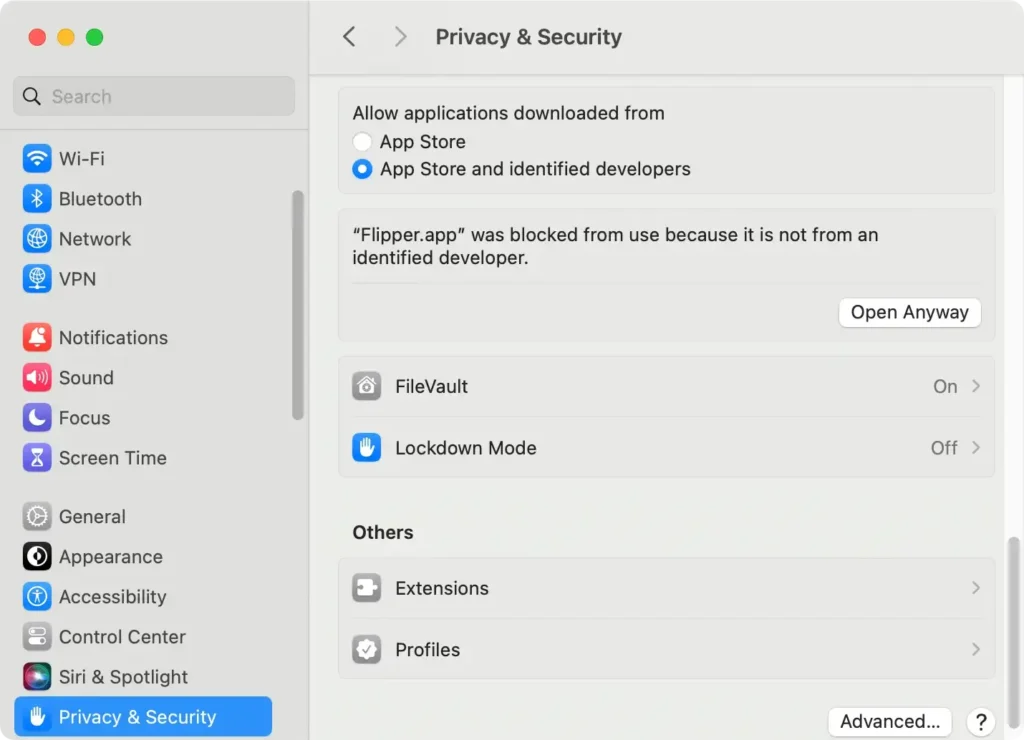
For enhanced privacy, regularly review and manage your app permissions in the Privacy tab to control which app has access to your data.
Regular updates and safety tips
Keeping your Mac’s operating system updated is a critical first step in safeguarding against spyware. Each update from Apple often includes security enhancements and patches that close vulnerabilities.
- Open
System Settingsfrom your Dock or by clicking on the Apple icon at the top left corner. - Select
Software Update. If there’s an update available, clickUpdate Now. - Enable
Automatically keep my Mac up to dateto ensure future updates are installed automatically.
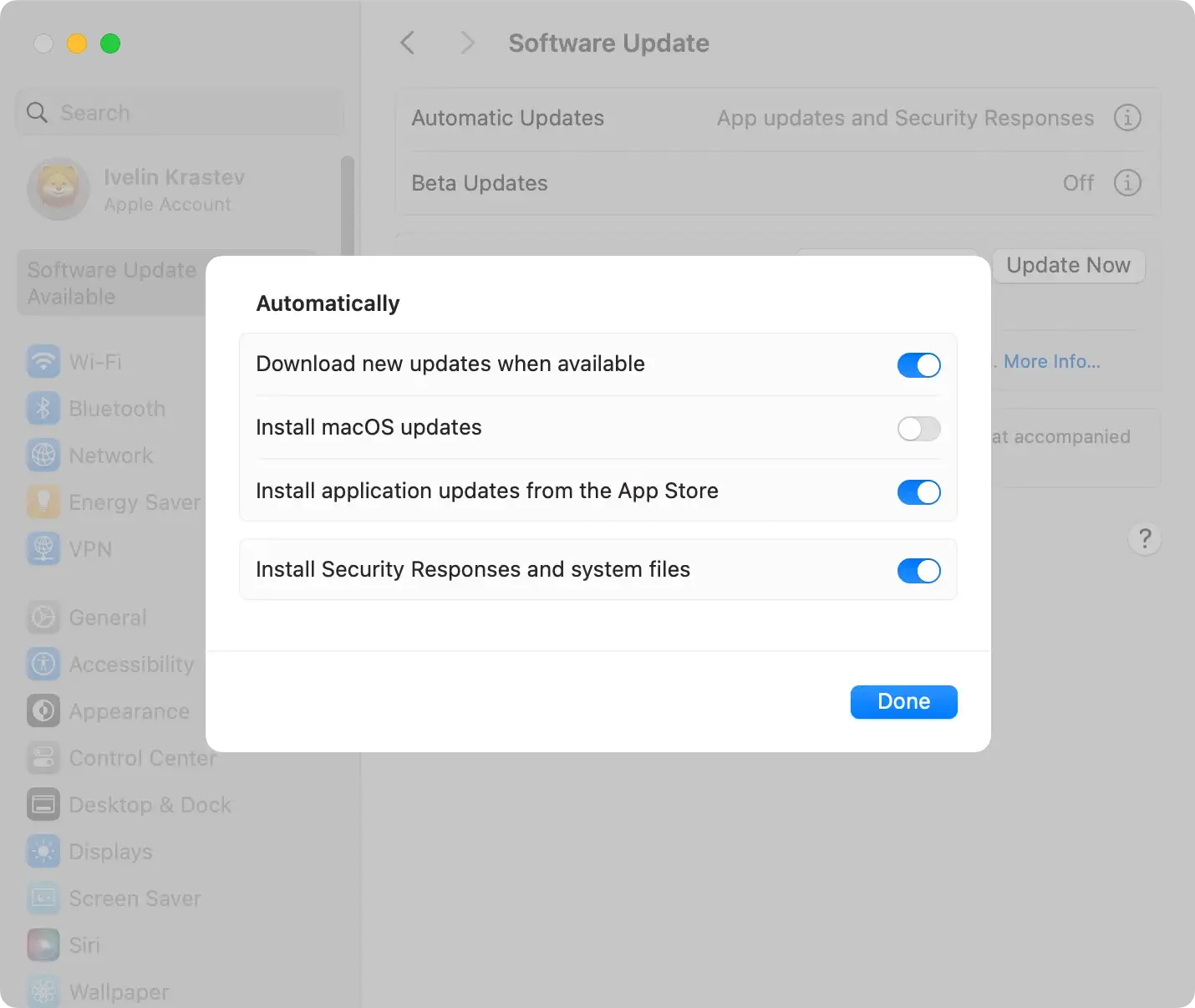
Beyond updates, be cautious with the applications you download and install. When you download apps, only use the App Store or trusted developers’ websites.
Avoid clicking on unexpected links or downloading attachments from unknown or unsolicited emails.
Keeping an eye on your system’s performance and following those tips can significantly reduce the risk of getting infected with spyware or any other Mac malware.
