

How to Remove Germanize.app Adware on Mac (2025 Guide)

Before we dive in
Before we dive in, let's make sure you stay safe online. We created SpyHunter because your security matters to us.
Protect your computer today — download SpyHunter right here! Check out our top tips below to keep your computer safe and secure.

Ever clicked on a seemingly benign ad or downloaded a free software bundle only to find your Mac running slower or overflowing with annoying pop-ups?
If so, you might be dealing with adware like Germanize.app, a pesky program that can infiltrate your system and disrupt digital peace.
But what exactly is this adware, and how can it impact your online security and computer performance?
In the following article, we’ll explore how Germanize.app sneaks onto your Mac, the risks it poses, and most importantly, clear step-by-step instructions on how to remove it and prevent future infiltration.
Whether you want to clean your system or safeguard it against similar intrusions, we have the insights and tools you’ll need.
What exactly is Germanize.app adware?
Germanize.app is a type of adware that once installed, inundates your computer with intrusive advertisements, such as pop-ups, banners, and coupons.
These are annoying and potentially dangerous, as they often contain misleading information and links to harmful websites. The program falls under the Pirrit adware family, known for aggressive advertising tactics and data collection issues.
The risks associated with Germanize.app adware
The risks of having Germanize.app installed on your device extend beyond mere annoyance.
This adware can significantly degrade your system’s performance by consuming resources, resulting in slower response times and the effectiveness of legitimate applications.

Moreover, the privacy threat looms large as Germanize.app is adept at tracking personal information such as browsing history, search queries, and even precise geolocation data. The collection of such sensitive data could lead to identity theft or other privacy violations.
How does Germanize.app end up on your Mac?
Germanize.app typically finds its way onto Mac devices through various common yet deceptive mechanisms.
Often disguised within software bundles, this adware can install itself without explicit consent during the setup of another program.
Users who do not opt out of the installation process’s custom or advanced settings may inadvertently agree to install the Germanize.app.
Common methods of adware infiltration
Adware like Germanize.app often infiltrates computers through downloads from unreliable sources such as unofficial websites, peer-to-peer (P2P) networking sites, and other third-party downloaders. These platforms frequently bundle legitimate software with unwanted applications, catching users off guard.
Clicking on deceptive ads or pop-ups on dubious websites can also lead to adware installation.
These ads can cleverly disguise themselves as legitimate software updates or urgent messages that trick users into clicking and downloading adware inadvertently.
Lastly, failing to deselect additional unwanted programs while installing software can further contribute to unintentional adware installation, making it crucial to always go through the installation steps carefully.
A step-by-step guide to removing Germanize.app from your Mac
To effectively rid your Mac of the Germanize.app adware, a systematic approach is necessary.
Follow these detailed steps to ensure your system is clean and secure.
Detect and delete adware files
Start by targeting the hidden nooks where adware files often reside. Use the Finder to navigate:
- Open Finder, then select
Go>Go to Folder… - Type
/Library/LaunchAgents/and search for any unusual files. Suspect files might include names like “installmac.AppRemoval.plist” or “myppes.download.plist”. Drag these to the Trash. - Repeat the process for
~/Library/Application Support/,~/Library/LaunchAgents/, and/Library/LaunchDaemons/, removing any suspicious files or folders.
Deleting these files prevents the adware from continuing to run on your system.
Eliminate unwanted extensions from Safari
Adware often installs extensions that can hijack your browser experience. To clean Safari:
- Open Safari and go to
Safari>Preferences… - Click on the
Extensionstab. Look for any unknown extensions that you do not remember installing. - Select the unwanted extension and click
Uninstall.
This should stop unwanted ads and redirects caused by these extensions.
Ensure complete removal with SpyHunter
Even after manual cleanup, some adware components might remain hidden. To ensure complete removal:
- Download SpyHunter for free here, providing a comprehensive scan of your system.
- Install SpyHunter and launch the application.
- Click on
Scanto detect files related to Germanize.app and any other potential threats. - Once the scan is complete, follow the prompts to remove any detected malware.
SpyHunter can help safeguard your Mac against future risks by providing real-time protection.

By following these steps, you ensure a thorough cleanup of your Mac, enhancing your system’s performance and online security.
Prevention tips: Avoid future adware attacks
To avoid future adware attacks, vigilance and proactive steps are crucial.
Firstly, always download software from trusted sources like official websites or validated app stores. This reduces the risk of inadvertently installing malicious or bundled unwanted software.
Secondly, during software installation, pay keen attention to the information provided, especially opting out of any additional, unnecessary features or programs.
Secure your Mac settings against unauthorized changes
To secure your Mac settings against unauthorized changes, a common tactic used by adware to sustain its presence on a system, you should use your Mac’s built-in security features.
Go to System Preferences and then Security & Privacy to adjust these settings.
Enable Firewall options and ensure that FileVault disk encryption is turned on. This encrypts your entire hard drive, making it harder for malicious software to access or modify your data.
Check the profiles installed under Users & Groups settings regularly to ensure no suspicious profiles have been added without your consent.
Additionally, consider installing comprehensive cybersecurity software like SpyHunter, which can monitor and prevent unauthorized changes to your system.
Why regular software updates can save your Mac from adware
Running regular software updates is crucial for keeping adware at bay.
Software developers often release patches and updates to fix vulnerabilities that could be exploited by adware and other malicious applications. By keeping your operating system and installed applications up to date, you close these security gaps and reduce the chances of adware taking root in your system.
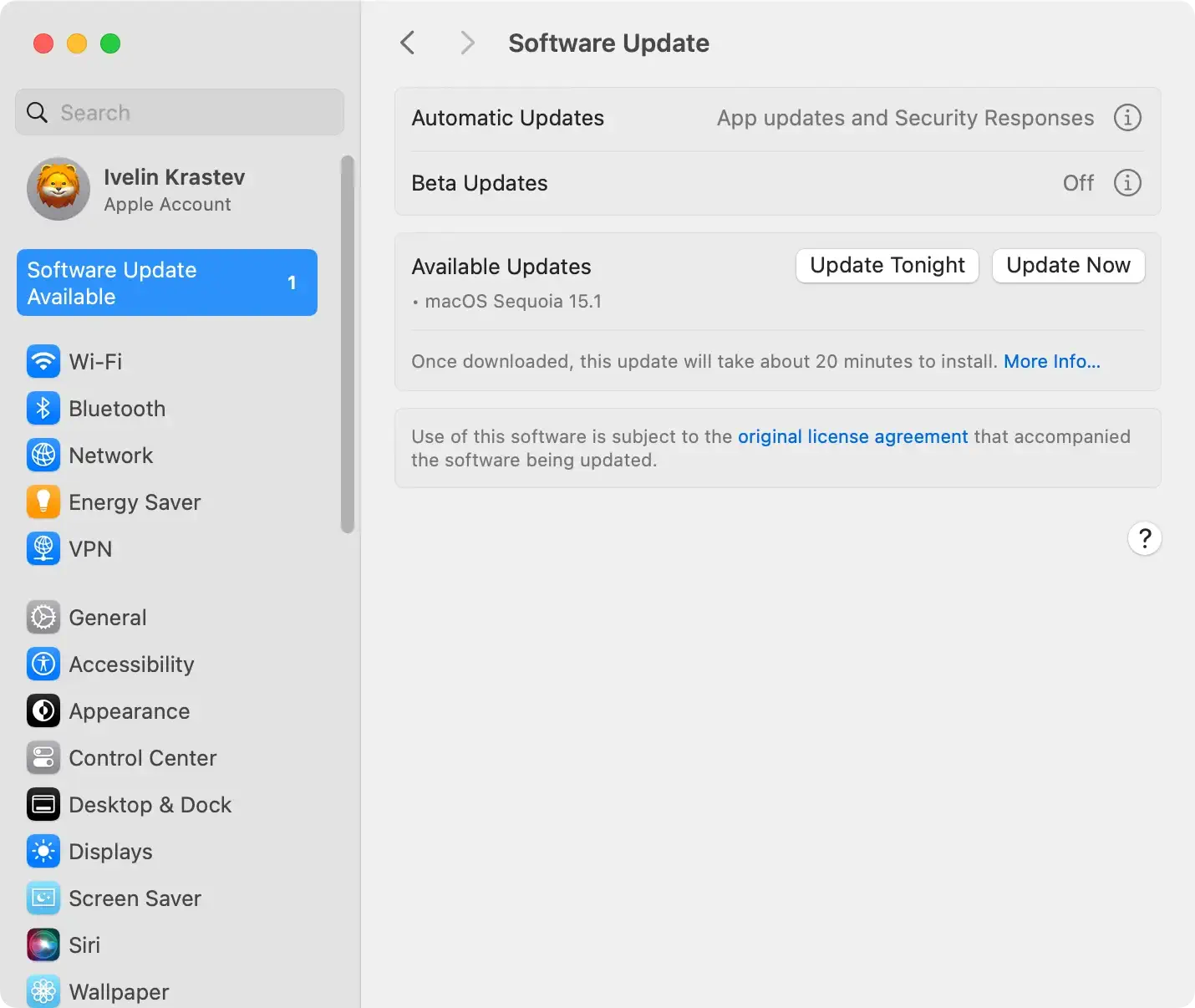
Set your Mac to automatically download and install updates by going to System Preferences, selecting Software Update, and checking Automatically keep my Mac up to date. This ensures you receive the latest protections without delay.
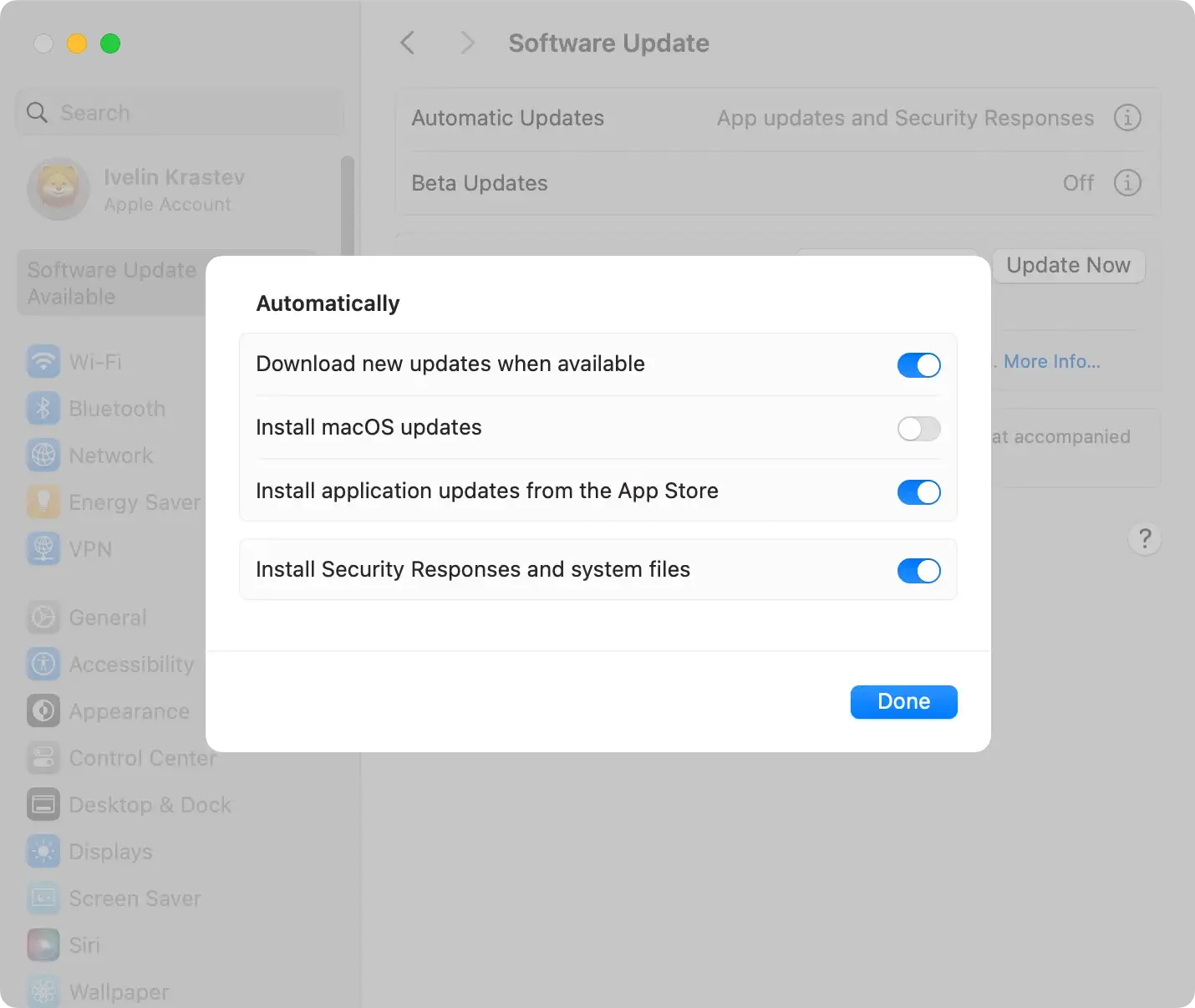
Combining this practice with reliable cybersecurity software like SpyHunter offers a strong defense against the ever-evolving threats posed by adware.
Frequently asked questions about removing adware like Germanize.app
Adware like Germanize.app can be a nuisance and pose significant risks to your computer’s security and your privacy. Here are some frequently asked questions about removing such adware:
What is adware?
Adware is software designed to inject advertisements into your web experience, collect your personal data, and sometimes alter your browser settings without your consent.
It typically monetizes its presence on your system by displaying ads or collecting data for marketing purposes.
How does adware affect my computer?
Adware can lead to slower computer performance, annoying pop-ups, and unrequested changes in your browser, potentially exposing you to further cybersecurity risks like malware and phishing attacks.
How can I prevent adware installations?
- Always download software from trusted sources.
- Read the installation guides carefully and opt out of any additional software offers.
- Keep your system and applications updated.
- Use a reputable antivirus tool to scan files before opening them.
How do I remove adware like Germanize.app?
To effectively remove Germanize.app or similar adware from your system, follow these steps:
- Check applications: Go to your
Applicationsfolder and remove any unknown or suspicious applications. - Clean up browsers: Remove unwanted extensions or add-ons from your web browser.
- Delete suspicious files: Look for any unfamiliar files or folders in your system directories and delete them.
- Scan your system: Use reliable security software to scan and remove hidden adware. For instance, you can download and install SpyHunter, which effectively identifies and clears out intrusive adware.
If these steps seem complex, or you want assurance of thorough removal, using dedicated cybersecurity software like SpyHunter will provide a simple and effective solution.
Such software is designed to detect and eliminate adware, safeguarding your system from future attacks.
Can adware steal my personal information?
Yes, some advanced adware can track and collect your browsing history, login credentials, and even financial information. This data can be used for malicious purposes, such as identity theft or fraudulent transactions.
Is manual removal of adware effective?
While manual removal can rid you of visible components of adware, it might not delete all hidden files.
Additionally, manual cleaning can be risky if you’re not tech-savvy, as you might accidentally delete essential system files.
Using professional antivirus software like SpyHunter ensures a safe and thorough clean-up.
