

How to Remove MacStealer Malware on Mac [Quick Guide]

Before we dive in
Before we dive in, let's make sure you stay safe online. We created SpyHunter because your security matters to us.
Protect your computer today — download SpyHunter right here! Check out our top tips below to keep your computer safe and secure.

Have you ever downloaded a software update, only to find that you’ve unintentionally invited malware onto your Mac?
Meet MacStealer, a crafty piece of malware that targets macOS users by masquerading as harmless software.
With the capability to steal everything from your passwords to your credit card data, it’s a significant threat to anyone using macOS Catalina and later versions.
This article dives into what MacStealer is, how it infiltrates systems, and most importantly, how you can protect your device from falling victim to this stealthy malware.
What exactly is MacStealer malware?
MacStealer is a sophisticated malware specifically designed to target macOS users by masquerading as legitimate software.
This deceptive tool infiltrates systems through seemingly harmless downloads, such as software updates or applications delivered via a malicious DMG file.
Once activated, MacStealer employs a fake password prompt to trick users into inadvertently providing their passwords.
After gaining access, it systematically harvests a wide array of personal and sensitive information from the infected device.

Key pieces of data targeted by MacStealer include passwords stored in browsers and the macOS Keychain database, session cookies, credit card details, and even files from cryptocurrency wallets.
The malware also searches for and extracts various file types such as documents, images, and media files, compressing this stolen data and discreetly transmitting it to cybercriminals via encrypted channels.
Furthermore, MacStealer utilizes Telegram for command and control operations, complicating the detection and tracing of its malicious activities.
Key characteristics of MacStealer
MacStealer presents several distinctive features that make it particularly dangerous.
First and foremost, its ability to steal an extensive range of data types—including passwords, financial information, and multi-format files—marks it as a high-impact threat.
MacStealer operates on modern macOS versions from macOS Catalina to macOS Ventura, affecting computers with both Intel and Apple’s latest M-series chips.
Another alarming characteristic is its accessibility in the cybercrime community: MacStealer is available on hacker forums at a relatively low cost, lowering the barrier for potential cybercriminals to obtain and deploy this malware.
It employs a fake password prompt as a primary method for initial data theft, which is a clever disguise that often goes unnoticed by users until it’s too late.
MacStealer’s use of the Telegram app for command and control purposes not only facilitates data exfiltration but also helps it evade detection by traditional security solutions.
How does MacStealer compromise macOS systems?
MacStealer infiltrates macOS systems by masquerading as legitimate software. The malware typically spreads through .DMG files that appear as innocuous downloads or software updates.
When executed, these files prompt users with a fake password request mimicking macOS system messages. Unsuspecting users input their passwords, providing the malware with unrestricted access to their system.
MacStealer then scans the system, collecting a wide variety of personal and sensitive data, including passwords, credit card information, and documents.
It packages this data into a Zip file and utilizes secure communication channels like Telegram to send the information to the attacker.
Vulnerable macOS versions susceptible to MacStealer
MacStealer specifically targets macOS systems starting from Catalina up to the latest versions, including Big Sur, Monterey, Ventura, Sonoma and Sequoia.
The malware is capable of attacking systems with Intel CPUs as well as Apple’s M1 and M2 CPUs.
This broad compatibility with recent macOS versions makes it a significant threat. Apple users with these systems need to stay vigilant, especially when they download software from unfamiliar sources.
Reasons behind the proliferation of MacStealer
The surge in popularity of Play-2-Earn (P2E) games, which are heavily reliant on cryptocurrencies, presents an attractive target for cybercriminals like those behind MacStealer.
These games, by design, necessitate the management of digital wallets and financial transactions, creating lucrative opportunities for theft.
Cybercriminals craft duplicate P2E game websites, luring gamers into downloading malicious software by mimicking legitimate game interfaces.
Additionally, the Malware-as-a-Service (MaaS) business model significantly contributes to the distribution of MacStealer.
Individuals without advanced coding skills can now deploy malware, amplifying the reach and impact of attacks.
This accessibility, combined with MacStealer’s capability to stealthily gather sensitive information like passwords and credit details, fuels its widespread utilization among cybercriminal groups.
Steps to manually remove MacStealer from your Mac
If you suspect your Mac is compromised by the MacStealer malware, several options are available for removal.
One efficient method is to manually locate and delete the malware files. Here’s how:
- Open
Finderand selectGo > Go to Folder. - Type
/Library/LaunchAgentsand pressReturn. Look for any files that seem abnormal or out of place. - Right-click on suspicious files and select
Move to Trash. - Repeat this step for folders such as
~/Library/LaunchAgents,/Library/Application Support, and/Library/LaunchDaemons. - Empty your
Trashto permanently remove the files.
This manual process requires some familiarity with macOS’s file system, which might be challenging for users not accustomed to diving into system files.
Remove MacStealer using SpyHunter
While the manual removal of MacStealer is feasible, using specialized software like SpyHunter offers a simpler and more secure alternative.
SpyHunter is designed to specifically target and eliminate malware like MacStealer with precision.
Here’s how you can remove MacStealer using SpyHunter for Mac:
- Download the app here and install it following the instructions on your screen.
- Launch the program and initiate a full scan of your Mac from the main menu.

- You will soon see a list of all malware discovered on your system. Find and select MacStealer in the list of threats.
- Let SpyHunter handle the removal of any detected malware, which ensures that no crucial files are misidentified and incorrectly deleted.

This method not only streamlines the removal process but also enhances your Mac’s protection against future macOS malware, using SpyHunter’s real-time guard.
Proactive measures to prevent MacStealer infections
To shield your Mac from the likes of MacStealer malware, a proactive stance is essential.
Implementing stringent security practices can vastly reduce the likelihood of an infection and safeguard your personal information and system integrity.
Regular software updates
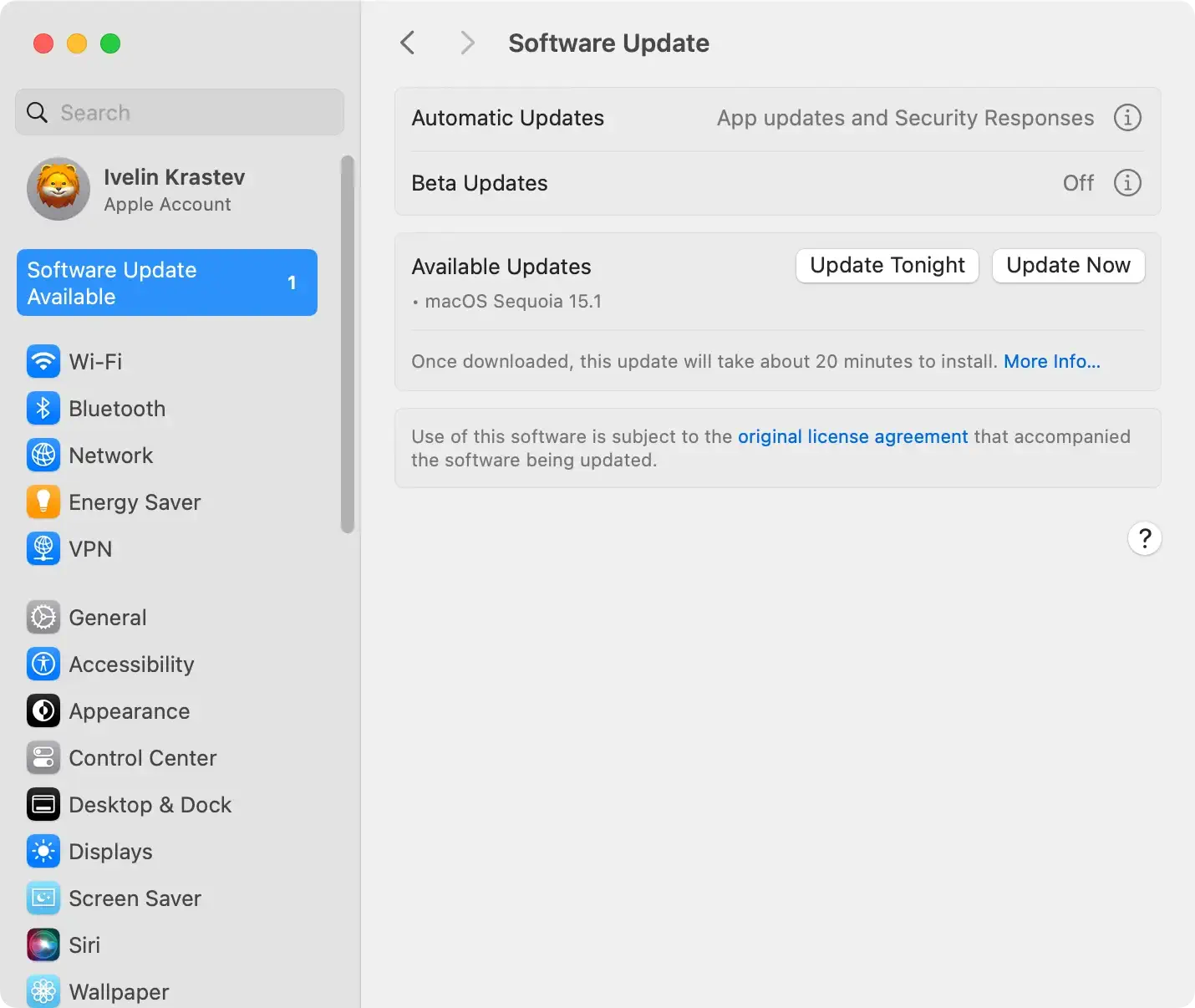
Keeping your macOS up to date is crucial in preventing malware infections like MacStealer.
Each update from Apple usually includes security enhancements and vulnerability patches that make your system tougher for malware to penetrate.
To automate your software updates:
- Navigate to
Apple menu > System Settingsor, for older versions,System Preferences. - Click on
General > Software Update. - Enable
Automatically keep my Mac up to dateto ensure you always have the latest defenses against threats.
Tips for safer internet and social media use
The internet is a playground for various threats, and the habits we form while surfing can significantly affect our system’s security:
- Be skeptical of emails or messages from unknown sources that prompt you to click on links or download attachments.
- Use strong, unique passwords for each of your online accounts, and consider using a password manager to keep them secure.
- Enable multi-factor authentication where possible to add an extra layer of security.
- Regularly review app permissions on your device to ensure apps do not have access to unnecessary system information or features.
By adjusting these habits, you can drastically decrease the risk of falling victim to malware through social engineering schemes.
Immediate actions to take if you suspect a Mac malware infection
If you think your Mac may be infected with malware, it’s crucial to act quickly to minimize potential damage. Here are some immediate steps you can take:
- Disconnect from the internet to prevent any potential malware from sending out your personal data or downloading more malicious files.
- Enter
Safe Modeby restarting your Mac and holding down theShiftkey as it boots up. This prevents some types of malware from loading. - Check your
Applicationsfolder for any unfamiliar software and remove them. To do this, drag the suspected application to theTrash, then empty theTrash. - Use a trusted malware removal tool like SpyHunter to perform a deep system scan. After installing, run a scan to detect and remove any traces of malware.
- Update your operating system and applications to their latest versions. Often, updates include patches for security vulnerabilities that malware could exploit.
These steps can help you handle an immediate threat.After addressing the immediate concerns, consider implementing longer-term security practices like regular software updates and frequent malware scans.
