

How To Stop Mac From Verifying Apps (Ultimate Guide)

Before we dive in
Before we dive in, let's make sure you stay safe online. We created SpyHunter because your security matters to us.
Protect your computer today — download SpyHunter right here! Check out our top tips below to keep your computer safe and secure.

As a Mac user, you have probably run into the issue where your Mac will ask to verify an app you downloaded. Are you also pondering whether bypassing these checks could make your workflow smoother?
This article delves into the essentials of app verification on macOS, explores why you might disable it, and provides a safe guide on how to tweak these settings to your advantage.
We’ll also cover how to strike a balance between ease of use and maintaining strong security against potential threats, ensuring you get the best of both worlds.
What is app verification on Mac?
App verification on a Mac is a security measure designed to ensure that the applications you download and install are safe and free from malware.
This process happens automatically when you try to open an app that was downloaded from the internet. Your Mac will check the app against a list of known developers and safe applications before allowing it to run.

If the app isn’t recognized, or if there’s something unusual about its data, macOS will warn you before opening it. This helps protect your device from potential threats.
The role of Gatekeeper in macOS security
Gatekeeper is a crucial component of macOS security. It’s designed to ensure that only trusted software runs on your Mac.
When you install apps, Gatekeeper checks if they are from a recognized developer and if they have a specific developer ID that verifies their authenticity.
This prevents software that hasn’t been verified by Apple from accidentally compromising your system. If an app doesn’t meet these security criteria, Gatekeeper can block the app from installing unless you override its decision.
This safety check is part of what makes macOS a secure operating environment for everyday use.
Additionally, Gatekeeper receives regular updates to handle new kinds of security threats, ensuring your Mac stays protected over time.
Why you may need to disable app verification
Disabling app verification on your Mac can be considered for several practical reasons, primarily aiming to streamline your workflow and reduce time lost during the app launching process.
Frequent app verification can be disruptive, especially for professionals who rely on rapid access to their tools and files. Let’s explore why you might consider disabling this feature.
Potential reasons and benefits
Firstly, disabling app verification speeds up the process of opening applications.
Every time an app needs verification, it introduces a delay, which can accumulate to significant time loss. This is particularly critical for those in fast-paced environments where time efficiency is key.
Additionally, frequent verification requests can interrupt your focus and workflow. For creative professionals and others who use complex software like Adobe apps regularly, these interruptions can break the creative flow, making it harder to maintain efficiency and momentum throughout the day.
Last but not least, some users might find the verification process redundant if they are using applications from trusted developers and sources.
In such scenarios, users might prefer to manage their security settings more flexibly, choosing when and how applications should be verified based on personal judgment and risk assessment.
Step-by-step guide to disabling app verification
If you find the app verification process on your Mac cumbersome, particularly when you’re sure about the authenticity of the apps you’re installing, there are a few steps you can take to disable it.
Below is a guide to help you adjust your Mac’s settings or use Terminal to bypass app verification altogether.
Ensure you understand the potential risks involved with disabling these security features, as it can make your system more vulnerable to malicious software.
Adjust your Mac’s System Settings
You can start by modifying your System Settings (formerly System Preferences on older macOS versions) to allow applications downloaded from anywhere, not just the App Store.
This is a less severe measure that still retains some level of protection but minimizes the frequency of verification prompts.
- Open
System Settingsfrom your Dock or via the Apple menu. - Navigate to
Privacy & Securityand select theGeneraltab. - Click the lock icon at the bottom left to make changes (you might need to enter your administrator password).
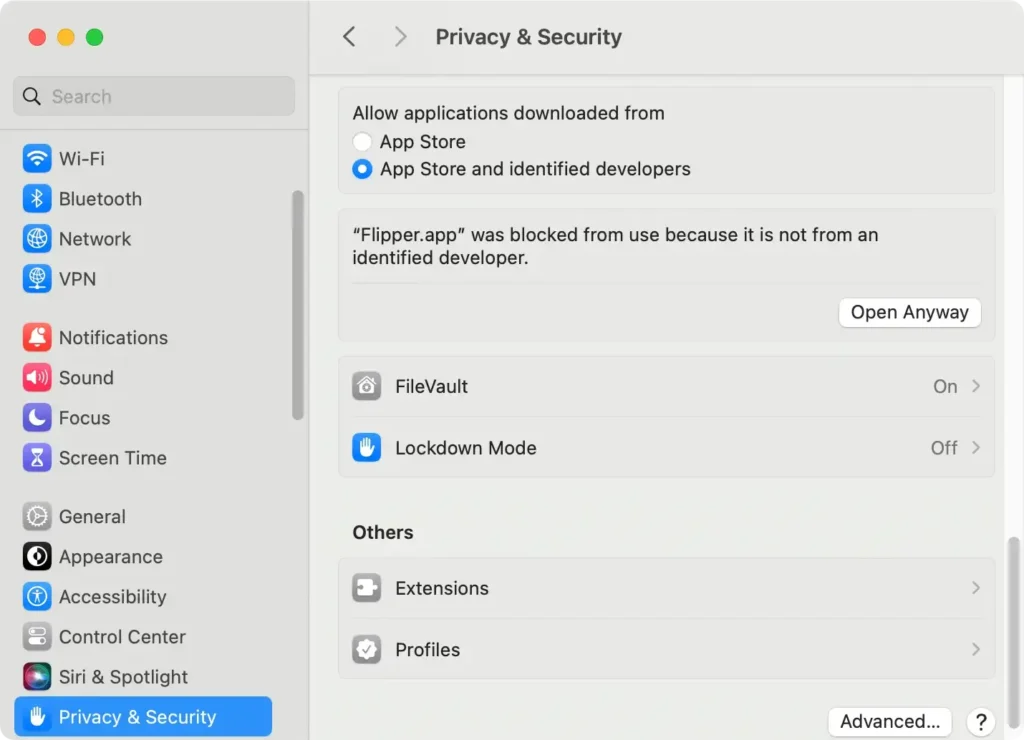
- Under
Allow apps downloaded from, selectAnywhere. If you don’t see this option, it means it’s hidden by default, which is common in newer versions of macOS.
Changing this setting allows apps to launch without being blocked or verified, but it’s a good balance between convenience and security.
Using Terminal to bypass app verification
For those who need to completely disable app verification, using Terminal to disable Gatekeeper is a more technical, but effective approach.
Remember, turning off Gatekeeper suspends all security checks on apps, so be cautious about the applications you choose to run on your Mac after committing to this change.
- Open the
Terminalapplication fromApplications > Utilitiesor use Spotlight to search for it. - Type or paste the following command:
sudo spctl --master-disableand press Return. - Authenticate with your administrator password when prompted.
- Gatekeeper is now disabled. You can verify by attempting to install apps outside the Mac App Store without encountering the verifying process.
- To re-enable Gatekeeper, open
Terminalagain and type:sudo spctl --master-enable.
By following these steps, you should be able to have control over the app verification process on your Mac, tailoring it to your preferences and operational requirements.
Enhancing security with SpyHunter when disabling app verification
When you disable app verification, you may want to add an additional layer of security in place of the one you just disabled, but one that is not as intrusive and will only filter malicious content.
SpyHunter is an anti-malware tool for Macs that can be very useful to anyone who wants to use their Mac without app verification.
With its advanced malware detection algorithm, SpyHunter shields your system from any potentially unwanted or harmful app and file while allowing safe software to run without warnings and hitches.
You can download the app here and install it on your Mac.
Launch SpyHunter once the install completes and choose to run a full scan of your system using the app’s main menu. When the scan finishes, you will see a list of all malicious or potentially unwanted files and apps that may exist on your Mac.

You can use the interface buttons to select and automatically remove any threats found using SpyHunter.

The application also comes with a real-time protection module that will ensure future threats are stopped in their tracks before they get a chance to execute on your system.
How to manage app security settings after disabling verification
Disabling verification for apps on your Mac might speed up the process of launching programs but it decreases your system’s security. To balance between operational efficiency and safety, consider adjusting your security settings specifically for apps you trust. Here’s how you can manage those settings:
- Review the list of allowed apps: Regularly check your settings in
Privacy & SecurityunderSystem Settingsto ensure that only trusted apps are allowed to run without verification. - Use a firewall: Enable and configure the firewall on your Mac. This will monitor and control incoming and outgoing network traffic based on predetermined security rules.
- Regular updates: Ensure that your macOS and all installed apps are up-to-date to protect against vulnerabilities and threats.
In addition to these manual checks, consider installing cybersecurity software like SpyHunter to provide real-time threat assessment and intervention.
Ensuring your Mac remains secure without app verification
Disabling app verification removes a layer of security that can make your Mac vulnerable to malware and other cyber threats. To keep your system secure without verification, take proactive steps to safeguard it:
- Install comprehensive security software: Software like SpyHunter offers broad protection against malware, spyware, and potentially unwanted programs.
- Limit app downloads to trusted sources: Even if app verification is disabled, only download software from reputable websites or the official App Store.
- Enable Gatekeeper settings: Gatekeeper can still offer some level of protection. Visit
System Settings > Privacy & Securityand set to allow apps from recognized developers and the App Store. - Regular system scans: Run scheduled scans to identify and remove malicious software that may have bypassed initial security checks.
By taking these measures, you ensure your Mac remains as protected as possible, even with app verification turned off.
Common issues and solutions with app verification
Disabling app verification on macOS can lead to common issues, primarily centered around security prompts and software functionality.
While Apple’s design is to ensure system integrity and safety from malware, there might be instances where users may want to disable this feature for convenience or while troubleshooting specific applications.
A frequent issue arises when Gatekeeper continues to verify certain applications persistently, often due to permissions resetting after system updates or software modifications.
In these cases, understanding how to manage Gatekeeper’s settings effectively without compromising system security becomes key.
Tips for persistent verification prompts
If you encounter persistent verification prompts, there are several troubleshooting steps you can take to resolve the issue.
First, ensure the application causing the prompts is a trusted piece from a reputable developer. Here are detailed steps to manage these prompts:
- Use right-click opening: The first time you open an app downloaded from outside the App Store, right-click on the app icon and select
Open. This method approves the app through Gatekeeper, and you should only have to do this once unless the app is updated or reinstalled. - Check security settings: Go to
Apple menu > System Settings > Security & Privacy. Under theGeneraltab, check if the app is blocked underAllow apps downloaded from. You might need to click the lock and enter an administrator password to make changes. - Gatekeeper reset: If problems persist, resetting Gatekeeper’s settings might help. Open Terminal and enter the following command:
sudo spctl --master-disablefollowed by your password to turn off Gatekeeper. Turn it back on withsudo spctl --master-enable. This resets the Gatekeeper settings, potentially resolving persistent issues. - Safe mode: Starting your Mac in Safe Mode can help diagnose the issue. It limits what runs on your Mac during startup and can bypass certain checks. To enter Safe Mode, restart your Mac while holding down the
Shiftkey until you see the login window.
Implementing these tips should address most issues regarding persistent verification prompts, improving your workflow, and decreasing disruption during application launches.
