

How to Remove Rootkit Malware?

Before we dive in
Before we dive in, let's make sure you stay safe online. We created SpyHunter because your security matters to us.
Protect your computer today — download SpyHunter right here! Check out our top tips below to keep your computer safe and secure.

Macs are known for their robust security, but they are not immune to malware and sophisticated threats like rootkits.
Rootkit malware is designed to remain hidden while allowing hackers to gain control over a device, steal sensitive information, and compromise system integrity.
Removing hidden malware such as a rootkit rootkit from a Mac can be challenging, but with the right approach, it is possible to eliminate these threats and restore system security.
In this guide, we’ll explain what rootkits are, their impact on your Mac, how to detect rootkits and step-by-step methods to remove them.
What is a rootkit?
A rootkit is a type of malicious software designed to gain unauthorized access to a system while hiding its presence.
Unlike traditional malware, which may be detected by basic security scans, rootkits operate stealthily, embedding themselves deep into the operating system.
This makes rootkits dangerous on a level that is a little different from a lot of other malware.
Rootkits operate at a deep level within the system, often embedding themselves into the kernel or firmware.
This allows them to persist even after rebooting the system and makes them difficult to remove using standard antivirus tools.
Some rootkits are also designed to disable security software, making detection even more challenging.

How rootkits work
Rootkits are designed to manipulate system processes to operate undetected.
Some rootkits run in user mode, meaning they function at the application level and are easier to detect.
However, more sophisticated rootkits operate in kernel mode, embedding themselves within the core system processes, making them nearly invisible.
In addition to hijacking system files and processes, rootkits can also deploy keyloggers, backdoors, or even modify firmware to persist after reinstallation of the operating system.
How rootkits are distributed
Cybercriminals are constantly refining their methods of distributing rootkits, making them more sophisticated and harder to detect.
Advanced rootkits may use zero-day exploits to take advantage of security vulnerabilities before they are patched.
Rootkits can infiltrate a Mac through various attack vectors, including:
- Malicious software downloads – Downloading software from untrusted sources can introduce rootkits.
- Phishing emails – Malicious email attachments or links can install rootkits.
- Compromised websites – Visiting an infected website can lead to a silent rootkit installation.
- Infected USB devices – Plugging in a compromised USB drive can spread the infection.
- Exploiting software vulnerabilities – Hackers exploit security flaws in outdated macOS versions and apps.
Signs of possible rootkit infection
Detecting a rootkit is challenging because it hides its activities, but certain symptoms may indicate an infection:
- Unusual system behavior – Unexpected slowdowns, crashes, or freezes.
- Disabled security software – Antivirus and firewall settings may be altered or disabled.
- Unexpected network activity – High network usage even when no applications are running.
- Unfamiliar system processes – Unknown or suspicious processes running in Activity Monitor.
- Inability to remove certain files or programs – Some rootkits protect themselves by preventing deletion.
How rootkits impact your Mac
Rootkits can cause serious security issues, including:
- Unauthorized access – Attackers can remotely control your Mac.
- Data theft – Sensitive information such as passwords and financial data can be stolen.
- System instability – Your Mac may experience crashes, slow performance, or unresponsive applications.
- Undetected malware installations – Rootkits often hide other types of malware, worsening security risks.
- Bypassing security measures – They disable antivirus programs and firewall settings, making removal more difficult.

How to remove rootkit malware on Mac
Since rootkits are designed to be hidden, removing them requires a combination of manual steps and specialized tools.
Follow these steps to effectively eliminate rootkits from your Mac.
Step 1: Boot into Safe Mode
Safe Mode prevents third-party software, including some rootkits, from loading at startup, making removal easier.
- Shut down your Mac completely.
- Turn it back on while holding the
Shiftkey until you see the login screen. - Log in and check if your Mac performs better without unusual behavior.
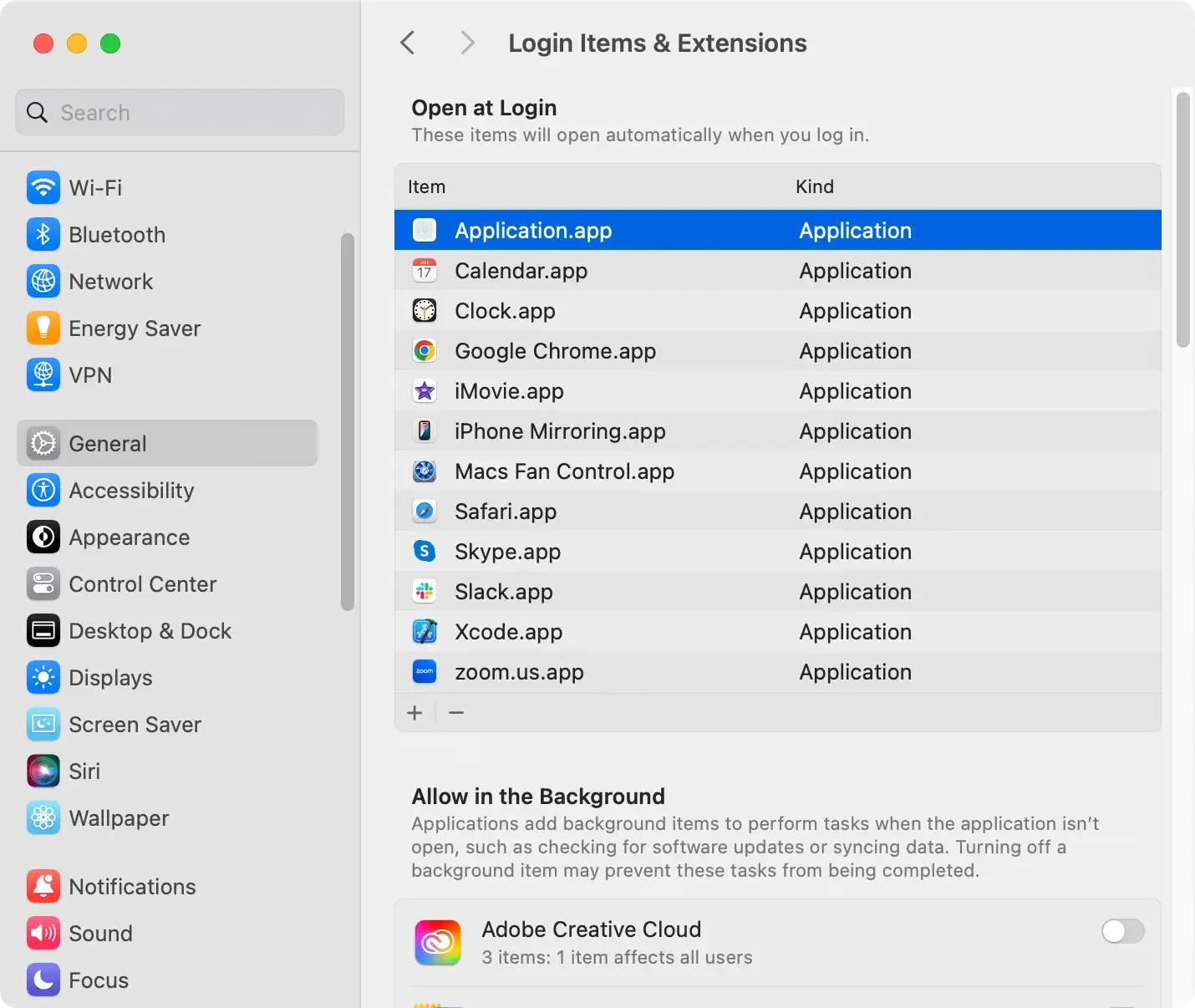
Step 2: Check Login Items and Extensions
Rootkits often install themselves as login items or system extensions.
- Go to
System Settings > General > Login Items & Extensions. - Look for suspicious or unknown applications.
- Select and remove any entries that seem malicious.
Step 3: Use Terminal to identify suspicious processes
Advanced users can use Terminal to look for unusual system behavior.
- Open
Terminal, found inApplications > Utilities. - Type
ps auxand pressEnterto list running processes. - Look for unknown or suspicious processes consuming high resources.
- Use
sudo kill -9 [ProcessID]to terminate any suspicious process.
Step 4: Reset NVRAM and SMC
If malware persists, resetting your Mac’s firmware settings can help remove hidden rootkit components.
Reset NVRAM:
- Shut down your Mac.
- Turn it on while holding
Option + Command + P + Rfor about 20 seconds. - Release the keys when you hear the second startup chime (for Intel Macs).
Reset SMC (for Intel Macs):
- Shut down your Mac.
- Hold
Shift + Control + Optionand press the power button for 10 seconds. - Release all keys and turn on your Mac.
Step 5: Scan for rootkits using SpyHunter
SpyHunter is a powerful anti-malware tool designed to protect your computer against all forms of malware, including rootkits.
How to install and Use SpyHunter:
- Download SpyHunter here and install it on your computer.
- Launch the SpyHunter app and choose to run a full scan from the main menu.
- Examine the list of results and make sure all detected malware is selected for removal.

- Proceed with the cleanup process using the interface buttons of the app.

- Restart your Mac to complete the removal process.
Step 6: Perform a macOS reinstallation
If the rootkit persists after all previous steps, reinstalling macOS is the last resort.
- Backup your important files using
Time Machineor an external drive. - Restart your Mac and hold
Command + Runtil the macOS Utilities screen appears. - Select
Reinstall macOSand follow the on-screen instructions.

How to prevent rootkit infections on Mac
To stay protected from future rootkit attacks, follow these precautions:
- Keep macOS Updated – Always install the latest security updates.
- Download software from trusted sources – Avoid installing apps from unknown websites.
- Enable System Integrity Protection – Prevents unauthorized modifications to system files.
- Use a Reliable Anti-Malware Tool – Regularly scan with SpyHunter to detect threats.
- Monitor System Behavior – Be wary of unexplained slowdowns or software crashes.
- Avoid Public Wi-Fi Without a VPN – Protects against network-based attacks.
Having a robust antivirus software or anti-malware suite like SpyHunter installed on your Mac will also play a significant role in intercepting and preventing rootkits infections before they can take place.
SpyHunter’s active scanner can detect and stop malware in its tracks, before it has had a chance to infect your computer.
By maintaining good cybersecurity hygiene and staying aware of the latest threats, you can significantly reduce the risk of rootkit infections and protect your Mac from advanced malware attacks.
Conclusion
Rootkit malware can be a serious threat to your Mac’s security and performance, but with careful detection and removal steps, you can restore your system’s integrity.
Using Safe Mode, checking login items, scanning with SpyHunter, and resetting system settings can help eliminate rootkits effectively.
By following best practices for cybersecurity, you can prevent future infections and keep your Mac secure.
