

How To Uninstall GarageBand On Mac (Ultimate Guide)

Before we dive in
Trying to uninstall an app completely? SpyHunter for Mac includes an App Uninstaller that removes unwanted apps and their leftover files in just a few clicks.
Avoid clutter and save time — download SpyHunter right here and follow the steps to clean up your system.

Are you considering freeing up some space on your Mac by removing GarageBand?
While GarageBand is a fantastic tool for music production, not everyone needs it installed, especially if you’re not using it.
This guide will walk you through uninstalling GarageBand, ensuring you reclaim valuable storage space without impacting the rest of your system.
Follow these straightforward steps to remove GarageBand and streamline your Mac’s performance.
Why uninstall GarageBand from Mac?
There are several reasons why Mac users might choose to delete GarageBand, even though it’s a powerful tool for creating audio:
- Freeing Up Space: The app can take up significant disk space, especially with its instrument library. Removing it can free up several gigabytes. This space is valuable, especially for small, solid-state drive (SSD) users.
- Lack of Use: If you don’t actively use GarageBand, uninstalling it can declutter your applications and streamline your system.
- Performance Considerations: Although the app is optimized for Macs, it can still consume considerable system resources.
- Alternatives Available: Some users might prefer other music production software that better suits their workflow. In such cases, keeping multiple music apps may not be necessary.

Understanding these reasons can help you decide whether keeping this digital audio workstation benefits your needs.
Completely uninstall GarageBand from Mac using SpyHunter
For a thorough removal of GarageBand from your Mac, employing SpyHunter’s App Uninstaller ensures that the app and all its associated files are effectively deleted.
Follow this step-by-step guide to uninstall GarageBand with SpyHunter:
- Download SpyHunter from here to get the latest version, and follow the installation instructions to set it up on your Mac.
- Open SpyHunter and navigate to the App Uninstaller tab. This will automatically scan your system to detect all installed applications and their related files.
- Scroll through the list of installed apps and select Garageband and any associated files for removal.
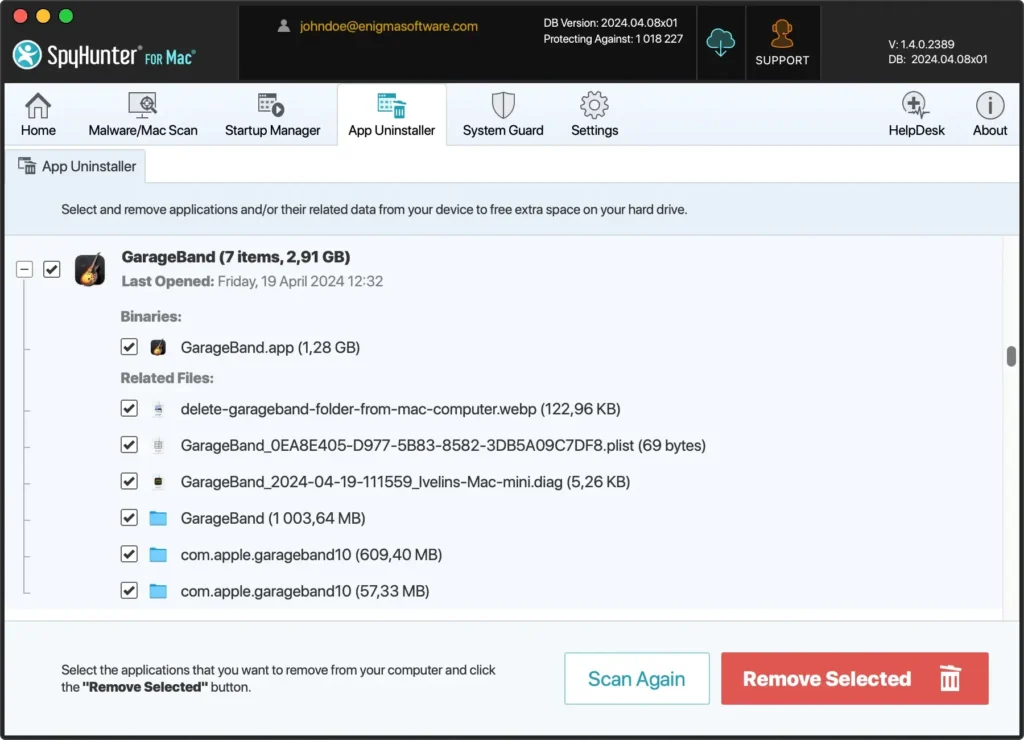
- Follow the prompts provided by SpyHunter to uninstall GarageBand and its components from your system entirely.
- After the uninstallation, restart your Mac to complete the process and clear any temporary data.
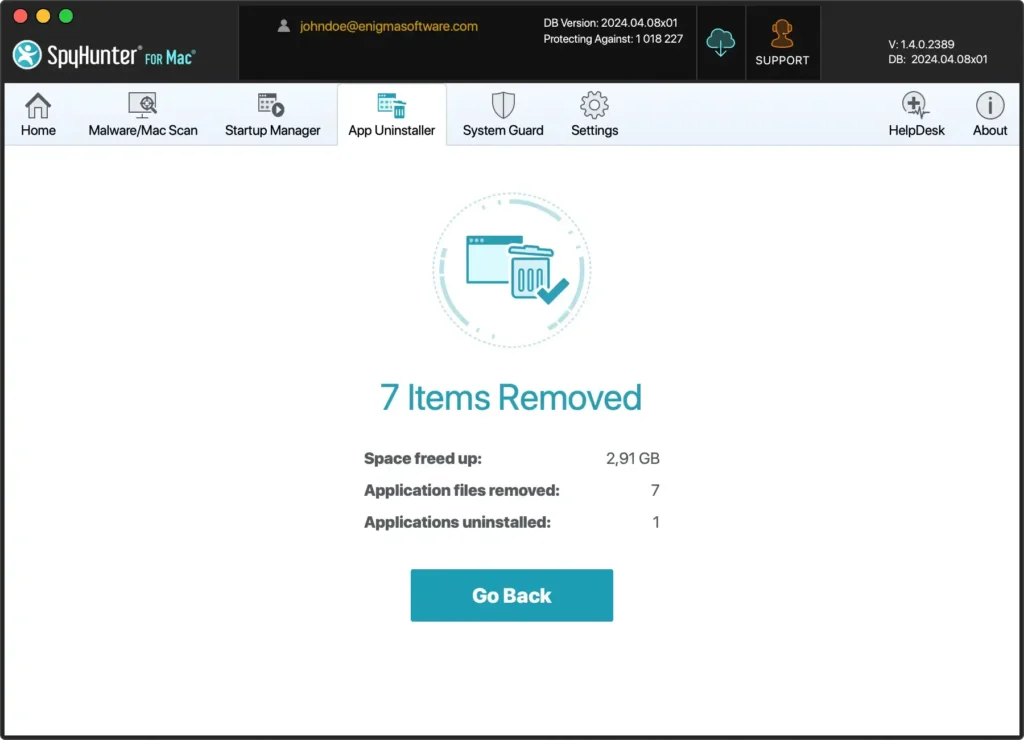
SpyHunter’s App Uninstaller is a powerful tool that can help uninstall apps easily.
It simplifies the removal process and guarantees that no leftover files remain, keeping your Mac tidy and efficient.
Remove GarageBand manually from your Mac
If you prefer to delete GarageBand from your Mac manually, follow these steps to ensure complete removal of the application and all related files.
Step 1: Quit the GarageBand app
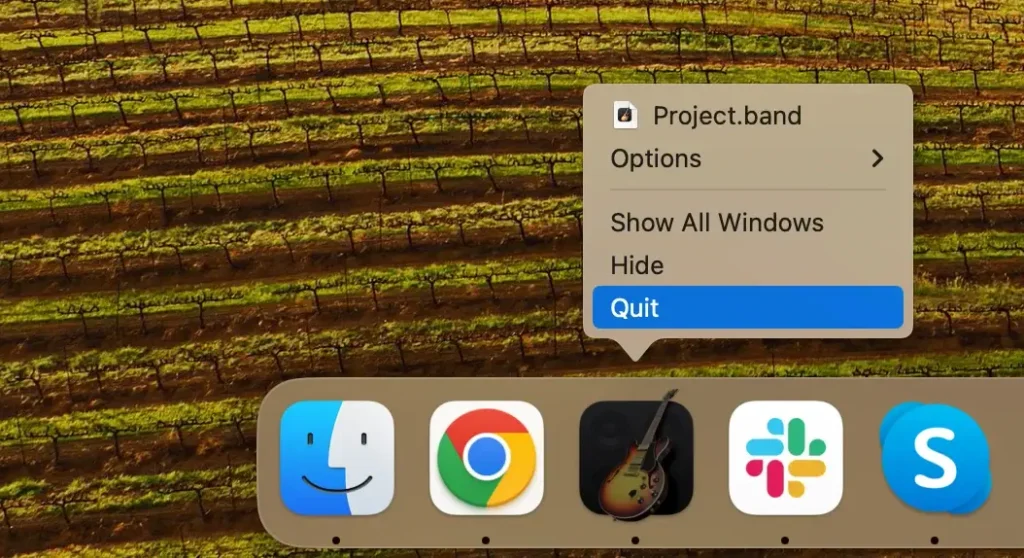
Ensure that GarageBand is not running before you begin the uninstallation. Right-click the app icon in the Dock, and select Quit from the context menu.
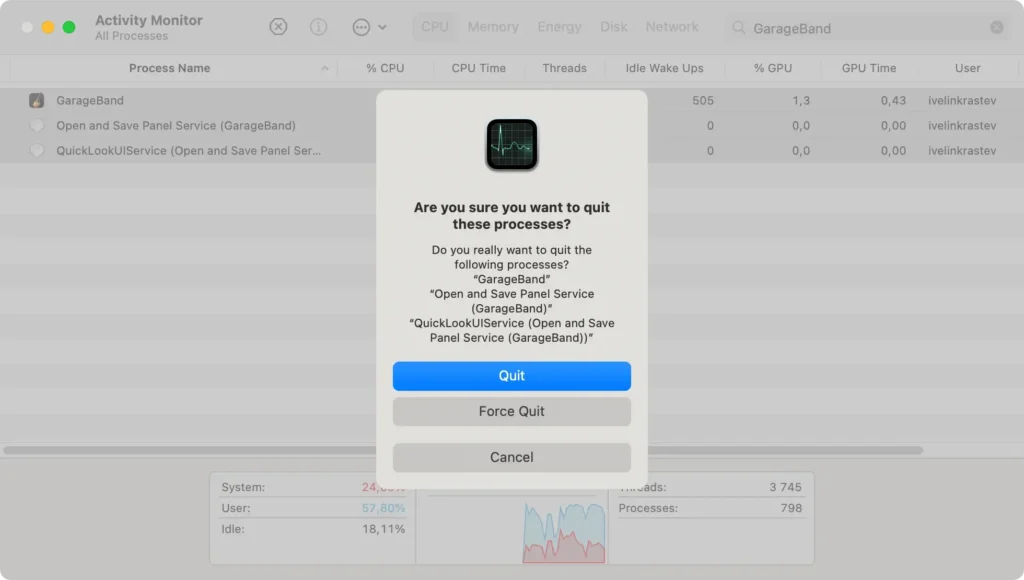
If GarageBand won’t quit normally, open Activity Monitor from Applications > Utilities and search for any processes related to the app.
Select these processes and click the [X] button at the top to force quit.
Step 2: Delete GarageBand on Mac
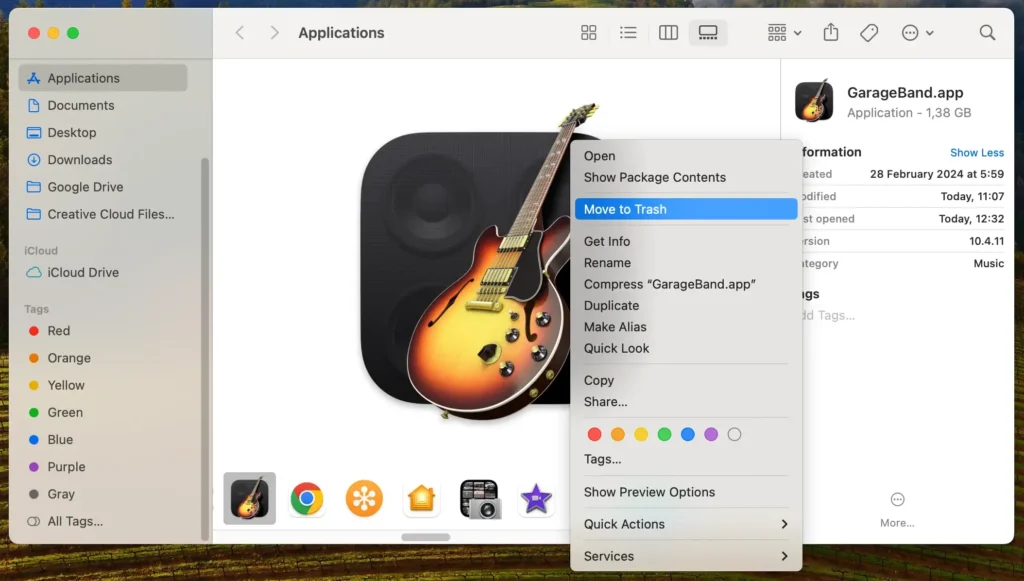
Next, remove GarageBand from your Applications folder:
- Open a new Finder window and go to the
Applicationsfolder from the Finder’s sidebar. - Scroll through the list or use the search bar to locate GarageBand.
- Simply drag the GarageBand icon to the Trash folder, or right-click and choose
Move to Trashfrom the context menu. - Right-click on the Trash icon in your Dock and click
Empty Trashto remove the app from your Mac computer permanently.
Step 3: Remove GarageBand files and folders
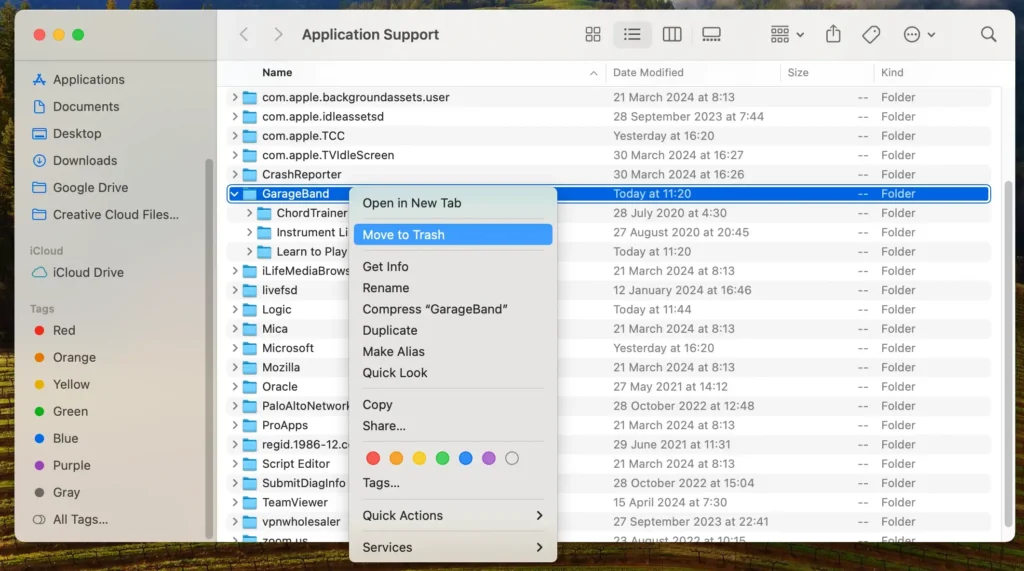
To completely uninstall GarageBand, including its extensive library of sounds and other associated files:
- Open the Finder app, click the
Gomenu, then chooseGo to Folderfrom the dropdown. - Enter the following paths one at a time:
/Library/Application Support/GarageBand/~/Library/Application Support/GarageBand/~/Library/Caches/com.apple.garageband*~/Library/Preferences/
- Drag any junk files related to the Garageband app to the Trash.
- After deleting these files, empty the Trash folder to remove them permanently.
By following these steps, you will manually uninstall GarageBand from your Mac, helping recover hard disk space and effectively eliminating unnecessary apps.
Alternatives to GarageBand for music lovers
Suppose you want to uninstall GarageBand from Mac but still need robust audio production software.
In that case, several alternatives cater to Apple users with a range of features and capabilities:
- Logic Pro: For those who want a step up from GarageBand, Logic Pro offers a more advanced array of features, including an extensive library of instruments and Apple Loops. It’s designed to work seamlessly on Mac and integrates well with other Apple services. This makes it an excellent choice for serious producers.
- Ableton Live: A professional favorite, Ableton Live excels in live performances and music production. It supports a wide range of MIDI controllers and has powerful MIDI sequencing of software and hardware instruments. This program is ideal for those who require versatility beyond what GarageBand offers.
- FL Studio: Known for its straightforward workflow and rich plugin suite, FL Studio is a comprehensive digital audio workstation popular among electronic music producers. It offers a free version with extensive capabilities and supports virtual instruments and external MIDI drivers.
- Audacity: As a free, open-source option, Audacity is significant for Apple users looking for a simple, no-cost tool. While it lacks the advanced production features of more specialized software, it is sufficient for basic editing and effects.
Each alternative provides unique strengths that can cater to different aspects of music production.
Whether you’re a professional looking for advanced features or a hobbyist needing a free, simple tool, there’s likely an option that fits your needs perfectly after moving away from GarageBand.
FAQ on uninstalling GarageBand on Mac
Do I need GarageBand?
Whether you need GarageBand depends on your use case. It’s a powerful music production and podcast creation tool, ideal for amateurs and professionals.
You might not need this app if you’re not engaging in activities requiring audio editing or music creation.
Why is GarageBand so big?
GarageBand is a comprehensive music creation studio with an extensive loop library and many instruments and effects, contributing to its enormous size.
The application includes extensive sound libraries and functionalities that can occupy significant disk space.
Can I reinstall GarageBand after I uninstall it?
Yes, you can reinstall GarageBand after uninstalling it from your Mac.
If you need the app again for your audio creation or podcast recording projects, visit the App Store on your Mac.
Search for GarageBand and download it again. This straightforward process ensures you can return the audio creation software whenever your creative spirit strikes or your storage allows.
Is deleting GarageBand harmful to my Mac?
Deleting GarageBand is not harmful to your Mac. Uninstalling it is similar to removing any other application on Mac OS X.
It doesn’t negatively affect your system’s performance or functionality.
In contrast, deleting GarageBand can free up significant space on your hard drive, improving your Mac’s speed and performance, especially if your storage space is full.
Conclusion
Congratulations, you have successfully uninstalled GarageBand from your Mac!
Removing this application can free up space and simplify your system, especially if you don’t need its music production capabilities.
If you ever need to use GarageBand again, remember that reinstalling it is straightforward through the Mac App Store.
By managing your applications, you ensure your Mac computer remains optimized for your needs.
Whether you choose to explore other music software or enhance your Mac’s performance, you now have the flexibility to customize your Mac to suit your activities better.
