

Remove Wappo.app Adware from Your Mac (Updated Guide)

Before we dive in
Before we dive in, let's make sure you stay safe online. We created SpyHunter because your security matters to us.
Protect your computer today — download SpyHunter right here! Check out our top tips below to keep your computer safe and secure.

Wappo.app is a troublesome adware targeting Mac users, known for its intrusive ads and potential to compromise privacy.
This article dives into the core of Wappo.app, revealing how it infiltrates Mac systems, the signs of its presence, and its overall impact.
With a focus on practical steps for detection, removal, and future protection, we aim to equip you with the knowledge to defend your Mac against this and similar adware threats.
Stay tuned to safeguard your digital environment effectively.
Introduction to the Wappo Mac adware
Adware threats like Wappo.app have become increasingly common on Mac systems, challenging the notion that macOS is immune to malware.
This invasive software is designed to create unwanted advertisements and redirects and hijack browser settings, impairing users’ online experiences and system performance.
Understanding the nature, tactics, and risks of Wappo.app is crucial for Mac users to defend against it and maintain their system’s integrity.
What is Wappo.app?
Wappo.app is classified as a potentially unwanted program (PUP) and adware targeting macOS devices.
Unlike conventional applications, such apps silently infiltrate systems and modify browser settings without permission.

This alteration includes setting a fake search engine as the default and bombarding users with relentless ads. The presence of Wappo.app on a Mac is concerning for several reasons:
- Invasiveness: It can enter systems without detection, making unauthorized changes affecting functionality and user experience.
- Security Risk: Displaying and redirecting to malicious sites increases the risk of further malware infections.
- Privacy Threat: There’s potential for tracking and collecting sensitive information, which could be shared with or sold to third parties, including cybercriminals.
- System Performance: Wappo.app can slow down a Mac, leading to degraded system performance and browsing speed.
Given these factors, Wappo.app represents a tangible threat, making its removal a priority for maintaining system security and user privacy.
Common symptoms of Wappo.app infection
Identifying an infection early can help prevent severe damage or data loss. When Wappo.app infects a Mac, several tell-tale signs indicate its presence:
- Unwanted Pop-Up Ads: An excessive amount of advertisements. This includes banners and pop-ups appearing across various websites, even those where such ads are not typical.
- Browser Redirects: Clicking on links or ads might redirect you to unfamiliar or malicious websites, further exposing the system to online threats.
- Changed Browser Settings: Modifications to the homepage and default search engine occur without user consent, often redirecting searches to a fake engine controlled by the adware.
- Sluggish System Performance: A notable decrease in Mac performance and browsing speed, as the adware consumes system resources.
- Installation of Unknown Applications: Finding new applications or toolbars you don’t remember installing.
Experiencing one or more of these symptoms can signify that your Mac is compromised by Wappo.app, urging immediate action to remove adware and restore system security.
Remove Wappo.app from your Mac
When it comes to removing the Wappo.app adware from your Mac, a structured step-by-step approach ensures thorough elimination.
Adware, like Wappo.app, embeds itself across different parts of your system, meaning careful attention is needed to remove malware traces. Follow the virus removal guide below to cleanse your Mac and restore its performance.
Preparation step: Secure your data before removal
Before proceeding with removing the Wappo.app, securing your data is essential. This precaution minimizes the risk of data loss if something happens during the cleaning process.
Backup your essential files to an external hard drive or a cloud storage service. Ensure your backup solution is reliable and that your data is easily recoverable.
Once your files are backed up, you can proceed with the removal process with peace of mind.
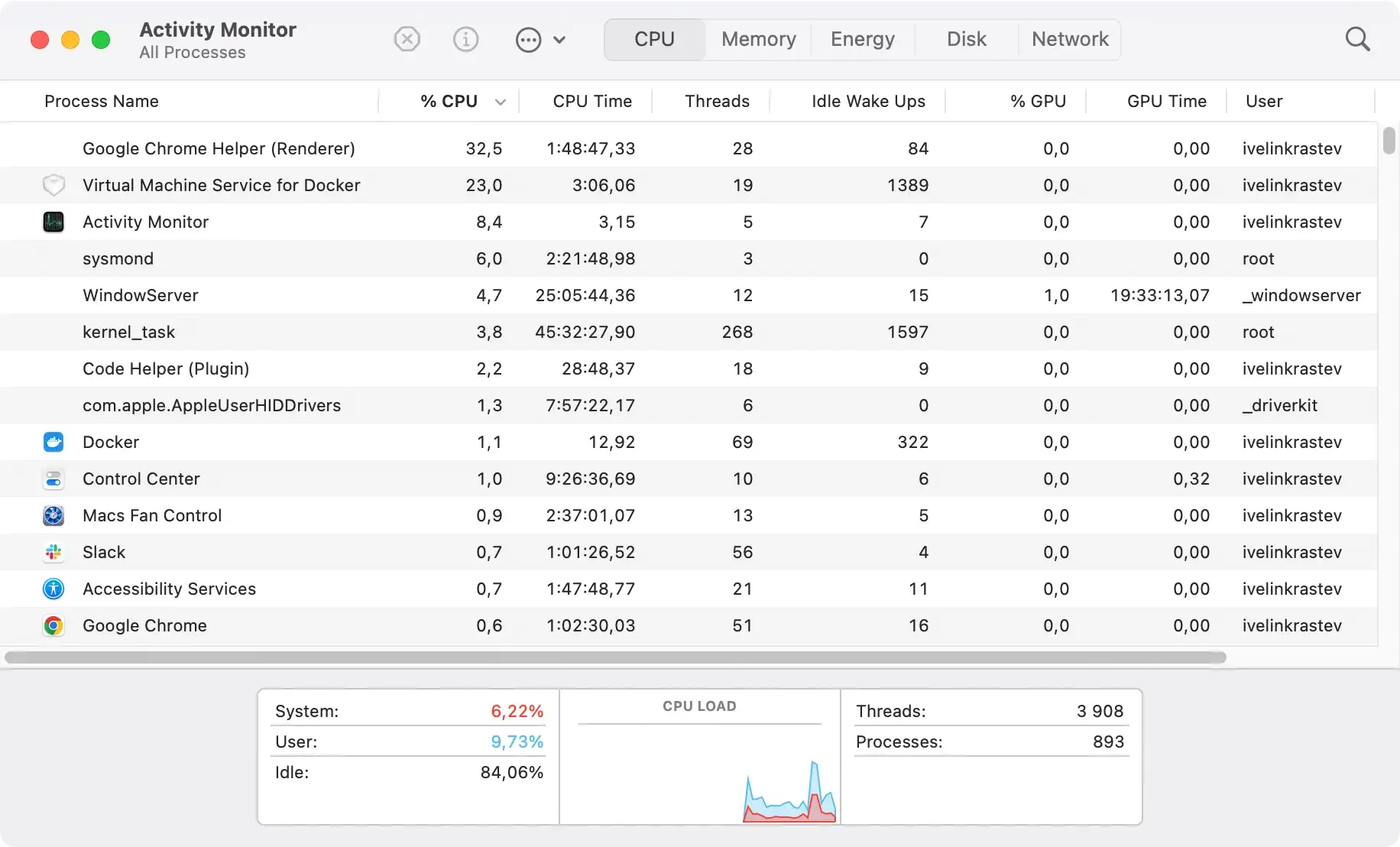
Step 1: Identify and terminate Wappo.app processes
The first step in the removal process is to halt any active processes related to Wappo.app. This is crucial because the adware may resist deletion or regenerate if it’s running while attempting to remove it.
To do this:
- Open the
Activity Monitorfound in theUtilitiesfolder, which is inside yourApplicationsfolder. - Look for any suspicious processes that may be related to Wappo.app. These can have names similar to the adware or completely unrelated, making them tricky to identify.
- Once identified, select the process and click the (X) button at the top left of the window to quit the process. Confirm the action if prompted.
Step 2: Remove malicious config profiles
Unwanted programs such as Wappo.app may add harmful configuration profiles to your Mac. Here’s how you can eliminate them:
- Access Settings: Navigate to
System Settings(namedSystem Preferenceson older macOS versions) and enter thePrivacy & Securitysection. Search for aProfilesicon. - Check for Profiles: If you don’t find a
Profilessection, there are no profiles installed on your Mac, which is ideal. If profiles are present, review them carefully. - Identify and Remove: Look out for any profiles you didn’t install yourself or that seem out of place. Select these dubious profiles and click the minus (-) button to remove them.

By removing these malicious profiles, you’ll restore the settings altered by the malware back to your preferred configurations.
Step 3: Remove Wappo.app and associated files
To ensure the complete removal of Wappo.app from your Mac, follow these detailed steps divided into two main subsections: removing the app itself and then targeting any leftover files.
Steps to remove Wappo.app
- Open the
Applicationsfolder to view all installed apps. - Scroll through and identify Wappo.app or any application installed without your consent.
- Move the pinpointed applications to the Trash. To permanently remove them, empty the Trash.

Steps to remove related files
After deleting the Wappo.app, you need to eliminate any files it may have left behind in your system’s folders. Here’s how:
- In Finder, press
Command + Shift + Gto open theGo to Foldersearch bar. - Enter the following paths one at a time.
~/Library/Application Support/~/Library/LaunchAgents//Library/LaunchDaemons//Library/LaunchAgents//Library/Application Support/~/Downloads/
- Look for any folders or files related to Wappo.app in these locations and move them to the Trash

NOTE: Do not remove any files necessary for your system’s operations. When in doubt, research the file or folder to ensure it’s safe to delete.
By removing the Wappo.app and its related files from your Mac, you can ensure your system is clean and restore its typical performance.
Step 4: Remove Wappo.app browser extensions
Adware often installs malicious extensions to inject ads into your web browsing experience. Check all installed browsers for unwanted extensions:
- For Safari, go to
Preferences > Extensionsand remove any unrecognized browser extensions. - In Google Chrome, navigate to
chrome://extensionsand delete browser extensions you did not intentionally install. - For Mozilla Firefox, access
Add-onsfrom the menu bar and remove any unexpected add-ons.
Step 5: Use an anti-malware program to remove Wappo
Even after manually removing Wappo.app and its related files, hidden components may still linger on your Mac.
To ensure all adware traces are eradicated, a professional malware removal tool can provide a comprehensive cleanup.
This step is crucial for detecting and eliminating any remnants that manual removal might miss.
Why use a malware removal tool?
- Comprehensive Scan: Mac malware removal tools are designed to perform deep system scans, identifying adware and malware hidden in places often overlooked.
- Safety and Efficiency: These tools safely remove malicious software without risking the deletion of important system files, ensuring your Mac’s stability.
- Time-Saving: Automated removal saves you the hassle and time of hunting down adware components yourself.
Recommended tool: SpyHunter for Mac
SpyHunter for Mac is developed to combat various malware and adware affecting Mac systems, including Wappo.app. It offers a user-friendly interface and robust scanning capabilities to make the removal process as efficient as possible.

- Download SpyHunter from here and follow the installation instructions.
- Launch SpyHunter and perform a full system scan to detect malicious entities or adware remnants.
- SpyHunter will list all detected threats once the scan is complete. Follow the prompts to remove them, ensuring your Mac is clean and secure.

Completing a thorough cleanup with SpyHunter for Mac is the final step in removing Wappo.app from your system.
This not only restores your Mac to its optimal performance but also strengthens its defense against future adware and malware attacks.
Ensure your Mac is clean and protected
After you remove Wappo.app from your Mac, it’s critical to take steps to ensure your system remains clean, protected, and optimized.
Averting future adware infections requires a proactive approach to security and vigilance in your online activities. Here are key strategies to keep your Mac adware-free:
- Install a reputable anti-malware tool: Utilize trusted anti-malware software designed explicitly for Macs like SpyHunter for Mac. Download SpyHunter and update it regularly to detect and prevent the latest threats.
- Regular software updates: Keep your macOS, web browsers, and all applications updated. Software updates often include security patches that protect against new threats.
- Download software from official sources: Avoid downloading applications from third-party websites. Always use the official App Store or the software’s official website.
- Enhance browser security: Enable built-in security features in your web browsers, such as pop-up blockers and fraudulent website warnings. Consider using ad-blocking browser extensions.
- Be cautious of phishing: Do not open email attachments or click on links from unknown sources. Verify the sender’s identity if you’re not expecting an attachment.
- Use secure networks: Avoid using public Wi-Fi for sensitive transactions. Consider using a VPN for an added layer of security.
- Enable firewall: Ensure your Mac’s firewall is activated to monitor incoming and outgoing connections and block potential threats.
These preventative measures can lower the risk of adware infections and protect your Mac from cyber threats.
Final thoughts
Even though Macs are known for their safety, adware like Wappo.app shows that no computer is completely safe.
Keeping your Mac free from threats involves knowing about these risks, spotting when you’re affected, and removing harmful software.
Preventing problems is also crucial. To stay safe, use robust security practices and be careful online.
As cyber threats change, staying updated on security news and protecting your Mac can lower your risk of Mac malware. Making your Mac’s security a priority helps keep your data safe and ensures a better online experience.
