

Remove ResourceDevice Adware On Mac (Cleanup Guide)

Before we dive in
Before we dive in, let's make sure you stay safe online. We created SpyHunter because your security matters to us.
Protect your computer today — download SpyHunter right here! Check out our top tips below to keep your computer safe and secure.

Have you noticed your Mac performing slower than usual, or being bombarded with unwanted ads? These could be signs of the ResourceDevice adware infecting your system.
This type of malware not only disrupts your daily activities by displaying intrusive advertisements but also poses serious privacy and security risks by tracking your online behavior.
Understanding how to effectively remove ResourceDevice and protect your computer from future threats is essential for maintaining both system performance and personal safety.
Read on for a simple, step-by-step guide on how to clean your Mac from this pesky adware.
What is ResourceDevice adware?
ResourceDevice adware is a type of advertising-supported software that falls under the AdLoad malware group. It displays unwanted ads that can intrude on user experiences and threaten system security.
Typically, adware like ResourceDevice infiltrates systems to display third-party advertisements across various platforms. While these advertisements are typically just annoying, they can also be harmful by endorsing deceptive content or malware.
Moreover, user engagement with these ads—often by clicking—can trigger unauthorized downloads and installations.
Aside from the disruptive ads, some adware tracks personal and sensitive user data, such as browsing habits and even login credentials, which can be exploited or sold to third parties, including cybercriminals.
Therefore, ResourceDevice not only disrupts activities but potentially compromises personal privacy and security.
How does ResourceDevice impact your Mac?
Adware like ResourceDevice can significantly disrupt your daily use of your Mac, affecting both its performance and your online safety.
Understanding the specific impacts of such adware helps in recognizing the need for prompt action.
- Reduced System Performance: ResourceDevice may consume system resources, leading to slower response times and decreased efficiency in regular computer tasks.
- Privacy Concerns: This adware tracks online activity, such as websites visited and search queries, risking your personal and sensitive information being exposed or misused.
- Security Risks: By displaying invasive ads that may lead to malicious sites, ResourceDevice increases the risk of malware infections that can lead to more severe security threats like ransomware.
- Unwanted Advertisements: It continuously displays intrusive ads that not only disrupt browsing experience but can also lead to deceptive or harmful websites.
- Potential Data Loss: Interactions with malicious sites or unintended downloads can lead to data corruption or loss.
Manual steps to remove ResourceDevice from your Mac
To clean your Mac from the ResourceDevice adware and ensure your system runs smoothly, follow these step-by-step instructions.
Removing this adware swiftly is crucial for maintaining both system performance and personal privacy.
Step 1: Quit ResourceDevice and related processes
Before you can delete any files associated with ResourceDevice, you need to quit the application along with any related processes that might be running in the background.
This prevents any issues while trying to remove the application’s files.
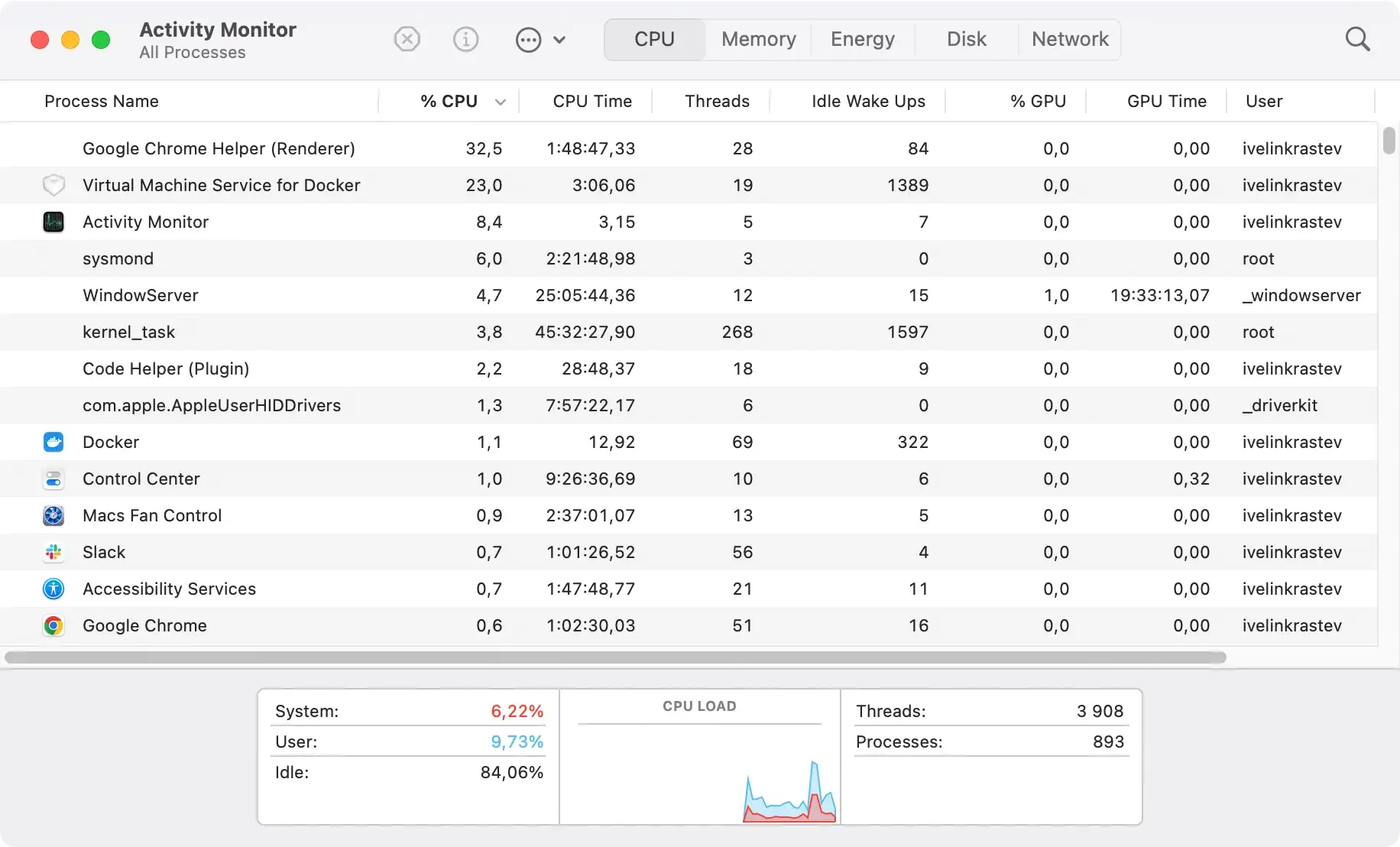
- Open
Activity Monitorfound in/Applications/Utilities/. - Look for any processes related to ResourceDevice or any unfamiliar processes that are consuming high CPU or memory.
- Select the process and click the X icon in the top left of the window to quit the process.
Step 2: Remove ResourceDevice from Applications
Removing the application from your Applications folder is a critical step in uninstalling ResourceDevice. This helps in eliminating the main executable files of the adware.
- Open the
Finderapplication, and go to theApplicationsfolder. - Search for ResourceDevice or any other suspicious applications you do not remember installing.
- Drag the application icon to the
Trash, or right-click and selectMove to Trash.

Step 3: Delete leftover files in Library folders
After uninstalling the adware application, it’s important to remove any residual files to prevent the adware from restoring itself. These files can be in various hidden folders in your system.
- Go to
Finder, selectGoin the menu bar, and clickGo to Folder.... - Type
~/Library/Application Support/and search for any recently-added suspicious folders related to ResourceDevice. - Delete them by moving them to the
Trash. - Repeat the process for
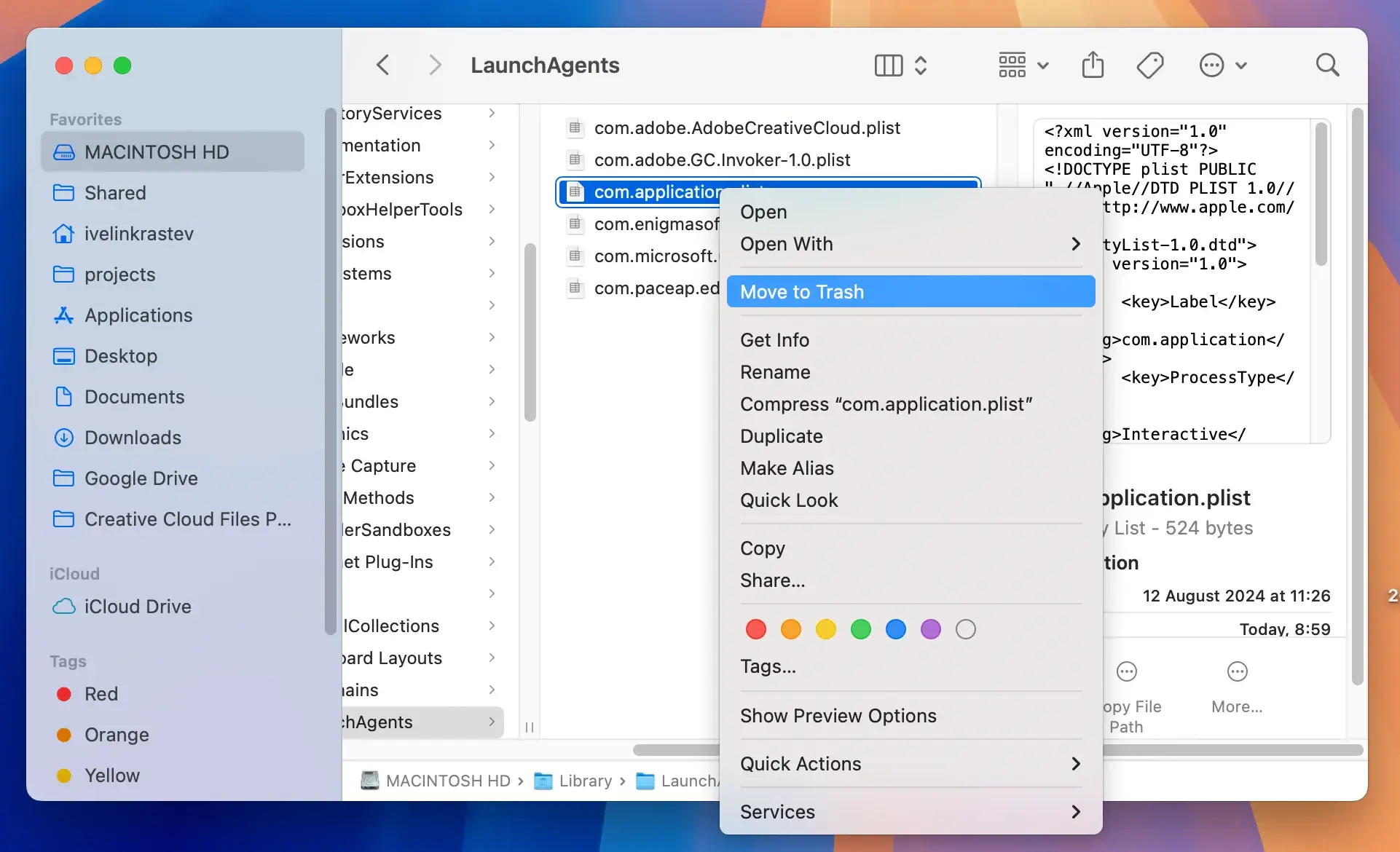
~/Library/LaunchAgents,/Library/LaunchDaemons, and/Library/LaunchAgentsfolders, looking for and deleting suspicious files.
Step 4: Clear browser extensions linked to ResourceDevice
Adware often installs browser extensions that can hijack your browser and redirect you to unwanted websites. Removing these extensions is essential for securing your browsing experience.
- For Safari, open the browser, click on
Safariin the menu, and choosePreferences. Go to theExtensionstab and uninstall any unknown extensions. - For Google Chrome, open the browser, and enter
chrome://extensions/in the URL bar. Look for any unfamiliar extensions and remove them by clickingRemove. - For Mozilla Firefox, open the browser, and access the menu in the top right corner. Select
Add-ons, go to theExtensionssection, and remove any suspicious extensions.
Use SpyHunter for final cleanup of ResourceDevice
SpyHunter is an effective tool designed to detect and eliminate various types of malware including adware like ResourceDevice.
After identifying and removing obvious malware components manually, you may still need to address hidden files and system changes.
That’s where SpyHunter comes in, simplifying the process and ensuring a thorough cleanup.
Download and install SpyHunter
Download SpyHunter for free here. Once downloaded, run the installer and follow the on-screen instructions to install SpyHunter on your system.
Run a system scan to detect ResourceDevice
Open SpyHunter and initiate a full system scan. This scan will meticulously go through your files, applications, and system settings.

The aim is to identify any traces of ResourceDevice or other malicious entities that might be hidden on your computer.
Erase any detected threats and related files
Upon completion of the scan, SpyHunter will present a list of all suspicious and harmful items found. Review these findings and instruct SpyHunter to remove them.
This step is crucial for eliminating ResourceDevice completely and preventing further privacy threats or system instability issues caused by residual adware components.

Safety precautions to avoid future adware infections
Adware can disrupt your computing experience and risk your privacy significantly. To ensure your system remains clean and your online activities are secure, adopting robust safety measures is crucial.
- Always download software from official and reliable sources. Avoid third-party downloaders or app stores, which can bundle adware or other unwanted programs with their installations.
- Read the installation screens carefully. Opt for Custom or Advanced installation options rather than Quick or Recommended settings.
- Keep your operating system and applications updated. Software vendors frequently release updates to fix security holes that could be exploited by adware.
- Use a reputable antivirus or anti-malware software with real-time protection. Regular scans can detect and remove adware before it can do any harm.
- Install ad-blockers or script blockers to prevent malicious scripts from running and use browser security extensions to block pop-ups and unwanted redirects.
- Be cautious with email attachments and links. Adware can be distributed through spam emails and deceptive links. Verify the sender’s identity before opening any attachments or following any links.
