

How To Stop A MacBook From Overheating [Solutions And Ideas]

Before we dive in
Before we dive in, let's make sure you stay safe online. We created SpyHunter because your security matters to us.
Protect your computer today — download SpyHunter right here! Check out our top tips below to keep your computer safe and secure.

Is your MacBook running hotter than usual, turning simple tasks into a struggle for both you and your device? You’re not alone.
As MacBooks have become essential tools in our daily digital lives, issues of overheating are increasingly common, leading to discomfort and potential device damage.
This article delves into the reasons behind a MacBook’s high temperatures, from excessive CPU usage and dusty vents to the impacts of your surrounding environment.
What causes MacBook overheating?
Understanding why your MacBook is overheating is the first step toward finding a solution. Let’s delve into some of the primary reasons.
Excessive CPU usage: Is multitasking to blame?
Multitasking might be a necessity in today’s fast-paced digital era, but it can be taxing on your MacBook’s processor.
Running multiple applications or too many browser tabs open simultaneously pushes your CPU to work harder, potentially leading to an overheating Mac. Editing videos, playing games at high graphics settings, or operating heavy software causes similar strain.
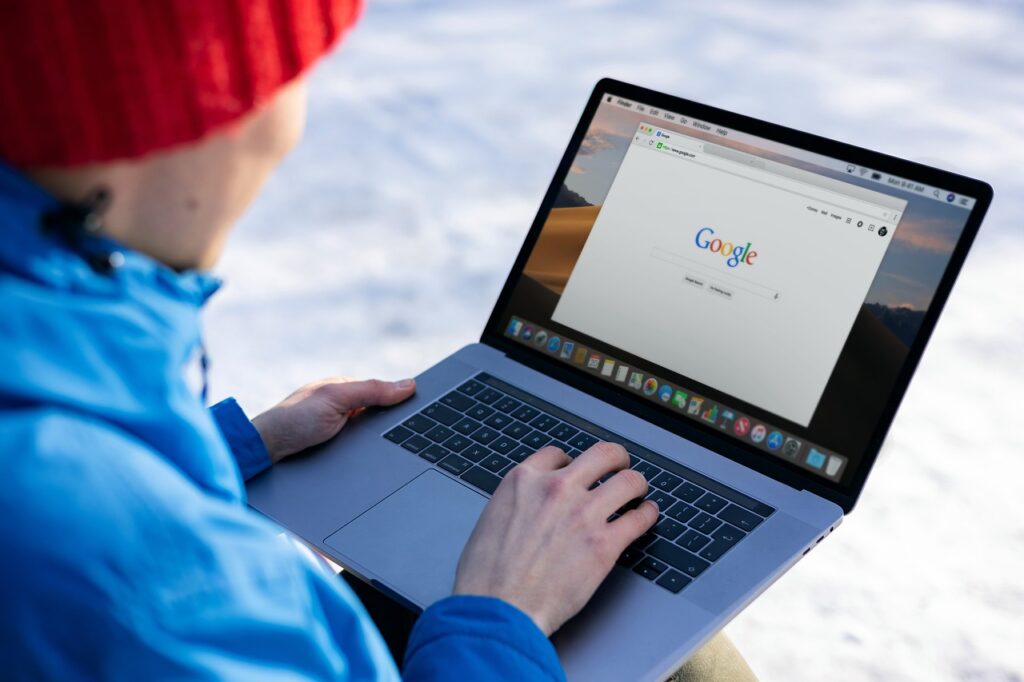
To mitigate this, try to limit the number of active applications and open browser tabs in your Google Chrome or Safari browser. In the case of playing games, you can manage graphics settings and lower them.
If overheating persists despite light usage, it might be time to consider upgrading your software or even your hardware for better performance.
Dusty vents and blocked airflow: A hidden culprit
Often the cause of overheating is as simple as blocked airflow. Your MacBook’s vents, designed to dissipate heat, can get clogged with dust and debris over time.
This not only restricts airflow but also traps heat inside. Routine cleaning of the air vents can improve air circulation.
Place your MacBook on a hard, flat surface to ensure the vents are not obstructed. In addition, if your MacBook is older, consider opening it up to clean the fans and internal components, or seek professional help if you’re not comfortable doing it yourself.
Malfunctioning apps
Apps that freeze or become unresponsive can also lead to your Mac overheating. When an application crashes, your MacBook allocates additional resources in an attempt to resolve the issue, putting extra load on the processor.
Keeping an eye on your MacBook’s Activity Monitor can help identify resource-intensive apps. If a particular app frequently causes problems, updating it or, alternatively, finding a replacement might be necessary.
External factors: How ambient temperature affects your MacBook
The environment your MacBook operates in can significantly contribute to its temperature. Placing it in a hot room, near a heat source, or in direct sunlight can cause its internal fans to work overtime.
Similarly, using your MacBook in a poorly ventilated area can restrict the airflow it needs to cool down. Aim to work in a cool, well-ventilated space and avoid placing your MacBook on soft surfaces like beds or couches, which can block vents and insulate heat.
Adapting to these practices can keep your MacBook’s temperature within a normal range, ensuring optimal performance and longevity.
Solutions to cool down your MacBook
Find and quit high CPU usage apps
Finding and quitting applications that use a lot of CPU and memory resources is fundamental in cooling down your MacBook or MacBook Air. Applications that consume a significant amount of processing power can cause your device to heat up quickly.
To identify these resource-heavy apps, open the Activity Monitor from your Utilities folder. Look for applications using a large percentage of resources under the CPU tab and quit them by selecting the app and clicking the [X] button on the top left.
This simple step can greatly reduce your MacBook’s temperature.
Clean the vents: A step-by-step guide
Over time, your MacBook’s vents can become blocked with dust and debris, preventing proper air circulation and causing irregularities in your Mac’s temperature levels. To clean the vents:
- Turn off your MacBook and unplug it from the power source.
- Use compressed air to gently blow away dust from the vents. Ensure you’re blowing the air through the vents and out of the laptop, not deeper into it.
- For stubborn debris, a soft-bristled brush can help loosen the dust before you blow it out with compressed air.
Regular cleaning of the vents promotes better airflow, helping to keep your MacBook cool.
Adjust your MacBook’s settings for optimal performance
Adjusting your MacBook’s settings can have a significant impact on its temperature. In the Energy Saver section of System Settings, you can set your MacBook to automatically turn off the screen and hard disks when not in use, reducing the risk of overheating.
Additionally, enabling Automatic Graphics Switching in the Battery section of System Settings can help manage the device’s temperature by alternating between graphics systems based on usage requirements.
Use a cooling pad: Does it really help?
Yes, using a cooling pad can help decrease your MacBook’s temperature, especially during intensive tasks like gaming or video editing.
Cooling pads elevate your laptop for better air circulation, while additional fans provide direct cooling to the device. When choosing a cooling pad, look for one with adjustable speeds and a design that aligns with your MacBook’s vents for optimal efficiency.
Optimize your workspace to reduce MacBook heat
Your working environment plays a crucial role in managing your MacBook’s heat. Avoid using your MacBook on soft surfaces like beds or couches, as they can block air vents.
Opt for hard, flat surfaces that promote airflow. Keeping your workspace cool and well-ventilated further assists in reducing overheating. Consider using a stand to elevate your MacBook, allowing more air to circulate around it.
Update your macOS: A simple tip with a big impact
Regularly updating your macOS is a simple yet effective method to prevent your MacBook from overheating. Updates often include optimizations that reduce CPU load and improve overall efficiency, leading to lower temperatures.
Ensure your MacBook is always running the latest version of macOS for peak performance and security.
Checking for malware using SpyHunter
Malware can cause your MacBook to overheat by hijacking system resources.
SpyHunter is a powerful tool that can help identify and remove malware, potentially cooling down your device. It scans your Mac for malicious software that might be causing unnecessary strain on your CPU, contributing to overheating.

Download SpyHunter for free here and scan your Mac for any malicious files that may be contributing to the overheating issue.
Regular scans with SpyHunter can keep your MacBook safe and cool.
Reset SMC and PRAM/NVRAM to factory settings
Resetting the System Management Controller (SMC) and Parameter RAM (PRAM) or Non-Volatile Random-Access Memory (NVRAM) can solve overheating issues by restoring hardware settings to factory defaults.
These settings control aspects like fan speed and power consumption, which directly affect your MacBook’s temperature. Instructions for resetting the SMC, PRAM, and NVRAM are available on Apple’s support website.
Professional help: When to seek it for MacBook overheating
If your MacBook continues to overheat despite trying the above solutions, it might be time to seek professional help.
Persistent overheating could be a sign of internal hardware issues, such as a failing fan or thermal paste needing replacement. Licensed technicians can diagnose and fix the problem, preventing potential damage to your MacBook’s components.
FAQs about MacBook overheating
Can overheating damage my MacBook in the long term?
Yes, overheating can have serious long-term effects on your MacBook or MacBook Pro. Continuous high temperatures can harm critical components such as the battery, CPU, and graphics card, leading to decreased performance and lifespan of sensitive hardware components.
Over time, the soldering on the motherboard may also weaken, leading to a loss of connection between components. To safeguard your MacBook’s longevity, it’s crucial to manage its temperature and keep it within safe limits.
How can I tell if my MacBook is overheating?
Detecting an overheating MacBook can be straightforward.
Common signs include excessive fan noise as the system tries to cool down its internals, the device feeling hot to the touch, especially near the keyboard and underneath, and a noticeable slowdown in performance since the operating system throttles the CPU to reduce temperature.
Additionally, your MacBook might shut down unexpectedly to protect itself from heat-related damage. If you encounter these issues, it’s important to address the overheating problem immediately.
Are MacBook cooling pads worth the investment?
MacBook cooling pads can be a good investment, especially for users who run intensive applications or use their laptops for prolonged periods.
These accessories help by providing extra air circulation to complement your MacBook’s built-in cooling system.
While they are not a cure-all solution, in synergy with proper usage habits—such as avoiding blocking the vents and keeping the internals clean—they can significantly mitigate overheating issues.
When choosing a cooling pad, look for those with good reviews from MacBook users to ensure compatibility and effectiveness.
What to do if none of these solutions work?
If you’ve tried the recommended steps to reduce overheating and are still facing issues, it may be time to consult a professional.
Persistent overheating might indicate a more serious problem, such as a malfunctioning fan or dust clogging the air vents, which requires professional servicing. Before it leads to irreversible damage, getting your MacBook checked by a certified technician can prevent further harm and ensure your device remains in good working condition.
During the service, it’s also wise to ask about upgrading any components that can enhance overall performance and cooling efficiency.
Final thoughts
In conclusion, addressing MacBook overheating issues is crucial for maintaining optimal performance and extending the lifespan of your device.
By implementing these solutions, such as ensuring proper ventilation, managing software demands, and keeping your MacBook clean, you can reduce the risk of overheating.
Whether through simple adjustments or utilizing cooling accessories, these strategies will help keep your MacBook running smoothly and efficiently.
Remember, regular maintenance and mindful usage are key to preventing overheating and ensuring your MacBook remains a reliable tool for all your computing needs.
