

Remove ValidBoostfld From Mac: Protect Your Computer Today

Before we dive in
Before we dive in, let's make sure you stay safe online. We created SpyHunter because your security matters to us.
Protect your computer today — download SpyHunter right here! Check out our top tips below to keep your computer safe and secure.

Uncover the essentials about ValidBoostfld, a notorious browser hijacker and potentially unwanted program (PUP) plaguing internet users.
This article delves into its mechanisms, impacts on your browsing experience, and effective removal strategies to reclaim control of your digital life.
Introduction to the ValidBoostfld Mac threat
ValidBoostfld is an unwelcome guest in the form of a potentially unwanted application (PUA) that may be associated with adware or Mac malware.
This PUA can significantly affect the user experience by slowing down the system, displaying unsolicited ads, and tracking online activity. It often sneaks into systems without explicit consent, making many users mistakenly identify it as a Mac virus.
Recognizing the behaviors of such threats is crucial for Mac users seeking to maintain performance and protect their privacy.
What is ValidBoostfld, and why should you be concerned?
ValidBoostfld is a browser hijacker and adware disguised as a benign application. It typically gains access to a system through bundled software installations, establishing itself without the user’s explicit permission.
Once inside, it exhibits symptoms such as adding unwanted toolbars or extensions and redirecting browsers to unsecured sites, potentially exposing users to risky content.
The concern for Mac users is not only the interruption of web browsing but also the potential exposure to more insidious online threats, such as ransomware or trojan horses.
How ValidBoostfld impacts your Mac
The ValidBoostfld virus on your Mac can harm system performance and security.
Users may encounter a variety of symptoms that provide evidence of the infection, such as:
- A noticeable slowdown in performance.
- The appearance of unfamiliar toolbars or extensions within web browsers.
- Constant bombardment with ads.
- Unpredictable app behavior.
These disruptions affect the device’s usability and could serve as a conduit for more severe malware infections. It’s imperative to recognize these symptoms early to prevent further infiltration and ensure the security of personal information.
Preparation before the removal process
To prepare your Mac for the removal of the ValidBoostfld virus, it’s crucial to take precautions that safeguard your data and ensure a smooth remediation process. Proper preparation is the bedrock of effective virus removal and subsequent data security against future threats. Here’s a plan of action to help you get started with confidence and peace of mind.
Back up your valuable data
Before initiating any adware removal steps, it’s essential to back up your files. This is a defensive measure to prevent data loss if any issues arise during cleaning.
Backing up your data can involve using local storage devices like an external hard drive or employing cloud-based services for added security. Ensure your backup strategy is thorough and includes all critical documents, photos, and application data.
Essential programs to assist in removing ValidBoostfld
The eradication of the ValidBoostfld adware from your Mac can be streamlined with the help of specific tools and software specializing in malware removal.
Robust anti-malware applications like SpyHunter for Mac can detect and remediate malicious files, including the ValidBoostfld threat ( Download SpyHunter for free here ).
A secondary device with access to these instructions can serve as a real-time guide. Be patient during this process, as thorough removal may consume more time.
Instructions to remove ValidBoostfld from Mac
Step 1: Identify and quit ValidBoostfld processes
The first critical step in removing ValidBoostfld from your Mac is to identify and quit any running processes associated with the PUA.
Access the Utilities section by pressing ⇧+⌘+U or navigating the Go menu. Launch Activity Monitor and scrutinize the process list for anything suspicious or linked to ValidBoostfld.
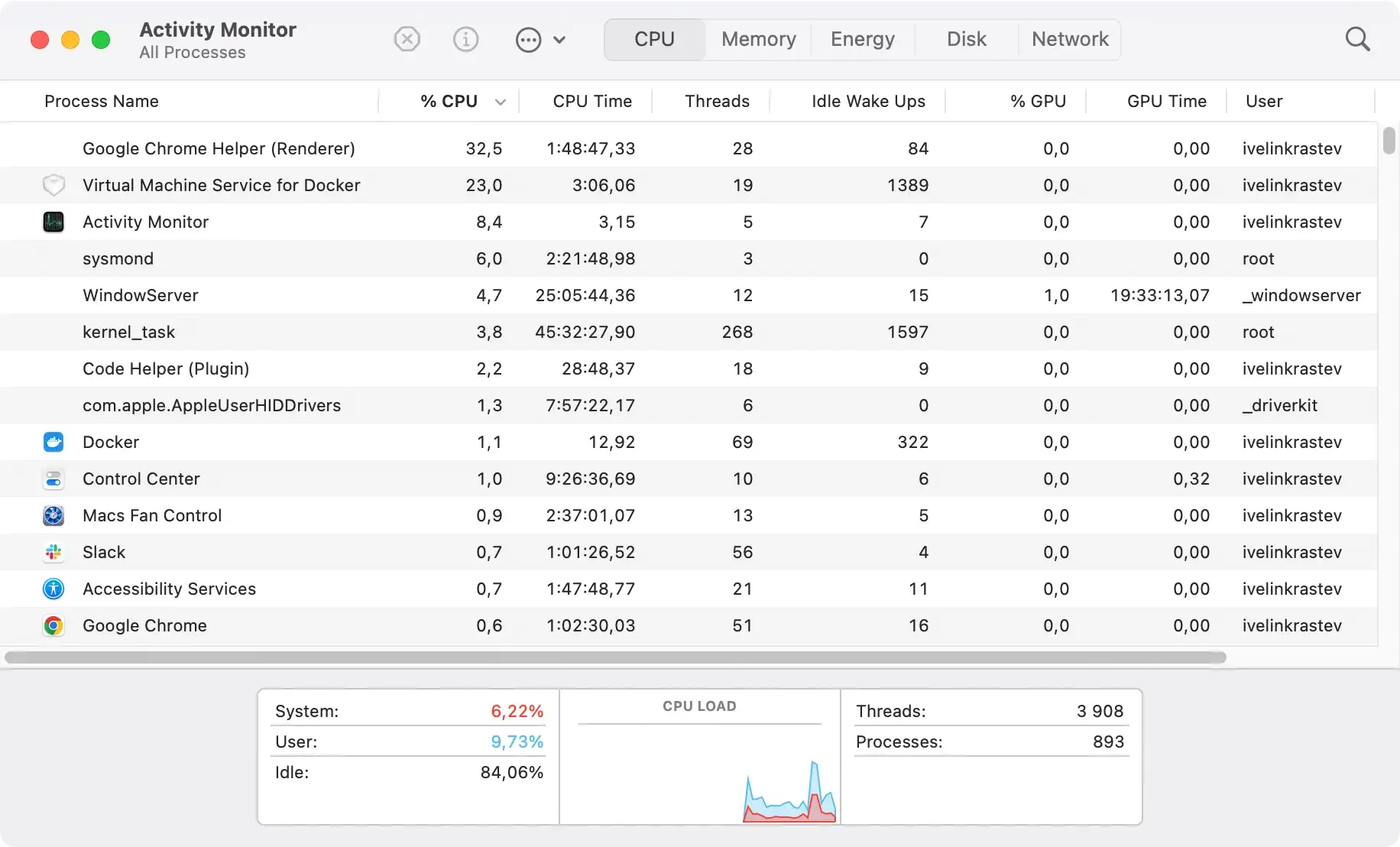
Terminate the pinpointed processes immediately using the Force Quit option. This action prevents the PUA from intervening in the cleanup process.
Step 2: Delete apps linked to ValidBoostfld and their associated files
To effectively eliminate ValidBoostfld, it’s crucial to uninstall any apps related to this browser hijacker.
Head to the Applications folder and isolate any suspicious apps that resemble or are indeed the PUA itself. Removing these intrusive apps is typically accomplished with a simple right-click and choosing Move to Trash/Bin. After this, clean out any login items originating from the app by navigating to the Accounts section and adjusting the Login Items settings.
Next, sift through your Mac’s directories to pinpoint and discard files related to ValidBoostfld. Use the Finder’s search function to locate these unwanted files, adjusting the settings to include System Files.
It’s of utmost importance to be cautious to ensure only the associated files with ValidBoostfld are removed and nothing vital to the proper functioning of your Mac is accidentally deleted.
Use SpyHunter’s App Uninstaller
SpyHunter for Mac’s powerful App Uninstaller feature excels in detecting and removing the apps themselves and any related files that could linger on your system, ensuring a thorough cleanup.
Download SpyHunter and effortlessly remove these intrusive apps and their remnants by leveraging its intuitive interface, simplifying the process.

Additionally, utilize SpyHunter to scrutinize and clear any login items or startup sequences that the PUA might have altered.
This comprehensive approach frees your Mac from the immediate threat and helps prevent potential re-infections, maintaining your system’s integrity and security.
Step 3: Remove browser extensions and reset browser settings
Invasive extensions may have co-opted your browsers due to ValidBoostfld.
In Google Chrome, Safari, or Mozilla Firefox, please browse through the extensions or add-ons menu and eradicate unwanted extensions by uninstalling or deleting them. Once this is managed, consider resetting your browsers to default settings to erase any lingering configurations enacted by the PUA.
This ensures a clean slate moving forward and removes any residual risks of re-infection.
Step 4: Use robust antivirus software to remove ValidBoostfld
For a comprehensive defense against ValidBoostfld, deploying powerful antivirus software is critical.
SpyHunter for Mac offers extensive protection, capable of precisely identifying and eliminating threats like ValidBoostfld.

Its real-time scanning and removal capabilities ensure that not only is ValidBoostfld eradicated but also that your system is safeguarded against future invasions. Trust SpyHunter for Mac to provide the robust antivirus defense necessary to maintain digital safety and privacy.
- Download SpyHunter from here.
- Once the download is complete, locate the downloaded file in your Downloads folder.
- Double-click on the file to initiate the installation process.
- Follow the on-screen instructions to complete the installation.
- If prompted, enter your Mac’s administrator password to authorize the installation.
- After installation, the application will automatically open and initiate a system scan to detect threats, including ValidBoostfld.

Advanced tips for removing stubborn ValidBoostfld elements
Even after following the initial removal steps, some elements of ValidBoostfld may persist on your Mac.
These persistent components may continue affecting system performance and security. The following advanced tips focus on methods to ensure no trace of the PUA remains.
Utilize Terminal commands to eliminate ValidBoostfld
For those with technical expertise, the Mac Terminal can be a powerful tool in locating and removing persistent ValidBoostfld components.
First, you can use specific find commands to search for files and folders associated with the malware. Carefully use the rm command to delete identified threats upon identification.
Be cautious: Terminal commands can affect core system files if used improperly. Only perform this step if you are comfortable with command-line interfaces, and always double-check the commands you enter.
Seek professional assistance
While many users can handle adware removal themselves, situations may arise when professional help is needed. This is particularly true if ValidBoostfld or any other PUP has affected your Mac’s core system files or if you’re unsure of any step in the removal process.
Professional assistance can not only provide peace of mind but also ensure that no further damage is done to your system in an attempt to eradicate the adware.
Certified technicians can also offer guidance on preventive measures and tailor security practices to your specific usage patterns, providing an additional defense against future invasions.
The SpyHunter’s Spyware Helpdesk is an invaluable resource in such situations, offering access to a team of dedicated professionals ready to provide personalized support. Whether you’re struggling with removal or need expert advice, the Spyware Helpdesk is equipped to assist anyone in need, ensuring you can confidently navigate even the most challenging cybersecurity issues.
Prevent future infections and enhance Mac security
Regularly update your macOS and other software
One of the most effective ways to protect your Mac from threats like ValidBoostfld is to ensure that your operating system (OS) and all software are up to date.
Software developers regularly release updates that fix known vulnerabilities. Delaying these updates leaves your system exposed to being exploited by attackers. Hence, you should enable automatic updating whenever possible, ensuring you promptly receive and install these security patches.
Adopt safe browsing habits
Developing and maintaining secure browsing practices is critical to avoiding threats like ValidBoostfld.
Simple but essential rules include avoiding clicking suspicious links or downloading unauthorized software. It would be best to consider using browser security extensions that block known malware sites and potentially dangerous downloads.
Educating yourself on the latest phishing tactics and scam strategies will help you navigate the web with a more cautious and preventative mindset.
Conclusion: Restore your Mac to optimum health
Eliminating ValidBoostfld from your Mac brings you closer to restoring your device’s performance and security.
However, the process doesn’t end with the deletion of malicious files. Post-removal, you should take additional measures to ensure your Mac remains in optimum condition and is safe from future threats.
Here’s what to do once you’ve successfully removed ValidBoostfld to keep your Mac running smoothly.
- Run one final scan: After removing ValidBoostfld, running another complete scan using anti-malware software like SpyHunter is a good practice. This ensures that no remnants of the adware exist on your system.
- Monitor your system’s performance: Take note of your Mac’s performance post-cleanup. If issues persist, you may need to delve deeper to address any underlying problems the adware might have caused.
- Update software: Regularly update all software, including your operating system and applications, as this can prevent vulnerabilities that adware and malware often exploit.
- Revise security settings: Evaluate your Mac’s security settings, ensuring that firewalls are enabled and the adware hasn’t altered settings.
- Change login credentials: Consider altering your passwords, especially if you suspect any sensitive information may have been compromised.
