

How To Remove TabSearch Hijacker On Mac (Easy Tips)

Before we dive in
Before we dive in, let's make sure you stay safe online. We created SpyHunter because your security matters to us.
Protect your computer today — download SpyHunter right here! Check out our top tips below to keep your computer safe and secure.

Ever found your browser behaving oddly, redirecting to sites you never intended to visit? You might be dealing with a browser hijacker like TabSearch.
This pesky malware tampers with your browser settings, leading you to unwanted websites and bombarding you with ads, all without your consent.
This article guides you through detecting signs of TabSearch, eradicating it from your system, and taking steps to prevent future infections.
What is the TabSearch browser hijacker?
The TabSearch hijacker is a type of malware, specifically a browser hijacker, that typically alters your web browser settings without your permission.
Once it infiltrates your system, it changes your browser’s homepage and sets the new tab page to redirect to tabsearch.net. This occurs following the stealth installation of the “TabSearch” browser extension.
With TabSearch activated, the hijacker alters your default search engine to Yahoo, Bing, or other providers. This redirection is part of its design to generate unwanted advertisements and redirect traffic to specific websites, boosting their visibility and potentially their revenue at your expense.
Not only does this disrupt your browsing experience, but it also compromises your online privacy and security.
How can TabSearch impact your browsing experience?
Once this hijacker installs itself, it starts redirecting you to unwanted web pages every time you open a new tab or initiate a search. This not only disrupts your normal browsing flow but can also lead to exposure to potentially harmful content.
Moreover, the change in your default search engine means that the search results you receive may be manipulated, pushing promotional or malicious sites higher up in the results. This can make it harder to find genuine and reliable information.
Additionally, the overall performance of your browser may degrade due to unwanted ads and pop-ups, which can also increase your system’s vulnerability to further infections.
What are the signs of a TabSearch infection?
Recognizing the signs of a TabSearch infection early can help mitigate its negative effects. Common indicators include:
- Your browser’s homepage is unexpectedly changed to tabsearch.net.
- New tabs open with TabSearch page instead of your usual new tab page.
- The default search engine has been switched from your preferred one to another provider like Yahoo or Bing without your consent.
- Frequent redirections to unfamiliar or potentially unsafe websites.
- An increase in pop-up ads and unsolicited browser notifications.
- Slowdowns in browser performance, with pages taking longer to load than usual.
If you notice any of these symptoms, it’s essential to take immediate action to remove the hijacker from your system to secure your data and restore normal browser functionality.
Common methods TabSearch uses to infiltrate your browser
There are several common tactics that lead to the installation of the TabSearch hijacker on a computer:
- Misleading installations: It can come bundled with free software, where during the installation process, extras are hidden within custom or advanced options.
- Dubious extensions: Sometimes, it’s added manually by the user, who might be tricked into believing it is legitimate or useful.
- Compromised downloads: Downloading cracked software or unverified files from peer-to-peer networks can also introduce such hijackers.
- Spoofed websites and ad pop-ups: Visiting shady websites or clicking suspicious pop-up ads can trigger automatic downloads of such malicious software.
Awareness and cautiousness in managing downloads and installations are your first line of defense against such invasive programs.
Step-by-step guide to removing TabSearch on Mac
Step 1: Uninstall TabSearch from Applications
- Open
Finderand go to theApplicationsfolder. - Look for TabSearch or any other suspicious applications.
- Right-click on each and select
Move to Trash. - Open the
Trashand empty it to permanently delete the app.

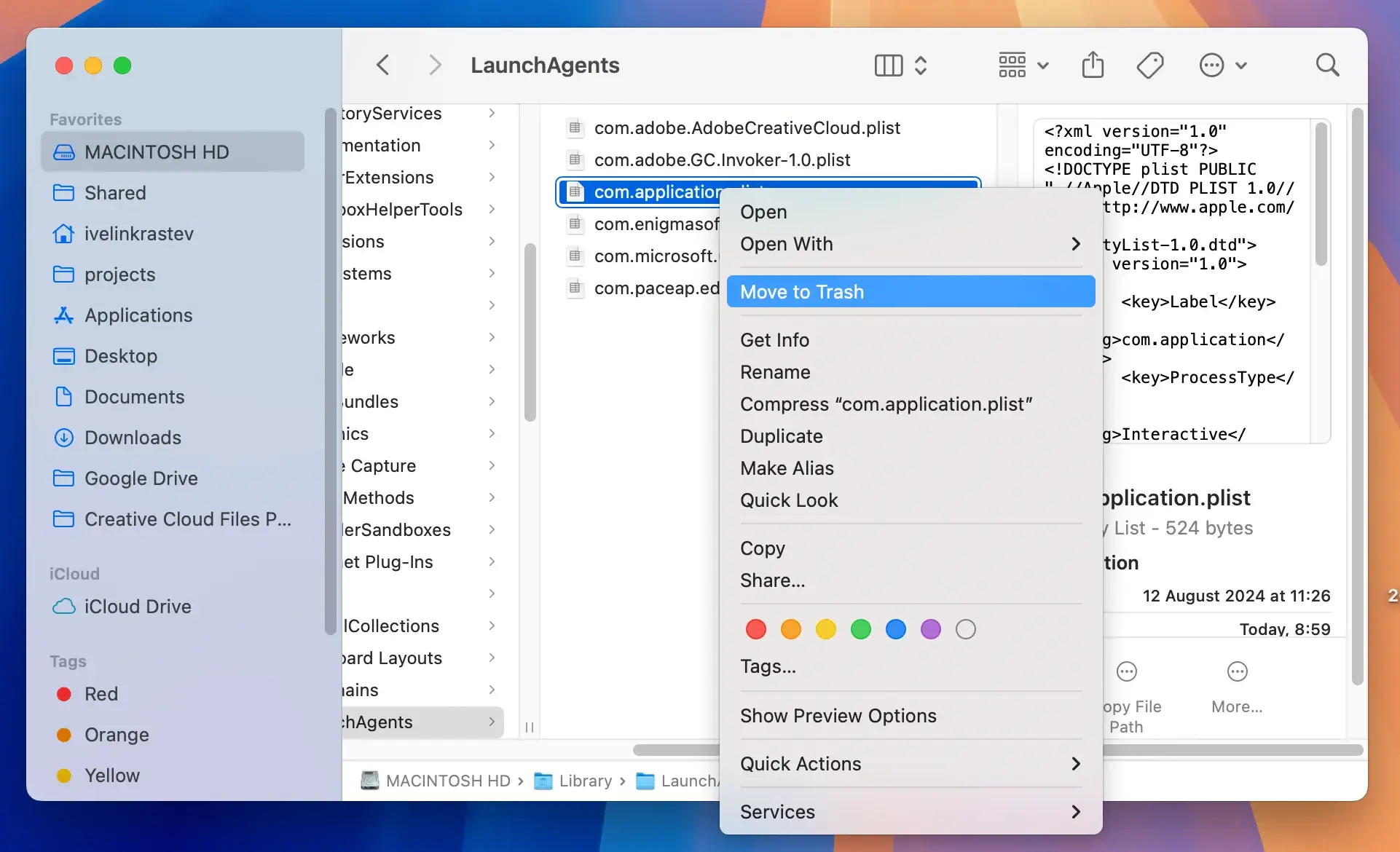
Step 2: Delete remaining TabSearch-related files
- In
Finder, selectGo > Go to Folderin the top menu. - Enter each of the following directories one by one, then delete any files or folders linked to TabSearch:
/Library/Application Support/Library/LaunchAgents/Library/LaunchDaemons~/Library/Application Support~/Library/Caches
- After deleting these files, clean the
Trashto remove them permanently.
Step 3: Remove unwanted browser extensions
For Safari:
- Open Safari, then go to
Safari > Preferences. - In the
Extensionstab, find and uninstall any TabSearch-related extensions. - Restart Safari to apply changes.
For Chrome:
- Open Chrome and type
chrome://extensionsin the address bar. - Locate and remove any TabSearch-related extensions by clicking
Remove. - To clear Chrome’s cache, go to
chrome://settings/clearBrowserData. - Restart Chrome to confirm the extension removal.
Using SpyHunter to remove TabSearch
If your browser has been compromised by the TabSearch hijacker, SpyHunter is a great cybersecurity tool that can effectively remove this sort of malware.
SpyHunter comes equipped with a real-time guard that can detect similar threats before your Mac can get infected and a scanner that detects and removes existing threats.
Below are the simple steps you can follow to use SpyHunter to remove the TabSearch hijacker:
- Download SpyHunter for free here and install it.
- Once installed, open SpyHunter and use the main menu to begin a full malware scan.
- After the scan, SpyHunter will display a list of identified threats. Look for TabSearch in the list.

- Make sure all detected malware is selected for removal.
- Use the interface buttons to clean all threats found.

This automated removal with SpyHunter not only saves time but also handles hidden files that might be difficult to locate and eliminate manually.
Prevent future infections
Adjust your browser’s security settings
Enhancing your browser’s security settings is a proactive step to prevent unwanted intrusions.
Most modern browsers including Chrome, Firefox, and Safari offer settings that warn you about potentially risky websites and downloads. Check and adjust these settings regularly to ensure optimal protection.
Additionally, consider installing browser extensions that enhance security.
Educate yourself on safe browsing practices
Safe browsing habits form the first line of defense in securing your online activities.
Be cautious when clicking on links from emails or social media platforms, as these could lead to phishing sites designed to mimic trusted platforms.
Strengthen your defense by using a reputable cybersecurity solution like SpyHunter, which provides real-time protection against emerging threats. For safe browsing, keep your software, especially your browser, updated to patch any security vulnerabilities and prevent malware infections.
