

How To Remove QSearch Malware on Mac [Quick Fix]

Before we dive in
Before we dive in, let's make sure you stay safe online. We created SpyHunter because your security matters to us.
Protect your computer today — download SpyHunter right here! Check out our top tips below to keep your computer safe and secure.

Ever found your Mac’s browser acting weird? It might not be just a glitch.
If your Safari or Chrome suddenly shows a different homepage or search engine, you could be dealing with QSearch, a browser hijacker that stealthily alters settings without your approval.
This article explores effective strategies to get rid of QSearch, secure your Mac from future threats, and maintain a clean and efficient browsing environment.
What exactly is QSearch malware?
QSearch is commonly referred to as a browser hijacker, which misleads users by altering browser settings without consent.
It typically targets popular browsers such as Safari and Chrome on Mac computers. Once installed, QSearch changes the default homepage and search engine, making it hard for users to navigate the web as they normally would.
This unwanted software not only disrupts your browsing experience but also poses a risk by potentially introducing further malicious content.
The installation of QSearch often occurs quietly, bundled with free software downloads or through deceptive advertisements. Users might install it unknowingly with legitimate applications downloaded from less reputable sources.
Once active, it can be challenging to remove, as it employs advanced techniques to embed itself within the system, sometimes even reinstalling itself after initial removal attempts.
How QSearch compromises your Mac’s security
QSearch significantly compromises your Mac’s security in several ways.
By redirecting your searches through its own engine, it not only controls what results you see but also profits from showing you sponsored content and advertisements. This manipulation extends to potentially exposing users to harmful websites that could engage in phishing attacks or spread malware.
Moreover, QSearch’s ability to track and record your online activities raises substantial privacy concerns. It can monitor websites you visit, search queries, and even personal data, which might be shared or sold to unknown third parties.
This breach of privacy can lead to targeted phishing attacks or identity theft if sensitive information falls into the wrong hands.
Remove QSearch using SpyHunter
Choosing SpyHunter to remove QSearch from your Mac is a good choice for several reasons. SpyHunter’s automated system streamlines the detection and removal process, saving users the hassle of manual deletion.
SpyHunter is engineered specifically to handle threats like QSearch efficiently, ensuring that every component of the unwanted program is identified and eradicated.
You can download SpyHunter for free here and install it on your Mac. Once ready, launch the application and run a full system scan from the main menu.
Wait for the scan to finish and examine the list of detections, making sure every threat discovered, including QSearch, is selected for removal.

Finally, use the interface buttons to proceed with the automatic cleanup and remove all threats from your Mac.

Steps to manually eliminate QSearch from your Mac
If your Mac has been affected by the QSearch adware, removing it involves a few steps focused on the browsers installed on your device.
Step 1: Remove applications linked to QSearch
- Open your
Applicationsfolder. - Look through the available icons for apps you don’t remember installing or ones that look suspicious.
- Drag the suspect applications into the
Trash. - Empty
Trashto finish this step.

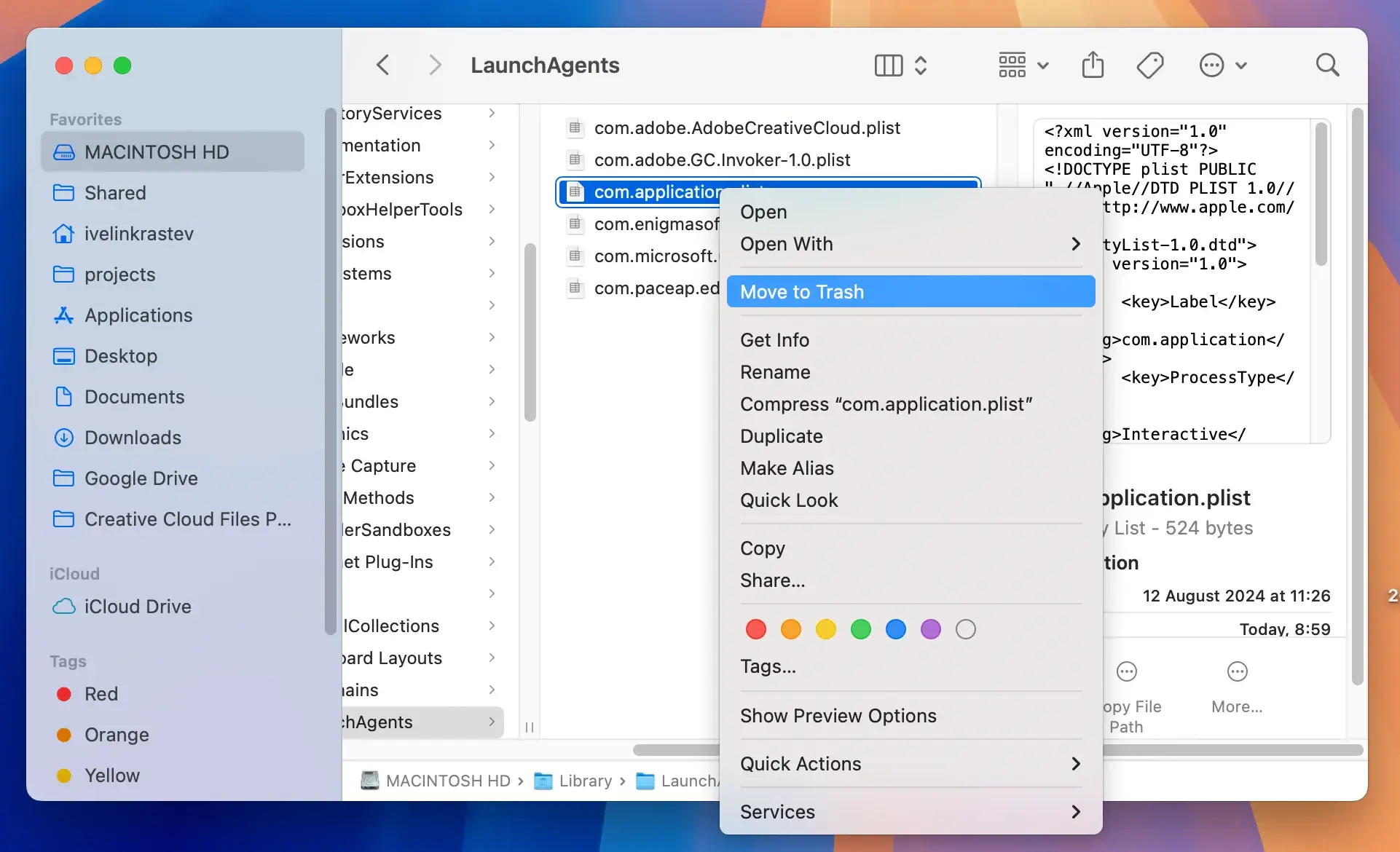
Step 2: Remove leftover QSearch files
- Open a
Finderwindow and clickGo > Go to Folderin the top menu. - In the dialog that shows up, enter the following path locations one after the other, hitting Return after each:
/Library/LaunchAgents//Library/Application Support//Library/LaunchDaemons/~/Library/LaunchAgents/~/Library/Application Support/
- Look through all those directory locations for residual files or subfolders that may be linked to QSearch and delete them.
- Empty the
Trash.
Step 3: Remove QSearch extensions from browsers
For Chrome
- Open Google Chrome.
- Click on the three dots at the top right corner to open the menu.
- Go to
Settingsand selectExtensions. - Look for the QSearch extension or any unfamiliar extension you don’t recall installing.
- Click on
Removebeside the extension details. - Confirm the removal when prompted.
For Safari
- Open Safari and select
Preferencesin the main menu. - Go to the
Privacytab and click onManage Website Data. - Search for QSearch in the list. If found, select it and then click
Remove. - After removing the data, go back to the main
Preferenceswindow. - Select the
Advancedtab and check the box toShow Develop menu in the menu bar. - Go to the Develop menu at the top of the screen and select
Empty Caches.
If problems persist, consider using a comprehensive security tool like SpyHunter to scan for and address deeper issues within your device.
Prevention tips: Avoid future malware infections
To ensure your Mac stays free from infections like QSearch, it’s crucial to adopt a routine of preventive measures. Each step helps create a safer computing environment by minimizing vulnerabilities.
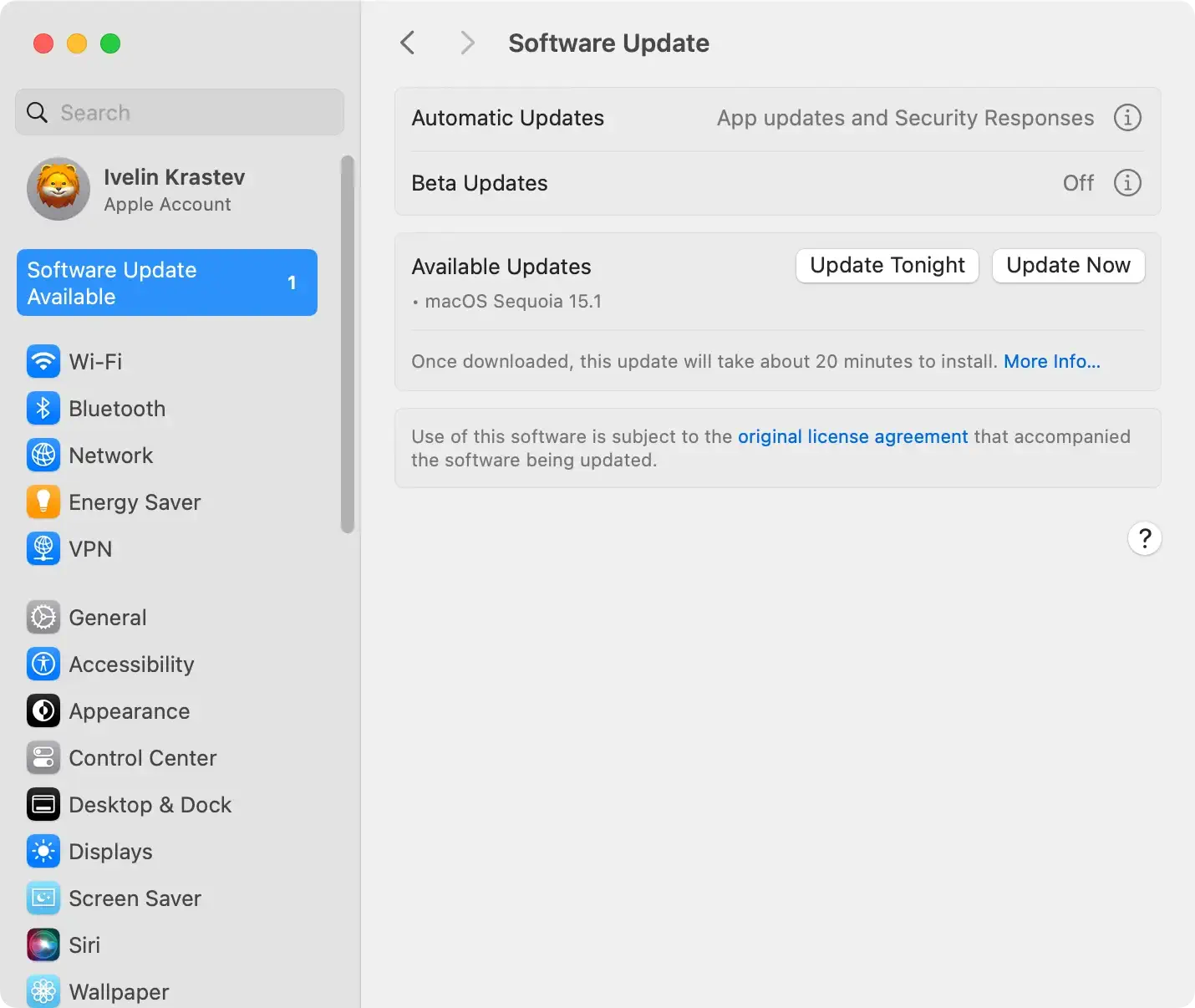
Ensure your macOS and all browsers are up-to-date. By keeping software current, you effectively decrease the risk of infections.
To update your macOS, go to System Preferences then Software Update and follow the prompts to install any available updates.
For browsers, use the update feature found typically under the About section in the browser settings.
Enhance browser security settings
Adjusting your browser’s security settings can significantly improve your defenses against malware.
Implement measures like enabling an ad blocker to prevent malicious ads and scrutinizing browser extensions closely—only install extensions from well-known and trusted developers.
Additionally, activating features like ‘Do Not Track’ can help safeguard your browsing activities from potential trackers. Be vigilant about regularly clearing your browsing data as well, which aids in minimizing the risk of malicious scripts persisting on your system.
