

How To Fix “Your Clock is Ahead” Error On Mac (Step-by-Step)

Before we dive in

Before we dive in, let's make sure you stay safe online. We created SpyHunter because your security matters to us.

Protect your computer today — download SpyHunter right here! Check out our top tips below to keep your computer safe and secure.

Download SpyHunter

Ever bumped into a “Your Clock is Ahead” message on your Mac while trying to surf the web?

This notification isn’t just a simple annoyance—it’s a hiccup in your system’s time settings that can mess up your browsing and app use.

This article dives deep into why your Mac thinks it’s time-traveling and how to sync it back to reality. From fixing your time zone to flushing old browser caches, we’ve mapped out easy solutions to get you back on track.

What triggers the “Your Clock is Ahead” error on Mac?

When using your Mac, encountering a “Your clock is ahead” error can disrupt your browsing experience.

This error often appears because the system’s clock is not synchronized properly, either due to manual setting errors, battery issues affecting the clock, or misconfigurations. Here are some factors that can lead to this troublesome notification.

Step-by-step guide to correct “Your Clock is Ahead” on your Mac

1. Make manual adjustments to date and time settings

If your Mac is displaying the “Your Clock is Ahead” error, it could be due to incorrect date and time settings. To manually correct this:

  1. Navigate to Apple Menu > System Settings > Date & Time.
  2. Unlock the settings by clicking the lock icon and entering your administrator password.
  3. Ensure Set date and time automatically is enabled, and select a reliable time server like Apple’s own.
  4. If automatic settings fail, disable them and manually set the correct date and time, then re-enable automatic settings to refresh the synchronization.

After adjusting these settings, close the System Settings and check if the error resolves.

2. Ensuring macOS is up-to-date

Keeping your macOS updated is crucial not just for accurate timekeeping but also for overall system health. To update your macOS:

  1. Open System Settings and go to General > Software Update.
  2. If any updates are available, click on Update Now.
  3. During the installation, your Mac may restart several times. Allow the process to complete uninterrupted. Once updated, the system should automatically correct any time discrepancies.
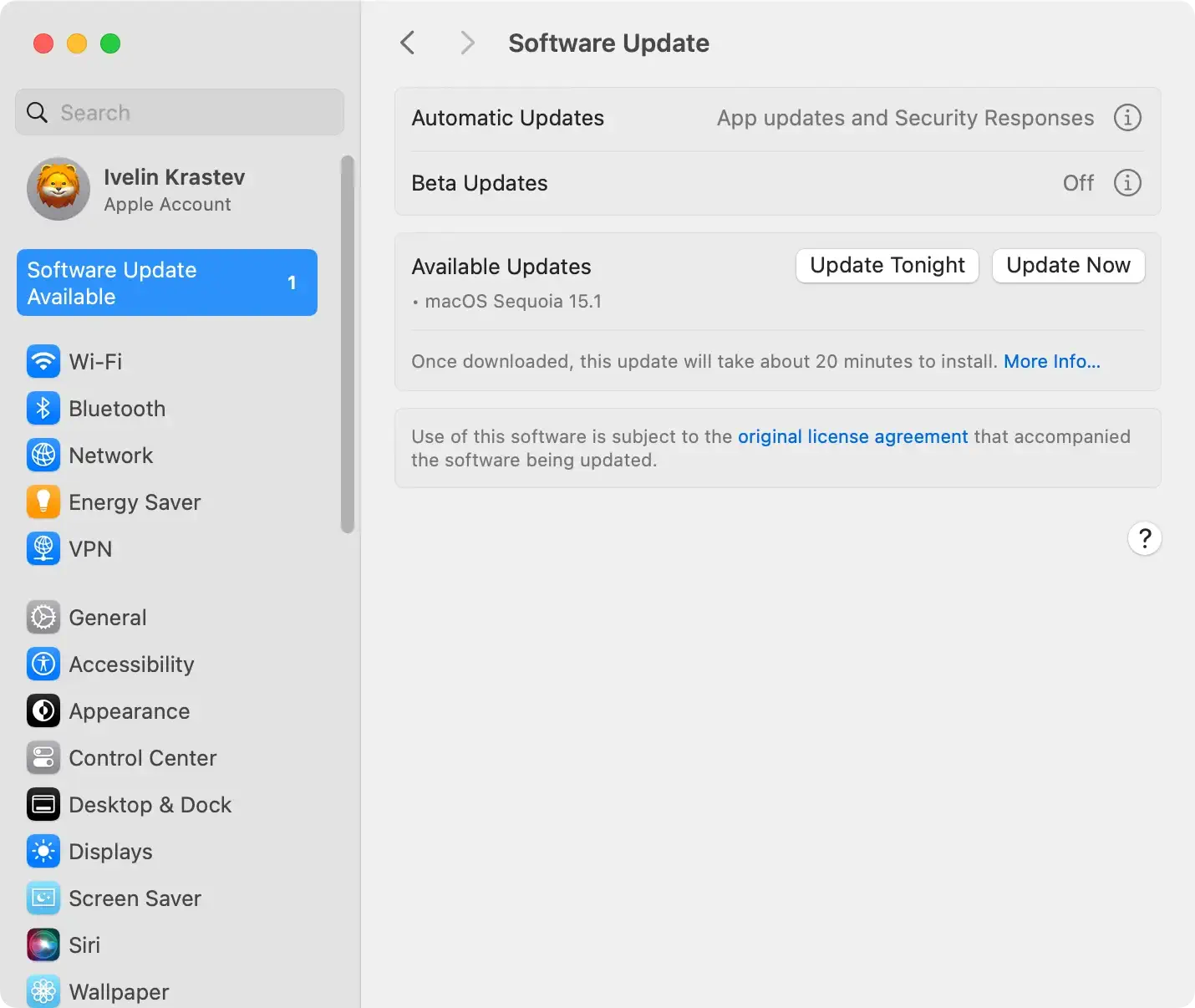
the general software update settings on macos

Regularly checking for macOS updates can prevent many common issues, including the “Your Clock is Ahead” error.

3. Could VPN usage be misleading your Mac’s clock?

Using a VPN on your Mac can sometimes cause time errors by routing your internet through servers in different time zones.

This geographical discrepancy might confuse your system, leading to the “Your clock is ahead” error as the SSL certificate checks fail due to apparent time mismatches.

To tackle this issue, try the following:

  1. Disconnect your VPN to see if that resolves the error.
  2. Check the time zone settings on your Mac to ensure they are correct as per your current location without VPN interference.
  3. Reconnect the VPN and check if the server location matches your needs or adjust it accordingly.

4. Cleaning up your browser: Removing old caches and cookies

Old browser data can sometimes cause time-related errors. To clear your browser, do the following:

  1. Open your browser and access the settings or preferences menu.
    • For Safari, go to Safari > Settings > Privacy > Manage Website Data > Remove All.
    • For Chrome, go to Settings > Privacy and Security > Delete Browsing Data.
    • For Firefox, go to Settings > Privacy & Security > Cookies and Site Data > Clear Data.
  2. Confirm the action and restart your browser.

This cleanup can not only resolve time errors but also improve browser performance.

Use SpyHunter to protect your Mac from malware that might alter your system clock

SpyHunter is an anti-malware application designed to protect your Mac from all threats you can encounter.

In some rare cases, malicious files or apps might alter your system clock and lead to errors similar to “Your Clock is Ahead.” In those cases, having a dedicated anti-malware app like SpyHunter is an invaluable help.

You can download the app here and install it by following the instructions on your screen. Once installed, launch SpyHunter and run a complete scan of your Mac from the main menu.

remove adware and browser hijackers with spyhunter

Once the scan is complete, examine the list of possible detections and make sure all threats are selected for removal. Next, proceed with the automated removal process.

remove malware, viruses, and potentially unwanted programs with spyhunter for mac

In addition to being able to clean existing malware, SpyHunter also has a real-time guard module that will make sure any future threats you encounter online are blocked before they can deploy on your Mac.

When to seek professional help with your Mac’s clock settings

When troubleshooting steps like updating macOS, cleaning your browser cache, or even manually setting the clock don’t resolve the issue, it may signal a deeper system problem that needs professional attention.

If your Mac clock errors persist or cause software malfunctions, reaching out to Apple support or a certified technician is wise. This professional help is especially crucial if your system shows additional symptoms like crashing apps, system slowdowns, or if your Mac is vintage and no longer receives OS updates.

Understanding when it’s time to contact Apple support

Continuous clock errors, especially those accompanied by security warnings or software incompatibilities, mean it might be time to contact Apple support. If basic solutions such as setting your clock to sync automatically with time servers like time.apple.com have failed, the issue might lie deeper within your Mac’s hardware or software frameworks.

Share this post on your favorite social media
Keep Your Mac Fast and Secure
Optimize your Mac and stay malware-free with SpyHunter

For a better understanding of our policies, please review our Free Trial Offer below, EULA, and Privacy/Cookie Policy.

SpyHunter Free Trial: Important Terms & Conditions

The SpyHunter Trial version includes, for one device, a one-time 7-day Trial period for SpyHunter 5 Pro (Windows) or SpyHunter for Mac, offering comprehensive malware detection and removal functionality, high-performance guards to actively protect your system from malware threats, and access to our technical support team via the SpyHunter HelpDesk. You will not be charged upfront during the Trial period, although a credit card is required to activate the Trial. (Prepaid credit cards, debit cards, and gift cards are not accepted under this offer.) The requirement for your payment method is to help ensure continuous, uninterrupted security protection during your transition from a Trial to a paid subscription should you decide to purchase. Your payment method will not be charged a payment amount upfront during the Trial, although authorization requests may be sent to your financial institution to verify that your payment method is valid (such authorization submissions are not requests for charges or fees by EnigmaSoft but, depending upon your payment method and/or your financial institution, may reflect on your account availability). You can cancel your Trial by contacting EnigmaSoft’s payment processor (identified in your confirmation email) or EnigmaSoft directly no later than two business days before the 7-day Trial period expires to avoid a charge coming due and being processed immediately after your Trial expires. If you decide to cancel during your Trial, you will immediately lose access to SpyHunter. If, for any reason, you believe a charge was processed that you did not wish to make (which could occur based on system administration, for example), you may also cancel and receive a full refund for the charge any time within 30 days of the date of the purchase charge. See FAQs.

At the end of the Trial, you will be billed upfront immediately at the price and for the subscription period as set forth in the offering materials and registration/purchase page terms (which are incorporated herein by reference; pricing may vary by country per purchase page details) if you have not timely canceled. Pricing typically starts at $72 for 3 months (SpyHunter Pro Windows) and $42 for 3 months (SpyHunter for Mac). Your purchased subscription will be automatically renewed in accordance with the registration/purchase page terms, which provide for automatic renewals at the then applicable standard subscription fee in effect at the time of your original purchase and for the same subscription time period, provided you’re a continuous, uninterrupted subscription user. Please see the purchase page for details. Trial subject to these Terms, your agreement to EULA/TOS, Privacy/Cookie Policy, and Discount Terms. If you wish to uninstall SpyHunter, learn how.

For payment on the automatic renewal of your subscription, an email reminder will be sent to the email address you provided when you registered before your next payment date. At the onset of your trial, you will receive an activation code that is limited to use for only one Trial and for only one device per account. Your subscription will automatically renew at the price and for the subscription period in accordance with the offering materials and registration/purchase page terms (which are incorporated herein by reference; pricing may vary by country per purchase page details), provided that you are a continuous, uninterrupted subscription user. For paid subscription users, if you cancel, you will continue to have access to your product(s) until the end of your paid subscription period. If you wish to receive a refund for your then current subscription period, you must cancel and apply for a refund within 30 days of your most recent purchase, and you will immediately stop receiving full functionality when your refund is processed.

For CALIFORNIA CONSUMERS, please see the notice provisions:
NOTICE TO CALIFORNIA CONSUMERS: Per the California Automatic Renewal Law, you may cancel a subscription as follows:

  1. Go to www.enigmasoftware.com and click the "Login" button at the top right corner.
  2. Log in with your username and password.
  3. In the navigation menu, go to "Order/Licenses." Next to your order/license, a button is available to cancel your subscription if applicable. Note: If you have multiple orders/products, you will need to cancel them on an individual basis.

Should you have any questions or problems, you can contact our EnigmaSoft support team by phone at +1 (888) 360-0646 (USA Toll-Free) / +353 76 680 3523 (Ireland/International) or by email at support@enigmasoftware.com.
How do you cancel a SpyHunter Trial? If your SpyHunter Trial was registered via MyCommerce, you can cancel the trial via MyCommerce by logging into the MyAccount section of MyCommerce (see your confirmation email for further details). You can also contact MyCommerce by phone or email to cancel. To contact MyCommerce via phone, you can call +1-800-406-4966 (USA Toll-Free) or +1-952-646-5022 (24x7x356). You can contact MyCommerce by e-mail at ordersupport@mycommerce.com. You can easily identify if your trial was registered via MyCommerce by checking the confirmation emails that were sent to you upon registration. Alternatively, all users may also contact EnigmaSoft Limited directly. Users can contact our technical support team by emailing support@enigmasoftware.com, opening a ticket in the SpyHunter HelpDesk, or calling +1 (888) 360-0646 (USA) / +353 76 680 3523 (Ireland/International). You can access the SpyHunter HelpDesk from SpyHunter's main screen. To open a support ticket, click on the "HelpDesk" icon. In the window that appears, click the "New Ticket" tab. Fill out the form and click the "Submit" button. If you are unsure of what "Problem Type" to select, please choose the "General Questions" option. Our support agents will promptly process your request and respond to you.

———

SpyHunter Purchase Details
You also have the choice of subscribing to SpyHunter immediately for full functionality, including malware removal and access to our support department via our HelpDesk, typically starting at $42 for 3 months (SpyHunter Basic Windows) and $42 for 3 months (SpyHunter for Mac) in accordance with the offering materials and registration/purchase page terms (which are incorporated herein by reference; pricing may vary by country per purchase page details). Your subscription will automatically renew at the then applicable standard subscription fee in effect at the time of your original purchase subscription and for the same subscription time period, provided you’re a continuous, uninterrupted subscription user and for which you will receive a notice of upcoming charges before the expiration of your subscription. Purchase of SpyHunter is subject to the terms and conditions on the purchase page, EULA/TOS, Privacy/Cookie Policy and Discount Terms.

———

General Terms
Any purchase for SpyHunter under a discounted price is valid for the offered discounted subscription term. After that, the then applicable standard pricing will apply for automatic renewals and/or future purchases. Pricing is subject to change, although we will notify you in advance of price changes.
All SpyHunter versions are subject to your agreeing to our EULA/TOS, Privacy/Cookie Policy, and Discount Terms. Please also see our FAQs and Threat Assessment Criteria. If you wish to uninstall SpyHunter, learn how.