

How To Remove ‘System Mac OS Is Infected’ Pop-Ups (Solution)

Before we dive in
Before we dive in, let's make sure you stay safe online. We created SpyHunter because your security matters to us.
Protect your computer today — download SpyHunter right here! Check out our top tips below to keep your computer safe and secure.

Ever stumbled upon a “System Mac OS is Infected” pop-up while surfing the web and wondered if it’s legit?
These alarming alerts are designed to push you into downloading unnecessary and potentially harmful software. Not all warnings are out to deceive you, though, so how do you tell the difference?
This article dives deep into what causes these pop-ups, how to distinguish the fakes from real alerts, and practical steps to protect your Mac from unwanted pop-ups and malware threats.
What triggers the “System Mac OS is Infected” pop-up ads?
The “System Mac OS is Infected” pop-up ads commonly appear due to interactions with compromised websites or deceptive advertisements.
When users visit or click on these elements, they unintentionally grant malicious scripts permission to display intrusive alerts.
It is often a result of adware that has either been unwittingly downloaded or pushed through vulnerabilities in outdated software. Cookies and site data might also store elements that trigger these pop-ups repeatedly.
This happens often after the user permits the malicious site to send push notifications.
Malicious browser extensions add another layer, executing scripts that inject these pop-ups into the browsing experience. These pop-ups attempt to evoke urgency, prompting users to download software or contact support, which can result in further security risks.
Understanding the mechanics behind Mac OS scam alerts
Mac OS scam alerts typically engage users through a strategic blend of technology and psychology.
Tech-wise, these scams exploit browser settings by manipulating permissions and employing ads or hijacked websites. Once the user clicks on an enticing ad or agrees to receive notifications from a suspect site, the scam is set in motion.
These alerts often impersonate trusted entities and exhibit warning symbols and urgent language to instill fear and urgency. This tactic aims to coax the user into immediate action, such as installing rogue software from an untrusted source.
Despite their alarming appearance, these pop-ups are fundamentally deceitful and designed solely to exploit user trust for malicious gain.
Is the “System Mac OS is Infected” alert legitimate?
In short, no. The “System Mac OS is Infected” alert, which may pop up while you are browsing the internet, is not a legitimate warning from macOS or Apple.
Instead, these alerts are often generated by scam websites designed to look convincing, exploiting the visual and textual elements associated with genuine Apple alerts.
The main giveaway is the push for immediate action, such as downloading a questionable virus removal tool or contacting fake support services.
If you encounter this type of pop-up, the best course of action is to close the browser or the alert itself. Be cautious and refrain from clicking on the alert, as doing so may trigger unwanted downloads of malicious software.
Spotting the difference between real and fake virus warnings
Distinguishing between real and fake virus warnings can prevent the accidental installation of malware or falling victim to scams.
Genuine alerts from your macOS will never solicit personal information, prompt immediate payment, or lead you to external websites. They will appear in the system preferences rather than your web browser and will look consistent with the overall design of the macOS interface.
Fake alerts, on the other hand, often have telling signs such as poor grammar, overly urgent language, and unusual formatting.
They may push you to take action quickly, citing severe consequences if ignored. Always verify the legitimacy of any unexpected alerts by directly contacting the official support channels from trusted software providers.
Clean ‘System Mac OS Is Infected’ scam pop-ups with SpyHunter
SpyHunter is a powerful anti-malware tool for Mac computers that can clean existing malware and protect your system from future infections with its real-time guard.
The application can clean a wide range of browser hijackers and adware similar to the “System Mac OS Is Infected” pop-ups and the removal process is completely automated for the user’s convenience, with all leftover files swept clean as well.
You can download SpyHunter for free and install it on your Mac by following the tips on your screen. Once the install is done, launch SpyHunter and perform a full system scan for malware.

In the scan results window, make sure all threats are selected for cleanup and continue with the automated removal process to free your Mac of all detected malware.

Step-by-step guide to removing “System Mac OS is Infected” pop-ups
1. Look for installed unwanted apps
- Use
Finderto open yourApplicationsfolder - Look through the list of available apps for any that seem out of place or you don’t recognize or remember installing.
- Drag the suspicious apps into the
Trash. - Empty the
Trashto complete this step.

2. Reset your browsers
Follow the steps below to clear browsing data and caches, then reset your browsers to a clean state, without any malicious leftovers or unwanted extensions.
Google Chrome
- Clear Browsing Data
- Open Chrome, click on the three dots in the top right.
- Go to Settings > Privacy and security > Clear browsing data.
- Select All time and check Browsing history, Cookies, and Cached images and files. Then click Clear data.
- Reset Chrome Settings
- In Settings, scroll down to Reset settings.
- Click Restore settings to their original defaults > Reset settings.
- Remove Unwanted Extensions
- Go to Settings > Extensions and disable or remove any unwanted extensions.
Safari
- Clear History
- Open Safari, click History in the menu bar.
- Choose Clear History, select All History, and confirm.
- Remove Website Data
- Go to Safari > Settings > Privacy.
- Click Manage Website Data, then Remove All to delete cookies and cached files.
- Disable Extensions
- Go to Safari > Settings > Extensions and disable or uninstall any unnecessary extensions.
Firefox
- Clear History and Cookies
- Open Firefox, click on the three lines in the top right.
- Go to Settings > Privacy & Security > Cookies and Site Data > Clear Data.
- Refresh Firefox
- In the Help menu, select More Troubleshooting Information.
- Click Refresh Firefox and confirm.
- Remove Extensions
- Go to Settings > Extensions & Themes and disable or remove any unwanted extensions.
Frequently asked questions about security alerts
Can scam pop-ups infect my Mac just by appearing?
No, pop-ups cannot infect your Mac simply by appearing on your screen. Infection can only occur if you interact with the pop-up, such as clicking on any links it may contain or downloading files from it.
These pop-ups are designed to scare you into taking an action that could harm your computer, like installing malicious software. Always approach unexpected alerts with skepticism and avoid engaging with them directly.
What should I do if I accidentally clicked on a fake alert?
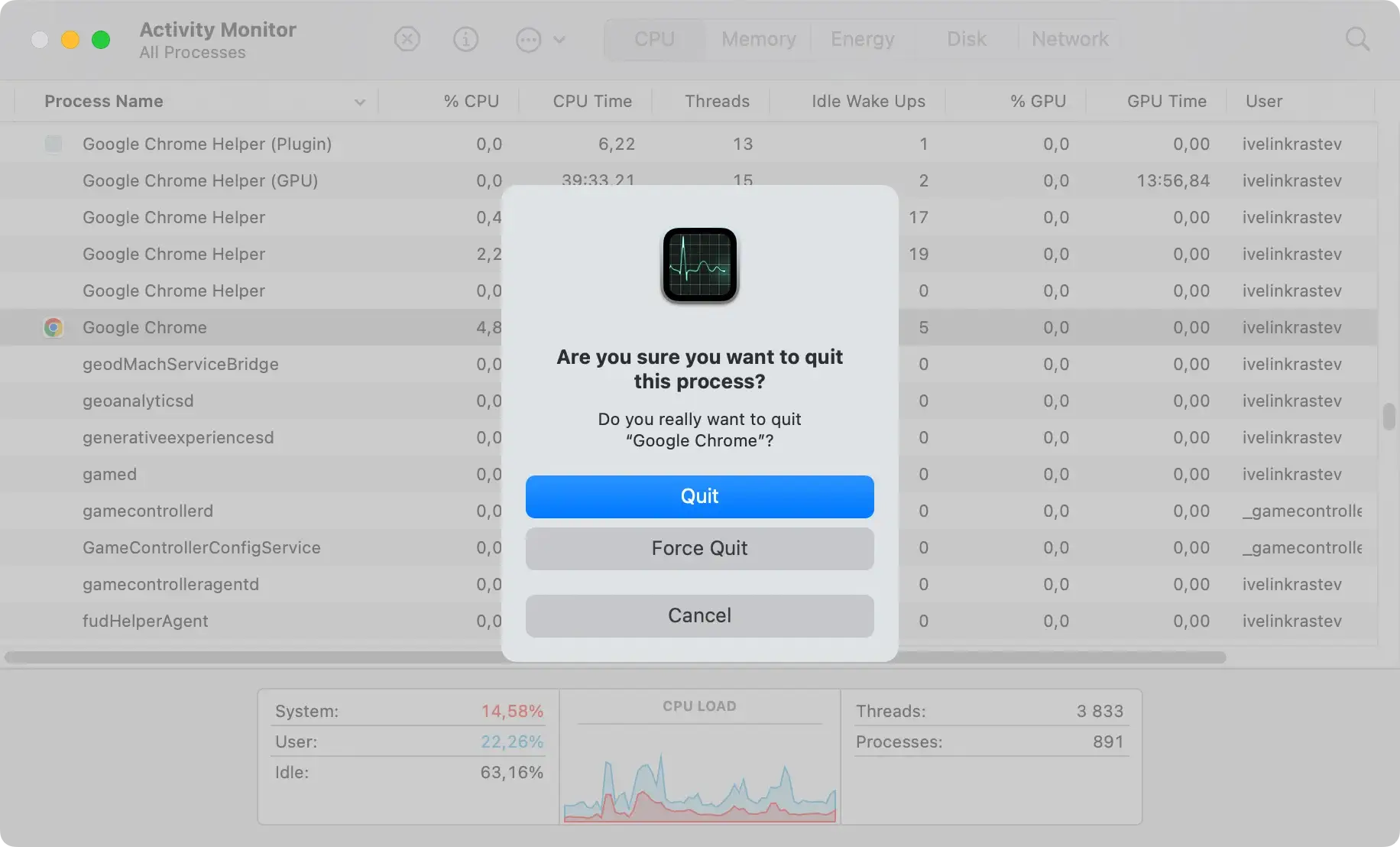
If you’ve mistakenly clicked on a fake virus alert, the first step is to close the browser or application where the pop-up appeared.
If the pop-up or browser isn’t closing normally, use the Force Quit function:
- Press
Option, Command, and Escsimultaneously. - Select the browser from the list.
- Click
Force Quitand confirm.
Next, you should scan your Mac for any installed malware. If you don’t already have security software installed, consider downloading a tool like SpyHunter.
Running a full system scan with SpyHunter or any reliable antivirus application can help remove unwanted programs that may have been clandestinely installed on your system.
