

Is Your Mac Infected? Remove Malware And Viruses On Mac

Before we dive in
Before we dive in, let's make sure you stay safe online. We created SpyHunter because your security matters to us.
Protect your computer today — download SpyHunter right here! Check out our top tips below to keep your computer safe and secure.

Discovering that your Mac may be infected can be alarming. This article serves as a guide to identifying signs of malware and virus infections on your Mac and outlines practical steps for their removal.
Whether you’ve noticed unusual behavior in your system or want to ensure it remains secure, we’ll walk you through detecting and eliminating these threats.
Stay tuned to learn how to safeguard your Mac and keep it running smoothly, free from harmful software.
Signs your Mac has a virus
Recognizing the signs of a virus on your Mac is crucial for taking timely action to protect your system.
Despite Macs’ reputation for security, they are not immune to malware and viruses. This section will highlight key indicators that your Mac may be compromised, from sudden performance slowdowns to unexpected pop-up ads.
Understanding these signs will empower you to address potential threats before they escalate, ensuring your Mac remains safe and efficient.
Unexpected slow performance
A noticeable decline in your Mac’s performance serves as a clear and concerning signal that your system might be harboring malware.
When your once-responsive Mac starts exhibiting sluggish behavior, with applications taking an eternity to open or tasks hanging in the middle of execution, it’s time to investigate, as these symptoms often point to suspicious software covertly operating in the background.

The slowdown in performance results from malicious programs siphoning off your system’s resources for their activities.
These resource-hungry invaders can monopolize your CPU, RAM, and storage, causing a strain on your Mac’s capabilities. As a result, even routine tasks that used to be executed seamlessly may now feel like laborious chores.
Recurring crashes or error messages
Should your system frequently show the rainbow-colored spinning wheel, or if there are regular unexpected reboots, these could indicate that a virus is interfering with your system’s normal function.
Error messages that appear without reason can similarly suggest something is amiss.
Unusual fan activity
Unusual fan activity can be a sign of malware or a virus on your Mac. If your computer’s fans suddenly speed up or make constant noise without heavy use, this could mean malicious software is using your system’s resources.
Malware works in the background, causing your fans to work harder to cool down the increased heat from the extra activity.
Paying attention to this sign and acting quickly can help prevent further damage and keep your Mac running smoothly.
Annoying pop-ups and unrequested applications
If you notice a sudden surge in annoying pop-up ads, or if advertisement windows pop up on your desktop seemingly unrelated to any browsing you’re doing or any programs running, it could be the work of a virus.
Similarly, if you find new toolbars on your browser that you didn’t install or are redirected to spam advertising pages, these could be symptoms of a malware infection.
How to check for viruses on a Mac
If you are experiencing any of the symptoms mentioned above, it’s crucial to check your Mac for possible virus infections. One of the easiest ways to do this is using reliable anti-malware software.
You can manually monitor suspicious applications using the Activity Monitor or clear your browser’s cache to remove any harmful cookies or cache memory.
Utilize anti-malware software
An anti-malware software like SpyHunter for Mac is crucial for protecting your Mac from various threats. Using a legitimate antivirus app makes Mac virus removal accessible to any user.
SpyHunter specializes in detecting and removing Mac malware, including viruses, spyware, adware, and potentially unwanted programs (PUPs). It runs a deep virus scan on your system to find and isolate or delete malware.

With its real-time protection, the SpyHunter virus scanner monitors your system for suspicious activities, offering an active defense against new threats and helping to keep your Mac secure and performing well. Download SpyHunter and scan your Mac for malware now!
Monitor suspicious apps via Activity Monitor
The Activity Monitor on your Mac is a critical tool for spotting potential malware. It gives you a real-time look at all running processes and applications, making it easier to spot unusual behavior.
Malicious programs often use more CPU power as they run in the background. By checking the CPU, memory, and energy usage, you can identify any process using too much power, which might be a sign of malware.
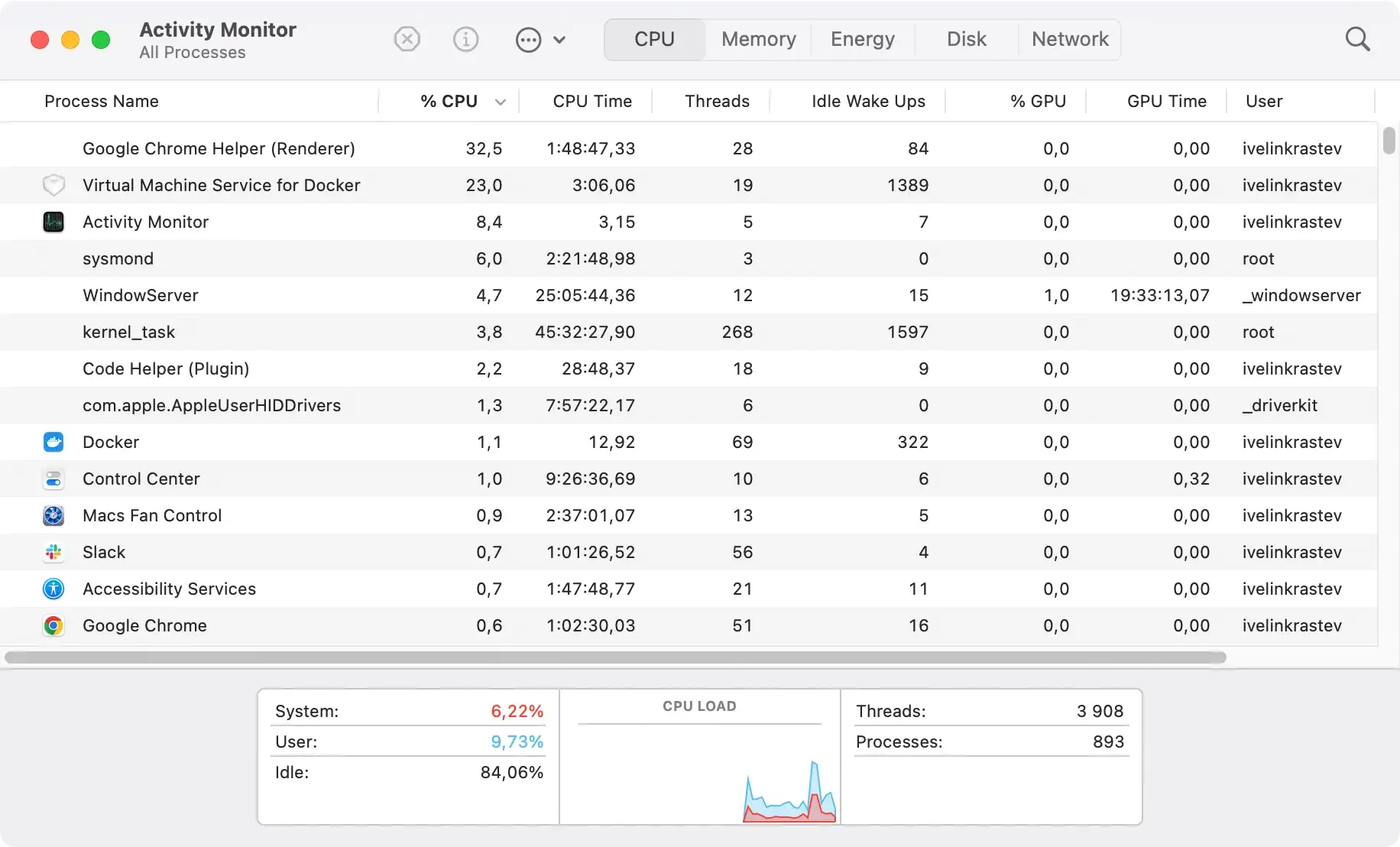
If you find any process that looks suspicious or uses a lot of resources, it’s worth investigating further.
Keep an eye out for processes with names that are trying to mimic legitimate ones, and don’t hesitate to look them up if you’re unsure.
Check for suspicious browser extensions
Malware attacks can take less malicious forms and come packaged as browser hijackers and adware.
Suspicious extensions can hijack your searches, cause bad redirects and alter your home page or default search engine.
Check the extensions tab or sub-menu in your browser of choice and scan the list of installed extensions for any unfamiliar names or entries you don’t remember approving or installing. Those will usually be malicious browser extensions functioning as hijackers or adware.
An antivirus program should be able to detect not only Mac viruses but also similar unwanted browser extensions.
Clearing the browser’s cache
If you encounter frequent pop-up ads or redirection to unwanted websites, clearing your browser’s cache might be a good idea.
Viruses can often burrow into your browser’s cache memory to perform malicious activities. Removing your browser’s cache and cookies can help eliminate these unwanted threats.
How to remove malware from a Mac for free
Once you have identified that your Mac is infected with a virus, the next step is removing malware already discovered.
Some of these measures are deleting suspicious files permanently, restoring an old version of your Mac using Time Machine, or factory resetting your Mac.
Remember, ensuring the virus is wholly eliminated is crucial to prevent unwanted consequences like data or financial theft, ransomware, and malware spreading to other devices.
Delete suspicious files permanently
After detecting a virus, it’s essential to permanently delete all suspicious and malicious files.
Use trusted antivirus software like SpyHunter for Mac to scan your system thoroughly and locate these harmful files.
To perform a complete anti-malware scan, follow these steps:
- Download SpyHunter for free here and follow the installation instructions.
- Once installed, an automatic scan will identify any malware or viruses on your Mac.
- Follow SpyHunter’s prompts to remove the threats efficiently.

Additionally, you could manually search for them through Finder. But proceed cautiously, as deleting essential system files might cause severe issues to your Mac.
Restore from a backup
If you regularly back up your Mac using Time Machine, you can restore an old version of your system to eradicate all traces of the virus.
Be aware that this option will revert any changes you’ve made since the last backup, which may lead to losing some data.
Though it’s a relatively quick and easy method, it’s only recommended if the infection is severe or complex to remove manually.
Restore the Mac to factory settings
In worst-case scenarios, when the virus has deeply infiltrated your system, it might be necessary to factory reset your Mac.
This approach should ideally be your last resort after all other failed methods. It involves completely wiping your Mac and reinstalling MacOS, eliminating all possible virus traces.
However, back up any essential files or data before proceeding, as this step will erase everything on your Mac.
What to do if your Mac has a virus
When you realize that your Mac has been infected with a virus or malware, it is essential to take quick action to remove the infection and prevent any potential damage. Mac malware removal is not as complicated as you might think.
Here are several steps you can take to mitigate any possible harmful consequences:
- Limit your internet connection: When your Mac is infected, it’s advisable to stay offline as much as you can. This action is intended to prevent the malware from communicating with its command and control server or spreading to other devices connected to the same network. It also reduces the chances of data leakage to the malware server or further system compromise.
- Boot your Mac in Safe Mode: Booting your Mac in Safe Mode can also be beneficial. Safe Mode is a diagnostic mode designed for troubleshooting purposes. It starts your Mac in a basic state with only necessary services running and can often prevent the virus or malware from getting activated.
- Avoid typing sensitive information: You should immediately stop inputting passwords, login details, or any other sensitive information into your Mac until the threat has been appropriately addressed. This precautionary measure prevents the malware from recording and transmitting your data to cybercriminals.
- Inform your bank and financial institutions: Alert your financial institutions about the infection and follow their advice on how to proceed. They often have protocols to handle such situations and can provide you with the necessary guidance and support for safeguarding your accounts and financial data.
