

How To Remove Interlie From Your Mac (Comprehensive Guide)

Before we dive in
Before we dive in, let's make sure you stay safe online. We created SpyHunter because your security matters to us.
Protect your computer today — download SpyHunter right here! Check out our top tips below to keep your computer safe and secure.

Known for its intrusive behavior, Interlie may compromise system performance and privacy.
In this article, we’ll delve into the details of Interlie, examine its characteristics and potential risks, and provide comprehensive instructions to remove Interlie and safeguard your digital environment completely.
What is Interlie?
Interlie is a perfidious adware that infiltrates unsuspecting computer systems to cause havoc and manipulation.
As an adware developed by cybercriminals, it thrives on redirecting Google searches to unrequested websites, thereby advertising unwanted commercial products.
Description of Interlie
Once it enters your computer, Interlie instantaneously hijacks your main browsers, such as Safari, Google Chrome, Mozilla Firefox, and Edge.
It continuously bombards your screen with numerous pop-up ads and even influences your routine applications to malfunction or download infected files without your consent. The grand plan is to generate income for its creators.
Compatibility of Interlie with different browsers
Interlie exhibits remarkable adaptability by seamlessly integrating with various internet browsers. It’s not confined to Chrome-centric adware; it extends its reach across popular browsers such as Mozilla Firefox, Internet Explorer, Safari, and Edge.
This broad compatibility ensures that Interlie can potentially impact users across various operating systems, making it a pervasive threat that demands attention.
Understanding its compatibility with these widely used browsers is crucial for users seeking to safeguard their online experiences and maintain the security of their digital environments.
Is Interlie harmful?
Interlie capabilities are far from harmless. Its ability to spy on user surfing habits threatens data privacy.
This adware collects user-sensitive data and can be used for marketing purposes, among other potentially harmful uses.
Misconceptions of Interlie as a virus
Contrary to common beliefs, Interlie is not a virus. However, it is also not harmless, and treating it as such would be naive. It is a browser hijacker that influences your web activities unsuitably, forming a bridge towards other related issues.
Interlie operations and purpose
Interlie disrupts users’ online experiences by bombarding their screens with incessant paid ads, hindering seamless browsing. Despite not being classified as a virus, its aggressive advertising tactics and privacy invasion render it equally disruptive and harmful.
Operating stealthily on a user’s computer, Interlie consumes significant network resources and memory space, resulting in a noticeable decline in overall system performance.
Its clandestine operations keep users unaware of its presence until the intrusive ads disrupt their online activities.

The primary purpose of Interlie is to facilitate its creators in executing online advertising campaigns.
By redirecting users to specific websites and displaying advertisements urging commercial purchases, Interlie allows cybercriminals to profit from ad clicks and user transactions.
Understanding the multifaceted impact and stealthy operations of Interlie is essential for users aiming to mitigate its effects and secure their digital environments.
The threats of Interlie
One significant threat that Interlie poses is slowing down computer performance by burdening system resources.
Furthermore, it presents a severe privacy concern as it can potentially gather user data, such as browsing history and personal preferences, before selling it to third-party advertisers for a profit.
How is Interlie distributed?
Interlie employs a cunning distribution strategy, primarily spreading through installation managers of free programs and bundled software, capitalizing on users’ inattentiveness during software installation processes.
Leveraging free program installation managers
Interlie strategically infiltrates systems by exploiting the installation managers of commonly downloaded free programs.
Users who frequently opt for free software may unknowingly expose themselves to the risk of unwanted applications, with Interlie being a prime example.
Padded with popular software
Cybercriminals often camouflage Interlie within the installations of popular and widely used free programs.
These bundled software packages may initially appear innocuous, but they can potentially introduce Interlie into your computer system silently.
Users must exercise heightened vigilance while installing free programs to avoid inadvertently welcoming Interlie onto their devices.
Silent installation
The bundled software, seemingly harmless at first glance, serves as a covert carrier for Interlie. The cybercriminals behind this strategy rely on users overlooking the fine print during software installation.
Consequently, if users are not cautious, Interlie may discreetly establish itself within the system, ready to deploy its disruptive advertising tactics.
How to remove Interlie?
Adware like Interlie can be a persistent problem, impacting your Mac’s performance and compromising your browsing experience.
Follow these detailed steps to remove Interlie from your system and enhance digital security.
Step 1: Identify and remove the Interlie app
The first step of the removal process is to remove Interlie from Applications:
- Open
Finderand go to theApplicationsfolder. - Locate the suspicious application related to Interlie.
- Move the suspicious application to the Trash.
- Empty the Trash to delete the app permanently.

Step 2: Remove Interlie browser extensions
Identify and eliminate any browser extensions associated with Interlie. These extensions may contribute to unwanted ads and pop-ups during your online activities.
For Safari:
- Open Safari and go to
Safari > Preferences - Navigate to the
Extensionstab - Identify and uninstall any suspicious extensions related to Interlie
For Google Chrome:
- Open Chrome and go to
Chrome > Preferences - Click on
Extensionsin the left sidebar - Remove any Interlie-related extensions
For Mozilla Firefox:
- Open Firefox and go to
Firefox > Add-ons - Navigate to the
Extensionstab - Remove any extensions linked to Interlie
Step 3: Remove Interlie malicious profiles
Threats like Interlie manipulate configuration profiles to prevent users from uninstalling malicious software and adjusting browser settings.

- Open
System Settingsfrom the Apple menu. - Navigate to
Profilesand check for any suspicious entries. If found, remove them.

Step 4: Use a reliable anti-malware tool
Download and install a respected anti-malware tool such as SpyHunter for Mac to perform a comprehensive scan and remove any remaining traces of Interlie.

- Download SpyHunter for free here and follow the installation instructions.
- Launch SpyHunter and run a full system scan.
- Follow the on-screen prompts to remove detected threats.
Step 5: Check your login items
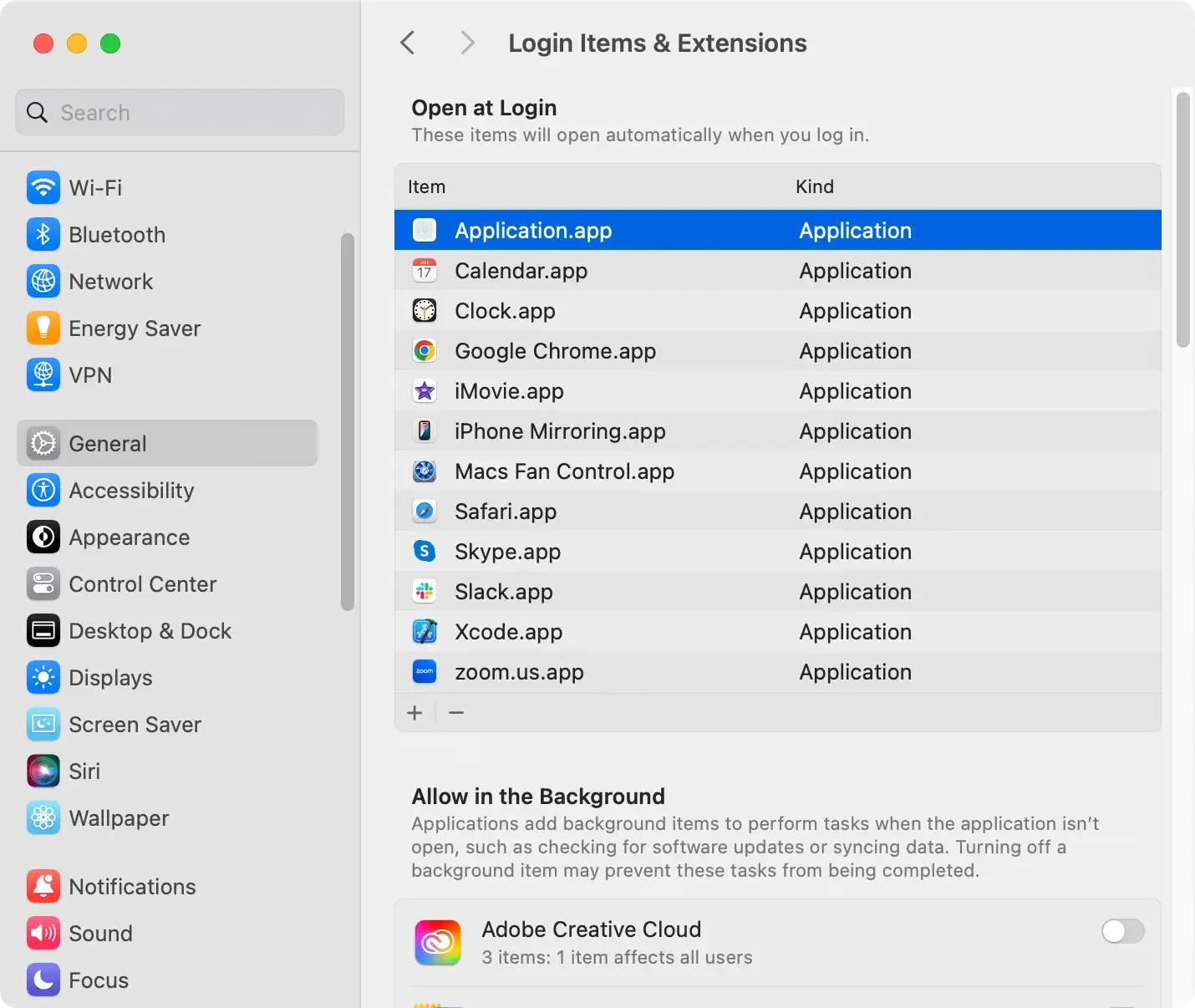
Review and remove any suspicious entries in the Login Items section of your Mac to prevent unwanted applications from launching with the system.
Login Items are programs that open automatically when you log in, and Interlie may exploit this to persistently interfere with your Mac’s operation.
- Open
System Settingsand navigate to theGeneralsettings in the left sidebar - Select
Login Itemsand examine the list of items set to launch during login. Identify any unfamiliar or suspicious entries. - Highlight the suspicious items and click the “-” (minus) button.
- Confirm the removal if prompted, and restart your Mac.
Step 6: Reset web browsers
Resetting your web browsers helps eliminate any lingering settings or preferences related to Interlie.
Adware often leaves behind modifications in browser settings, and this step ensures a clean slate, reducing the chances of persistent interference.
For Safari:
- Open Safari and go to
Safari > Reset Safari - Check the options you want to reset, such as clearing history and website data, clearing the downloads list, and removing all website icons. Click
Resetto confirm
For Google Chrome:
- Open Chrome and go to
Chrome > Settings > Advanced > Reset settings - Click
Restore settings to their original defaultsand thenReset settingsto confirm. This action will reset your homepage, search engine, and pinned tabs
For Mozilla Firefox:
- Open Firefox and go to
Firefox > Help > Troubleshooting Information - Click
Refresh Firefoxin the upper-right corner - Confirm the action, and Firefox will reset to its default state, keeping essential information like bookmarks but eliminating unwanted extensions and settings
How to prevent Interlie installations?
To safeguard your system from the risk of Interlie infection, adopt a proactive approach with the following prevention strategies:
- Opt for ‘Advanced’ or ‘Custom’ installation modes: Always choose the ‘Advanced’ or ‘Custom’ installation modes when installing software. This allows you to control the installation process, preventing unwanted applications, including Interlie, from sneaking into your system.
- Exercise caution with Internet usage: Mitigate the risk of Interlie infection by exercising caution during Internet usage. Be wary of downloading files or software from untrusted sources, and avoid clicking on suspicious links that could lead to accidental installations.
- Keep your system updated: Regularly update your operating system to benefit from the latest security patches and enhancements. This helps create a more resilient defense against potential vulnerabilities that cybercriminals might exploit.
- Invest in trustworthy antivirus software, such as SpyHunter: Strengthen your overall system security by investing in reputable antivirus software. SpyHunter, for instance, is a reliable option that provides real-time protection, detects and eliminates threats, and serves as an additional layer of defense against adware like Interlie. Download SpyHunter from here. Regularly update your antivirus software so it remains effective against emerging threats.
Incorporating these prevention strategies into your digital practices can lower the likelihood of Interlie infection and maintain a secure computing environment.
