

Remove Guroshied Virus From Mac (Step-By-Step Guide)

Before we dive in

Before we dive in, let's make sure you stay safe online. We created SpyHunter because your security matters to us.

Protect your computer today — download SpyHunter right here! Check out our top tips below to keep your computer safe and secure.

Download SpyHunter

Ever felt like your web browser started having a mind of its own?

You might be dealing with something like the Guroshied virus, a sneaky browser hijacker that messes with your settings, bombards you with ads, and slows down your browsing without your permission.

It’s not your typical virus, but it’s a real pain all the same!

In this guide, we’ll walk you through spotting, removing, and protecting your Mac from the Guroshied virus, ensuring smooth and secure online surfing.

We’ve also included some simple steps for using SpyHunter to eliminate tricky malware and keep your system in top shape.

Ready to clean up your browsing experience? Let’s dive in.

What exactly is the Guroshied virus?

The Guroshied virus, primarily identified as a browser hijacker, is notorious for overtaking web browsers like Chrome, Firefox, and Opera.

Its main function is to alter browser settings without the user’s consent, which includes changing the default homepage and search engine.

This disruption typically leads to an excessive display of advertisements, including pop-ups and banner ads, that are not only annoying but can also drastically slow down browsing speed.

a close up of a magnifying glass with a red shield on it

Despite its name, the Guroshied virus is not a traditional virus but falls under the category of Potentially Unwanted Programs (PUPs).

It’s designed to generate revenue for its developers by displaying ads and redirecting searches to sponsored sites.

While it does not steal personal information or cause direct harm to your computer’s files, its behavior can be intrusive and can lead to privacy concerns due to its tracking capabilities, which gather data related to your browsing habits and preferences.

Manual removal guide for Guroshied virus on Mac

1. Identify and close harmful applications

Begin by accessing the Utilities folder from your Mac’s Finder.

Open the Activity Monitor to view all the current processes. Here, your task is to spot and halt any suspicious application that doesn’t look familiar or seems to hog excessive system resources.
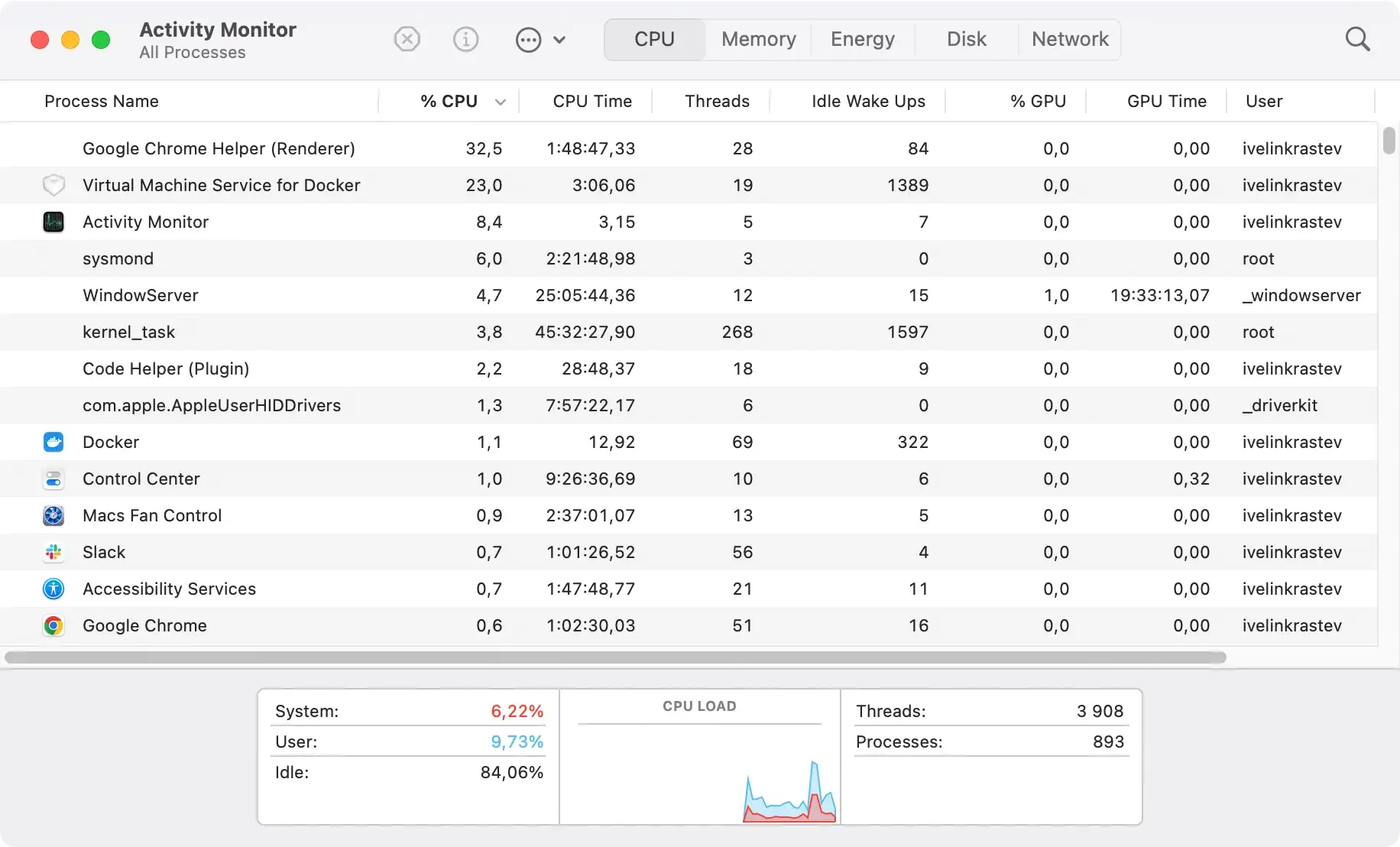
the activity monitor app on macos on the cpu tab

If unsure, search online for the process name to check its legitimacy.

Once identified as harmful, select the process and click the Stop button at the top, followed by Force Quit to ensure it is completely closed.
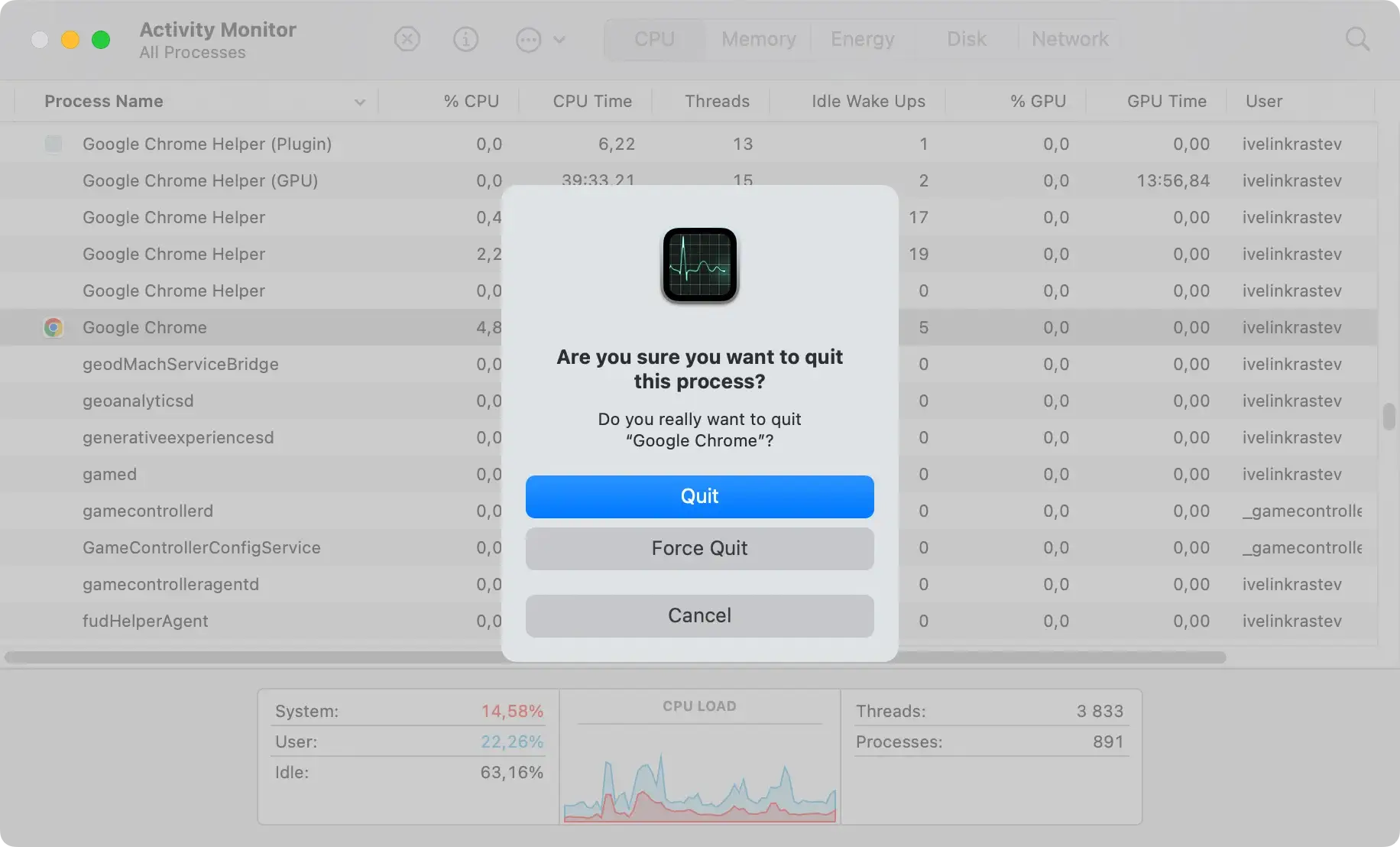
the force quit dialog in the activity monitor app on macos

2. Remove Guroshied from your application folder

Navigate to the Applications folder via the Finder. Scroll through and find any applications installed without your acknowledgment or those that seem dubious.

Drag the malicious app to the Trash. This action might prompt you for your administrator password. Enter it to authorize the removal.

delete a program from applications using finder

Pay extra attention to recently added applications you do not recall installing.

3. Empty the trash to eliminate residual files

After removing the suspicious applications, head to the Trash icon in your Dock and right-click on it.

Select Empty Trash to permanently delete the files. This action prevents any leftover elements of the malware from operating on your system.

It’s a crucial step to ensure that nothing harmful remains that could recreate or reactivate the virus.

4. Remove Guroshied from your web browsers

Removing the Guroshied virus from your web browsers involves a series of steps that reset your browser settings to their original defaults.

This process helps eliminate intrusive pop-ups and restore your browser’s performance.

Below, steps are tailored to each browser’s specific settings adjustment requirements.

For Safari

To remove Guroshied.com spam notifications from Safari and restore them to its default settings, follow these instructions:

  1. Open Safari.
  2. Go to the Safari menu and select Preferences.
  3. Click on the Privacy tab and then on Manage Website Data.
  4. Press Remove All to delete all stored website data that might contain harmful scripts.
  5. Navigate to the Advanced tab in the Preferences window and check the box to Show Develop menu in menu bar.
  6. From the Develop menu, select Empty Caches.
  7. Again, go to the Safari menu, select History, and click on Clear History. Choose All history from the options provided to ensure complete cleanup.
  8. Restart Safari to apply changes.

For Google Chrome

Google Chrome can be reset to default settings to block and remove any Guroshied pop-ups effectively. Here’s how it can be done:

  1. Open Chrome and access the menu by clicking on the three vertical dots in the upper right corner.
  2. Click on Settings.
  3. Scroll to the bottom and click Advanced.
  4. Under Reset and clean up select Restore settings to their original defaults.
  5. Confirm by clicking Reset settings in the confirmation window that pops up.
  6. Restart Chrome to finalize the reset process.

For Mozilla Firefox

To clean Firefox from the impacts of the Guroshied virus, you can refresh the browser, which removes add-ons and customizations but retains essential data like bookmarks. Here are the steps:

  1. Open Firefox and enter about:support in the URL bar.
  2. On the Troubleshooting Information page, click on Refresh Firefox.
  3. Click the refresh button in the dialog box to confirm the action.
  4. Once the refresh is complete, restart Firefox.

Following these steps for each respective browser ensures that normal functionality is restored and all traces of the Guroshied virus are removed, leading to safer and cleaner web browsing.

Completely remove Guroshied with SpyHunter

SpyHunter offers advanced protection features to keep your Mac safe from various cybersecurity threats, including viruses, ransomware, and spyware.

It is equipped with a robust scanning engine and a user-friendly interface, ensuring your device remains secure and performs optimally.

remove Guroshied with spyhunter

Designed to handle even the most sophisticated threats, SpyHunter is an essential tool for users looking for reliable and comprehensive Mac security solutions.

Its constantly updated database ensures it can tackle the latest threats, providing peace of mind for Mac users.

Furthermore, SpyHunter offers active customer support and custom fixes via its Spyware HelpDesk, making it a top choice for those who need targeted assistance in managing complex malware issues.

  1. Download SpyHunter for free here. Follow the on-screen instructions to complete the installation process on your Mac.
  2. Open SpyHunter and select the Scan option to allow the software to begin searching for threats, including the Guroshied virus.
  3. Once the scan is complete, review the threats detected by SpyHunter. Guroshied, along with any other suspicious entities, will be listed in the scan results.
  4. Select the detected Guroshied virus and any other harmful files, then click on ‘Remove’ to clean your system.
  5. Restart your Mac to complete the removal process and ensure all traces of the virus are eliminated.

remove malware, viruses, and potentially unwanted programs with spyhunter for mac

By following these steps, you can effectively remove the Guroshied virus and enhance your Mac’s protection against future security threats.

Guarding against future infections

Keeping your devices free from malware involves a mix of prevention, awareness, and regular action.

Ensuring you understand and practice safe browsing habits combines effectively with the right tools to allow for a secure computing environment.

Updates and settings that enhance security

One of the simplest yet effective measures to enhance security is by keeping your software and operating systems updated.

Here’s a quick checklist:

  • Check your operating system regularly for updates, whether it’s Windows, macOS, or another system. Enable automatic updates to ensure you don’t miss critical patches.
  • Update all third-party software frequently. This includes your web browsers, document editors, and especially security software.
  • Configure your security settings to maximize protection. This typically includes adjusting privacy settings, activating firewalls, and setting up email filters.

Regular updates close security loopholes and protect your devices from new threats.

Share this post on your favorite social media
Keep Your Mac Fast and Secure
Optimize your Mac and stay malware-free with SpyHunter

For a better understanding of our policies, please review our Free Trial Offer below, EULA, and Privacy/Cookie Policy.

SpyHunter Free Trial: Important Terms & Conditions

The SpyHunter Trial version includes, for one device, a one-time 7-day Trial period for SpyHunter 5 Pro (Windows) or SpyHunter for Mac, offering comprehensive malware detection and removal functionality, high-performance guards to actively protect your system from malware threats, and access to our technical support team via the SpyHunter HelpDesk. You will not be charged upfront during the Trial period, although a credit card is required to activate the Trial. (Prepaid credit cards, debit cards, and gift cards are not accepted under this offer.) The requirement for your payment method is to help ensure continuous, uninterrupted security protection during your transition from a Trial to a paid subscription should you decide to purchase. Your payment method will not be charged a payment amount upfront during the Trial, although authorization requests may be sent to your financial institution to verify that your payment method is valid (such authorization submissions are not requests for charges or fees by EnigmaSoft but, depending upon your payment method and/or your financial institution, may reflect on your account availability). You can cancel your Trial by contacting EnigmaSoft’s payment processor (identified in your confirmation email) or EnigmaSoft directly no later than two business days before the 7-day Trial period expires to avoid a charge coming due and being processed immediately after your Trial expires. If you decide to cancel during your Trial, you will immediately lose access to SpyHunter. If, for any reason, you believe a charge was processed that you did not wish to make (which could occur based on system administration, for example), you may also cancel and receive a full refund for the charge any time within 30 days of the date of the purchase charge. See FAQs.

At the end of the Trial, you will be billed upfront immediately at the price and for the subscription period as set forth in the offering materials and registration/purchase page terms (which are incorporated herein by reference; pricing may vary by country per purchase page details) if you have not timely canceled. Pricing typically starts at $72 for 3 months (SpyHunter Pro Windows) and $42 for 3 months (SpyHunter for Mac). Your purchased subscription will be automatically renewed in accordance with the registration/purchase page terms, which provide for automatic renewals at the then applicable standard subscription fee in effect at the time of your original purchase and for the same subscription time period, provided you’re a continuous, uninterrupted subscription user. Please see the purchase page for details. Trial subject to these Terms, your agreement to EULA/TOS, Privacy/Cookie Policy, and Discount Terms. If you wish to uninstall SpyHunter, learn how.

For payment on the automatic renewal of your subscription, an email reminder will be sent to the email address you provided when you registered before your next payment date. At the onset of your trial, you will receive an activation code that is limited to use for only one Trial and for only one device per account. Your subscription will automatically renew at the price and for the subscription period in accordance with the offering materials and registration/purchase page terms (which are incorporated herein by reference; pricing may vary by country per purchase page details), provided that you are a continuous, uninterrupted subscription user. For paid subscription users, if you cancel, you will continue to have access to your product(s) until the end of your paid subscription period. If you wish to receive a refund for your then current subscription period, you must cancel and apply for a refund within 30 days of your most recent purchase, and you will immediately stop receiving full functionality when your refund is processed.

For CALIFORNIA CONSUMERS, please see the notice provisions:
NOTICE TO CALIFORNIA CONSUMERS: Per the California Automatic Renewal Law, you may cancel a subscription as follows:

  1. Go to www.enigmasoftware.com and click the "Login" button at the top right corner.
  2. Log in with your username and password.
  3. In the navigation menu, go to "Order/Licenses." Next to your order/license, a button is available to cancel your subscription if applicable. Note: If you have multiple orders/products, you will need to cancel them on an individual basis.

Should you have any questions or problems, you can contact our EnigmaSoft support team by phone at +1 (888) 360-0646 (USA Toll-Free) / +353 76 680 3523 (Ireland/International) or by email at support@enigmasoftware.com.
How do you cancel a SpyHunter Trial? If your SpyHunter Trial was registered via MyCommerce, you can cancel the trial via MyCommerce by logging into the MyAccount section of MyCommerce (see your confirmation email for further details). You can also contact MyCommerce by phone or email to cancel. To contact MyCommerce via phone, you can call +1-800-406-4966 (USA Toll-Free) or +1-952-646-5022 (24x7x356). You can contact MyCommerce by e-mail at ordersupport@mycommerce.com. You can easily identify if your trial was registered via MyCommerce by checking the confirmation emails that were sent to you upon registration. Alternatively, all users may also contact EnigmaSoft Limited directly. Users can contact our technical support team by emailing support@enigmasoftware.com, opening a ticket in the SpyHunter HelpDesk, or calling +1 (888) 360-0646 (USA) / +353 76 680 3523 (Ireland/International). You can access the SpyHunter HelpDesk from SpyHunter's main screen. To open a support ticket, click on the "HelpDesk" icon. In the window that appears, click the "New Ticket" tab. Fill out the form and click the "Submit" button. If you are unsure of what "Problem Type" to select, please choose the "General Questions" option. Our support agents will promptly process your request and respond to you.

———

SpyHunter Purchase Details
You also have the choice of subscribing to SpyHunter immediately for full functionality, including malware removal and access to our support department via our HelpDesk, typically starting at $42 for 3 months (SpyHunter Basic Windows) and $42 for 3 months (SpyHunter for Mac) in accordance with the offering materials and registration/purchase page terms (which are incorporated herein by reference; pricing may vary by country per purchase page details). Your subscription will automatically renew at the then applicable standard subscription fee in effect at the time of your original purchase subscription and for the same subscription time period, provided you’re a continuous, uninterrupted subscription user and for which you will receive a notice of upcoming charges before the expiration of your subscription. Purchase of SpyHunter is subject to the terms and conditions on the purchase page, EULA/TOS, Privacy/Cookie Policy and Discount Terms.

———

General Terms
Any purchase for SpyHunter under a discounted price is valid for the offered discounted subscription term. After that, the then applicable standard pricing will apply for automatic renewals and/or future purchases. Pricing is subject to change, although we will notify you in advance of price changes.
All SpyHunter versions are subject to your agreeing to our EULA/TOS, Privacy/Cookie Policy, and Discount Terms. Please also see our FAQs and Threat Assessment Criteria. If you wish to uninstall SpyHunter, learn how.