

Remove ExploreSyncfld Mac (Step-by-Step Guide For 2025)

Before we dive in
Before we dive in, let's make sure you stay safe online. We created SpyHunter because your security matters to us.
Protect your computer today — download SpyHunter right here! Check out our top tips below to keep your computer safe and secure.

ExploreSyncfld is a type of adware that stealthily infiltrates users’ devices, leading to unwanted advertisements, browser redirects, and potential privacy breaches.
This article focuses on the ExploreSyncfld adware. It details its behaviors and how it affects your digital privacy and device’s performance. You’ll learn the necessary steps to remove it.
Understanding how ExploreSyncfld operates is crucial. With the proper methods, you can eliminate it from your system. This will enhance your cybersecurity measures. Ultimately, you’ll enjoy a safer, ad-free browsing experience.
Understanding ExploreSyncfld Mac adware
ExploreSyncfld Mac adware is intrusive software that targets Mac systems, specifically through web browsers such as Mozilla Firefox, Google Chrome, Internet Explorer, and Safari.
Its primary function is to serve an overwhelming amount of ads to the user, disrupting the browsing experience.
ExploreSyncfld does more than just display ads. It changes browser settings without user permission. This can cause several problems. System performance may decrease. Users might also be exposed to harmful websites through malicious redirects.
Moreover, this adware operates by conducting unauthorized surveillance of user activities. It utilizes tracking techniques such as cookies to harvest personal information and browsing habits.
Its presence on your Mac affects system operations and risks your privacy, making its prompt removal necessary to maintain your digital well-being.
What is ExploreSyncfld, and how does it impact your Mac?
ExploreSyncfld is recognized as a potentially unwanted app (PUA) that often acts like Mac malware. Its presence on your Mac can lead to several negative impacts, including:
- Aggressive Advertising: It floods your browsing experience with unwanted ads, disrupting your online activities.
- Browser Settings Alteration: It changes browser settings to integrate ads more deeply into your web experience.
- Performance Degradation: The app’s activities can slow down your Mac’s performance, making everyday tasks more cumbersome.
- Navigation Interference: Its modifications can prevent normal web navigation, with constant ad interruptions and redirects to suspicious sites.
ExploreSyncfld’s operations are primarily designed to benefit its advertising goals. They offer no real value to the user while compromising the functionality and security of the Mac.
Identifying the “Will Damage Your Computer” warning sign
One clear sign of ExploreSyncfld or similar threats on a Mac is the “Will Damage Your Computer” warning message. This alert often appears when the operating system spots software with malicious traits.
Users need to see this warning as a call to action. The more time this software spends on the system, the greater its chance to cause damage and compromise user information.
Quick identification and removal of these threats are essential. Doing so helps reduce the risks posed by unwanted applications and malware. This protects both the system’s integrity and the user’s privacy.
Getting ready to remove ExploreSyncfld: Essential preparation steps
Before removing ExploreSyncfld from your Mac, it’s important to take some preparatory steps. These steps will make the cleaning process smoother and more effective.
They are essential for preventing data loss. They also protect your system against potential threats during the cleanup. First, secure your data, then prepare your system for removal.
With these measures, you can confidently restore your Mac’s performance and security. This approach minimizes the risk of unexpected setbacks.
Backing up your Mac is essential before adware removal
Creating a backup of your Mac before beginning the removal process is critical to safeguard your data.
Adware, like ExploreSyncfld, can be deeply rooted in the system. While removing it, there’s a risk of losing important files. A backup ensures you have a secure copy of all your files in case of accidental deletions or data corruption during the cleanup.
It’s recommended to use Time Machine, an integrated backup feature on Macs, or an external hard drive to back up your entire system before proceeding with any adware removal steps.
How to use Safe Mode to diagnose issues on your Mac
Safe Mode is a diagnostic mode in macOS that starts your Mac with a minimum number of drivers and software to help isolate any problems. It can be beneficial when dealing with persistent adware like ExploreSyncfld.
To start in Safe Mode, you must shut down your Mac and power it while holding down the Shift key until you see the login window.
Once in Safe Mode, you should notice reduced functionality, but this state also prevents many types of adware from loading.
You can then more accurately identify and remove intrusive software components without interference from other applications. After finishing the removal process, simply restarting your Mac takes you out of Safe Mode.
Remove ExploreSyncfld from macOS (instructions)
Step 1: Find and quit ExploreSyncfld processes in Activity Monitor
Efficient adware removal starts with identifying and terminating related processes.
Launch Activity Monitor on your Mac to detect running processes associated with ExploreSyncfld. Use the ⇧+⌘+U shortcut to access your Utilities to locate the app.
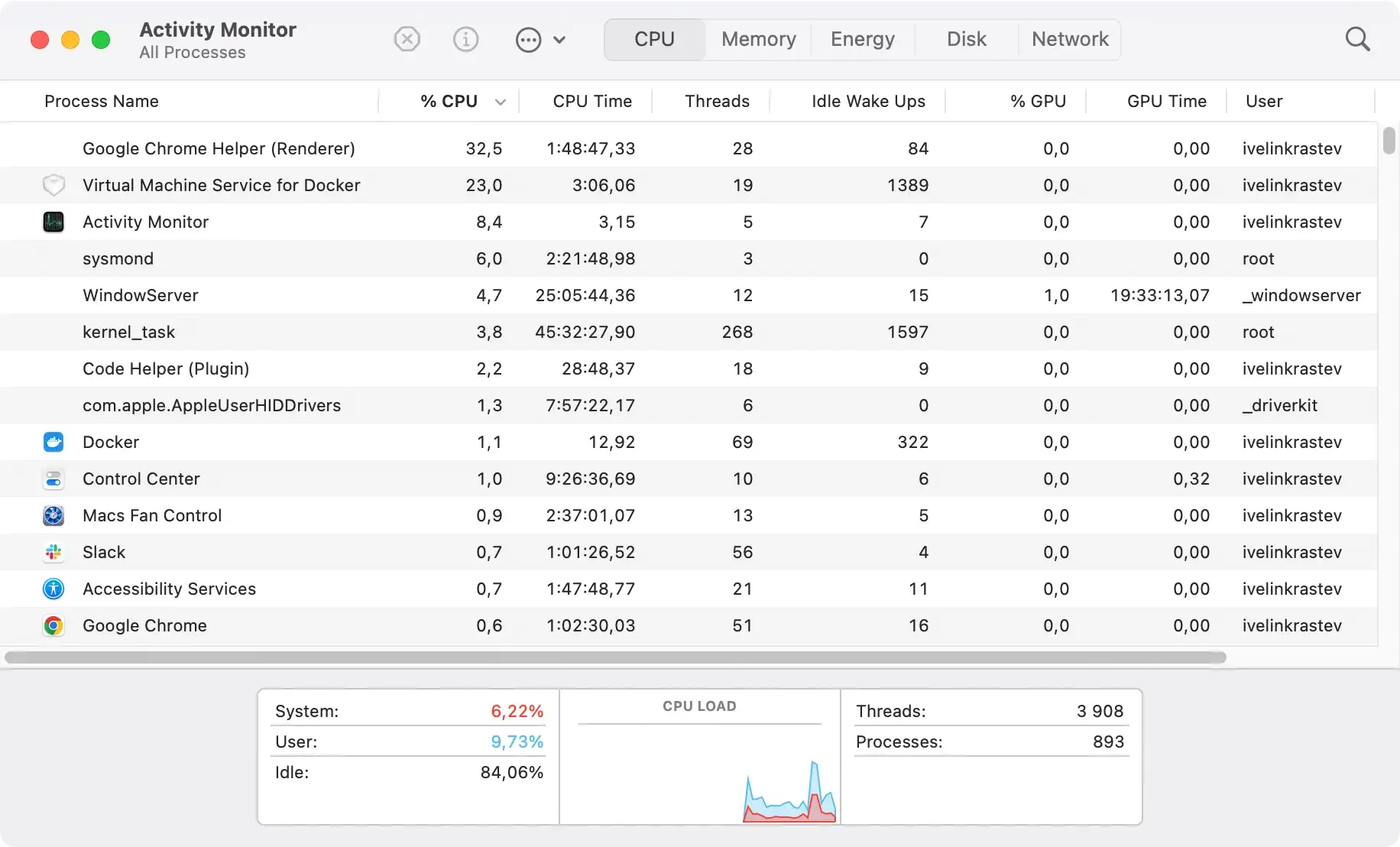
If any suspicious processes that seem to be related to the adware are found, select the process and force it to quit.
Be careful, as closing the wrong process may affect other applications or system functions.
Step 2: Delete malicious configuration profiles related to ExploreSyncfld
After halting ExploreSyncfld processes, the next step involves removing any malicious configuration profiles it may have created.
These profiles can enforce unwanted settings on your Mac, contributing to the adware’s persistence.

- Click on the Apple menu and select
System Preferences(namedSystem Settingsin newer macOS versions). - If ExploreSyncfld has added profiles, you’ll see a
Profilesicon. Click it. - Look for any profiles you don’t recognize or are related to ExploreSyncfld.
- Select the malicious profile(s) and click the minus (-) button to delete them.

Eliminating these profiles is critical to preventing ExploreSyncfld from reasserting control over your Mac’s settings.
Step 3: Remove ExploreSyncfld-related applications and files
After stopping ExploreSyncfld processes, it’s time to remove the application and any related files from your Mac. This step is crucial for thoroughly cleaning your system.
- Open Finder: Start by clicking on the
Findericon in your dock. - Go to Applications: Navigate to the
Applicationsfolder to see all installed applications. - Find ExploreSyncfld: Look for ExploreSyncfld or any unfamiliar applications installed simultaneously.
- Move to Trash: Drag the application to the
Trash/Bin, or right-click and selectMove to Trash/Bin.

Next, you’ll need to search for and delete files related to ExploreSyncfld in common locations:
- Open Finder Window: Press ⇧+⌘+G to open the
Go to Folderwindow. - Search Common Paths: Enter each of the following paths one at a time and look for any files or folders related to ExploreSyncfld. Move any findings to the
Trash.~/Library/Application Support/~/Library/Preferences/~/Library/LaunchAgents/~/Library/LaunchDaemons/~/Downloads//Library/Application Support//Library/Preferences/

Make sure you empty the Trash as a final step to ensure the programs and files related to ExploreSyncfld are removed.
Be cautious when deleting files and folders that are associated with ExploreSyncfld. Removing system files can cause unexpected issues or even system failures.
By methodically removing the application and its related files, you ensure a more comprehensive cleanup of ExploreSyncfld from your Mac, paving the way for a safer and cleaner computing environment.
Step 4: Remove ExploreSyncfld extensions from browsers
To fully eradicate adware impacts, you must address browser extensions.
In each browser affected by ExploreSyncfld, access your preferences or extensions settings and identify any unwanted or suspicious extensions the adware may have installed.
Remove these extensions promptly to prevent further data leakage and intrusive advertising within your web browsing experience.
Step 5: Use anti-malware software to remove ExploreSyncfld
After manually addressing ExploreSyncfld, employing anti-malware software ensures a thorough cleanup of remnants and fortifies your Mac against future threats.
Automated tools like SpyHunter for Mac are designed to efficiently detect and eliminate adware and malware, providing a comprehensive solution for users at all skill levels.
Benefits of using SpyHunter
- Thorough Detection and Removal: SpyHunter for Mac can identify hidden adware components that manual removal might miss.
- Real-Time Protection: It offers continuous monitoring to prevent new adware installations.
- User-Friendly: Designed for ease of use, it simplifies malware removal.
- Regular Updates: Keeps its malware database current to protect against the latest threats.

Download instructions
- Download SpyHunter for free here
- Open the downloaded file and follow the on-screen instructions to install the software on your Mac.
- Launch SpyHunter and perform a full system scan to detect ExploreSyncfld and other potential threats.
- Follow the prompts to remove any detected malware from your system.

By integrating SpyHunter for Mac into your cybersecurity strategy, you can ensure that your Mac remains free from ExploreSyncfld and safeguarded against a wide range of digital threats.
Addressing the “Will Damage Your Computer” alert
When you see the ‘Will Damage Your Computer’ alert on your Mac, take it seriously.
This message is a security feature of macOS. It appears when the operating system finds an app or file that might be harmful.
The alert means software like ExploreSyncfld could harm your computer and data. It would be best to act fast to keep your Mac and information safe.
Remove the harmful software right away to protect your system from more threats.
How to eliminate persistent ‘Will Damage Your Computer’ warnings
To get rid of the persistent warnings, users should take a systematic approach to identify, isolate, and remove the source of the problem.
This typically involves entering Safe Mode to prevent the adware from running its processes, thoroughly scanning the system for associated files, and deleting or quarantining any identified threats.
It may also require a review of browser extensions and system preferences to undo any changes made by the adware.
Ultimately, the key is to remove all traces of the malicious software to stop the warnings, protect the Mac from potential harm, and restore its usual performance.
Maintaining a secure Mac after the ExploreSyncfld removal
After removing ExploreSyncfld from your Mac, keeping a secure system is crucial.
Continuously monitoring your Mac for suspicious activity, ensuring your software is up-to-date, and avoiding risky online behavior can significantly reduce the risk of future malware infections.
By cultivating a routine of security checks and staying informed about the latest cybersecurity threats, you can help keep your Mac safe.
Regular system checks: Preventing future adware intrusions
Performing periodic system checks is a proactive step in preventing future malware attacks.
Schedule periodic scans using your trusted anti-malware software to detect and remove any questionable software before it takes root.
Reviewing your installed applications and browser extensions can help you promptly identify and eliminate any remnants or new instances of unwanted software.
Update your software: The key to protecting your Mac
Keeping all software up-to-date is critical in protecting your Mac from malware threats. Software updates often include security patches that address vulnerabilities that could be exploited by adware and malware.
Regularly check for updates for your macOS, installed applications, and web browsers, and enable automatic updates when available.
Staying current with software releases helps fortify your Mac’s defenses against the ever-evolving landscape of cybersecurity threats.
