

How To Remove Dem.app On Mac [Quick Guide]

Before we dive in
Before we dive in, let's make sure you stay safe online. We created SpyHunter because your security matters to us.
Protect your computer today — download SpyHunter right here! Check out our top tips below to keep your computer safe and secure.

Adware can be a sneaky and frustrating problem for Mac users, and Dem.app is no exception.
This guide will help you understand what Dem.app is, how it affects your system, and—most importantly—how to remove it completely from your Mac.
By following the steps outlined here, you’ll ensure that your device is free of this nuisance and protected against future threats.
What exactly is Dem.app?
Dem.app is an adware from the Pirrit Mac adware group. Adware like Dem.app typically sneaks onto your system through deceptive downloads or misleading ads.
Once installed, it bombards your device with intrusive ads, redirects your browser to questionable websites, and may even collect sensitive user data for malicious purposes.
One particularly harmful tactic of adware and its distribution chain is leveraging push notification bait and spammy pop-ups to trick users into installing rogue extensions.
These can further expose your Mac to phishing scams, malware, or identity theft.
How Dem.app impacts your Mac
Dem.app, like other adware, can cause various issues:
- Intrusive ads: You’ll see unwanted advertisements popping up frequently, disrupting your browsing experience.
- Browser hijacking: It redirects your browser to suspicious websites, increasing the risk of phishing attacks.
- Decreased performance: Adware often runs in the background, consuming resources and slowing down your Mac.
- Data exposure: It may track your online activity, collecting data that can be sold to third parties or used for targeted scams.
How to remove Dem.app from your Mac
The good news is that you can remove Dem.app by following a systematic approach. Below are detailed steps to help you get rid of this adware and its traces.
1. Remove Dem.app from Applications
- Open
Finder, then selectApplicationsfrom the sidebar. - Scroll through the list of applications to find Dem.app or other suspicious app names.
- Drag the suspicious icon to the
Trash. - Right-click the
Trashicon and selectEmpty Trashto remove it completely.

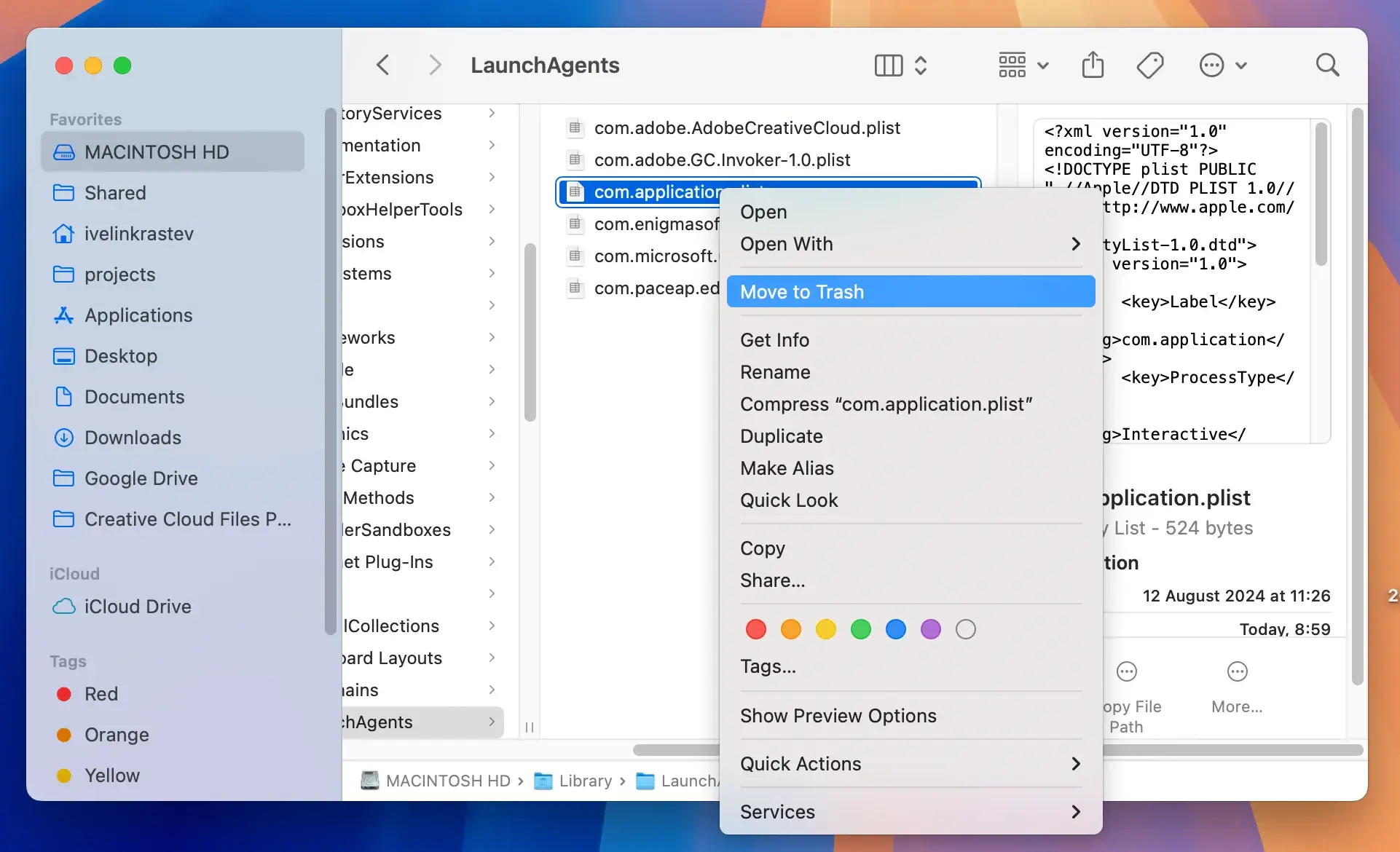
2. Clean up leftover files
- Use
Finderand pressCommand + Shift + Gto open theGo to Folderwindow. - Enter the following paths one by one to look for files related to Dem.app:
/Library/LaunchAgents//Library/Application Support//Library/LaunchDaemons/~/Library/LaunchAgents/~/Library/Application Support/
- Look for any files or folders linked to Dem.app. Drag these files to the
Trashand empty it.
3. Reset your browsers
Dem.app can manipulate browser settings to redirect your online activity. Resetting your browser will help eliminate these changes.
For Safari:
- Go to Safari in the menu bar and select
Settings(orPreferences). - Navigate to the
Extensionstab and remove suspicious or unknown extensions. - Go to
Safari > Settings > Privacyand clickManage Website Data, then selectRemove All.
For Chrome:
- Click on the three-dot menu in the top-right corner and go to
Settings. - Under
Extensions, remove anything suspicious. - Scroll down in the Settings menu and select
Reset Settings, then clickReset settings to their original defaultsand confirm.
For Firefox:
- Click the hamburger menu in the top-right corner.
- Navigate to
Add-ons and themesand remove unwanted extensions. - Go to
Help > More Troubleshooting Informationand clickRefresh Firefox.
4. Use SpyHunter for a complete cleanup
SpyHunter is an excellent tool for identifying and removing stubborn adware like Dem.app. Here’s how to use it:
- Download SpyHunter here and install it.
- Launch the SpyHunter app and choose to perform a full malware scan of your system.
- Examine the results window and all threats detected.

- Proceed to remove any malware discovered.

Precautions to avoid malware
Preventing adware infections is much easier than removing them. Follow these tips to keep your Mac safe:
- Stick to the Mac App Store or reputable websites for your app downloads.
- Be cautious with pop-ups and unsolicited ads.
- Keep macOS updated and use built-in security features.
- Tools like SpyHunter can provide ongoing protection against threats.
- Regularly review and remove unnecessary or unknown extensions.
