

How To Remove BeAware Adware from Mac (Step-By-Step Guide)

Before we dive in
Before we dive in, let's make sure you stay safe online. We created SpyHunter because your security matters to us.
Protect your computer today — download SpyHunter right here! Check out our top tips below to keep your computer safe and secure.

The BeAware app is a sneaky adware that has been causing trouble for many Mac users lately.
If you’ve found your browser acting strangely, bombarded with unwanted ads, or noticed your Mac running slower than usual, you may have stumbled upon BeAware.
In this article, I’ll explain what BeAware is, how it affects your Mac, and the steps you can take to remove it effectively.
Let’s dive in!
What is BeAware? Everything you need to know
BeAware (also known as BeeAware) is an adware, browser hijacker, and PUA (potentially unwanted application).
This malicious app infiltrates Mac computers without explicit consent, by bundling itself with other software or through deceptive pop-ups that trick users into installation.
Once BeAware is installed, it begins modifying default browser settings, adding malicious extensions, and displaying intrusive ads to generate revenue.
BeAware disguises itself as a legitimate tool but operates more like a virus, making unwanted changes to your system.
Its primary goal is to generate pay-per-click revenue for cybercriminals while you’re surfing the web. It fills your browser with intrusive advertisements, redirects, and pop-ups.
BeAware can also lead to severe threats such as identity theft and phishing attacks.
BeAware adware symptoms
If you’re unsure whether your Mac is infected with BeAware, here are some common symptoms to look out for:
- BeAware often displays fake software updates to trick users into installing additional malicious content.
- BeeAware embeds an extension called ‘Search Manager’ that redirects Internet sessions to unwanted sites.
- It also displays various ads, including coupons, banners, surveys, and pop-ups.
- You may experience a system slowdown due to the background processes initiated by BeAware.
- The BeeAware app can modify your browser settings, changing your homepage, search engine, or adding malicious extensions without your permission.
- BeAware may collect personal information. This includes browsing history and search queries, which can be used for malicious purposes or sold to third parties.
How to remove BeAware from your Mac?
If you’ve noticed the signs mentioned above, it’s time to remove the BeAware virus from your Mac.
Here are the steps you need to take:
Step 1: Quit BeAware-related processes
First, it’s important to stop any processes associated with BeAware that might be running in the background.
This will prevent the adware from continuing its activities while you work to remove it.
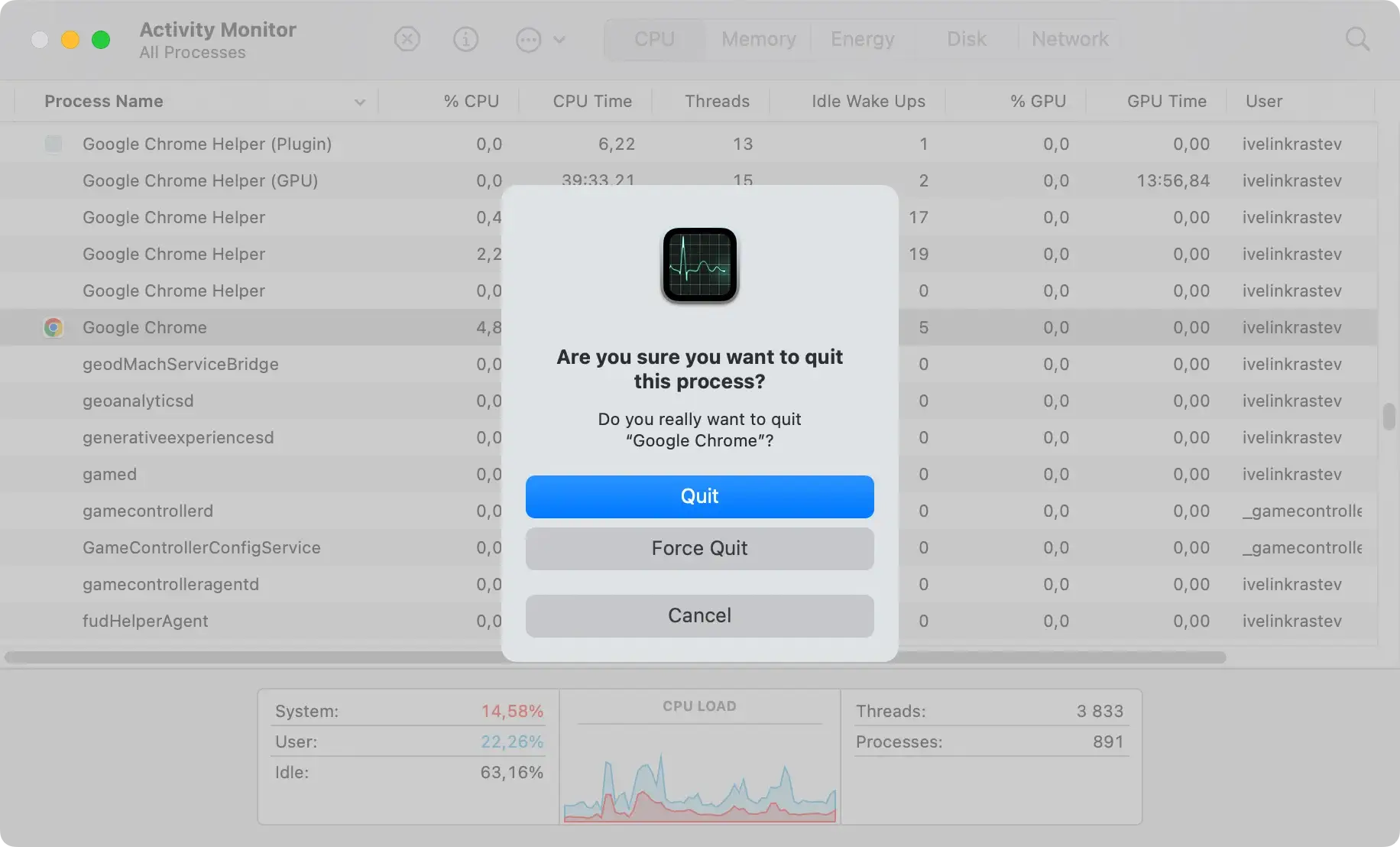
- Open Activity Monitor from the
Applications > Utilitiesfolder. - Look for any processes related to BeAware or anything suspicious that you do not recognize. Know that adware processes might use misleading names.
- Select the process and click the [X] button at the top left to force quit it. Repeat this for all suspicious processes.
Step 2: Remove BeeAware from Applications
Next, you need to remove the BeAware application from your Mac’s Applications folder. This ensures that the core of the adware is no longer present on your system.
- Go to the
Applicationsfolder using theFinder. - Look for BeAware or any other malicious apps installed without your knowledge.
- Drag these apps to the Trash. Be sure to also delete any other software that might have come bundled with BeAware.
- Right-click on the Trash icon in the dock and choose
Empty Trash.

Step 3: Delete BeAware leftover files and folders
BeAware often installs additional files in your system’s Library folder. To eliminate it effectively, you should delete all components related to the adware:
- Click on the
Findericon in the Dock. - Open the
Gomenu in the menu bar. - Choose
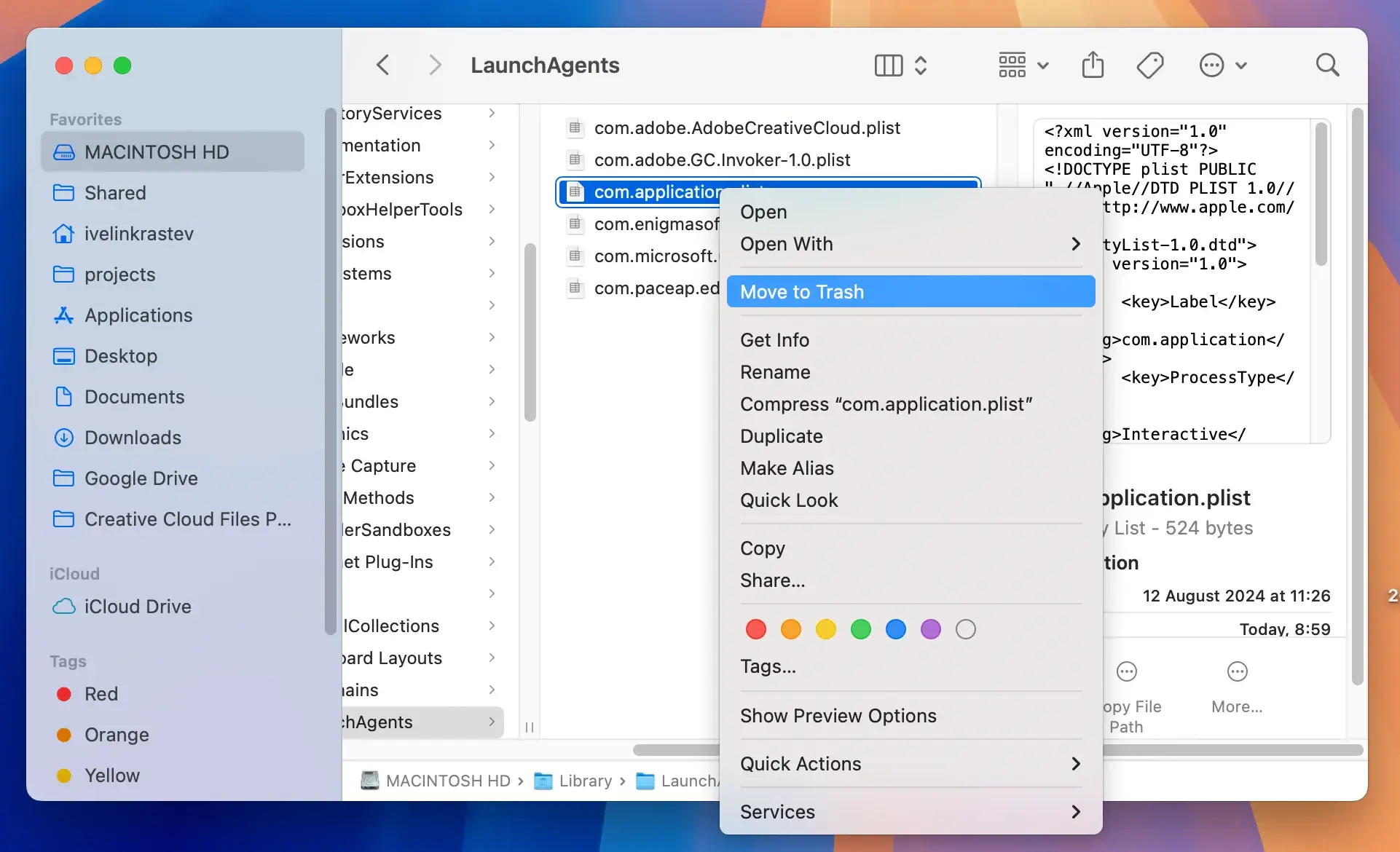
Go to Folderfrom the drop-down menu. - Type the following directories one by one in the
Go to Folderfield. and look for BeAware or other malicious files:~/Library/LaunchAgents/~/Library/Preferences/~/Library/Application Support//Library/LaunchAgents//Library/LaunchDaemons//Library/Application Support//Library/StartupItems/
- If you see files related to BeAware, delete them. Be cautious not to delete essential system files.
- Make sure to Empty Trash again.
Step 4: Remove malicious configuration profiles
Sometimes, adware like BeAware can install malicious configuration profiles that give it control over system settings. To remove them:
- Click on the Apple menu and select
System Settings(orSystem Preferenceson older macOS versions). - Navigate to
General > Device Management(orSecurity & Privacy > Profilesrespectively). - Look for any profiles you don’t remember installing or that seem suspicious.
- Select the profile and click the minus (-) button to remove it. Confirm the removal if prompted.

Step 5: Remove malicious browser extensions
Adware like BeAware frequently installs a malicious extension in your browsers. Here’s how to remove it:
Steps for Safari
- Open Safari and go to
Preferences. - Click on
Extensions. - Locate any unfamiliar or unwanted extensions, especially anything related to the BeAware virus.
- Click
Uninstallto remove it.
Steps for Google Chrome
- Open Chrome and go to the
Settingsmenu (three dots). - Go to
More Toolsand thenExtensions. - Locate and remove any suspicious extensions.
Steps for Mozilla Firefox
- Open Firefox and click on the menu bar.
- Choose
Add-ons and Themes, then selectExtensions. - Remove anything related to BeAware.
Step 6: Reset your browser settings
Resetting your browser settings can help get rid of any unwanted changes made by BeAware or other threats:
- Safari: Go to
Safari > Preferences, click onPrivacy, and selectManage Website Data. Remove all data related to BeAware. - Chrome: Go to
Settings, scroll down, and clickReset Settings. - Mozilla Firefox: Click on the menu icon, go to
Help, and selectTroubleshooting Information. ClickRefresh Firefox.
Remove BeAware automatically with SpyHunter
After removing BeAware, it’s advised to scan your Mac with an antivirus tool for any remaining threats.
Removing BeAware manually can be tedious, and if you miss any part of it, it might resurface. A more efficient approach is to use anti-malware software like SpyHunter.
SpyHunter is a powerful tool developed to detect and remove malware, adware, and other potentially unwanted programs.
Here’s how to use SpyHunter to remove BeeAware:
- Download SpyHunter for free here.
- Double-click the downloaded file and follow the on-screen instructions to install.
- Open SpyHunter and start a full system scan. The app will scan your entire Mac for malware infections, including BeAware.

- Once the scan is complete, follow SpyHunter’s prompts to get rid of BeAware and any other viruses.

Using SpyHunter not only helps remove the BeeAware adware but also protects your Mac from future malware infections by providing real-time protection.
How to prevent BeAware and other adware
To avoid dealing with malicious apps like BeAware in the future, consider the following safety precautions:
- Be Careful with Downloads: Always download software from trusted sources. The BeAware adware often gets installed through third-party software bundles, so avoid torrent downloaders and unofficial sites.
- Don’t rush through the installation: Make sure to read through the installation steps. Always pay attention to installation screens and license agreements. By clicking OK on every step, you might unintentionally install Beeaware on some other malware.
- Keep macOS and Applications Updated: Keep your system and installed apps updated to the latest version. Updates include security fixes that can protect your Mac from vulnerabilities.
- Avoid Clicking on Intrusive Ads: Don’t click on suspicious pop-ups or ads that promise free software or updates. These often lead to installing potentially unwanted applications.
- Use Reliable Anti-Malware Software: Use tools like SpyHunter to provide an additional layer of security. Regular system scans and real-time protection can help detect and remove threats before they cause harm.
Conclusion
The BeeAware adware can cause numerous issues on your Mac, from unwanted advertisements and search redirects to compromising your privacy.
Removing it can be challenging if done manually, but with the right steps and tools like SpyHunter, you can clean your Mac efficiently.
Stay cautious while browsing, avoid installing third-party software from dubious sources, and ensure your system is always up to date. By following these steps, you can keep your Mac safe from the BeAware app.
