

How to Remove Chillsearch.xyz on Mac (Simple Guide)

Before we dive in
Before we dive in, let's make sure you stay safe online. We created SpyHunter because your security matters to us.
Protect your computer today — download SpyHunter right here! Check out our top tips below to keep your computer safe and secure.

Ever found your Mac acting strangely, redirecting you to pages you never intended to visit?
One possible culprit behind this annoying behavior is Chillsearch.xyz, a browser hijacker that targets Mac users by messing with their browser settings.
In this article, we’ll dive deep into the causes behind Chillsearch.xyz redirects and provide you with detailed steps to get rid of this pesky hijacker from your Mac.
What is Chillsearch.xyz and why does it appear on Mac?
Chillsearch.xyz is a browser hijacker, a subtype of potentially unwanted programs, that specifically targets Mac users. It manipulates the web browser’s default settings, including the preferred search engine and home page, without permission.
Its primary function is to alter the default search engine and homepage, leading to unwanted redirects to the Chillsearch.xyz page.

This disruption serves a dual purpose: to generate ad revenue through forced visits and to gather personal data by redirecting users through various dubious sites.
Typically, this malware sneaks onto a Mac disguised within software downloads or through misleading advertisements, exploiting the less frequent but potentially severe security vulnerabilities found in the macOS environment.
Understanding the source of Chillsearch.xyz redirects
The source of Chillsearch.xyz redirects often traces back to bundled software installations or malicious advertisements that deceitfully prompt users to install seemingly benign but actually harmful extensions or apps.
These redirects are not just annoying—they’re a deliberate tactic used by cybercriminals to generate revenue from affiliate marketing schemes.
Each redirect boosts traffic to specific sites, which in turn pays dividends to the malware distributors.
Steps to manually remove Chillsearch.xyz from your Mac
When Chillsearch.xyz takes over your Mac, it can be frustrating and dangerous.
Here are comprehensive steps to manually remove this pesky browser hijacker and regain control of your device.
Step 1: Eliminate suspicious applications
- Open
Finder, then proceed to theApplicationsfolder. - Look for any applications that you do not recognize or that seem suspicious. These could be related to Chillsearch.xyz.
- Once identified, right-click the application and select
Move to Trash. - After moving all suspicious applications to the
Trash, right-click on the icon and selectEmpty Trashto permanently remove the applications from your Mac.

Step 2: Remove leftover files linked to Chillsearch.xyz
- Open
Finderagain and click onGo > Go to Folderin the top menu. - In the dialog box that comes up, paste the following locations in order:
/Library/LaunchAgents//Library/LaunchDaemons/~/Library/LaunchAgents//Library/StartupItems/~/Library/Preferences/
- Look through each location and search for files and sub-folders linked to Chillsearch.xyz and move them all to the
Trash. - Empty the
Trashto complete this step.

Step 3: Delete unwanted web browsers extensions
Malicious browser extensions can be a gateway for hijackers like Chillsearch.xyz to affect your Mac.
Removing these extensions is crucial to safeguarding your browsing experience.
Clean up Safari, Google Chrome, and Mozilla Firefox from Chillsearch.xyz
Safari: Open the Safari menu and choose Preferences. Click on the Extensions tab and inspect each extension. If you find any unknown or suspicious extension, select it and click Uninstall.
Google Chrome: Launch Chrome, and click the menu button with three vertical dots, then Settings > Extensions. Review each extension carefully, and click Remove on any that are not familiar or are unnecessary.
Firefox: Open Firefox, click the hamburger menu button, then Add-ons and themes > Extensions. Check each extension listed and click Remove on those that you do not recognize or need.
After completing these steps, restart your browser and check if the browser’s settings are reverted back to normal, confirming that Chillsearch.xyz has been successfully removed from your Mac.
Use SpyHunter to automatically remove Chillsearch.xyz
If you’re looking to rid your Mac of the Chillsearch.xyz virus, SpyHunter offers a powerful solution with its advanced malware detection and removal features.
Here’s how you can use SpyHunter to tackle this invasive browser hijacker:
- Download the app and install it properly.
- Launch SpyHunter and use the main menu tabs to initiate a full system scan of your Mac.
- Wait for the scan to finish then examine the list of detections for any threats, including unwanted apps like Chillsearch.xyz.

- Use the interface buttons to automatically remove any malware and enjoy a cleaner, safer experience.

This streamlined process makes it easy to ensure your Mac remains free from threats like Chillsearch.xyz.
SpyHunter’s real-time guard will ensure your Mac is safe from any future threats you encounter.
How to Prevent Future Malware Attacks Like Chillsearch.xyz on Your Mac
Protecting your Mac from future malware like Chillsearch.xyz involves vigilance and the right tools. Here are steps and best practices to secure your device:
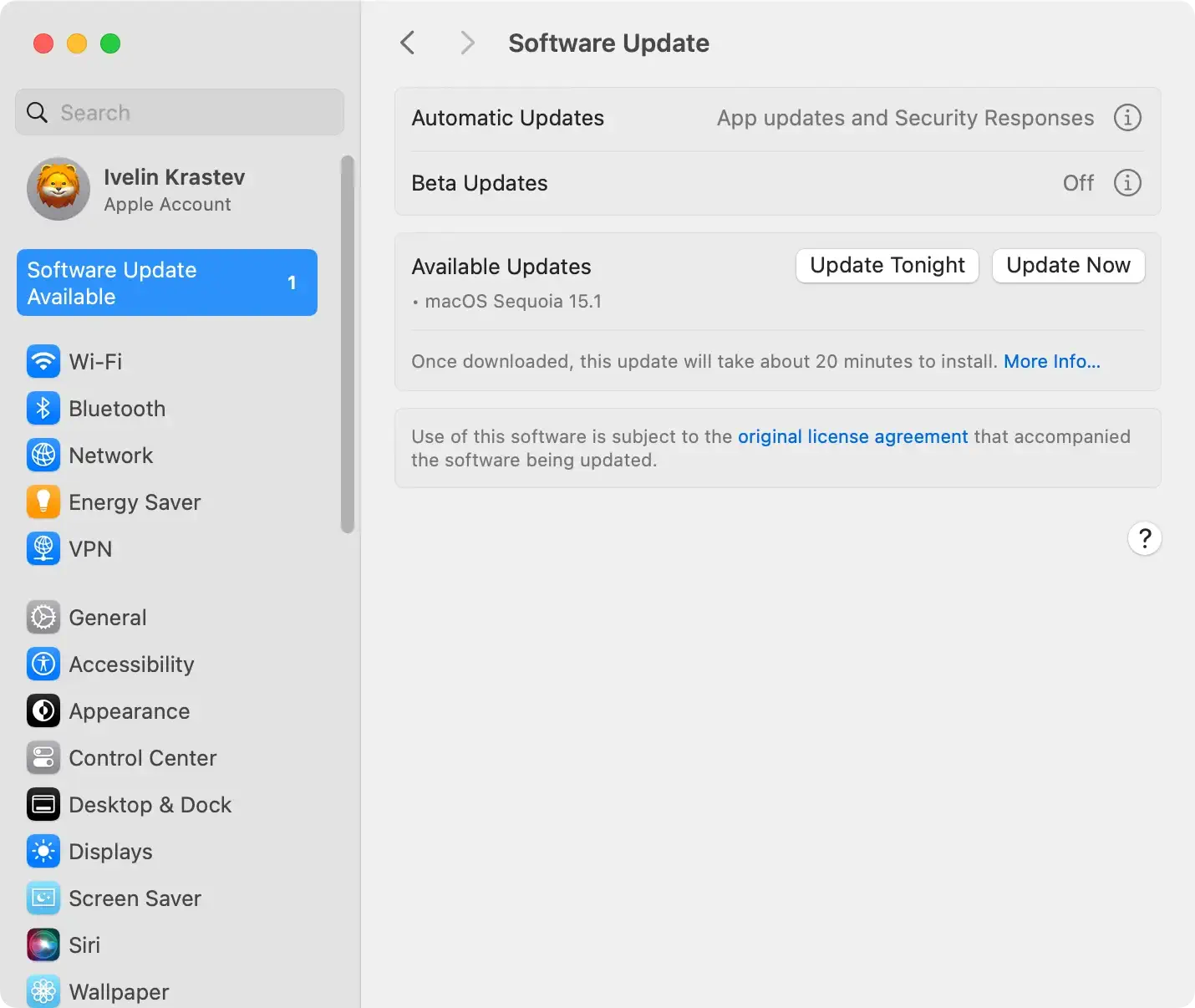
Firstly, always ensure your macOS is up to date. Developers often release software updates to patch security vulnerabilities. You can check for updates in System Preferences > Software Update.
Next, be cautious about the sources from which you download software. Avoid unverified websites, and prefer downloading directly from the developers or approved app stores.
Also, enhance your browser’s security settings to block pop-ups and unauthorized downloads.
Finally, educate yourself on the signs of infection—slower system performance, unexpected ads, or browser redirects are common indicators.
Best Practices to Secure Your Mac Against Browser Hijackers
Securing your Mac from browser hijackers like Chillsearch.xyz requires both preventive and proactive approaches:
Always scrutinize emails and messages before clicking on links or downloading attachments. Phishing scams often disguise malicious links as legitimate requests.
Adjust your mail settings to filter out potential spam or threats.
Manage your browser’s extensions and plugins by regularly reviewing and removing any unfamiliar additions.
For enhanced browser security, consider using privacy-focused browsers or installing add-ons that block trackers and malicious websites. Additionally, periodically clear your browser’s cache and cookies to remove any stored data that could be exploited by hijackers.
Using strong, varied passwords for different sites can also prevent security breaches. Consider a password manager to securely store and autofill your credentials.
By following these practices and remaining vigilant about your browsing habits, you can significantly enhance your Mac’s resistance to browser hijackers and other security threats.
