

How To Remove Adobe Flash Player Virus On Mac (Full Guide)

Before we dive in
Before we dive in, let's make sure you stay safe online. We created SpyHunter because your security matters to us.
Protect your computer today — download SpyHunter right here! Check out our top tips below to keep your computer safe and secure.

Ever clicked on an ‘Adobe Flash Player is out of date’ warning on your Mac? It might be more sinister than it seems.
This common alert often leads to a sneaky malware installation.
Often called the Flash Player virus, this adware tricks you into downloading harmful software that can steal personal information or hinder your Mac’s performance.
What can you do if your system is already compromised, and how can you prevent future infections? This article outlines the steps to detect, remove, and protect your Mac from such deceptive threats, ensuring your device runs safely and efficiently.
What is the Flash Player virus on Mac?
The “Flash Player is out of date” virus on Mac, technically classified as adware or a potentially unwanted program (PUP), is a common but deceptive security threat.
It manipulates users into downloading more malicious software under the guise of a necessary Flash Player update.
This warning about outdated Flash Player typically pops up during web browsing sessions, especially when visiting misleading websites that display malicious ads.
Although these pop-ups refer to Adobe Flash Player or the Flash plugin, a legitimate software product, their true purpose is far from helpful to Mac users.

The alerts about the Flash Player being out of date are engineered to create a sense of urgency, tricking users into installing malware that can compromise personal information or degrade system performance.
These fraudulent messages can vary, but they frequently prompt users to update or download a new version of Flash Player, spurring unintended malware downloads instead.
If you encounter such warnings, it is advisable to handle the situation with caution to prevent potential harm to your Mac.
Signs your Mac is infected with the Flash Player virus
If your Mac starts exhibiting unusual behavior, it might be infected with the Flash Player virus.
Recognizing the early signs can help you take swift action and potentially minimize damage to your system. Here are some indicators to watch out for:
Unexpected ads and pop-up windows
One clear sign of a Flash Player virus on your Mac is the frequent appearance of unexpected ads and pop-up windows.
These might advertise fake Adobe Flash updates or urge you to download software that could harm your device further.
If you notice an increase in these intrusive pop-ups, especially those falsely claiming that your Flash Player is out of date, it’s likely your system has been compromised.
Mac performance issues and slow response times
Another common symptom of the Flash Player virus is a noticeable slowdown in your Mac’s performance.
If applications start responding slowly, or if your system takes longer than usual to boot up, the virus might be consuming significant system resources.
In some cases, this slowdown could also lead to unexpected crashes or freezes, disrupting your normal usage and workflow.
Steps to manually remove Flash Player virus from your Mac
Handling a Flash Player virus on your Mac can be unsettling, but with the right steps, you can eliminate it effectively.
Step 1: Remove suspicious configuration profiles
Start off by checking for and removing any malicious configuration profiles.
- Open
System Settings(formerlySystem Preferenceson older macOS versions) and selectPrivacy & Securityfrom the left-side menu. - Click on
Profilesif that option is available and visible. If it is not, this means no malicious profiles exist. - Look through the list of potential profiles and remove any you don’t recognize using the minus button.

Step 2: Delete suspicious applications
Firstly, you need to identify and remove any applications that do not look familiar or that you don’t remember installing. Here’s how:
- Open
Finderand navigate to theApplicationsfolder. - Carefully examine the list of apps for any that were installed without your knowledge. Check the installation date if you’re unsure.
- Drag suspicious applications to the
Trash. - Right-click on the
Trashand selectEmpty Trashto permanently remove the applications.

Step 3: Delete leftover files linked to the Flash Player virus
Next, make sure all residual files linked to the Flash Player virus have been removed.
- Open
Finderand click onGo > Go to Folderin theFindermenu at the top. - In the window that comes up, enter the following paths:
/Library/LaunchAgents//Library/Application Support//Library/LaunchDaemons/~/Library/LaunchAgents/~/Library/Application Support/
- Look inside each of those directory locations and search for any files that may be linked to the Flash Player virus and drag them into the
Trash. - Empty the
Trashto complete this step.

Step 4: Clear your browsers from suspicious extensions
Malicious extensions can prolong your security woes, acting as a back door for viruses to re-enter.
Here’s how to clear unwanted extensions:
- Open your web browser and access the browser settings menu.
- Look for a section labeled
Extensions,Add-ons, orPlugins. This will vary across Safari, Google Chrome and Mozilla Firefox. - Review the list of installed extensions and remove any that look unfamiliar or that you didn’t install intentionally.
- Confirm the removal if prompted.
After clearing out extensions, reset your browser settings to default to eradicate any leftover changes made by the virus:
- In your browser settings, search for options like
ResetorRestore settings to their original defaults. - Follow the prompts to reset the settings.
Performing these steps should help safeguard your browser from further infections and restore it to a clean, default state.
Use SpyHunter to remove Flash Player virus
If you’re dealing with the persistent annoyance of the Flash Player virus on your Mac, choosing the right software for removal is crucial.
SpyHunter is a robust cybersecurity app tailored to address such issues efficiently. SpyHunter offers a systematic, reliable approach, scanning your system to detect and eliminate traces of the virus.
- Download the app from here and complete the installation following the on-screen instructions.
- Once installed, launch SpyHunter from your Dock.
- Use the main menu to start a full system scan. SpyHunter will search for malware and other harmful files.

- After the scan, review the scan results. If the Flash Player virus or any other threats are found, you can easily remove them by using the interface buttons.

Running regular scans with SpyHunter will ensure your system is always clean.
The application’s real-time guard will also make sure that your Mac is protected in any future encounters with malware or unwanted apps.
How to prevent future infections
Maintaining the health of your Mac requires proactive measures to prevent potential infections. Follow these tried and tested strategies to help keep your system safe.
Keep your Mac updated
Regularly updating your Mac is crucial to security. Each update not only enhances the performance but also fixes critical security vulnerabilities that could be exploited by malware or viruses.
Here’s how you can make sure your Mac stays up-to-date:
- Open the
About This Macoption from the Apple menu. - Select
Software Updateto check for available updates. - Install any shown updates to keep your OS running smoothly and securely.
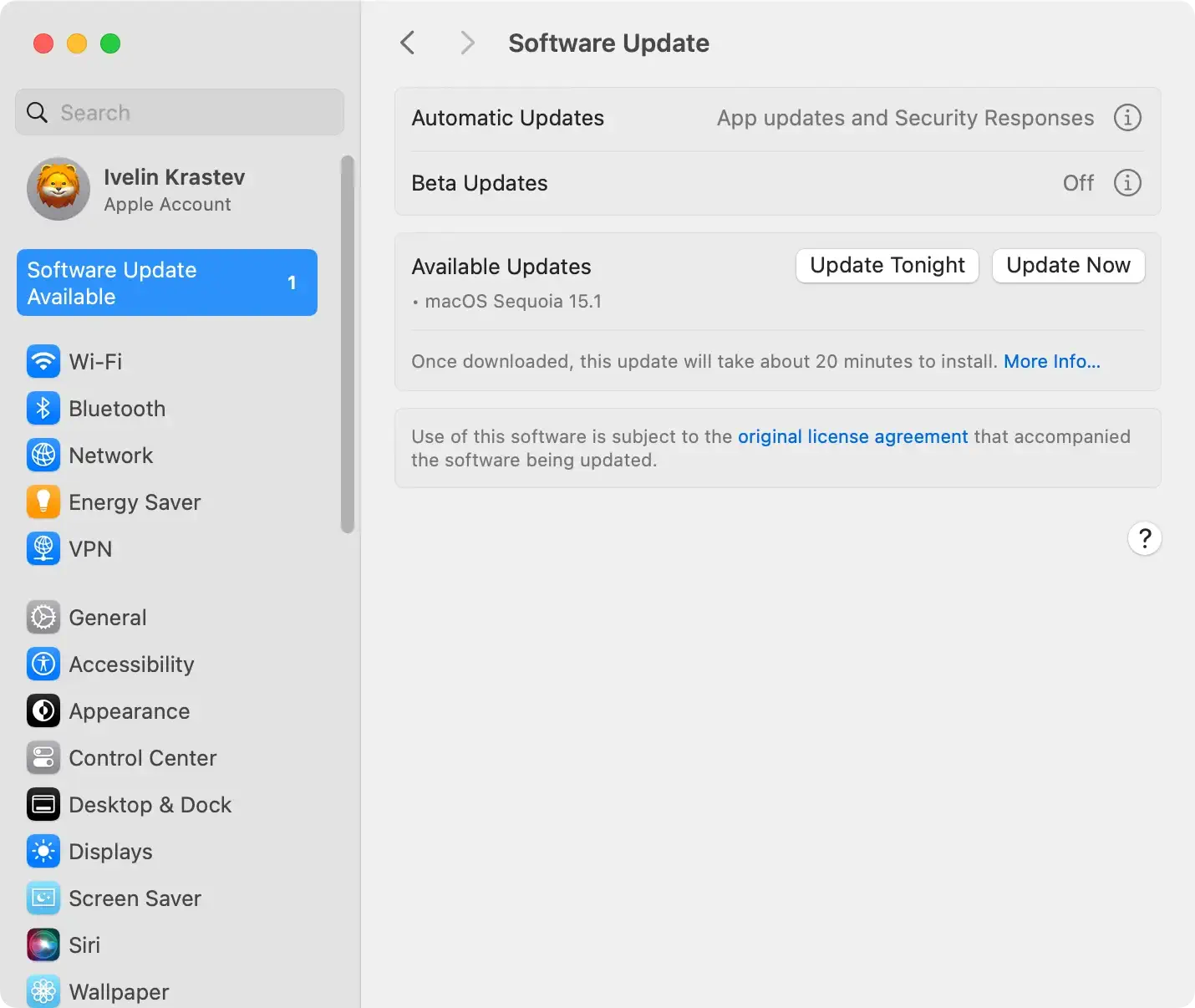
Enabling automatic updates is a good practice, ensuring that your system always receives the latest protections without delay.
Enhance your Mac security settings
To further guard against unexpected malware threats, adjusting your Mac’s security settings is advisable. Increase your safety by:
- Open
System Settings. - Navigate to
Privacy & Security. - Set the system to require a password immediately after sleep or screen saver begins to prevent unauthorized access.
- Enable
Firewallto monitor and control incoming connections.
Furthermore, regularly review your application permissions, disallowing any unfamiliar or unnecessary applications from having administration access on your device.
Regular scans with reliable antivirus software are also recommended.
