

Remove Boot-upextremelyrecentthe-file.top Ads (Virus Guide)

Before we dive in
Before we dive in, let's make sure you stay safe online. We created SpyHunter because your security matters to us.
Protect your computer today — download SpyHunter right here! Check out our top tips below to keep your computer safe and secure.

Ever clicked on a link only to be bombarded with never-ending popup ads, even when your browser is closed?
Enter Boot-upextremelyrecentthe-file.top, a deceptive site that tricks users into seeing relentless ads that could jeopardize not only their browsing experience but also their personal information.
But why exactly do these annoying pop-ups keep showing up, and what can you do to stop them?
This article dives into the murky waters of websites like Boot-upextremelyrecentthe-file.top, explaining how they work, the risks they pose, and the simple steps you can take to safeguard your computer.
Whether it’s removing irritating adware or fortifying your PC against future attacks, you’ll find essential tips and detailed guides to keep your digital life clean and secure.
What exactly is Boot-upextremelyrecentthe-file.top?
Boot-upextremelyrecentthe-file.top is a deceptive website designed to mislead users into enabling persistent pop-up notifications.
Once permission is granted, it inundates users with unwanted advertisements, even when their browser is closed.
These ads typically promote adult content, gambling sites, and even fake antivirus products, exploiting browsers’ notification features to bypass traditional popup blockers.
The site displays misleading messages and error prompts that encourage visitors to click the “Allow” button.
This action activates notifications that are not only annoying but can also be risky due to the content they promote. The main goal of this website is to generate revenue by exploiting users’ trust and attention through aggressive advertisement tactics.
Why are you seeing Boot-upextremelyrecentthe-file.top popup ads?
Seeing Boot-upextremelyrecentthe-file.top pop-ups often indicates a problem linked to websites you’ve visited or potential malware on your computer.
These ads typically appear because your browser is redirected by less trustworthy sites that monetize through ads.
Reasons for seeing these ads include:
- Visiting websites hosting pirated content or other questionable material.
- Being redirected from less secure or compromised websites.
- Having adware installed that modifies your browser settings.
- Downloading software bundled with hidden adware or malware.
- Clicking on unsafe links or pop-up ads on unreliable websites.
- Using outdated browser extensions that allow ad-based redirects.
- Accidentally granting permission to notifications from malicious websites.
- Installing free software that contains embedded advertising code.
Frequent pop-ups may signal adware or malware, so it’s important to check your computer for infections. Removing these threats is essential to keep your system secure and running smoothly.
How to remove Boot-upextremelyrecentthe-file.top
When dealing with unwanted pop-ups and redirects like Boot-upextremelyrecentthe-file.top, the initial cleaning step involves uninstalling suspicious applications.
This includes any programs you don’t recall installing or those installed just before the issue appeared.
If you’ve encountered the website Boot-upextremelyrecentthe-file.top and suspect it might be malicious or adware-related, here’s a step-by-step guide to remove potential malware or adware from your macOS system:
1. Close suspicious tabs or pop-ups
- Close the browser tab or window with the Boot-upextremelyrecentthe-file.top website.
- Avoid clicking on any pop-ups or links on that page, as they could further compromise your system.
2. Remove malicious applications
- Open
Finderand click onApplicationsin the sidebar. - Carefully review the applications installed on your Mac. If you notice unfamiliar apps that you don’t recall installing (especially recent ones), those could be adware or potentially unwanted programs (PUPs).
- To delete an app, right-click on the application and select
Move to Trash. - Then, go to
Trashand empty it.

3. Check browser extensions
- Safari:
- Open
Safariand click onSafariin the top menu bar. - Go to
Preferences>Extensions. - Review installed extensions and remove any that seem suspicious or unfamiliar by clicking
Uninstall.
- Open
- Chrome:
- Open
Chromeand typechrome://extensionsinto the address bar. - Review the extensions and remove any you don’t recognize by clicking
Remove.
- Open
- Firefox:
- Open
Firefoxand typeabout:addonsin the address bar. - Check both the
ExtensionsandPluginssections. - Remove any unfamiliar or suspicious items.
- Open
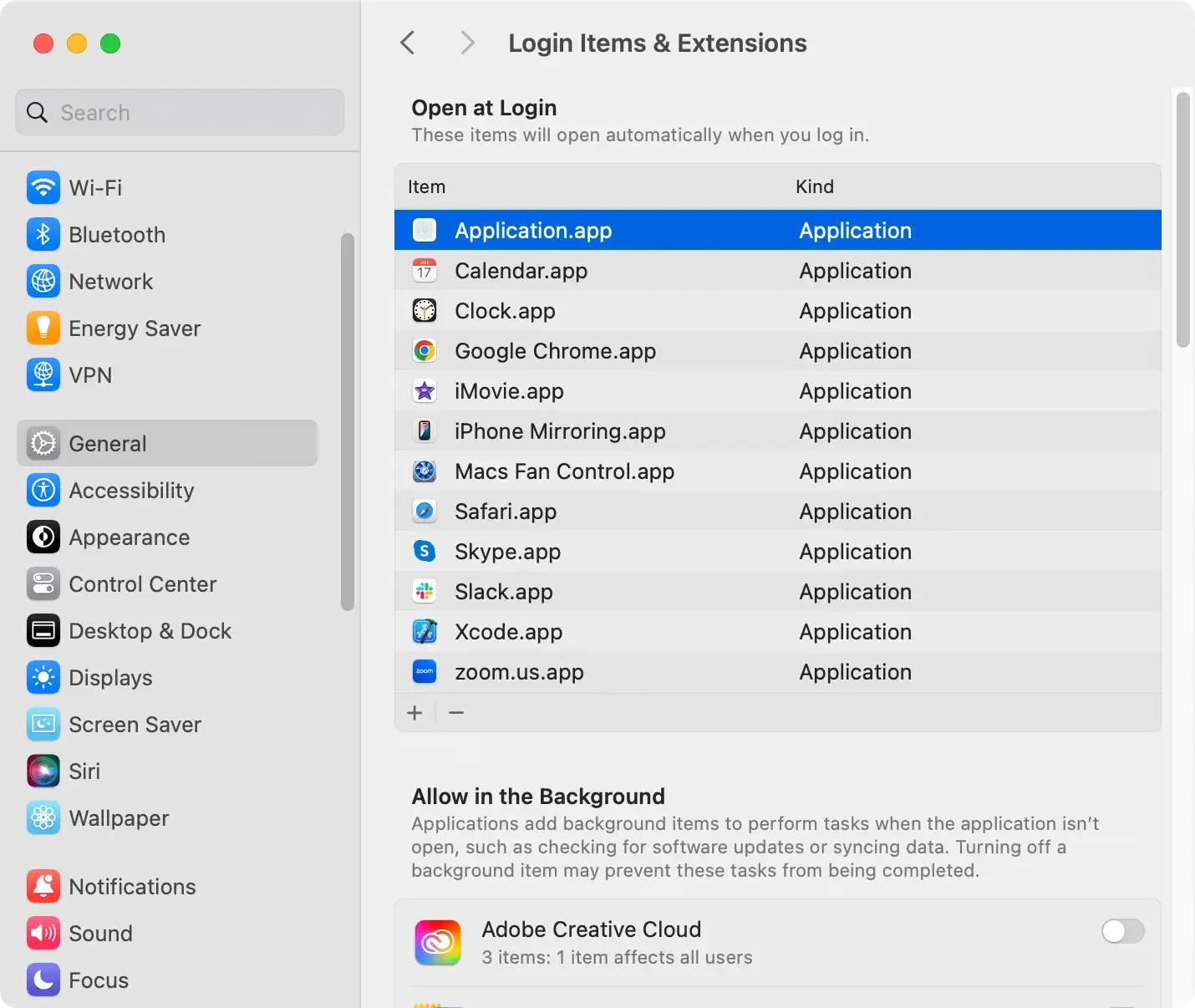
4. Remove suspicious login items
- Go to the
Apple menu>System Settings(orSystem Preferenceson older macOS versions). - Select
Users & Groups. - Click on your account and then select
Login Items. - Remove any suspicious apps from the list by selecting them and clicking the
minus (-)button.
5. Reset browser settings
If your browser continues to redirect or behave oddly, reset the settings to remove any lingering effects.
- Safari:
- Open
Safari>Preferences>Privacy. - Click
Manage Website Dataand remove any suspicious sites. - Then, go to
History>Clear History, selectingAll Historyto wipe browsing data.
- Open
- Chrome:
- In
Chrome, typechrome://settingsinto the address bar. - Scroll to the bottom and click
Advanced>Reset Settings. - Click
Restore settings to their original defaults.
- In
- Firefox:
- In Firefox, go to
Help>Troubleshooting Information. - Click on
Refresh Firefoxto reset the browser.
- In Firefox, go to
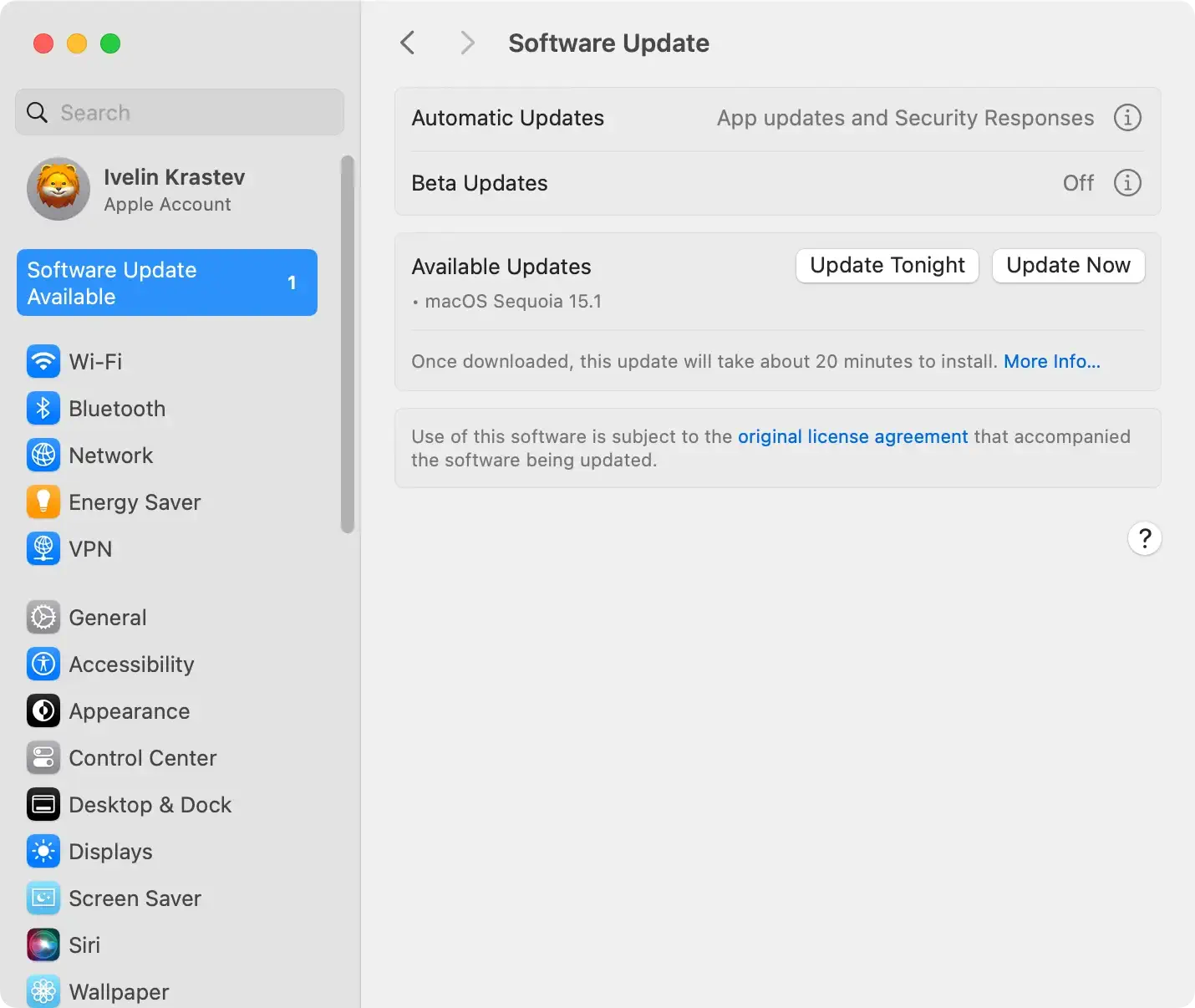
6. Update macOS and browsers
Keeping your system and applications up-to-date can help prevent malware infections in the future.
- Go to
System Settings>Software Updateand install any available updates. - Similarly, update your browser by going to the browser’s menu and selecting
Aboutto check for updates.
7. Clear cache and cookies
- In Safari, go to
Preferences>Privacy>Manage Website Dataand clear your cache. - In Chrome, type
chrome://settings/clearBrowserDataand clear all data. - In Firefox, go to
Preferences>Privacy & Securityand underCookies and Site Data, clickClear Data.
By following these steps, you should be able to remove any adware or malware that Boot-upextremelyrecentthe-file.top might have introduced to your system.
Prevent future invasions: Tips to safeguard your computer
To keep your devices safe from unexpected threats, it’s crucial to adopt proactive security measures.
Ensuring your Mac is fortified against potential invasions involves a blend of good practices and effective software solutions.
Use SpyHunter for optimal protection against adware
SpyHunter is a highly effective malware remediation tool designed to detect and remove various types of adware, browser hijackers, and other intrusive software.
It offers real-time system guards that automatically block malware before it affects your system.

Incorporating SpyHunter into your security setup can provide a strong defense against these pervasive online threats.
How to install and use SpyHunter effectively
- Download SpyHunter for free here.
- Open the downloaded file to start the installation process.
- Follow the on-screen prompts to install the software.
- Once installed, launch SpyHunter and update its malware database to ensure it can detect the latest threats.
- Perform a system scan to identify any existing threats or vulnerabilities.
- After the scan, follow the prompts to resolve any detected issues.
Why SpyHunter is a superior choice for malware defense
SpyHunter is distinguished from other malware protection tools by its robust scanning mechanism that effectively identifies evolving malware threats.
Built to adapt to the continuous changes in malware, SpyHunter can often capture threats that bypass the coverage of traditional antivirus software.

Additionally, its user-friendly interface makes it accessible for both novice users and professionals alike, ensuring comprehensive protection without a steep learning curve.
Regularly update your computer’s defenses
One of the cornerstone practices for keeping your computer secure is regularly updating its defense mechanisms. This includes your operating system, installed software, and any security programs.
Developers continuously release updates to patch vulnerabilities that could be exploited by malware.
By keeping everything up-to-date, you minimize the risk of exploitation and improve your overall security posture.
Activate enhanced tracking protection in browsers
Enhanced tracking protection in your browser isn’t just about safeguarding your online privacy—it also plays a crucial role in your computer’s security.
This feature helps block known trackers and malicious scripts from loading, which cuts off a common avenue used by cybercriminals to distribute malware.
Most modern browsers offer this as part of their standard settings, and enabling it can significantly enhance your protection against online threats.
