

How To Remove Zeus Virus From Mac [Guide & Tips]

Before we dive in
Before we dive in, let's make sure you stay safe online. We created SpyHunter because your security matters to us.
Protect your computer today — download SpyHunter right here! Check out our top tips below to keep your computer safe and secure.

Have you ever come across a frightening warning about the Zeus virus on your Mac?
Despite its notorious reputation on Windows, the actual Zeus virus can’t infect Mac computers.
Yet, many Mac users find themselves alarmed by fake Zeus virus alerts, an increasingly common scam tactic targeting your system’s security.
This article explains how these scams operate and how the supposed threats can lead to bigger headaches like malware and data theft.
We will also guide you through effectively removing any traces of these scams from your Mac and safeguarding your device against future threats.
What is the Zeus virus and how does it impact your Mac?
The Zeus virus, known for targeting Windows computers, is a piece of malware designed to steal sensitive information such as banking details.
Known as the Zeus Trojan on Windows systems, it is one of the most infamous pieces of banking malware.
However, it’s important to clarify that the actual Zeus virus cannot infect Mac computers.

Instead, Mac users might encounter scams mimicking the Zeus virus alert. These are typically displayed by malicious websites to deceive and scare users.
Some of those scams may contain fake notifications that lure victims to dial a fake telephone number provided. Those are known as technical support scams.
The impact on your Mac is not from the virus itself but from potentially unwanted applications (PUAs) that cause these fake alerts to appear, leading to disruptions in your browsing experience.
Why Zeus virus poses a serious threat to Mac users?
Although the Zeus virus itself does not affect Mac systems, the fake alerts pose a serious threat as they can lead to other security risks.
Scammers use these alerts to trick users into downloading malicious software or contacting fake support services. This can potentially lead to further malware infections, data theft, or financial loss.
The persistent nature of these scams can disrupt normal usage of your Mac, primarily through browser hijacking or unwanted advertisements.
How does the Zeus virus infiltrate your system?
It’s crucial to understand that what might seem like an infiltration by the Zeus virus on Mac is actually the work of adware or potentially unwanted applications.
These PUAs typically infiltrate systems through bundled software installations or by clicking misleading ads online.
For instance, downloading apps from unreliable sources or agreeing to install additional “recommended” software during setups can lead to this situation.
Once installed, these applications can modify browser settings, redirect searches, and generate fake virus alerts to simulate a Zeus virus presence.
How to use SpyHunter to remove the Zeus virus
SpyHunter is a powerful tool designed to tackle various types of malware, including the unwanted apps that may be triggering the scam Zeus pop-ups.
Rather than manually combing through system files that might not be the source of the issue, SpyHunter automates the process, making malware removal not just faster but more comprehensive.
- Download the app from here and follow the visual guide on your screen to install it.
- Launch the SpyHunter app from your Dock, then choose to run a full system scan from the main menu.
- Wait for the results of the scan, then make sure all malicious files and apps found are selected for removal.

- Proceed with the automated removal process and enjoy a cleaner, safer Mac.

Steps to manually remove the Zeus virus from your Mac
1. Identify and eliminate suspicious applications
Begin by scrutinizing the list of applications installed on your Mac.
- Head to
Finderand selectApplicationsfrom the sidebar. - Look for apps that seem out of place or unfamiliar. If you come across any application that doesn’t seem like something you downloaded knowingly, drag it to the
Trash. - Empty the
Trashto complete this step.

2. Delete rogue profiles
Malware and adware can install profiles that change your device’s behavior.
- Open
System Settingsand go toProfiles. - If you see any profiles that you don’t remember installing or that look suspicious, click the ‘minus’ button to remove them.

3. Reset browsers
For Google Chrome
- Open Chrome and go to
Settingsby clicking the three dots in the top right corner of the browser. - In the left menu, scroll down to the
Reset settingssection. - Click on
Restore settings to their original defaultsand confirm your choice in the prompt. - Restart Chrome to apply the changes.
For Firefox
- Open Firefox and go to the Help menu, then select
Troubleshooting Information. - On the page that comes up, click the
Refresh Firefoxbutton. - Confirm your action in the popup and wait for the reset to complete.
- Restart Firefox to finish the process.
For Safari
- Open Safari, then go to the Safari menu and select
Preferences. - Navigate to the
Advancedtab and enable the option to show theDevelop menuin the menu bar. - From the
Developmenu, chooseEmpty Caches. - Open the History menu, select
Clear History, next chooseAll Historyin the dialog, and confirm the action. - Go back to
Preferences, select thePrivacytab, and clickManage Website Data. SelectRemove Allto clear site data. - Restart Safari to apply the changes.
How to ensure your web browsers stay free of malware
After resetting your browsers, it is crucial to ensure they remain clean and free from malware. Here are some steps to help maintain a malware-free browsing environment:
- Regular updates: Keep your browsers and operating system updated to protect against vulnerabilities that malware could exploit.
- Install reputable anti-malware: Consider using reliable anti-malware software like SpyHunter to continuously scan and protect your Mac against malware intrusion.
- Avoid suspicious links: Do not click on links from unknown or untrustworthy sources, as these may lead to malicious websites.
- Enable firewall: Make use of the built-in firewall on your Mac to block potential threats from accessing your system.
By following these steps, you can better safeguard your browsers against future malware attacks and ensure a safer online experience.
How to safeguard your Mac against malware
To efficiently guard your Mac against malicious software, adopting preventive measures is crucial.
Below are essential strategies that can enhance your Mac’s defenses, ensuring your data remains secure and your computing experience uninterrupted.
Update your operating system and applications regularly
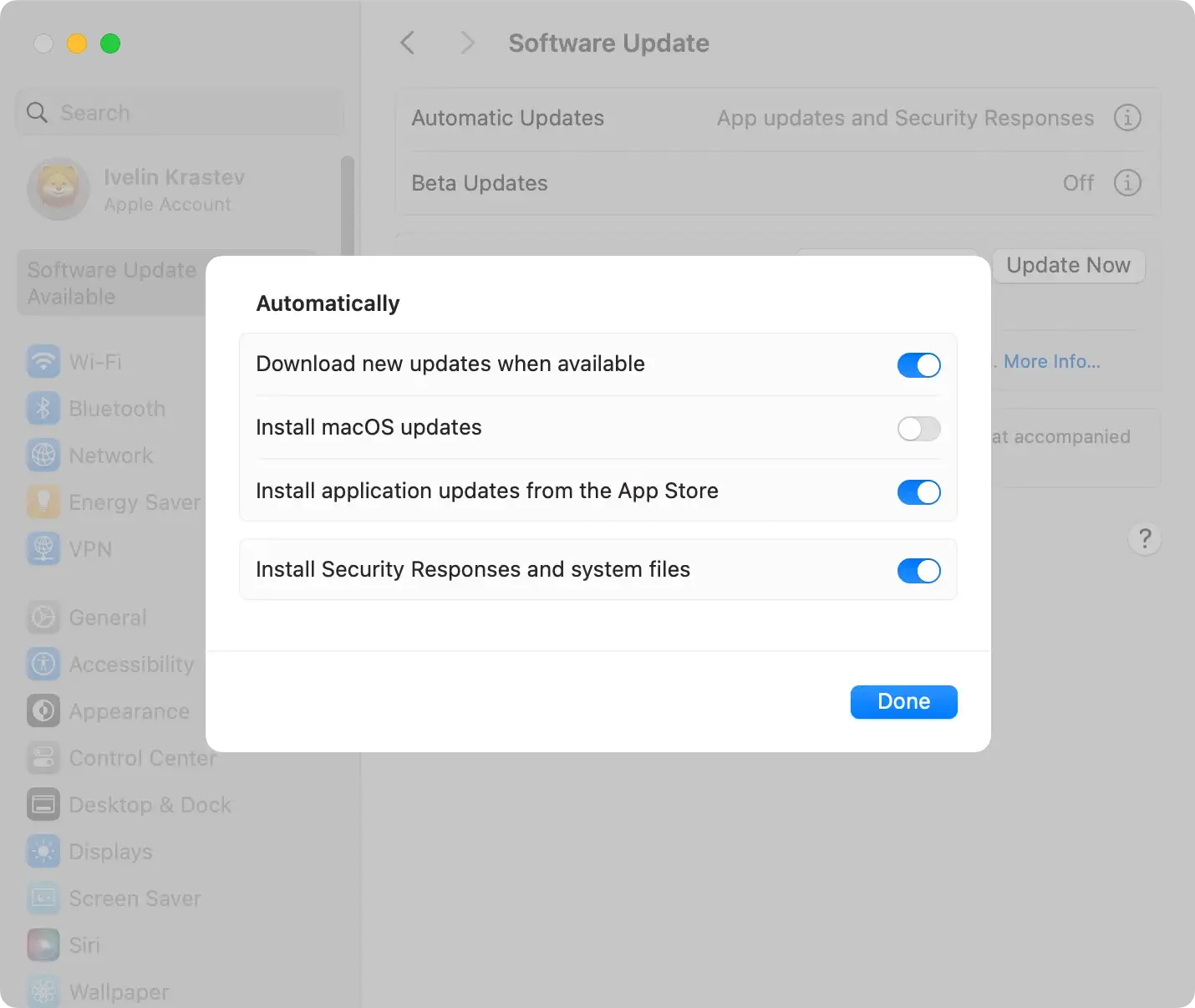
Keeping your operating system and all installed applications up-to-date is a critical step in safeguarding your Mac.
Here’s how to ensure your system and apps are always current:
- Enable automatic updates under
Software Updatefor macOS. - Regularly check the App Store for updates to your installed applications and download them immediately.
- Review any software not obtained through the App Store and visit the official websites to download updates directly.
Do’s and Don’ts for safe browsing
Navigating the internet safely requires awareness and caution. Here are some practical do’s and don’ts to help you avoid potential threats:
- Do use reputable browsers and keep them updated to the latest version.
- Don’t click on unknown links or download attachments from untrusted sources. These could be gateways to malware.
- Do activate pop-up blockers and use security extensions to diminish the risk of encountering malicious ads.
- Don’t visit dubious websites, such as those offering illegal software downloads or pirated content, as they are often laced with malware.
- Do install reliable antivirus software to protect against malware infiltrations and to remove any malicious software that gets through.
- Don’t allow websites to install software on your Mac without your explicit consent.
By implementing these strategies, you enhance your Mac’s resilience against Zeus and other malware threats, keeping your personal information and system integrity intact.
