

How To Remove Unorthodoxly.app On Mac [Quick Fixes]

Before we dive in
Before we dive in, let's make sure you stay safe online. We created SpyHunter because your security matters to us.
Protect your computer today — download SpyHunter right here! Check out our top tips below to keep your computer safe and secure.

Finding an app like Unorthodoxly.app on your Mac can be unsettling.
This malware is part of the Pirrit adware family, a well-known group of adware targeting macOS systems. It disrupts your browsing with intrusive ads, redirects, and potential privacy risks.
This guide will explain what Unorthodoxly.app is, how it affects your system, and provide easy-to-follow steps to remove it.
What is Unorthodoxly.app?
Unorthodoxly.app is an adware program that infiltrates your Mac to show pop-up ads, inject advertisements, and redirect you to rogue websites. It is part of the Pirrit adware family, which is notorious for sneaky tactics to evade detection and removal.
Pirrit adware often enters your Mac bundled with free software or through deceptive ads online. Once installed, it compromises your experience and security by:
- Flooding your browser with intrusive advertisements.
- Redirecting your web traffic to shady sites.
- Tracking your browsing activity for profit.
- Creating hidden files to persist on your system.
How does Unorthodoxly.app affect you?
Adware like Unorthodoxly.app can have serious consequences:
- It invades your privacy by tracking your browsing history and online behavior.
- It exposes you to phishing scams and malicious downloads through bad redirects.
- It degrades system performance by running background processes that serve ads.
- It installs rogue extensions or uses push notification abuse to spread further.
Removing Unorthodoxly.app is crucial to restore your system’s security and performance.
Step-by-step guide to remove Unorthodoxly.app
Follow these steps to completely remove Unorthodoxly.app and its remnants from your Mac.
1. Remove Unorthodoxly.app from Applications
- Open
Finderand go to theApplicationsfolder. - Locate Unorthodoxly.app or any suspicious app you don’t recognize.
- Right-click the app and select
Move to Trash. - Empty the
Trashby right-clicking the icon and selectingEmpty Trash.

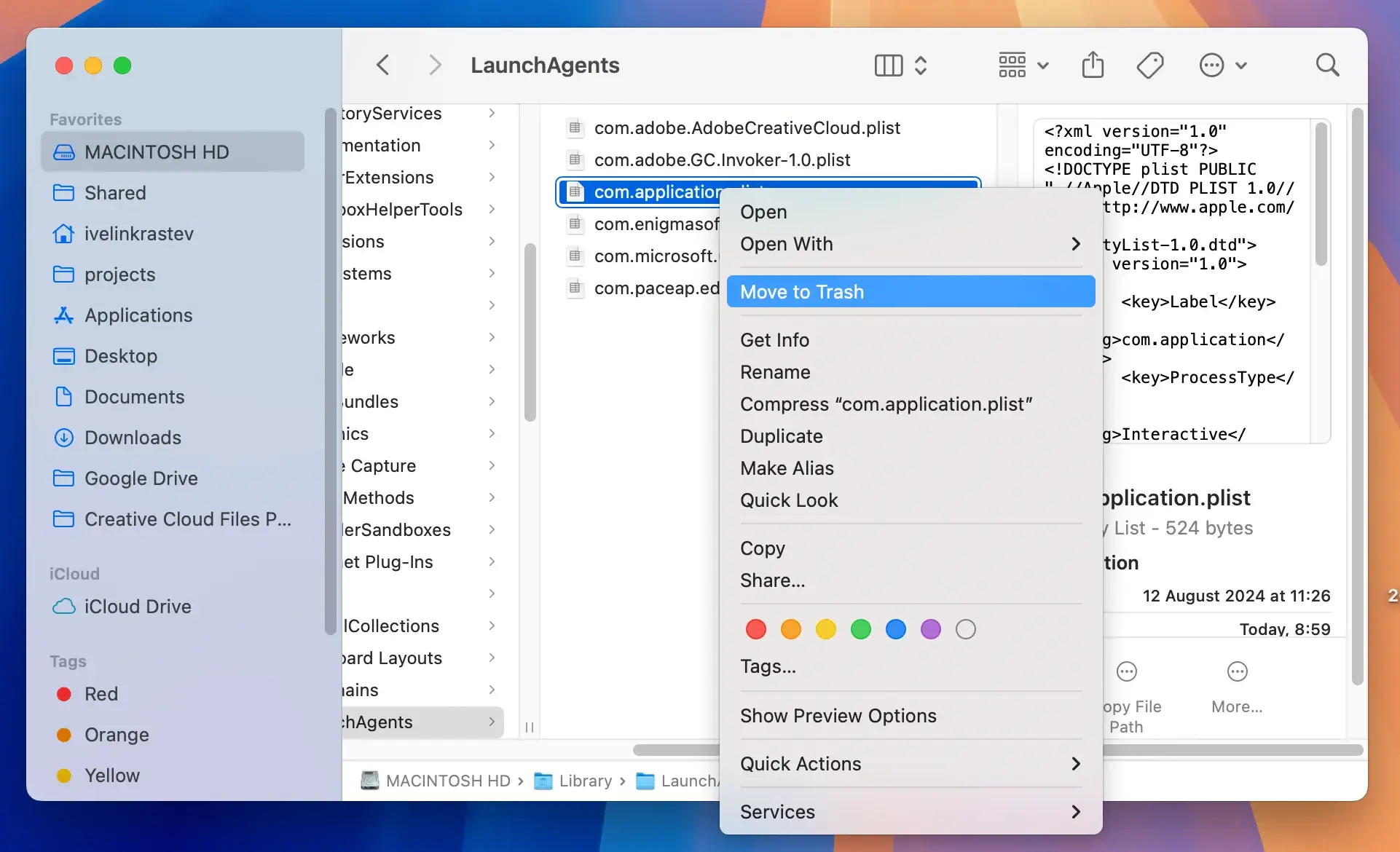
2. Remove residual files from various directories
Adware often leaves behind residual files. You must remove these to ensure complete deletion.
- Open
Finderand pressCommand + Shift + Gto open theGo to Folderwindow. - Check the following directories for files related to Unorthodoxly.app:
/Library/LaunchAgents//Library/Application Support//Library/LaunchDaemons/~/Library/LaunchAgents/~/Library/Application Support/
- Delete any files or folders containing “Unorthodoxly” or other suspicious names.
- Empty the
Trashagain to remove these files permanently.
3. Remove unwanted login items
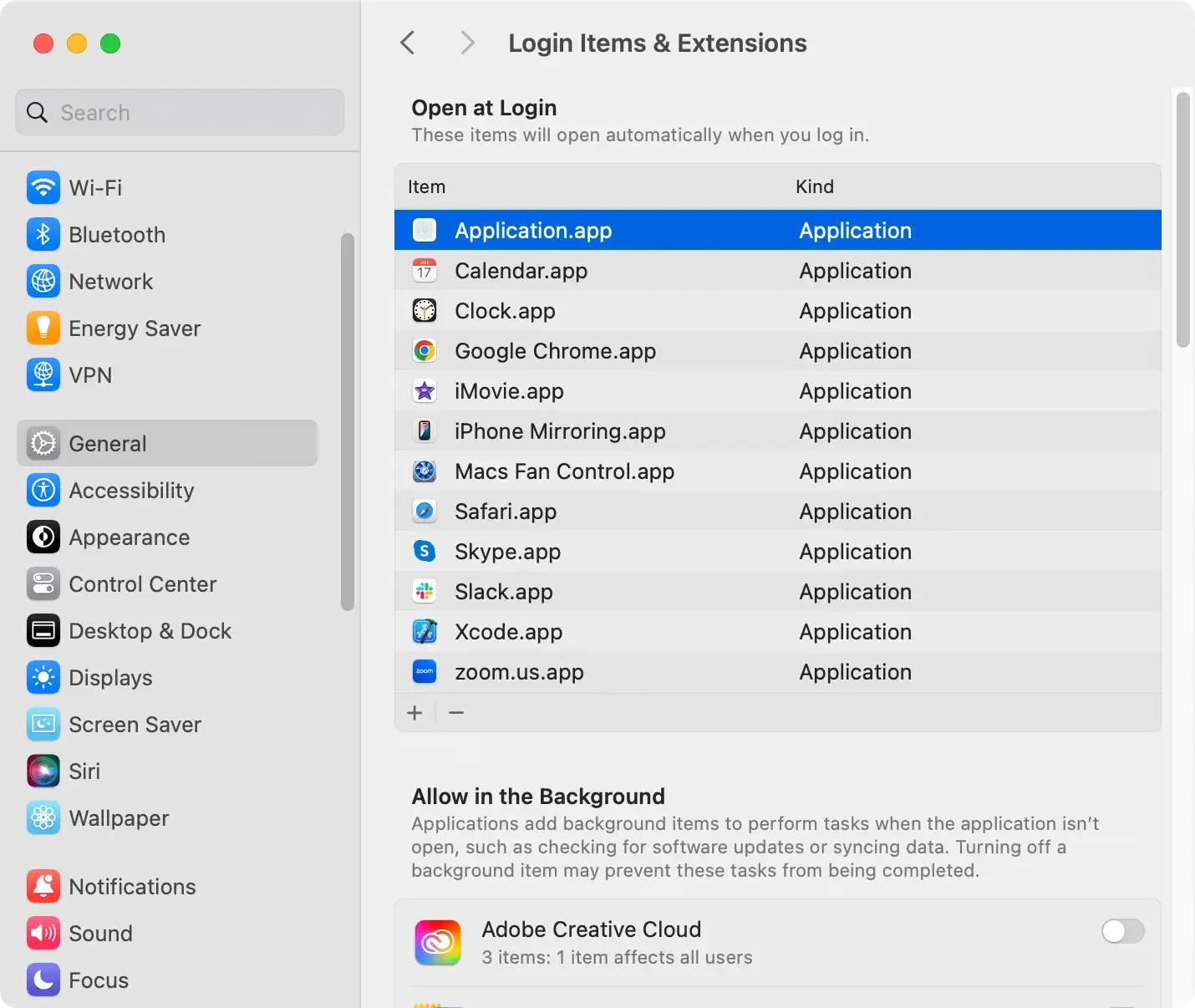
Adware often adds itself to login items to launch automatically. Remove it from this list.
- Open
System Settingsby clicking the Apple logo and selectingSystem Settings. - Go to
General > Login Items & Extensions. - Look for entries related to Unorthodoxly.app or any unknown apps.
- Select the suspicious item and click the minus button to remove it.
4. Use SpyHunter to remove Unorthodoxly.app completely
For a thorough cleanup, SpyHunter for Mac is a reliable anti-malware tool that can detect and remove hidden adware files, including any leftovers that a manual removal may miss.
- Download the app here and install it.
- Launch SpyHunter after installation is complete and start a full scan of your Mac.
- Examine the list of scan results and make sure all threats are selected for removal.

- Proceed to clean up your Mac and enjoy a safer user experience.

How to prevent future malware infections
Follow these tips to avoid encountering threats like Unorthodoxly.app in the future:
- Download software only from trusted sources, such as the Mac App Store or official developer websites.
- Avoid interacting with suspicious pop-ups or fake alerts online.
- Carefully read installation prompts to avoid installing bundled software.
- Use a reliable anti-malware tool like SpyHunter to monitor your system for threats.
- Keep your macOS and software updated to patch security vulnerabilities.
- Regularly check your login items and browser extensions for anything unusual.
