

How To Remove Termidop.co.in Virus (Easy Guide)

Before we dive in
Before we dive in, let's make sure you stay safe online. We created SpyHunter because your security matters to us.
Protect your computer today — download SpyHunter right here! Check out our top tips below to keep your computer safe and secure.

Have you ever been redirected to a strange website or bombarded with ads that just won’t go away?
These annoyances could be symptoms of Termidop.co.in, a browser hijacker that meddles with your Internet settings without your consent.
It’s important to understand the risks this hijacker poses to your browsing experience and personal online security.
Termidop.co.in doesn’t just clutter your screen with ads—it also tracks your online activities, and risks exposing you to harmful content.
Keep reading to find out how you can remove this invasive software and protect your device from future threats.
What is Termidop.co.in and why should you care?
Termidop.co.in is recognized as a browser hijacker, which intrusively modifies web browser settings without your approval to initiate aggressive advertising and redirecting tactics.
Once it infiltrates your system, it can affect multiple browsers, such as Google Chrome, Mozilla Firefox, and others, significantly altering your browsing experience.
It redirects your searches to unwanted websites, displays intrusive advertisements, and can even disable security measures to make your system more vulnerable to further infections.

Understanding why you should care about this hijacker is crucial. Its presence on your computer not only compromises your browsing experience but also poses a significant risk to your online privacy and security.
Termidop.co.in is capable of tracking personal information and browsing habits. It can also expose you to potentially malicious content through incessant pop-up ads and redirects.
Ensuring its quick removal can protect you from potential cybersecurity threats and safeguard your private information.
Quick steps to remove Termidop.co.in using SpyHunter
Step 1: Download and install SpyHunter
The first phase in eliminating the Termidop.co.in malware begins with setting up a robust defense mechanism on your computer.
Here’s how you can download and install SpyHunter:
- Download SpyHunter for free here.
- Click on the download button to grab the installation file.
- Once the download is complete, open the installer by double-clicking on it.
- Follow the on-screen instructions to complete the installation process, ensuring the software is set up correctly to initiate a system scan.
Step 2: Run a scan to detect Termidop.co.in malware
With SpyHunter installed, you’re equipped to scan your system for the Termidop.co.in and other potential threats:
- Open SpyHunter from the
Applicationsfolder. - Initiate a scan to check through your system files and applications.
- Wait for the scan to complete; timing may vary depending on your system’s specifications and the volume of data being processed.
- Once the scan is finished, review the threats identified, focusing on Termidop.co.in detections.

Step 3: Eliminate the detected malware with SpyHunter
Post detection, the removal process is straightforward with SpyHunter:
- Examine the scan results displayed by SpyHunter.
- Identify files associated with Termidop.co.in or other suspicious entities.
- Select the malicious files and let SpyHunter effectively remove the malware from your system.

Once the elimination process concludes, restart your computer. This reboot helps clear out any remnants and ensures that your system functions normally without the invasive influence of Termidop.co.in.
How to manually remove Termidop.co.in on Mac
Removing Termidop.co.in manually requires careful attention to ensure complete eradication of the virus from your system.
This process is best suited for tech-savvy users who are familiar with their system’s internals. Always back up important data before beginning the removal process to prevent accidental loss.
How to identify and remove malicious files manually
To manually remove Termidop.co.in (a browser hijacker or adware) from macOS, follow these steps:
- Quit Suspicious Applications: Find the suspicious app (if running) and click
Force Quit. - Remove Malicious Applications: Go to
Finder>Applications. Look for unfamiliar or suspicious apps (like Termidop or others you didn’t install). Right-click on the app and chooseMove to Trash. Empty theTrashafter deleting the app.

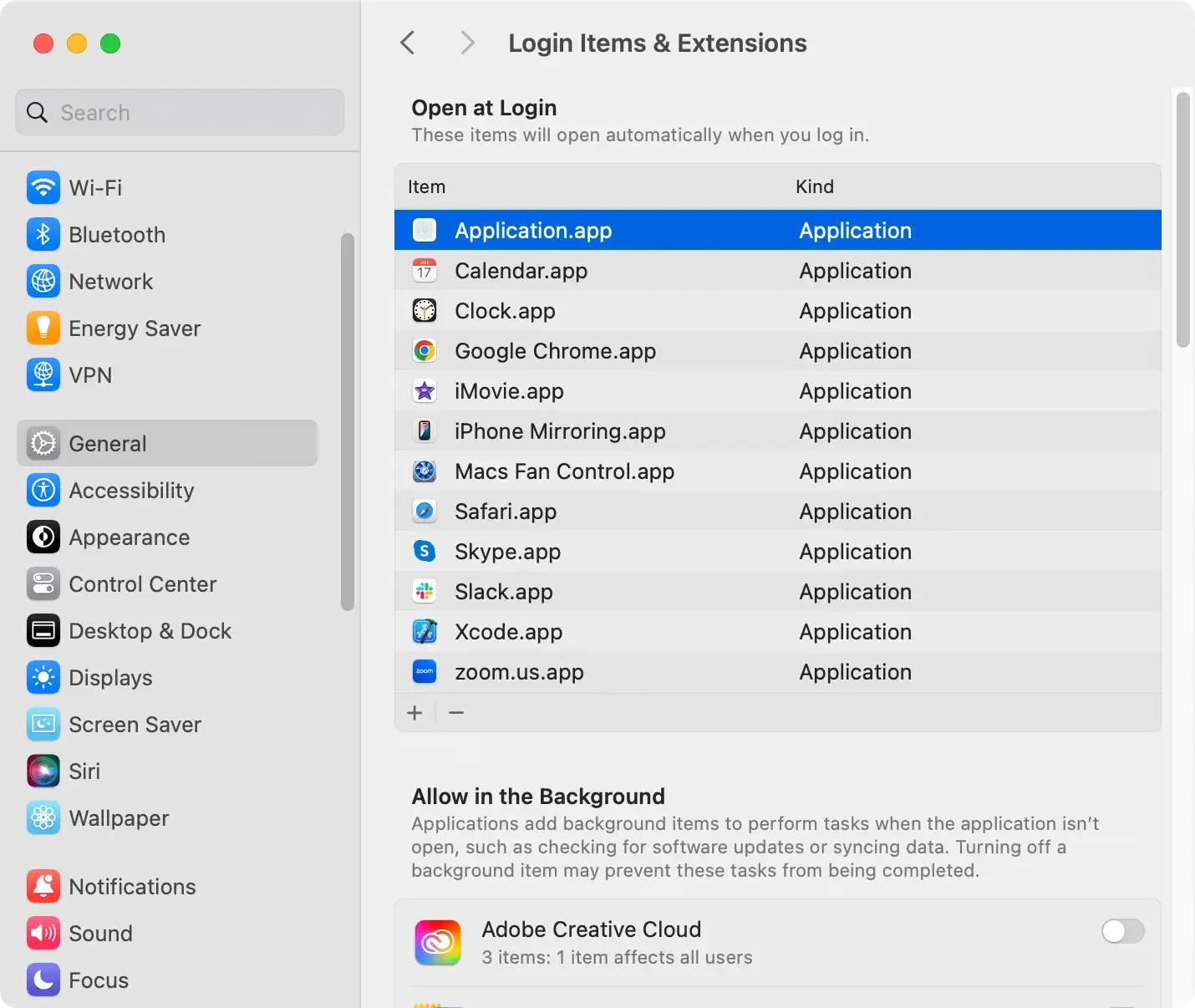
- Check Login Items: Go to
System Settings>General, then find theLogin Itemssection. Look for suspicious login items and click the minus (–) button to remove them.
- Remove Browser Extensions:
- Safari: Open Safari >
Preferences(orSettings). Go to theExtensionstab. Find and uninstall any suspicious or unknown extensions. Restart Safari. - Google Chrome: Open Chrome and type
chrome://extensions/into the address bar. Find any unwanted extensions and clickRemove. Go toSettings>Search engineto reset your default search engine if it was changed. Restart Chrome. - Mozilla Firefox: Open Firefox and go to Add-ons by typing
about:addonsin the address bar. Disable or remove any unknown extensions. Go toOptions>Homeand reset your homepage and search engine if they were modified.
- Safari: Open Safari >
Check and Remove Adware from System Folders:
Open Finder and click on Go > Go to Folder from the menu bar.
Type the following paths and press Go:
~/Library/LaunchAgents//Library/LaunchDaemons//Library/Application Support/~/Library/Application Support/
Look for suspicious files related to Termidop or any other unknown names. If you find anything, move it to the Trash and empty the Trash.

Reset Browser Settings (if hijacked):
- Safari: Open Safari >
Preferences>Privacy. Click onManage Website Dataand remove unwanted site data. Go to theGeneraltab and reset your homepage if it has been changed. - Google Chrome: Open Chrome and go to
Settings>Resetsettings. ClickRestore settingsto their original defaults. - Mozilla Firefox: Open Firefox and go to
Help>Troubleshooting Information. ClickRefresh Firefoxto restore default settings.
Clear Cache and Data:
Open the browser and clear all browsing data, including cookies, cache, and history.
How to prevent future infections
Once your Mac is free from malware, maintaining that state requires constant vigilance and proactive measures.
Firstly, always ensure your software, particularly your operating system and applications, is up-to-date.
Developers regularly release updates that patch vulnerabilities, making it harder for malware to breach your system.
Be skeptical and cautious about emails you receive, especially those with attachments or links.
Phishing scams are a common way for malware to spread. If an email seems suspicious or unexpected, verify its authenticity by contacting the sender directly via a different communication method.
Furthermore, diversify your passwords and use a password manager to handle your credentials.
Using the same password across multiple sites increases your risk of a security breach. Complex, unique passwords limit the impact of a potential exposure.
Lastly, consider enhancing your Mac’s defenses with reputable antivirus software like SpyHunter, which provides real-time protection against malware and spyware.
Keeping this software updated ensures that it can defend against new threats as they emerge.
Enhancing your cybersecurity measures
Enhancing cybersecurity involves more than software solutions—it’s about adjusting your daily behaviors and interactions with technology.
For instance, enable two-factor authentication (2FA) on all accounts that offer it. This adds an extra layer of security by requiring a second form of verification, typically a code sent to your phone, in addition to your password.
Regularly back up important data, either in the cloud or on an external hard drive. This ensures that your information is safe and recoverable in the event of a malware attack.
Also, be cautious about the networks you connect to; unsecured Wi-Fi networks are hotspots for cyber threats.
Lastly, using a dedicated cybersecurity tool like SpyHunter can provide an extra layer of security. It not only helps detect and remove existing threats but also offers real-time protection to prevent new infections.
You can easily download SpyHunter from here.
By integrating these tools and habits into your digital routine, you can greatly enhance the security of your devices and personal data.
