

Remove Skyjem.com Redirect (Simple Cleanup Guide)

Before we dive in
Before we dive in, let's make sure you stay safe online. We created SpyHunter because your security matters to us.
Protect your computer today — download SpyHunter right here! Check out our top tips below to keep your computer safe and secure.

Have you ever found your web browser acting oddly, redirecting you to sites you never intended to visit? You might be dealing with a browser hijacker like Skyjem.com.
This pesky software can change your homepage and direct your searches through its own engine, which could expose you to misleading information and potentially harmful content.
This article will help you recognize the symptoms of a Skyjem.com infection, detail how to remove it and offer insights on preventing future hijacks.
Keep reading to restore your browser’s integrity and take steps towards safer, more secure online browsing.
What exactly is Skyjem.com?
At first glance, Skyjem.com appears to be a standard search engine, but it operates quite differently. Essentially, it’s a website that gets promoted through deceptive means, such as browser hijackers and unwanted browser extensions.
Once these elements are installed on a user’s computer, Skyjem.com sets itself as the default search engine and home page without the user’s consent.
As a result, all user searches are funneled through Skyjem.com. This alteration not only hampers the user’s browsing experience but also exposes them to potentially harmful content.

The search results provided by Skyjem.com often include misleading information and unsafe advertisements that can lead to dubious websites. These websites may host malicious software or engage in phishing attempts to steal personal information.
The danger of using Skyjem.com lies not only in the annoying redirections but also in the substantial security risks it poses.
Users should recognize these risks and seek to remove any associated browser hijackers to restore safer, more reliable browsing conditions.
Common symptoms of a Skyjem.com infection
When the Skyjem.com browser hijacker infects your device, several obvious symptoms can interfere with your regular internet browsing activities.
Understanding these symptoms can help in early detection and prompt removal of the hijacker.
- Altered Browser Settings: The most noticeable change is that Skyjem.com sets itself as the default homepage and search engine on your browser without your consent. This alteration affects how you navigate the internet and how search results are displayed.
- Redirected Search Queries: Each time you enter a query into the browser’s address bar, your searches are redirected through Skyjem.com instead of your chosen search engine. This redirection often results in poor-quality search results populated with ads and sponsored links.
- Unwanted Ads and Pop-ups: A typical sign is an increase in ads and pop-up windows that appear intrusive and irrelevant to your browsing content. These ads are not only annoying but can also lead to further malicious websites.
- Slow Browser Performance: You may notice a significant slowdown in your browser performance. This lag can be due to the additional load of unwanted ads and the hijacker continuously running in the background.
- Unfamiliar Browser Extensions or Toolbars: The appearance of new toolbars or extensions that you did not install yourself can be a clear indication of a hijacking. These add-ons further help the hijacker alter your browsing experience.
Remove Skyjem.com from your Mac
The process of removing the Skyjem.com hijacker involves several critical steps. To ensure the safety and cleanliness of your system, it is crucial to follow these guidelines meticulously.
The removal process comprises automated scanning tools and manual removal techniques to provide a thorough cleanse of your system.
Begin with a system scan using SpyHunter
Initiating a system scan with SpyHunter effectively detects and removes malware like Skyjem.com. This trusted tool delves deeply into your system, identifying malicious entities and potential threats.
To start:
- Download SpyHunter for free here.
- Install the software by following the on-screen prompts.
- Open SpyHunter and select Start Scan to detect Skyjem.com and other malicious threats.
- Once the scan is complete, follow the instructions to remove any detected malware.

This initial scan is critical for setting up a clean slate for further manual cleaning steps.
How to manually remove Skyjem.com files and folders
Post-system scan, manually sifting through your files and folders ensures no remnants of Skyjem.com remain. This thorough inspection includes checking system files and installed programs. Here’s how:
To remove the Skyjem.com browser hijacker from macOS, you can follow these steps. Hijackers like Skyjem.com often modify browser settings, cause redirects, and display unwanted ads.
Removing them involves both manual and software-based solutions.
Step 1: Check installed applications
- Open
Finderand go toApplications. - Look for any suspicious or unfamiliar applications (such as “Skyjem.com” or apps you don’t recognize).
- Drag these applications to the
Trashand empty the trash.

Step 2: Remove browser extensions
Safari:
- Open
Safariand go toPreferences. - Click the
Extensionstab. - Look for any suspicious or unknown extensions and click
Uninstall.
Google Chrome:
- Open
Google Chromeand click thethree dotsin the top-right corner. - Go to
More Tools>Extensions. - Find any suspicious extensions and click
Remove.
Firefox:
- Open
Firefoxand click thethree linesin the top-right corner. - Go to
Add-ons and Themes>Extensions. - Look for unfamiliar extensions and click
Remove.
Step 3: Reset browser settings
If removing extensions doesn’t fully solve the issue, resetting your browser may help.
Safari:
- Open
Safariand go toPreferences>Privacy. - Click
Manage Website Data, thenRemove All. - Go to the
Generaltab and reset your homepage to your preferred page.
Google Chrome:
- Click the
three dotsin the top-right corner. - Go to
Settings>Reset and clean up>Restore settings to their original defaults. - Confirm by clicking
Reset settings.
Firefox:
- Click the
three linesin the top-right corner. - Go to
Help>More troubleshooting information. - Click
Refresh Firefox.
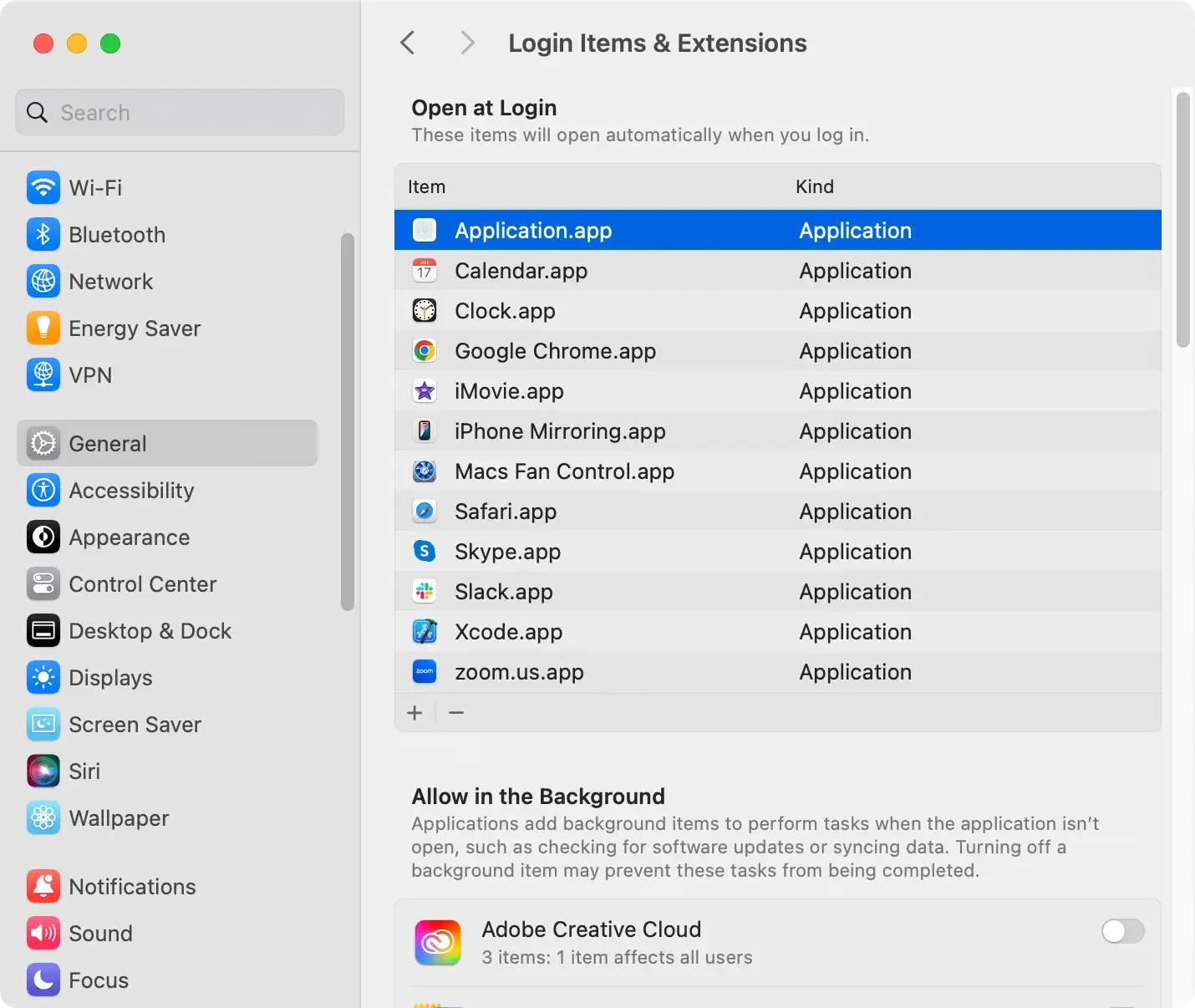
Step 4: Check login items
Some hijackers may start automatically with your system.
- Go to
System Preferences>Users & Groups. - Click your account and select
Login Items. - Remove any suspicious applications from the list.
Step 5: Clear cache and history
Safari:
- Go to
Preferences>Privacy. - Click
Manage Website Data>Remove All. - Then go to the
Historymenu and selectClear History.
Google Chrome:
- Click the
three dotsand go toSettings>Privacy and security>Clear browsing data. - Select
All timefor the time range and clearCookiesandCached images and files.
Firefox:
- Click the
three lines, then go toSettings>Privacy & Security. - Scroll to
Cookies and Site Dataand clickClear Data.
This action eliminates unwanted changes made by Skyjem.com and restores browser integrity.
Tips on preventing future browser hijacks
Browser hijackers can disrupt your online experience and compromise your privacy.
Fortunately, you can take steps to minimize the risk and keep your system secure.
Maintain regular software updates
One of the most effective ways to prevent browser hijacks is to keep your software updated.
Developers often release updates to fix bugs and patch security vulnerabilities.
Update your operating system, browsers, and plugins. This helps protect against malware that exploits outdated software.
Avoid downloading software from unverified sources
Always download software and apps from trusted sources, such as official websites or app stores. Unverified sources can offer software with hidden malware, including browser hijackers.
Be careful with free downloads and freeware sites, as these are common places for distributing unwanted software.
When installing new software, opt for custom installation settings to deselect any additional, unnecessary components.
Enhance your cybersecurity with trusted software
Using reliable cybersecurity software is key to protecting your device from browser hijackers.
Consider installing SpyHunter, which provides comprehensive protection against malware, spyware, and other security threats.
To get SpyHunter:
- Download SpyHunter now.
- Run the installer and follow the on-screen instructions.
- Run a Full scan.

Regular scans with SpyHunter can help detect and remove any potential threats before they compromise your system.
