

How To Remove Pinaview Adware On Mac [Easy Fix]

Before we dive in
Before we dive in, let's make sure you stay safe online. We created SpyHunter because your security matters to us.
Protect your computer today — download SpyHunter right here! Check out our top tips below to keep your computer safe and secure.

Ever found your web browser acting strangely or your computer slowing down for no apparent reason?
You might be dealing with Pinaview Adware, a pesky form of malware designed to hijack your browser settings and bombard you with unwanted ads. This not only messes with your browsing experience but also poses a risk to your personal information and system health.
This article dives into what Pinaview Adware is, how it sneaks onto your computer, and the effective steps you can take to remove it and protect yourself from future attacks.
What is Pinaview adware?
Pinaview Adware is a type of malicious software known for hijacking browser settings and displaying invasive advertisements.
Once installed, it alters your homepage and default search engine to direct the web traffic through its channels. This not only disrupts your browsing experience but also increases the risk of further malware infections.
Pinaview typically enters systems through bundled software installations, deceptive ads, or unreliable download sources.
How Pinaview affects your system
Pinaview Adware impairs your system’s performance by injecting unwanted ads into websites you visit and redirecting your search queries to dubious search engines.
These activities not only slow down the browsing speed but also compromise your privacy. The adware tracks your online behavior, gathering data that could be exploited for targeted advertising or worse.
Furthermore, the incessant redirects and ads can lead to accidental downloads of additional harmful software, putting your personal data and device security at higher risk.
How did Pinaview land on your Mac?
Pinaview, classified as adware, often ends up on computers through seemingly harmless means that are frequently overlooked by users.
Whether it’s during the installation of new software or clicking on an intriguing ad, the ways in which Pinaview infiltrates systems are stealthy yet common. The primary gateway for Pinaview is through bundled software packages, where it hides within the installation processes of legitimate software.
Users may also inadvertently download this adware by clicking on deceptive advertisements that masquerade as genuine offers or updates. Additionally, downloading cracked games or applications from unverified sources increases the risk of such unwanted installations.
Remove Pinaview using SpyHunter
You can significantly speed up and ease the removal process of malware similar to Pinaview by using a reliable anti-malware tool like SpyHunter.
The SpyHunter Mac application comes with a reliable malware scanner module that gets frequent updates and also includes a real-time guard that detects and stops malware before it can infect your system.
- Download the app for free here and install it.
- Run a full system scan through SpyHunter’s main menu.
- Once the scan is done, ensure any potential malware found on your Mac is selected for removal.

- Proceed with the automated cleanup and enjoy a safer experience free of malware.

Step-by-step guide to manually remove Pinaview
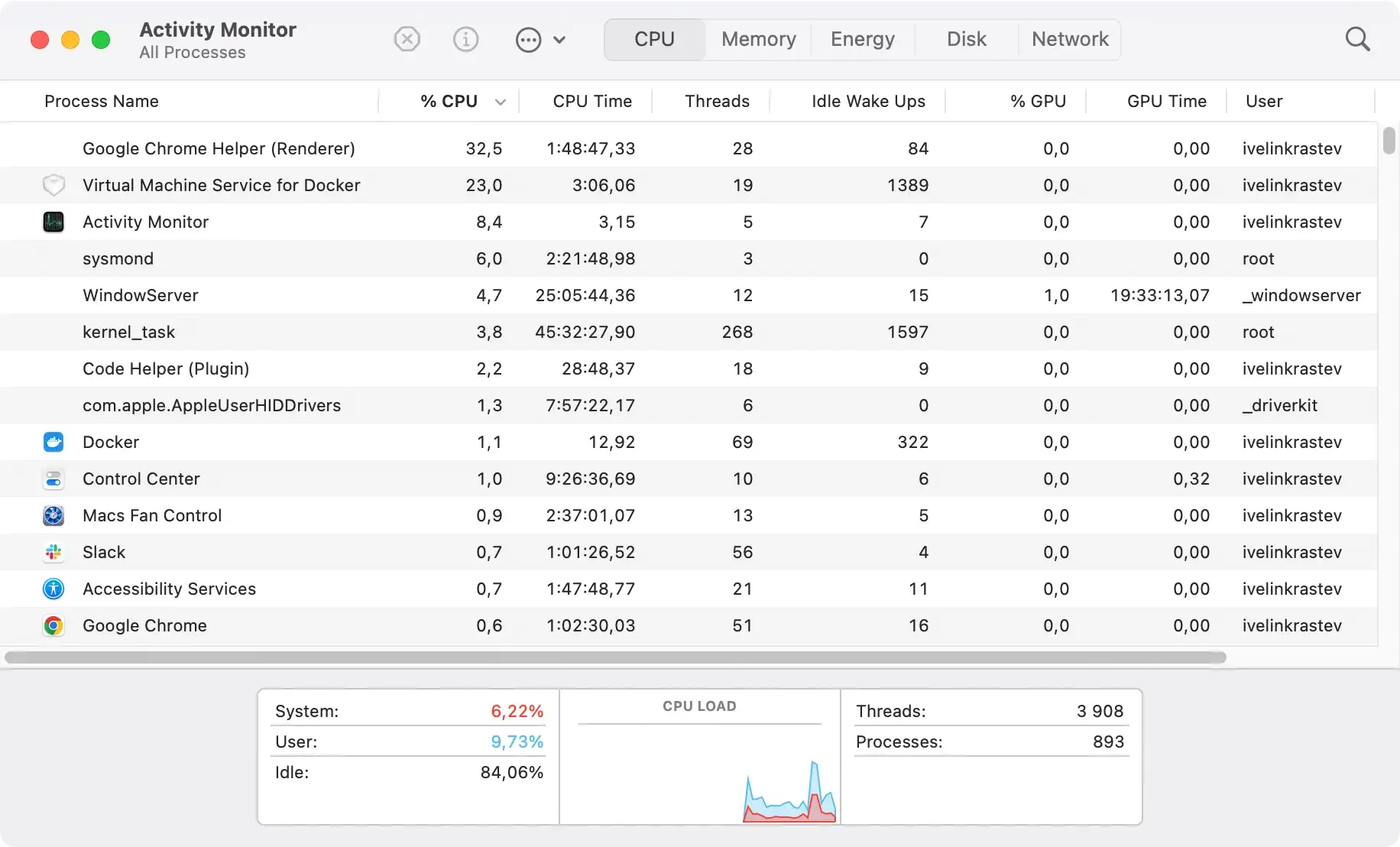
Step 1: Identify and terminate suspicious processes
- Open
Activity MonitorthroughApplications > Utilities. - Look through the list of active processes for any that look suspicious and terminate them using the button above the process list.
- Confirm your choice by clicking
Force Quit.
Step 2: Remove Pinaview from Applications
- Open your
Applicationsfolder. - Look through the installed apps for any you don’t remember installing or ones that look suspicious.
- Drag the suspicious apps in the
Trash. - Empty the
Trashto complete this step.

Step 3: Clean up residual files linked to Pinaview
- Open Finder and click on
Go > Go to Folderin the top menu. - Paste the following locations in order into the dialog box that comes up:
/Library/LaunchAgents//Library/Application Support//Library/LaunchDaemons/~/Library/LaunchAgents/~/Library/Application Support/
- Look for any residual files or folders linked to Pinaview in those locations and delete them.
- Empty the
Trash.

Step 4: Reset your browser settings
After removing adware from your computer, it’s crucial to reset your browser settings. This ensures any lingering effects of the malware are removed and restores your browser to a clean, default state.
For Google Chrome
To reset Chrome to its default settings:
- Open Chrome, select the three-dot menu, and go to
Settings. - Scroll to
Advanced > Reset and clean up. - Choose
Restore settings to their original defaultsand confirm withReset settings.
For Mozilla Firefox
To refresh Firefox and clear any potential issues:
- Open Firefox, click the menu (three lines), then go to
Help > Troubleshooting Information. - Click
Refresh Firefoxat the top right and confirm.
For Safari
For Safari users:
- Open Safari, go to
Safari > Preferencesfrom the menu bar. - In the
Advancedtab, enableShow Develop menu. - Use
Develop > Empty Caches. - In
Preferences, go toPrivacy, selectManage Website Data, then clickRemove All.
Tips to enhance your computer’s security
Ensuring your computer remains secure requires attention to both habits and software.
First, utilize complex passwords for all accounts and consider a password manager to maintain the integrity of your login credentials. This minimizes the risk of unauthorized access resulting from weak passwords.
Also, enable two-factor authentication wherever possible to add an additional layer of security. Be cautious about the emails you open and the links you click, especially those from unknown sources, as these could be phishing attempts or direct links to malware.
Updating software: A key practice for protection
Staying updated with the latest software versions is crucial for maintaining system security.
Software updates often include patches that close security holes and remove vulnerabilities. Regularly update your operating system, applications, and any installed security solutions to protect against the latest threats.
For instance, keeping your antivirus program, such as SpyHunter, updated ensures it has the latest virus definitions and security features necessary to combat new and evolving malware threats effectively.
