

Remove MyBrowserResults.io Redirect on Mac (Full Guide)

Before we dive in
Before we dive in, let's make sure you stay safe online. We created SpyHunter because your security matters to us.
Protect your computer today — download SpyHunter right here! Check out our top tips below to keep your computer safe and secure.

Have you ever noticed unexpected changes to your homepage or search engine, and an onslaught of ads cluttering your browsing experience?
You might be dealing with a browser hijacker like MyBrowserResults.io.
Such hijackers not only disrupt your daily web navigation by redirecting you to ad-laden pages but also pose serious privacy and security risks by tracking your online activities.
Understanding how to recognize and remove these intruders is crucial for maintaining your digital safety.
This article will dive deep into what MyBrowserResults.io is, how it can affect your device, and provide you with a detailed guide on how to eliminate it from your Mac and prevent future infections.
What is MyBrowserResults.io?
MyBrowserResults.io is identified as a browser hijacker, which is a type of unwanted software that alters a web browser’s settings without a user’s permission.
Its primary purpose is to change the default search engine and homepage to a different one, often loading it with advertisements and sponsored links.
This hijacker infiltrates computers through dubious software bundles or deceptive online ads.
How does MyBrowserResults.io impact your device?
Privacy concerns and security risks
The presence of MyBrowserResults.io on your device raises significant privacy and security concerns.
This invasive software manipulates your browser settings without consent, directing you to possibly unsafe websites.
MyBrowserResults.io has the capability to track your browsing activities, collecting data such as search queries, visited websites, and even sensitive information which could be exploited for identity theft or fraudulent purposes.
The adware can expose users to potentially harmful content by redirecting to malicious websites, increasing the risk of further malware infections.
Data gathered by MyBrowserResults.io may be shared with or sold to third-party advertisers without the user’s explicit approval, compromising personal privacy.
Impact on browser performance and user experience
Aside from privacy issues, MyBrowserResults.io adversely affects the performance of your browser and diminishes the overall user experience.
It consumes system resources, which can slow down your computer and cause your browser to lag or crash more frequently, especially when multiple tabs are open.
Unwanted ads and pop-ups can be intrusive and disruptive, interfering with web browsing and significantly slowing page loading times.
The modified search results often display irrelevant or sponsored content, making it harder to find useful information and reducing browsing efficiency.
Step-by-step guide to remove MyBrowserResults.io from your Mac
Step 1: Quit the browser application
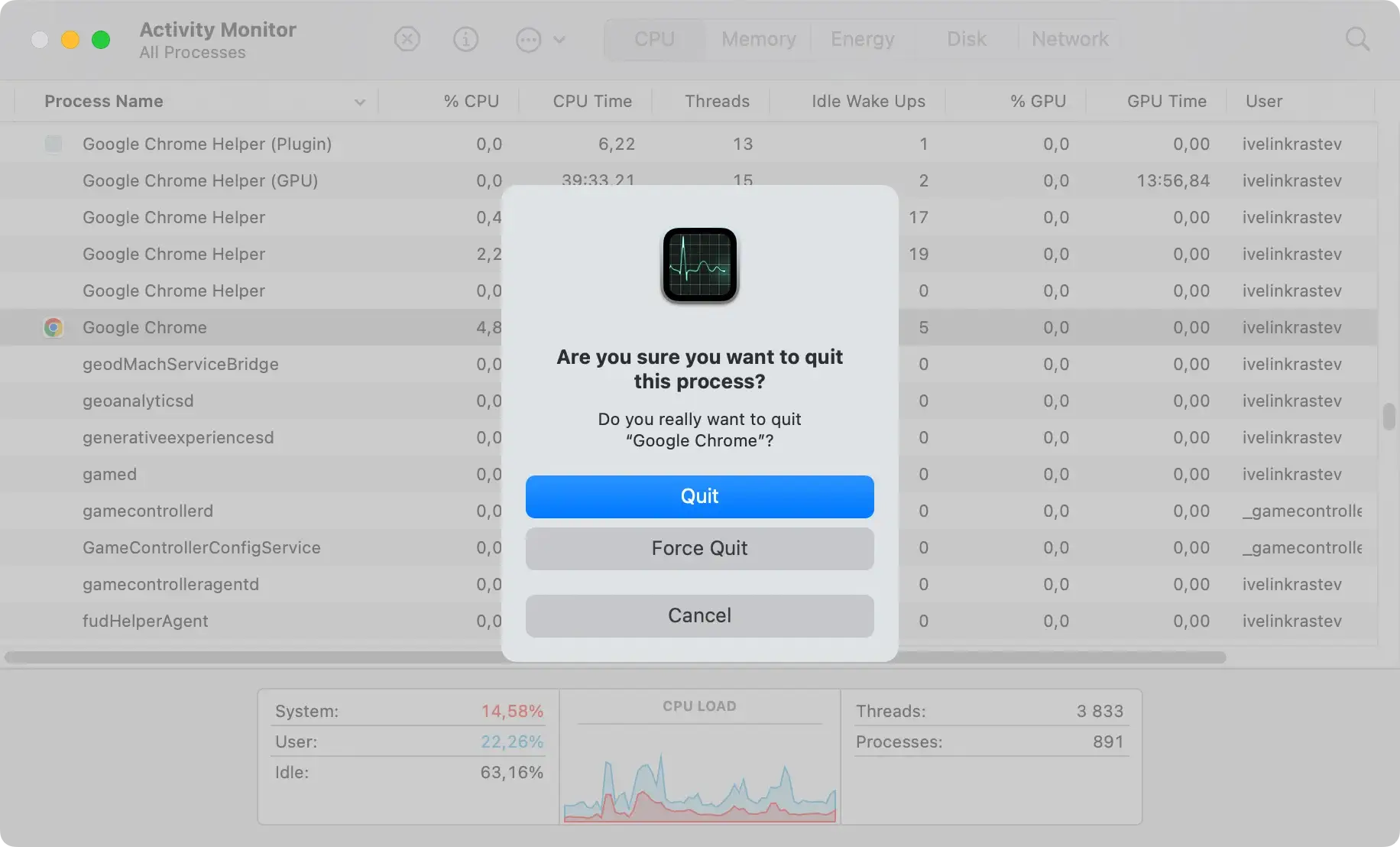
If MyBrowserResults.io affects your browser, the first step is to quit the browser application to prevent further complications.
Force quit if necessary
If the browser is unresponsive, use the Force Quit option:
- Press
Command + Option + Escto open the Force Quit Applications window. - Select your browser in the list and click
Force Quit.
Step 2: Uninstall suspicious applications
- Click on
Finderin your Dock, then select theApplicationsfolder. - Look for any applications that you do not recall installing or that seem suspicious.
- Right-click on the suspicious application.
- Select
Move to Trash.

Step 3: Remove unwanted profiles and extensions
Profiles can be used to control or alter your device’s settings without permission.
Access System Settings from the Apple menu, and search for the Device Management icon.
If you notice an unknown profile, select it and click the – button to remove it.

Browser extensions can also be a source of adware or browser redirects.
- Open your browser and go to the extensions settings.
- Uninstall any unknown or suspicious extensions by selecting them and clicking
RemoveorUninstall.
Step 4: Clear the browser caches and reset settings
Reset Safari
Clearing caches and resetting Safari can restore it to a default state, removing any adware-induced changes.
- Open Safari and choose
Preferencesfrom the Safari menu. - Go to the
Privacytab and clickManage Website Data. SelectRemove All. - To reset Safari, go back to the main menu, select
Reset Safari, and confirm by clickingReset.
Reset Google Chrome
If you use Chrome, you can reset it by following these directions:
- Open Chrome and click on the three dots in the upper-right corner.
- Select
Settings, then scroll down and click onAdvanced. - Under ‘Reset and clean up’, click
Restore settings to their original defaultsand confirm by clickingReset settings.
Step 5: Scan your Mac with SpyHunter
To safely and efficiently handle the remnants of the infection, using SpyHunter is recommended.
- Download SpyHunter for free here.
- Follow the instructions to install it on your Mac.
- Once installed, open SpyHunter and start a scan by clicking on the Scan button.

- After the scan, review the results and remove any detected malware by selecting
Remove Selected.

Safety precautions to prevent future infections
Keeping your digital environment secure isn’t just about reacting to threats; it’s also about proactive prevention.
Regularly updating software and being cautious about what you click can significantly reduce the likelihood of a security breach.
Regular software updates
One of the simplest yet most effective ways to protect your devices from malware is to keep all software updated.
Developers frequently release updates to fix vulnerabilities that could be exploited by attackers.
Ensuring your software is up-to-date is essential to sealing these potential entry points.
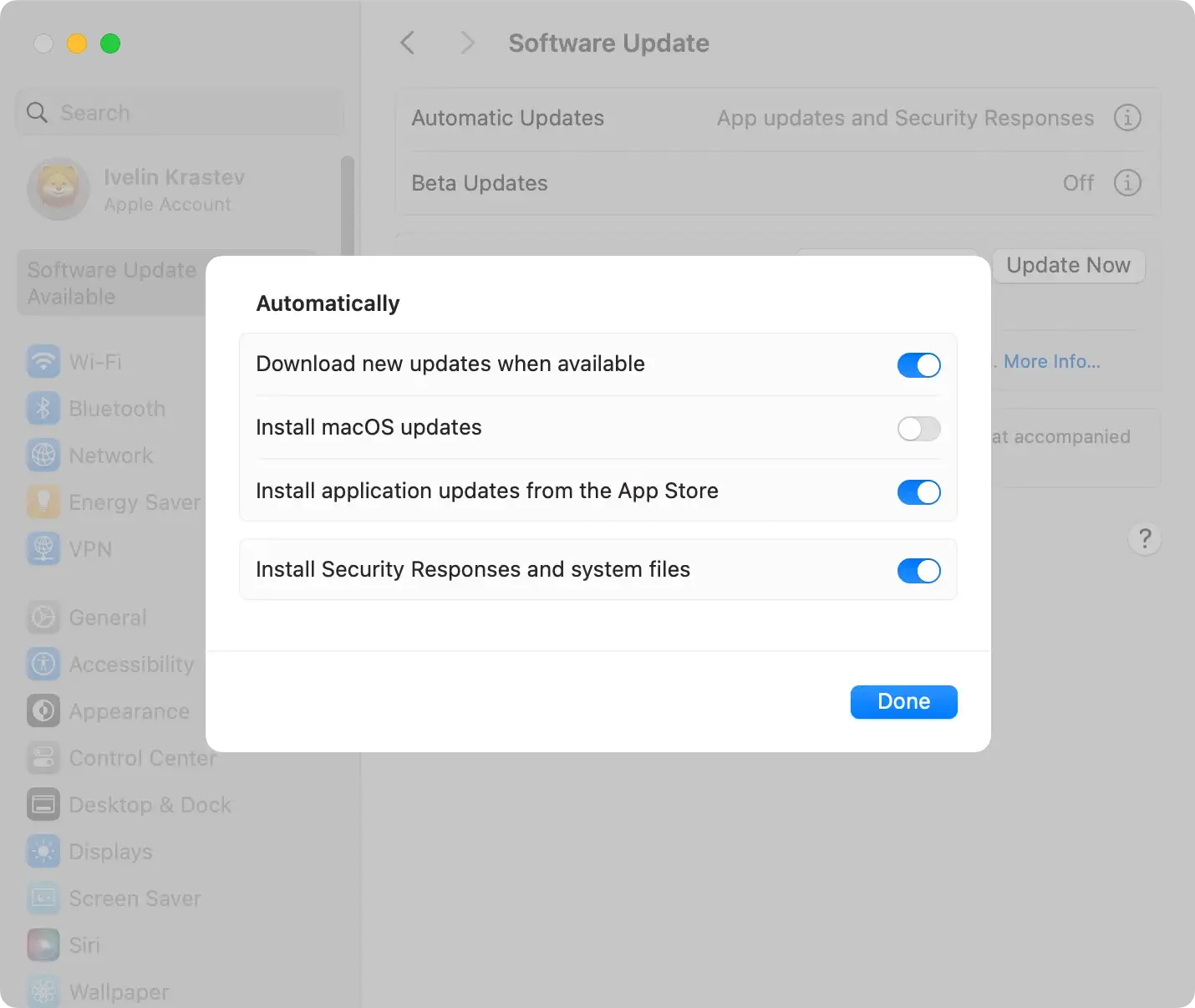
- Always install the latest updates for your operating system and applications.
- Enable automatic updates wherever possible to ensure you’re always protected.
- Regularly check devices that might not traditionally prompt you for updates, such as routers and IoT devices.
Avoid clicking on suspicious links and attachments
Malware infections often start with a click. Phishing scams can trick you into downloading viruses or revealing sensitive information.
Being vigilant and skeptical about links and email attachments is crucial for online safety.
- Verify the source of an email or message before clicking on any links or downloading attachments.
- Be cautious with emails that request urgent action, such as changing a password or updating payment details, especially if they contain links.
- Utilize link scanning tools or hover over links to see the actual URL before clicking to ensure it leads to a legitimate site.
