

Easy Myavids.com Adware Removal Guide (Quick Fix)

Before we dive in
Before we dive in, let's make sure you stay safe online. We created SpyHunter because your security matters to us.
Protect your computer today — download SpyHunter right here! Check out our top tips below to keep your computer safe and secure.

Have you ever been swamped by pop-ups or banner ads that seem to pop up out of nowhere? Or maybe your browser is suddenly slower than a snail, making you wonder what’s happening.
Welcome to Myavids.com adware, a crafty piece of software that could cramp your online style.
This sneaky software doesn’t just annoy you with ads; it monitors your internet habits to serve you even more targeted distractions. If that sounds invasive, that’s because it is.
And with your privacy on the line, knowing how to spot, remove, and prevent adware like Myavids.com is more crucial than ever.
So, if you want to reclaim your browsing experience and safeguard your digital space, you’re in the right place. Dive in, and let’s get your computer back to running smoothly without unwanted advertisements slowing you down.
What exactly is Myavids.com adware?
Myavids.com adware is malicious software that targets your web browsing experience. Unlike regular software, its primary function is to display unwanted advertisements on your screen.
These ads can appear as pop-ups, banners, or redirects, significantly slowing down your computer. This adware is cleverly designed to blend in with your internet activities, often making it seem like the ads come from the websites you visit.
How did Myavids.com adware end up on my computer?
Understanding how Myavids.com adware finds its way onto your computer is critical to preventing future infections.
This type of unwanted software often piggybacks when installing other programs, especially free ones.
Free software developers frequently bundle their products with adware or other potentially unwanted programs (PUPs) to generate advertising revenue.

Many users inadvertently agree to install the intended program and the additional bundled software when rushing through the installation process. This oversight is a common reason why users encounter unexpected advertisements and system slowdowns.
Another standard method of adware distribution is through deceptive advertisements or compromised websites. Clicking on an ad that promises something too good to be true or navigating through a hacked website can automatically download adware to your system.
Unfortunately, these deceptive ads can sometimes appear on otherwise reputable sites, complicating staying safe online.
Why is it crucial to remove Myavids.com adware immediately?
Adware, like Myavids.com, isn’t just annoying; it poses severe threats to your online and offline security. The urgency of removing such intrusive software stems from its potential to cause harm beyond simple pop-up ads.
Adware is designed to exploit web browsing to generate revenue through aggressive and often deceptive advertising methods. But it’s not just about being bombarded with ads—it’s about what lies behind them.
Many ads displayed by Myavids.com lead to a malicious website or trick users into downloading more malicious software, further compromising your system’s safety.
Over time, this can lead to many problems, including decreased computer performance, unauthorized access to your personal information, and an increased risk of encountering dangerous malware.
Consequently, the immediate removal of Myavids.com adware isn’t just recommended—it’s necessary to maintain your digital health and protect your personal data.
How to remove Myavids from Mac
Removing Myavids.com adware from your device involves steps to ensure the unwanted software is wholly eradicated and does not return.
First, you must identify and stop any running processes related to Myavids.com in your Activity Monitor.
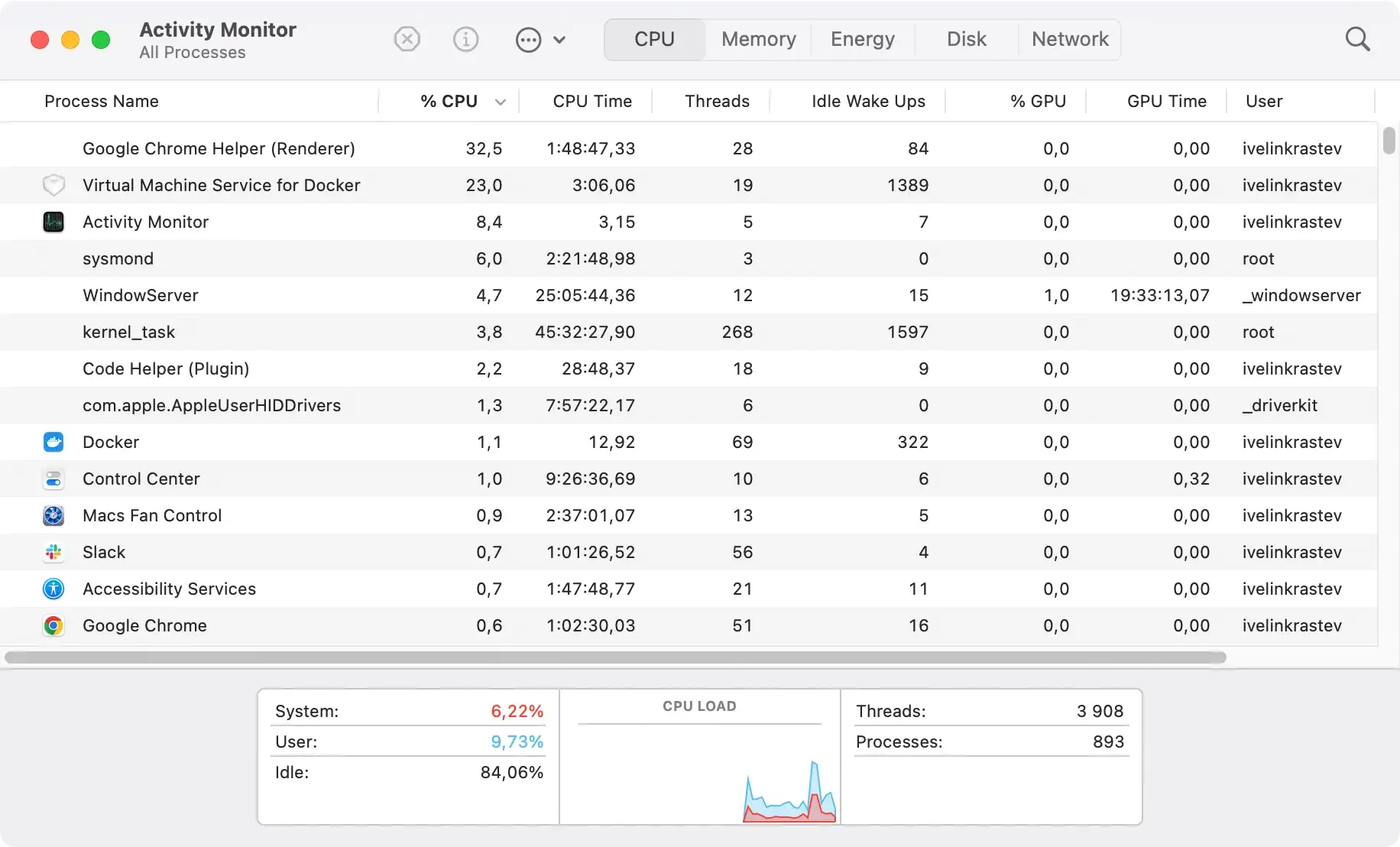
Next, go through your list of installed programs in Applications and uninstall any suspicious or unknown applications.

Following this, you should clean your browsers from extensions or add-ons linked to Myavids.com. It’s also recommended that your browsers reset their default settings to remove any lingering adware traces. Clear out your temp files and system cache, which can sometimes hide adware components.
Throughout this process, be vigilant and look for files or settings that seem out of place.
Adware often disguises itself, so it might not be immediately obvious which programs or files are malicious.
A quick online search can often clarify if you’re uncertain about a file or program. Ensuring the thorough removal of Myavids.com and related adware will help protect your privacy, improve system performance, and enhance your overall browsing experience.
Ensure complete Myavids.com removal with SpyHunter
SpyHunter offers a robust solution for those who want a more straightforward and less technical approach to removing Myavids.com adware.
SpyHunter is a powerful anti-malware tool that detects and removes threats like Myavids.com. To use SpyHunter, follow these steps:
- Download SpyHunter from the official website.
- Install the software by following the on-screen instructions.
- Once installed, launch SpyHunter and select the
Scan Nowoption to begin scanning your system for threats. - If Myavids.com or any other malicious software is detected, SpyHunter will display a list of threats. Select
Nextto remove these threats from your system. - After the removal process, you might need to reboot your computer to finalize it.
Using SpyHunter ensures the removal of Myavids.com and provides ongoing protection against future threats.

The software’s easy-to-navigate interface makes it accessible for users of all technical levels, ensuring your device stays secure without a steep learning curve.
Remove Myavids.com manually
Tech-savvy users might prefer a hands-on approach to removing Myavids.com adware. This process involves delving into system files and settings, which requires a certain level of expertise.
- Open
Finderand click onGo > Go to Folderin the top menu. - Paste the following directory paths in the new window that comes up and hit
Returnafter each one to examine them in order:/Library/LaunchAgents//Library/Application Support//Library/LaunchDaemons//Library/StartupItems/~/Library/LaunchAgents/~/Library/Application Support/~/Library/Preferences/

- Look for any files or folders inside those directory paths and manually delete any linked to the Myavids virus.
- Empty your
Trashto complete this step in full.
Finally, ensure all your browsers are free of extensions or add-ons related to Myavids.com, and consider resetting them to default settings to clear any lingering adware traces.
This manual method requires patience and precision, as missing even a single adware component can cause it to reappear. It’s a powerful option for those with the necessary technical skills, offering deep system cleaning and the satisfaction of hands-on problem-solving.
How can future adware infections like Myavids.com be prevented?
Protecting your digital space from adware like Myavids.com is crucial for maintaining a smooth and secure online experience.
Adware disrupts your browsing with unwanted ads and can compromise your privacy. Below are effective strategies to keep adware at bay.
Practices to safeguard your computer against adware
Adopting a proactive approach is key to ensuring your computer remains free from adware infections such as Myavids.com.
Following certain practices can significantly reduce the risk of adware finding its way onto your system.
These practices are easy to implement and can make a difference in keeping your computer clean and secure.
- Avoid dubious download sources: Avoid downloading software from pop-ups, torrent sites, file-sharing platforms, and other unreliable sources. These venues are often teeming with adware-laden programs.
- Opt for custom installation: Always choose the “Custom” or “Advanced” setup options during software installation. This allows you to deselect any additional, potentially unwanted programs (PUPs) bundled with your installed software.
- Limit unnecessary software: Only install programs that you truly need. Having fewer programs reduces the chances of inadvertently installing adware.
- Be vigilant with online ads: Excessive or unusual internet ads can indicate PUPs or adware on your computer. Being cautious can help you avoid clicking on something potentially harmful.
- Read terms and conditions: Always review the terms of service or user agreements when installing new software. This can help you spot and avoid agreeing to the installation of adware.
- Regularly check installed software: Periodically review your installed programs and remove any you no longer use or recognize. This helps remove any PUPs that might have slipped through.
- Install reputable anti-malware software: To add an extra layer of protection, install trusted anti-malware software that can detect and remove PUPs and adware. SpyHunter is an example of such software, offering robust protection against adware like Myavids.com. Regularly scan your computer with it to keep it adware-free.
These simple yet effective practices can significantly enhance your computer’s security and keep the Myavids virus at bay.
Preventing adware infections safeguards your computer’s performance and protects your personal information from potential threats.
