

Remove IncomeHatch Adware from Mac (Cleanup Guide)

Before we dive in
Before we dive in, let's make sure you stay safe online. We created SpyHunter because your security matters to us.
Protect your computer today — download SpyHunter right here! Check out our top tips below to keep your computer safe and secure.

Are you noticing an uptick in unwanted ads and pop-ups on your Mac? Meet IncomeHatch, a potentially unwanted application (PUA) causing a stir among Mac users.
While not a virus in the traditional sense, IncomeHatch’s capacity to infiltrate systems stealthily and bombard users with ads makes it a noteworthy nuisance.
This article delves into the heart of IncomeHatch, its effects on your Mac’s performance, and, most importantly, how to remove it from your Mac device.
Get ready to reclaim your seamless browsing experience with our comprehensive guide on tackling IncomeHatch and ensuring your Mac stays clean and secure.
What exactly is IncomeHatch?
IncomeHatch represents a concern for many Mac users who find their browsing experience interrupted by unwanted ads and pop-ups.
Despite its invasive nature, it’s important to understand that IncomeHatch is classified as a potentially unwanted application (PUA) rather than a virus.
Unlike malicious software designed to harm, IncomeHatch mainly aims to display advertisements, often leading to a compromised browsing experience without directly damaging the system or its files.
IncomeHatch: A Comprehensive Overview
Initially appearing harmless, IncomeHatch often sneaks into Mac computers without explicit consent from users. This stealthy approach can lead to frustration and confusion, especially when its origin is unknown.

Typically, IncomeHatch gets distributed through bundled software packages or deceptive ads, tricking users into unwitting installation.
Once active, it ingrains itself within the system, affecting browsers like Safari, Chrome, and Firefox by altering settings to push ads aggressively.
How IncomeHatch affects your Mac’s performance
IncomeHatch’s presence on your Mac can detrimentally impact its performance, browsing stability, and data security.
Here are the specific ways it can affect your system:
- Slows-Down Performance: IncomeHatch uses your system’s resources to run its processes, leading to noticeable slowdowns and reduced efficiency.
- Browser Instability: The adware injects numerous ads and causes redirects, making browsers crash or function unpredictably, hampering your online experience.
- Compromises Data Security: IncomeHatch tracks your browsing data and preferences. This surveillance has significant privacy implications, risking the exposure and misuse of your sensitive information.
Understanding these impacts is crucial for recognizing the need to remove IncomeHatch promptly to restore your Mac’s performance and protect your privacy.
Common signs of IncomeHatch adware on your Mac
Recognizing the presence of IncomeHatch on your Mac can be straightforward if you know what to look for. Typical indications include:
- Unexpected pop-up ads that appear frequently outside the context of the browser.
- Your web browser’s homepage changes without your input.
- Random web page text turns into hyperlinks.
- Sudden slowdowns in your Mac’s performance, especially when browsing the internet.
- Applications crashing or not working as smoothly as before.
Spotting these signs early can prevent further damage and potential privacy breaches associated with adware infections.
Remove IncomeHatch from your Mac (step-by-step guide)
Addressing the invasion of unwanted software like IncomeHatch on your Mac doesn’t have to be a stressful endeavor.
This step-by-step guide is designed to walk you through the process, ensuring your computer returns to its optimal state.
Initial Step: Terminate active IncomeHatch processes
Before diving into the removal process for IncomeHatch, it’s essential to halt any of its active processes.
This initial step prevents the adware from interfering with the cleanup efforts. Here’s how to do it:
- Navigate to your
Applicationsfolder, then open theUtilitiesfolder. OpenActivity Monitorfrom there. - In the app, use the search function at the top right corner to look for any processes related to IncomeHatch.
- If you find any active processes named after or associated with IncomeHatch, select them and click the [X] button on the window’s top-left to quit the process.
- Confirm the action if prompted.
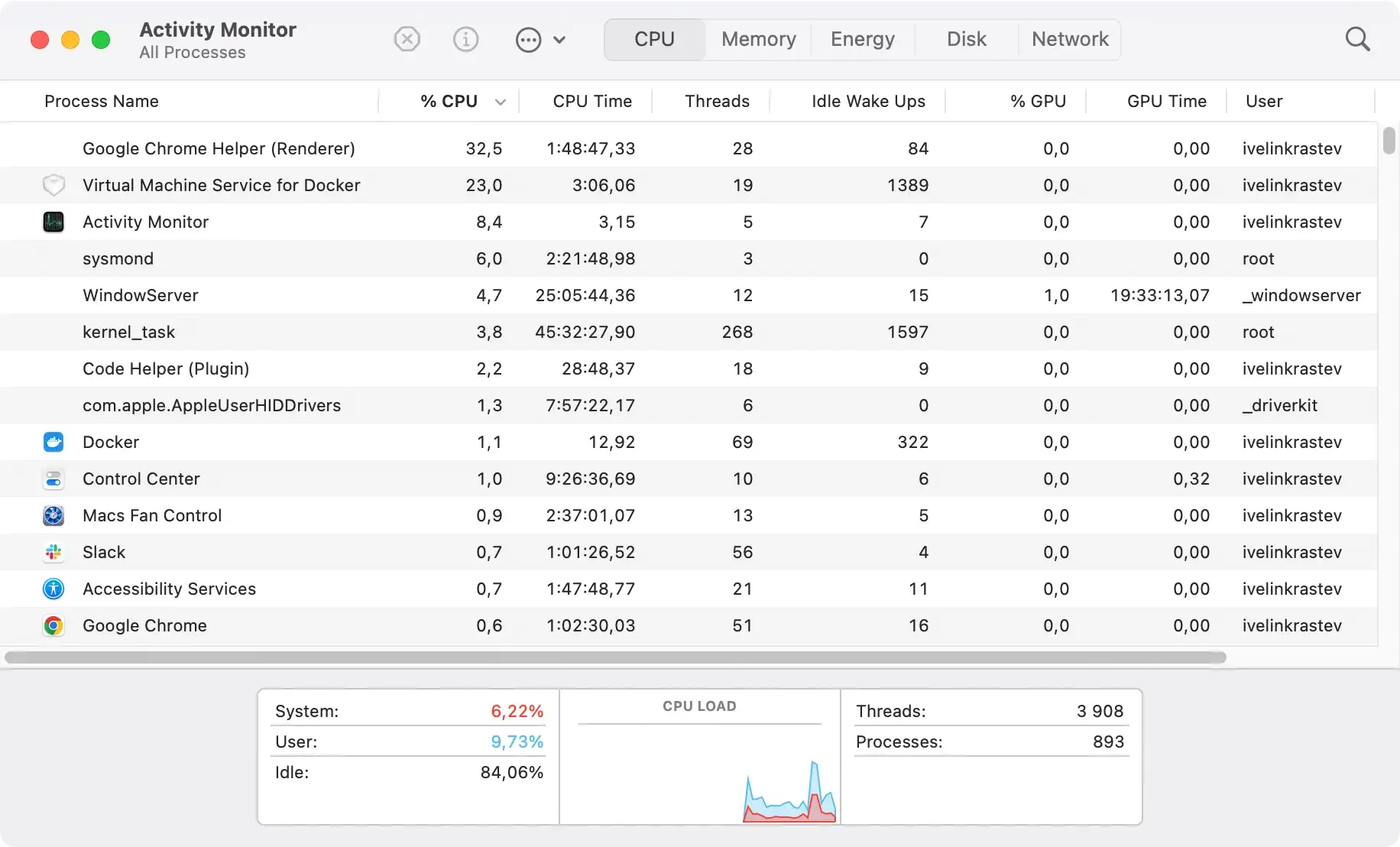
Completing this step ensures that IncomeHatch processes are not running in the background, paving the way for a smoother and more effective removal process.
Step 1: Locate and remove IncomeHatch application
Removing the IncomeHatch application is your first move in clearing the adware from your Mac.
Here’s how to effectively do it:
- Open Finder: Start by launching Finder on your Mac.
- Go to Applications: In the Finder sidebar, click
Applicationsto view all installed apps. - Find IncomeHatch: Scroll through the list or use the search function to find the IncomeHatch application.
- Move to Trash: Once located, right-click (or control-click) on the IncomeHatch app and select
Move to Trashfrom the contextual menu. Alternatively, you can drag the app icon to the Trash bin on your dock. - Empty the Trash: Empty the Trash to remove the IncomeHatch application permanently. Confirm the action if prompted.

Step 2: Find and delete IncomeHatch files
After uninstalling the IncomeHatch app, you must locate and delete any leftover files to ensure complete removal.
- Open Finder, click
Goin the menu bar, and choose theGo to Folderoption from the drop-down menu. - In the search bar, enter each folder individually and check for any files or folders related to IncomeHatch:
/Library/Application Support//Library/LaunchAgents//Library/LaunchDaemons/~/Library/Application Support/~/Library/LaunchAgents/~/Library/Caches/~/Library/Preferencesa/~/Downloads/
- If you find any files associated with IncomeHatch, drag them to the Trash. Be cautious when deleting items related to the adware to avoid accidentally removing important system or application files.
- To complete the cleanup, empty the Trash. Confirm to delete the files permanently.

Step 3: Eliminate IncomeHatch from web browsers
Adware like IncomeHatch often extends its reach to web browsers, adding extensions that can cause undesired ads and redirects.
Let’s address this by checking your browsers for any extensions related to IncomeHatch:
Delete IncomeHatch from Safari
- Open Safari and choose
Preferencesfrom the Safari menu. - Navigate to the
Extensionstab and find any extensions linked to IncomeHatch. - Select the unwanted extension and uninstall it.
Erase IncomeHatch from Google Chrome
- Launch Chrome and open the
Extensionsmenu by navigating throughMore Toolsin the settings menu. - Identify any extensions associated with IncomeHatch and remove them.
Remove IncomeHatch from Mozilla Firefox
- Open Firefox and access the
Add-onssection through the settings menu. - Look for IncomeHatch-related add-ons and delete them.
Cleansing your browsers from these pesky extensions is critical to regaining a seamless web experience.
Step 4: Remove IncomeHatch from your Mac with SpyHunter
For a comprehensive cleanup and to ensure that IncomeHatch is completely eradicated from your Mac, using SpyHunter is a highly effective final step.
SpyHunter is designed to detect and remove adware, malware, and other security threats.

Here’s how to use it:
- Download SpyHunter for free here and follow the installation instructions. You might need to enter your administrator password to authorize the installation.
- Launch SpyHunter and initiate a full system scan. The scan will meticulously search your Mac for traces of IncomeHatch and any other malicious software that may be hiding in your system.
- After the scan is complete, SpyHunter will list all detected threats. Review this list for any items identified as IncomeHatch or related to it.
- Follow the prompts to remove these threats from your Mac.
- Completing the removal process may require restarting your Mac. This ensures all changes take effect and IncomeHatch is entirely removed.

Using SpyHunter simplifies the removal process and provides an additional layer of security to prevent future adware infections.
With IncomeHatch and any associated threats removed, your Mac should be cleaner, faster, and more secure.
Best practices to maintain a Mac free of IncomeHatch
Keeping your Mac free from adware like IncomeHatch enhances your computing experience and fortifies your online security.
Here are effective measures to ensure your Mac remains protected:
- Regularly Update Software and MacOS: Stay ahead of adware by keeping your operating system and applications updated. Developers often patch security vulnerabilities through these updates. Enable automatic updates so that you never miss a critical security enhancement.
- Stay Informed about PUPs: Recognizing signs of Potentially Unwanted Programs (PUPs) is vital. Watch for unexpected ads, slow performance, unauthorized changes in browser settings, or unfamiliar toolbars and extensions. Regular checks and using reputable security software, such as SpyHunter, can help detect and remove these intruders efficiently.
- Adopt Proactive Security Measures:
- Download Wisely: Always use official or trusted sources for your software downloads. Verify authenticity to avoid disguised adware.
- Custom Installation: Opt for custom installation settings to deselect any bundled software that might be adware.
- Security Software: Implement reliable security software like SpyHunter for real-time protection against adware and malware. It can automatically handle threats and maintain your Mac’s health with regular scans.
Applying these strategies significantly lowers the risk of encountering IncomeHatch and similar adware.
Awareness, preventive actions, and integrating robust security tools like SpyHunter are your best defense against these unwanted applications, keeping your Mac safe and efficient.
Conclusion: Enjoy a clean, IncomeHatch-free Mac
Removing IncomeHatch is a big step towards maintaining your Mac’s performance and safeguarding your privacy. It’s a reminder of the need for vigilance in our digital lives. Using trusted cleaning tools can keep adware at bay, ensuring your Mac stays efficient and secure.
Practicing cautious online behavior—avoiding risky downloads and sites—minimizes adware risks. Utilizing robust antivirus software like SpyHunter offers an extra security layer proficient at removing threats like IncomeHatch and staying updated against new ones.
Ultimately, the battle against adware is ongoing. With knowledge, safe browsing practices, and reliable antivirus tools, you can keep your Mac—and your digital world—secure and optimized.
