

How To Remove GoSearches.gg Adware On Mac (Simple Guide)

Before we dive in
Before we dive in, let's make sure you stay safe online. We created SpyHunter because your security matters to us.
Protect your computer today — download SpyHunter right here! Check out our top tips below to keep your computer safe and secure.

If you’ve noticed unwanted changes in your Mac’s browser settings, mysterious redirects, or an increase in pop-up ads, you may be dealing with a browser hijacker like GoSearches.gg.
This intrusive program can alter your browsing experience, making it challenging to search the web without constant interruptions.
Fortunately, it’s possible to remove GoSearches.gg and regain control of your browser settings with a few simple steps. In this guide, we’ll walk you through the process.
What is GoSearches.gg?
GoSearches.gg is a browser hijacker that sneaks onto your Mac, usually by bundling itself with other software or extensions or installing as a rogue extension from a misleading website.
Once installed, it alters browser settings, changes the default search engine, and often redirects users to unwanted sites.
Unlike legitimate search engines, GoSearches.gg serves low-quality search results, often filled with ads and sponsored links that may pose security risks.
Browser hijackers like GoSearches.gg also generate pop-up ads and can cause redirects to potentially harmful sites.
This kind of behavior is disruptive and, in some cases, may expose users to further online threats, such as phishing scams or malware infections.
How browser hijackers like GoSearches.gg work
Browser hijackers usually disguise themselves as helpful tools, such as browser extensions or plugins, and often slip in unnoticed during the installation of other free software.
Many users unknowingly allow the installation by skipping over the fine print during software installations. Once on your Mac, a browser hijacker can do the following:
- Change your default search engine and homepage settings
- Redirect you to unknown sites
- Flood your screen with unwanted ads
- Slow down your browser’s performance
To regain control over your browser and protect your device from other potential threats, it’s important to remove GoSearches.gg as soon as possible.
Removing GoSearches.gg with SpyHunter
You can use SpyHunter – a dedicated and feature-rich anti-malware tool for Mac – to deal with GoSearches.gg and similar browser hijacking malware.
SpyHunter can scan your Mac, detect any malicious or potentially unwanted files and apps and remove them along with any leftover files they leave behind.
- Download the app here and install it on your Mac.
- Launch SpyHunter and run a system scan from the main menu.
- When the scan finishes, ensure all threats are selected for removal.

- Proceed with the automated cleanup process and enjoy a safer Mac.

How to remove GoSearches.gg from your Mac
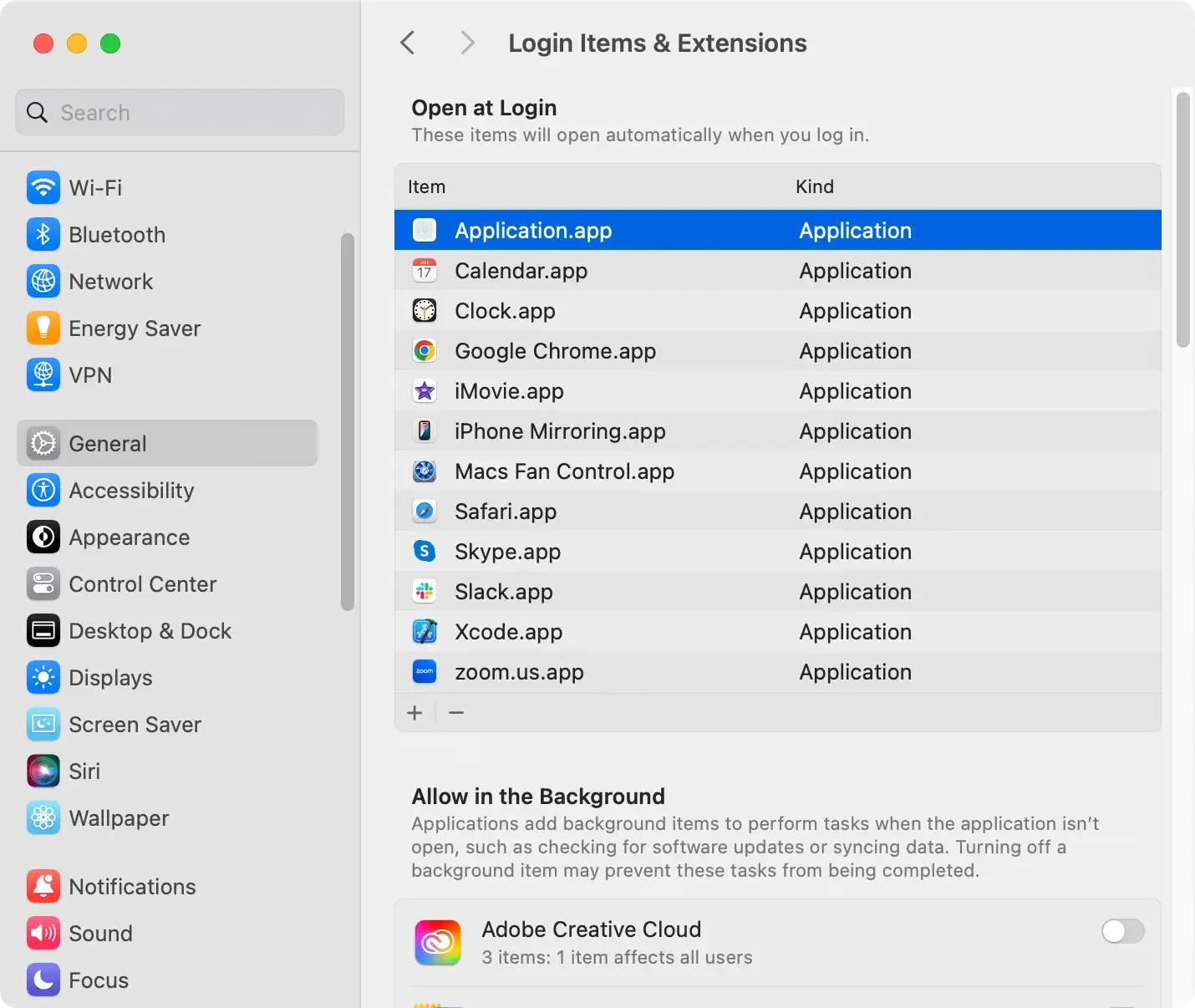
Step 1: Remove suspicious login items
- Go to
System Settings > General > Login Items & Extensions. - Look through the list of items and look for any named GoSearches.gg or any other suspicious ones you don’t recognize.
- Select any suspicious items and remove them using the minus button below the list.
- Reboot your Mac.
Step 2: Remove GoSearches.gg from your browsers
For Chrome:
- Open Google Chrome on your Mac.
- In the upper-right corner, click the three dots icon, then select
Settings. - On the left sidebar, choose
Extensions. - Look for any unfamiliar or suspicious extensions, especially ones related to GoSearches.gg. Click
Removenext to any suspicious extensions. - Return to
Settingsand go toSearch engineto verify that your default search engine is set to one you trust.
For Safari
- Open Safari on your Mac.
- Go to
Safari > Settings(orPreferences). - In the
Extensionstab, review the list of installed extensions and remove any unknown or suspicious ones, especially any associated with GoSearches.gg. - Next, go to the
Generaltab and check your homepage settings, changing them if GoSearches.gg has altered your homepage. - Finally, visit the
Searchtab to ensure your preferred search engine is set.
For Firefox
- Open Firefox on your Mac.
- Click the three lines icon in the top-right corner, then select
Add-ons and themes. - Go to the
Extensionssection and review the list of add-ons. Remove any you don’t recognize or suspect might be connected to GoSearches.gg. - Return to
Settingsand selectHomeandSearchto make sure your default homepage and search engine are set to ones you trust.
Step 3: Remove leftover files linked with GoSearches.gg
- From a
Finderwindow, clickGo > Go to Folderin the menu. - In the dialog window that comes up, enter the following paths in order:
/Library/LaunchAgents//Library/Application Support//Library/LaunchDaemons/~/Library/LaunchAgents/~/Library/Application Support/
- Look inside each of those path locations for any files or subfolders that may be linked with GoSearches.gg and delete them.
- Empty your
Trash.

How to prevent browser hijackers in the future
Removing GoSearches.gg is a step toward better browser security, but preventing future infections is essential. Here are some tips:
- Be cautious of free software: Many hijackers are bundled with free downloads. Always read the fine print and opt out of installing additional programs.
- Use official browser extensions only: Only download extensions from trusted sources, like the official Chrome Web Store, Safari Extensions Gallery, or Firefox Add-ons store.
- Install antivirus software: A reliable antivirus program can detect and block threats like GoSearches.gg before they get on your system.
- Keep your browser updated: Regularly updating your browser can protect it from security vulnerabilities that hijackers might exploit.
