

How to Remove Glims Adware from Mac (Step-by-Step Guide)

Before we dive in
Before we dive in, let's make sure you stay safe online. We created SpyHunter because your security matters to us.
Protect your computer today — download SpyHunter right here! Check out our top tips below to keep your computer safe and secure.

Are you experiencing a swarm of unwanted ads on your Mac and noticing odd changes in your browser settings? You might be dealing with Glims adware, a common nuisance for Mac users.
This article dives into what Glims adware is, how it affects your Mac and the steps you can take to eliminate this pesky software.
From understanding its tactics to learning about automated removal tools like SpyHunter for Mac and focusing on prevention and protection, we’re here to guide you through the process of reclaiming a smooth, secure online experience.
What is Glims adware on Mac?
Glims adware, often found on Mac computers, is a type of software that users typically download unintentionally. Its primary function is to make unauthorized changes to web browsers such as Safari, Google Chrome, and Mozilla Firefox.
These changes are not just annoying; they pave the way for a flood of advertisements, ranging from pop-up ads and banner ads to redirects and highlighted text ads. The goal behind these ads is simple: profit.
The creators of Glims adware earn money through pay-per-click schemes and other unsolicited advertising tricks. However, this means the safety and relevance of these ads are often overlooked, potentially leading users to harmful websites.
The potential risks posed by Glims adware
Glims adware introduces various risks and intrusions that can affect both your personal privacy and your Mac’s performance. Here is a breakdown of the potential issues:
- Privacy Concerns: Glims and similar adware use tracking technologies to gather data on your browsing activities. This information can include sites visited, search queries, and even personal preferences, which could be shared with third parties.
- Security Risks: By displaying ads from unknown sources, Glims increases the risk of exposure to phishing scams, malware, and other malicious content designed to steal personal information or compromise your device.
- Performance Issues: The adware can significantly slow down your Mac by using valuable system resources to display ads or redirect to unwanted web pages.
- Unwanted Changes: Glims can alter browser settings without permission, changing your homepage or search engine. These changes can be annoying and time-consuming to reverse.
Common symptoms of having Glims on your Mac
Understanding the signs of Glims adware infection can help you take swift action to protect your Mac. Keep an eye out for the following symptoms:
- Unwanted Advertisements: An evident sign of Glims adware is an increase in pop-ups, banner ads, and other intrusive advertisements that seem out of place or irrelevant to the web pages you visit.
- Browser Modifications: The adware may change your homepage and search engine, or add new toolbars and extensions without your consent. These changes can significantly alter your browsing experience.
- Redirects: Clicking on links or ads may redirect you to unknown, potentially harmful websites, often promoting more ads or scams.
- Slower Computer Performance: Adware can consume your system’s resources, leading to noticeably slower computer performance or browser speeds.
Remove Glims from your Mac
Removing Glims adware from your Mac can be simplified with a structured approach. This guide walks through each phase of the manual removal process, ensuring you can reclaim your system without needing extensive technical knowledge.
Remove the Glims adware application
The first step towards clearing Glims is removing the application. Here is how you can do that:
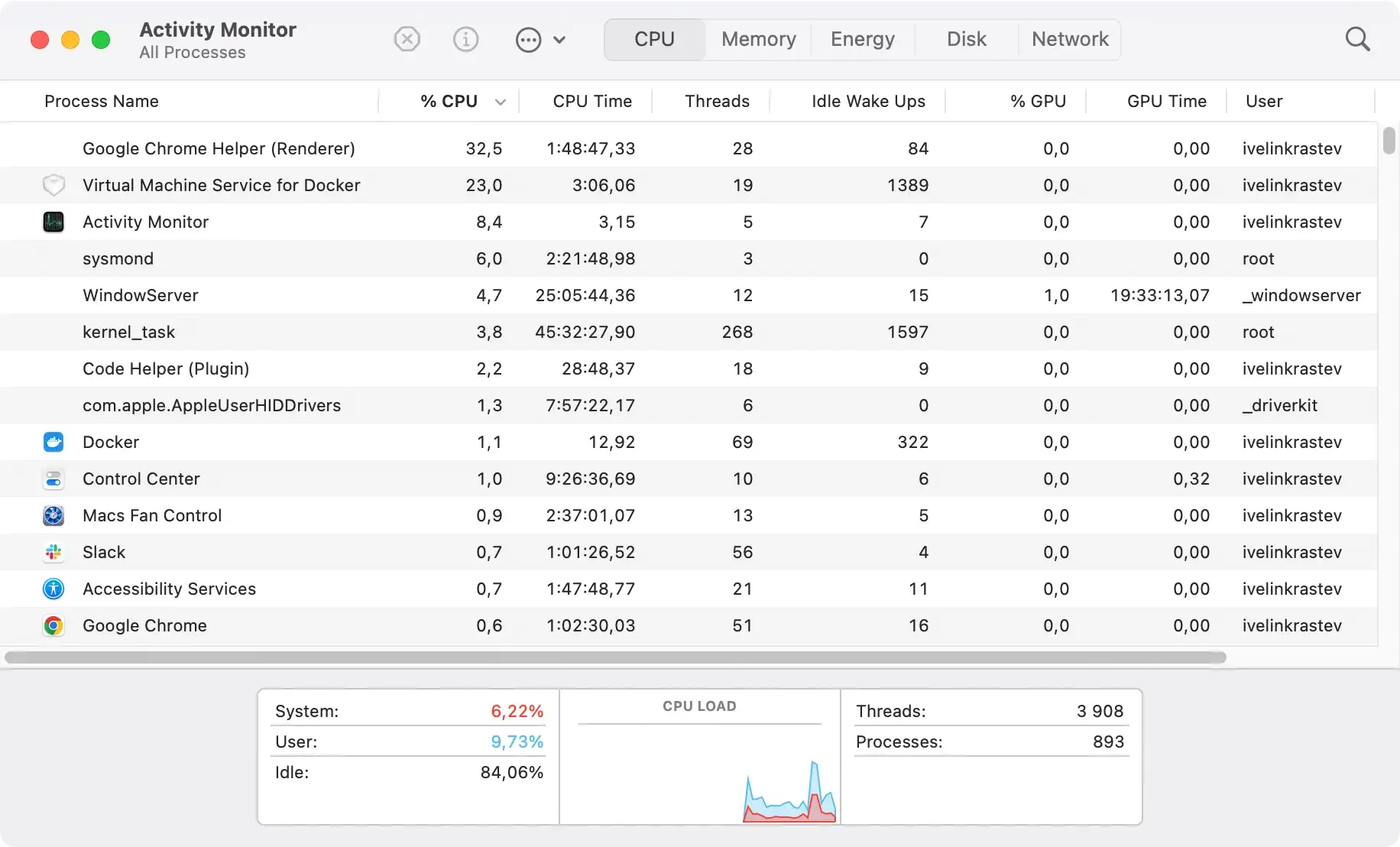
- Quit Glims: Make sure the application is not running. Use
Activity Monitorto force quit Glims if you need to.
- Open Finder: Click on
Finderto start the removal process. - Navigate to Applications: In the
Findersidebar, clickApplicationsto see all your installed apps. - Locate Glims: Scroll through or use the search feature to find Glims.
- Move to Trash: Drag and drop Glims onto the
Trashicon, or right-click and selectMove to Trashfrom the menu. - Empty Trash: Right-click the
Trashicon in your dock and selectEmpty Trashto permanently remove Glims.

Locate and delete Glims adware files
Finding and deleting Glims adware leftover files involves a few additional steps:
- Access Library folder: In a new Finder window, select
Gofrom the top menu, hold down theOptionkey, and clickLibraryto access hidden system files. - Search for Glims leftover files: Using the search bar, look for any remaining files or folders connected to Glims, going over the following locations:
~/Library/Application Support/~/Library/Caches/~/Library/Preferences/~/Library/LaunchAgents//Library/LaunchDaemons//Library/LaunchAgents/
- Delete Glims files: If you run into leftover files related to Glims, drag them onto the
Trashcan. Be careful during this step to avoid accidentally deleting unrelated or system files. - Empty Trash: Repeat emptying your
Trashto ensure all leftover Glims files have been permanently deleted.
Clear your browser of any Glims adware traces
After dealing with system files, the next step is to clean your browsers of any lingering adware components.
For each browser installed on your Mac (Safari, Chrome, Firefox), access the settings or preferences menu. Look for sections related to extensions or add-ons and scrutinize each entry for anything linked to Glims. Remove any suspicious extensions or entries containing Glims in their names.
Remove Glims using SpyHunter
If you are feeling cautious about doing the manual work of cleaning Glims and any leftover files, you can use SpyHunter to streamline the cleaning process.
SpyHunter is an application designed to protect your Mac from adware, among other threats, and detect and remove malware.
Here is what you can do to remove Glims using SpyHunter:
- Download SpyHunter and complete the simple instructions to finish the install.
- Launch SpyHunter from your
Applicationsfolder. - Run a full system scan and wait a short while for the results.

- Once the scan is complete, go through the results list to find Glims and select it, then proceed with removal.
- SpyHunter will eliminate the adware from your Mac, along with any leftover files.

Enjoy a Mac free of Glims and other adware
To keep your device clean, efficient, and secure from threats, it’s important to adopt certain protective measures. Regularly updating your Mac and installed applications ensures you have the latest security patches. Using a trusted anti-malware tool, like SpyHunter for Mac, provides real-time protection and helps identify and remove unwanted programs. Practicing safe browsing habits, such as avoiding suspicious ads or links, reduces the risk of adware infections.
Additionally, periodically review and uninstall unfamiliar or unnecessary applications. Enable your Mac’s built-in firewall to block unauthorized connections, and be cautious with email attachments by only opening those from trusted sources. By following these steps, you can effectively protect your Mac from Glims and other common threats, ensuring a secure and efficient operating environment.
