How To Remove BrowserConnection Adware On Mac [Easy Fix]

Before we dive in

Before we dive in, let's make sure you stay safe online. We created SpyHunter because your security matters to us.

Protect your computer today — download SpyHunter right here! Check out our top tips below to keep your computer safe and secure.

Download SpyHunter

Adware can be a nuisance for Mac users, disrupting workflows and compromising online safety.

One such threat, BrowserConnection, has been increasingly reported by users seeking solutions.

This guide explains what BrowserConnection is, how it affects your system, and, most importantly, how to remove it step by step.

What is BrowserConnection adware?

BrowserConnection is a type of adware belonging to the AdLoad family, a notorious strain of Mac malware.

Adware like this sneaks into your Mac, often bundled with free software downloads or fake updates, and infiltrates your system to deliver unwanted ads.

BrowserConnection works by injecting rogue advertisements into web pages you visit or redirecting your browser to suspicious websites.

Adware such as BrowserConnection often partners with rogue advertising networks to push misleading pop-ups, browser notification spam, and even fake virus alerts.

How BrowserConnection adware affects your Mac

Adware doesn’t just clutter your browsing experience; it can also lead to serious privacy and security risks. Here’s how:

  • Once installed, BrowserConnection floods your browser with intrusive ads that can redirect you to malicious websites, exposing your system to more malware or phishing schemes.
  • Adware collects your browsing habits, search queries, and other online activities. This data is often shared with third parties, compromising your privacy.
  • BrowserConnection can significantly slow down your Mac’s performance by running background processes and injecting scripts into your browser.
  • Some ads and redirects may lead to phishing pages that can steal your personal information.

How to remove BrowserConnection on Mac

Removing BrowserConnection adware involves a combination of manual and automated steps. Follow this detailed guide to clean your Mac thoroughly.

Step 1: Remove BrowserConnection from Applications

  1. Click on the Finder icon in your dock and click on Applications.
  2. Look for any suspicious or unfamiliar apps, especially one named BrowserConnection.
  3. Right-click on the suspicious app and select Move to Trash.
  4. Empty your Trash.
delete a program from applications using finder

Step 2: Remove leftover files

Even after deleting the app, leftover files can linger in your Mac’s system directories.

Follow these steps to remove them:

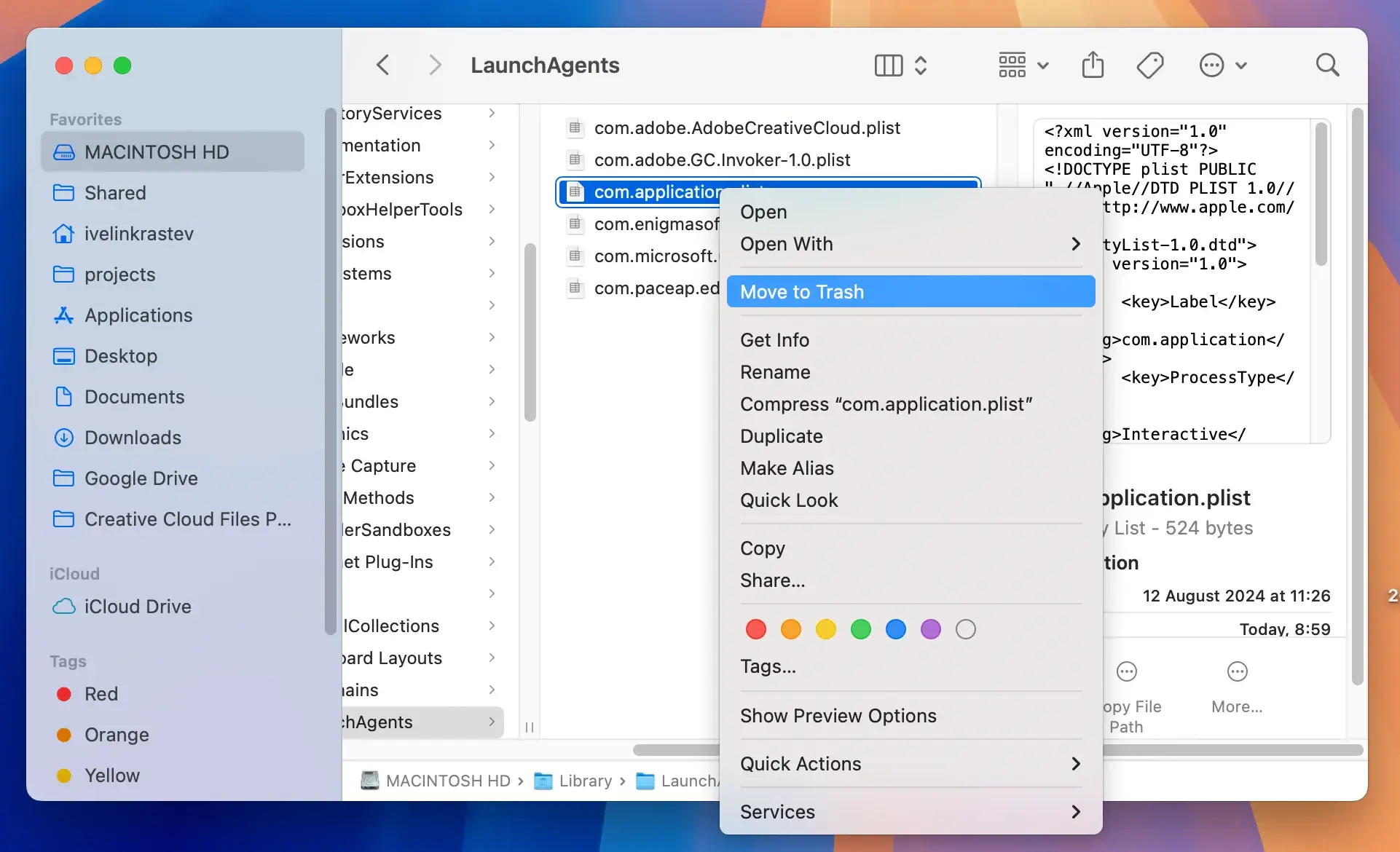
  1. Open Finder and press Command + Shift + G to open the Go to Folder dialog.
  2. Type the following directories one at a time and look for suspicious files:
    • /Library/LaunchAgents/
    • /Library/Application Support/
    • /Library/LaunchDaemons/
    • ~/Library/LaunchAgents/
    • ~/Library/Application Support/
  3. If you find any files associated with BrowserConnection, move them to the Trash and empty it.
delete files and folders from the library folder

Step 3: Reset your browsers

Adware often modifies your browser settings to ensure it remains active. Reset your browser to its default settings to remove any lingering effects:

For Safari

  1. Open Safari, select Preferences and go to the Extensions tab.
  2. Remove any suspicious extensions.
  3. Go to the Privacy tab and click Manage Website Data.
  4. Select Remove All to clear website data.

For Chrome

  1. Open Chrome and click on the three-dot menu button.
  2. Go to Settings > Reset settings.
  3. Click Restore settings to their original defaults and confirm.

For Firefox

  1. Open Firefox and click on the three-line menu button.
  2. Select Help > Troubleshooting information.
  3. Click Refresh Firefox and confirm.

Step 4: Use SpyHunter for complete removal

Manual removal can be time-consuming and may not catch all adware components.

SpyHunter is a reliable anti-malware tool that can detect and remove BrowserConnection adware effectively. Here’s how to use it:

  1. Download the app here and install it.
  2. Launch SpyHunter and start a full scan to identify any adware or malware on your Mac.

remove adware and browser hijackers with spyhunter
  1. Once the scan completes, remove all detected threats, including BrowserConnection.
  2. Reboot your Mac if necessary.
remove malware, viruses, and potentially unwanted programs with spyhunter for mac

How to prevent adware infections

Keeping your Mac safe from adware requires a proactive approach. Follow these tips to avoid infections:

  • Avoid third-party download sites and stick to official websites or the Mac App Store.
  • Adware often spreads through fake update prompts. Always verify updates through official channels.
  • Install and regularly run anti-malware software like SpyHunter to detect and block threats.
  • Avoid clicking on suspicious ads or visiting questionable websites.
Share this post on your favorite social media
Keep Your Mac Fast and Secure
Optimize your Mac and stay malware-free with SpyHunter

For a better understanding of our policies, please review our Free Trial Offer below, EULA, and Privacy/Cookie Policy.

SpyHunter Free Trial: Important Terms & Conditions

The SpyHunter Trial version includes, for one device, a one-time 7-day Trial period for SpyHunter 5 Pro (Windows) or SpyHunter for Mac, offering comprehensive malware detection and removal functionality, high-performance guards to actively protect your system from malware threats, and access to our technical support team via the SpyHunter HelpDesk. You will not be charged upfront during the Trial period, although a credit card is required to activate the Trial. (Prepaid credit cards, debit cards, and gift cards are not accepted under this offer.) The requirement for your payment method is to help ensure continuous, uninterrupted security protection during your transition from a Trial to a paid subscription should you decide to purchase. Your payment method will not be charged a payment amount upfront during the Trial, although authorization requests may be sent to your financial institution to verify that your payment method is valid (such authorization submissions are not requests for charges or fees by EnigmaSoft but, depending upon your payment method and/or your financial institution, may reflect on your account availability). You can cancel your Trial by contacting EnigmaSoft’s payment processor (identified in your confirmation email) or EnigmaSoft directly no later than two business days before the 7-day Trial period expires to avoid a charge coming due and being processed immediately after your Trial expires. If you decide to cancel during your Trial, you will immediately lose access to SpyHunter. If, for any reason, you believe a charge was processed that you did not wish to make (which could occur based on system administration, for example), you may also cancel and receive a full refund for the charge any time within 30 days of the date of the purchase charge. See FAQs.

At the end of the Trial, you will be billed upfront immediately at the price and for the subscription period as set forth in the offering materials and registration/purchase page terms (which are incorporated herein by reference; pricing may vary by country per purchase page details) if you have not timely canceled. Pricing typically starts at $72 for 3 months (SpyHunter Pro Windows) and $42 for 3 months (SpyHunter for Mac). Your purchased subscription will be automatically renewed in accordance with the registration/purchase page terms, which provide for automatic renewals at the then applicable standard subscription fee in effect at the time of your original purchase and for the same subscription time period, provided you’re a continuous, uninterrupted subscription user. Please see the purchase page for details. Trial subject to these Terms, your agreement to EULA/TOS, Privacy/Cookie Policy, and Discount Terms. If you wish to uninstall SpyHunter, learn how.

For payment on the automatic renewal of your subscription, an email reminder will be sent to the email address you provided when you registered before your next payment date. At the onset of your trial, you will receive an activation code that is limited to use for only one Trial and for only one device per account. Your subscription will automatically renew at the price and for the subscription period in accordance with the offering materials and registration/purchase page terms (which are incorporated herein by reference; pricing may vary by country per purchase page details), provided that you are a continuous, uninterrupted subscription user. For paid subscription users, if you cancel, you will continue to have access to your product(s) until the end of your paid subscription period. If you wish to receive a refund for your then current subscription period, you must cancel and apply for a refund within 30 days of your most recent purchase, and you will immediately stop receiving full functionality when your refund is processed.

For CALIFORNIA CONSUMERS, please see the notice provisions:
NOTICE TO CALIFORNIA CONSUMERS: Per the California Automatic Renewal Law, you may cancel a subscription as follows:

  1. Go to www.enigmasoftware.com and click the "Login" button at the top right corner.
  2. Log in with your username and password.
  3. In the navigation menu, go to "Order/Licenses." Next to your order/license, a button is available to cancel your subscription if applicable. Note: If you have multiple orders/products, you will need to cancel them on an individual basis.

Should you have any questions or problems, you can contact our EnigmaSoft support team by phone at +1 (888) 360-0646 (USA Toll-Free) / +353 76 680 3523 (Ireland/International) or by email at support@enigmasoftware.com.
How do you cancel a SpyHunter Trial? If your SpyHunter Trial was registered via MyCommerce, you can cancel the trial via MyCommerce by logging into the MyAccount section of MyCommerce (see your confirmation email for further details). You can also contact MyCommerce by phone or email to cancel. To contact MyCommerce via phone, you can call +1-800-406-4966 (USA Toll-Free) or +1-952-646-5022 (24x7x356). You can contact MyCommerce by e-mail at ordersupport@mycommerce.com. You can easily identify if your trial was registered via MyCommerce by checking the confirmation emails that were sent to you upon registration. Alternatively, all users may also contact EnigmaSoft Limited directly. Users can contact our technical support team by emailing support@enigmasoftware.com, opening a ticket in the SpyHunter HelpDesk, or calling +1 (888) 360-0646 (USA) / +353 76 680 3523 (Ireland/International). You can access the SpyHunter HelpDesk from SpyHunter's main screen. To open a support ticket, click on the "HelpDesk" icon. In the window that appears, click the "New Ticket" tab. Fill out the form and click the "Submit" button. If you are unsure of what "Problem Type" to select, please choose the "General Questions" option. Our support agents will promptly process your request and respond to you.

———

SpyHunter Purchase Details
You also have the choice of subscribing to SpyHunter immediately for full functionality, including malware removal and access to our support department via our HelpDesk, typically starting at $42 for 3 months (SpyHunter Basic Windows) and $42 for 3 months (SpyHunter for Mac) in accordance with the offering materials and registration/purchase page terms (which are incorporated herein by reference; pricing may vary by country per purchase page details). Your subscription will automatically renew at the then applicable standard subscription fee in effect at the time of your original purchase subscription and for the same subscription time period, provided you’re a continuous, uninterrupted subscription user and for which you will receive a notice of upcoming charges before the expiration of your subscription. Purchase of SpyHunter is subject to the terms and conditions on the purchase page, EULA/TOS, Privacy/Cookie Policy and Discount Terms.

———

General Terms
Any purchase for SpyHunter under a discounted price is valid for the offered discounted subscription term. After that, the then applicable standard pricing will apply for automatic renewals and/or future purchases. Pricing is subject to change, although we will notify you in advance of price changes.
All SpyHunter versions are subject to your agreeing to our EULA/TOS, Privacy/Cookie Policy, and Discount Terms. Please also see our FAQs and Threat Assessment Criteria. If you wish to uninstall SpyHunter, learn how.